


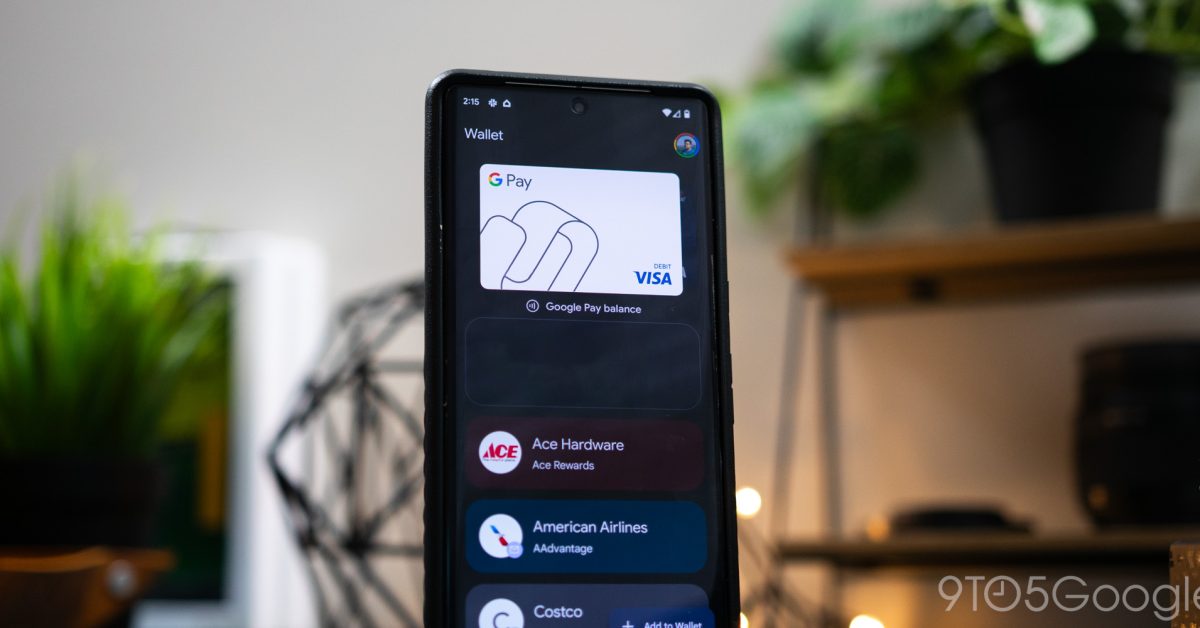
Google Wallet is a convenient platform for storing various digital passes, including loyalty cards, event tickets, and boarding passes. Typically, when you receive a digital pass, there’s a straightforward “Add to Google Wallet” button that allows for easy integration. However, some users occasionally find this button missing, preventing them from saving their passes directly.

Understanding the Issue
The absence of the “Add to Google Wallet” button can be frustrating. This often occurs when the pass provider’s implementation doesn’t fully support the direct integration method, or there’s a temporary glitch. While the button might not be visible, there’s usually an underlying mechanism that still allows the pass to be added.
The Simple Workaround
Fortunately, a simple trick can help bypass this problem. Instead of looking for the explicit “Add to Google Wallet” button, users can often leverage the standard sharing functionality available on their device.
Steps to Add a Pass Without the Button:
- Locate the Share Option: When viewing your digital pass (e.g., in an email, a web page, or a dedicated app), look for a general “Share” icon or option. This is usually represented by an icon with three connected dots or an arrow pointing upwards/rightwards.
- Select Google Wallet: Tapping the “Share” option will bring up a list of applications you can share the content with. Scroll through this list and select “Google Wallet.”
- Confirm and Save: Google Wallet should then process the pass data. You will likely be prompted to review the pass details and confirm that you want to add it to your wallet. Follow the on-screen instructions to complete the process.
This method effectively forces the pass data into Google Wallet, even if the direct integration button is not present. It’s a useful trick for ensuring all your important digital passes are stored in one accessible location.
