



Familiarity with Windows networking commands like ping and tracert might lead one to question their availability in Linux environments, including WSL. The good news is that these functionalities are indeed present.
ping
The simplest way to use ping in the Linux and WSL command line is to use ping followed by an IP address or domain name.
ping google.com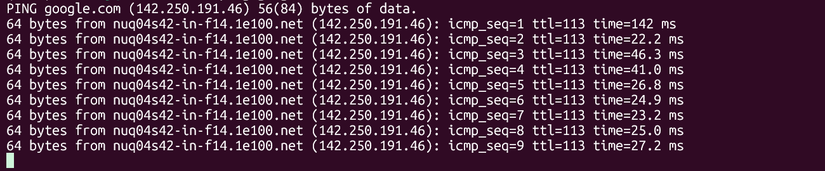
ping 127.0.0.1
Pinging the “loopback device” targets the local machine’s interface. The ping command helps determine if a host is active or responding to requests. Note that some hosts might be operational but configured to reject ping requests for security reasons. It’s also useful for checking if a website is inaccessible only to you or to everyone.
The default behavior of ping differs between Linux and Windows. On Windows, ping executes four times and then stops. In contrast, on Linux, ping runs continuously until manually stopped by pressing Ctrl + c, after which it displays statistics about the transmitted and received packets.

To limit the number of ping requests, use the -c option. For example, to ping a host four times:
ping -c 4 google.com
tracert: traceroute or tracepath on Linux
Another valuable network diagnostic utility in Windows is tracert. This tool allows tracing a network path from your system through various nodes to a destination machine. While not always completely reliable due to some intermediate hosts not responding, it remains useful for diagnosing connectivity issues to a site.
In Linux, the equivalent command has a different name. You can try running traceroute:
traceroute example.comAlternatively, the tracepath command can be used:
tracepath example.com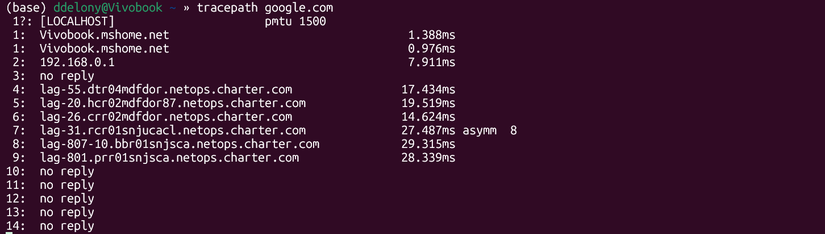
Depending on your Linux distribution, you might need to install an additional package for these commands to work. If they fail, search your package manager for the necessary installation.
As an alternative, consider installing MTR, a utility that combines the functions of ping and traceroute. To install it on Ubuntu, use:
sudo apt install mtrMTR can be invoked with a hostname or IP address, similar to ping and traceroute:
mtr howtogeek.comBy default, MTR opens a GUI window and continuously repeats the traceroute. To display MTR output directly in the terminal, use the -t option:
mtr -t howtogeek.com
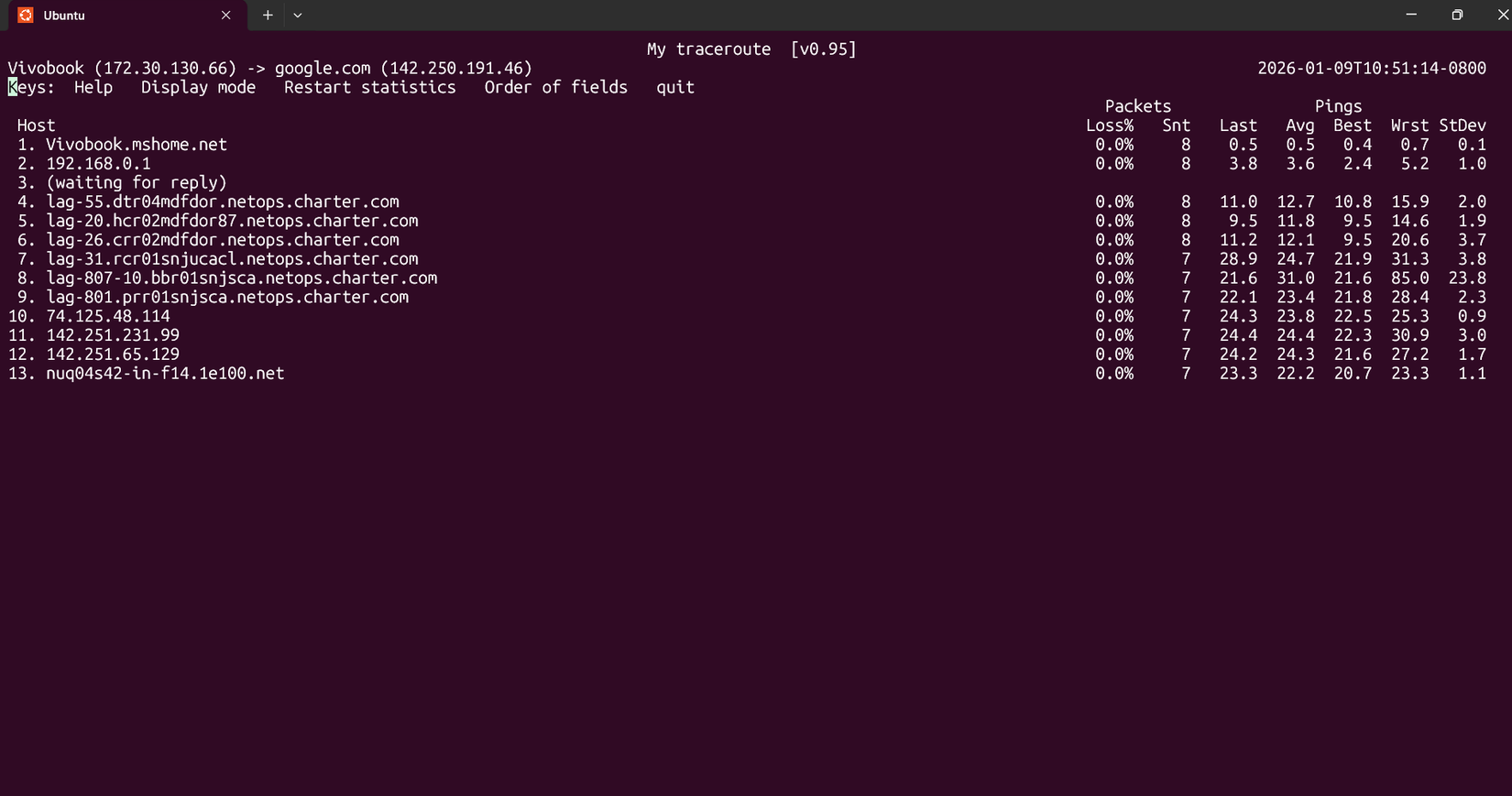
This behavior can be automated by setting the MTR_OPTIONS environment variable:
export MTR_OPTIONS="-t"Adding this to your .bashrc or .zshrc files will ensure it’s set every time a new terminal is launched.
With this configuration, MTR will execute within the terminal window.
A key distinction of MTR from standard traceroutes is its ability to display statistics for each node, much like ping. It provides the shortest, longest, and average ping times for each node, along with the standard deviation, indicating the spread of ping times around the average.
ipconfig – Just ip on Linux
The ipconfig command in Windows is used to view network configuration details. While ifconfig was its Linux counterpart, the modern equivalent is simply ip.
To list all network interfaces on your system:
ip link
To display the IP address:
ip address
In WSL2, the default output will show the address of the WSL virtual machine. For managing the network connection of your Windows system directly, it is generally recommended to do so from the Windows side.
netstat – Use lsof or ss
To inspect all active network connections, perhaps to check for unauthorized access or to see which applications are communicating externally, Windows uses the netstat command. Linux also offers equivalent tools.
lsof is a common utility for examining open files. In Linux, network connections are treated as files. Running lsof in the shell will display all files opened by running Linux applications:
lsof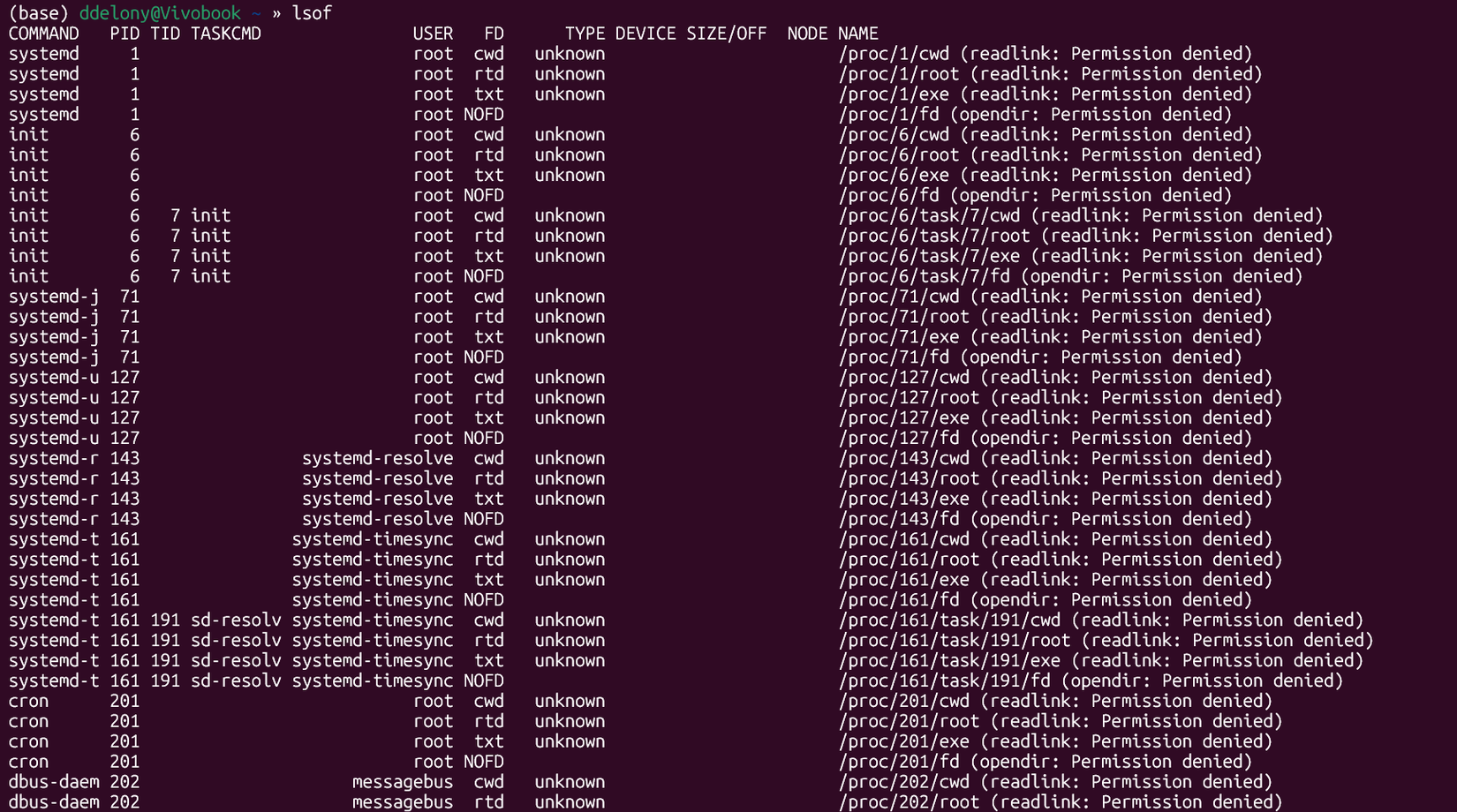
To specifically view all internet connections, use the -i option:
lsof -iOn Linux, the ss command also provides information about open sockets, similar to netstat:
ss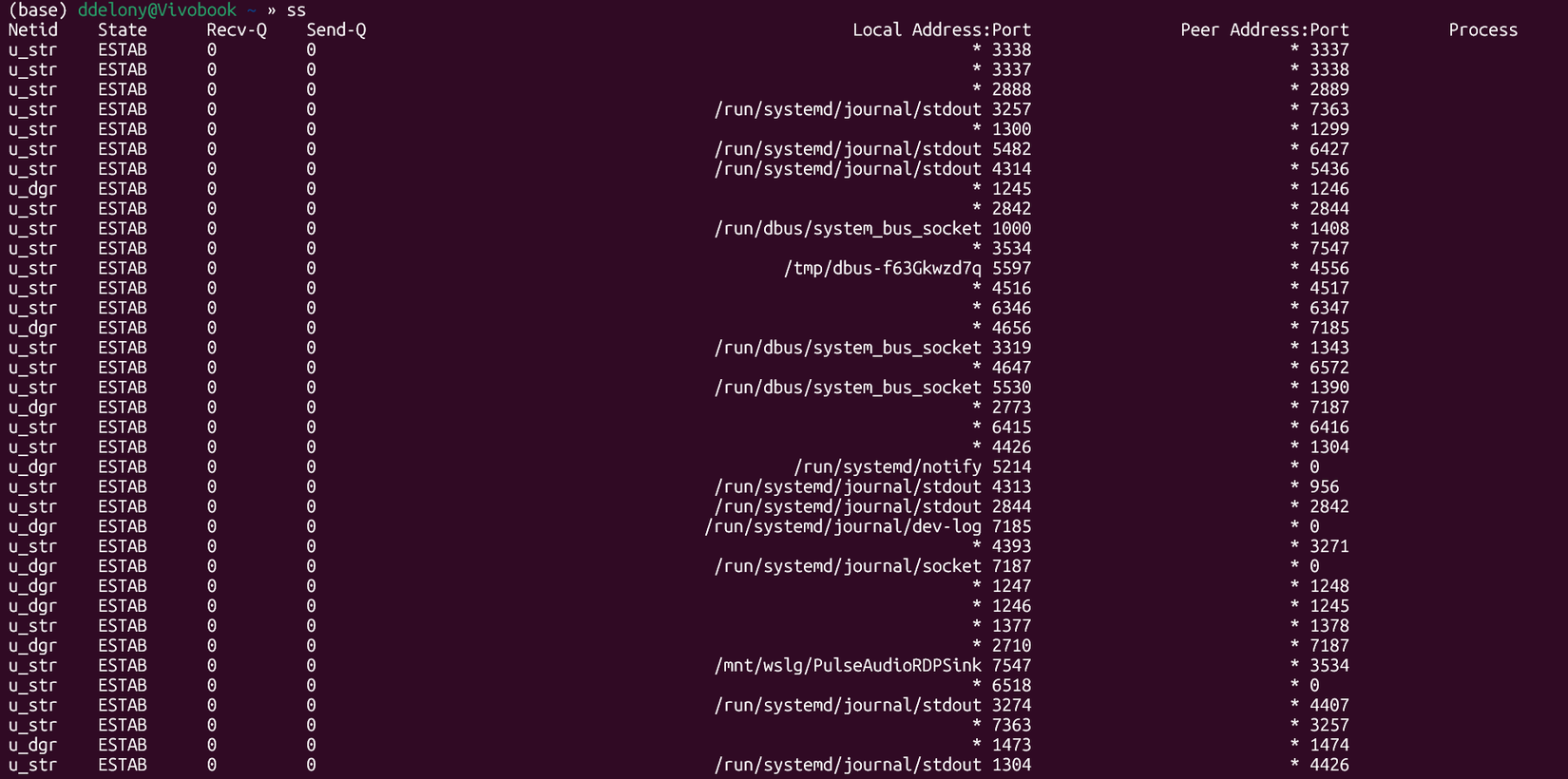
A consideration when using WSL is that these utilities will only show connections originating from the Linux subsystem. To examine Windows processes, one can utilize the Windows netstat utility from within WSL, as described later in this article.
nslookup: Use nslookup or dig in Linux instead
To identify the domain name servers associated with a domain, Windows users typically employ the nslookup utility. Linux provides similar functionality.
A comparable nslookup command exists on Linux:
nslookup howtogeek.com
The dig utility is another option:
dig howtogeek.com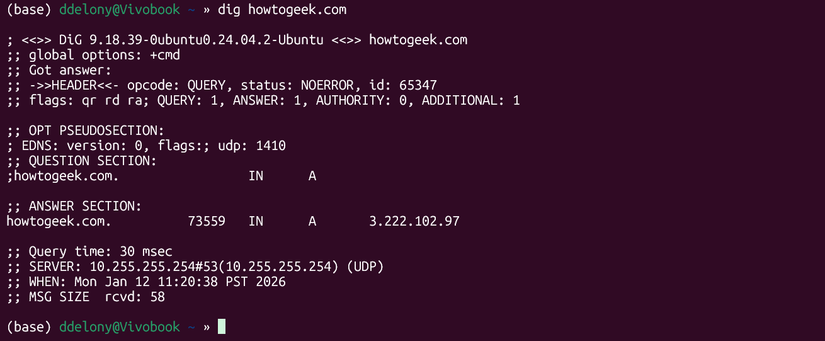
Both commands will display the name servers for the specified domain name, such as howtogeek.com.
Depending on your Linux system, these tools might not be pre-installed. For instance, they were not included by default in the Ubuntu distribution for WSL. To acquire them, you will need to install the “bind9-dnsutils” package.
Installation is straightforward using apt:
sudo apt install bind9-dnsutils Bonus tip: Use both Linux and Windows commands in WSL
When working with WSL, it is possible to combine both Linux and Windows commands seamlessly.
From the Linux terminal, you can execute the Windows version of a command by appending “.exe” to it. For example, to run the Windows netstat command:
netstat.exe
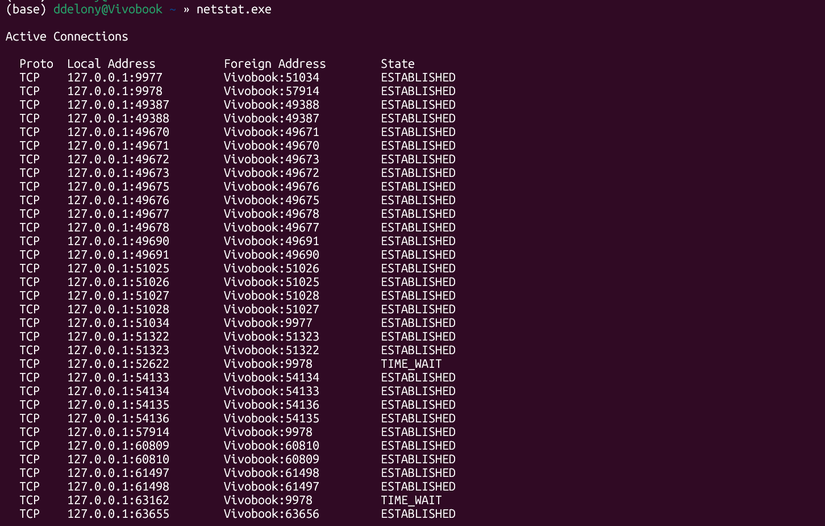
Conversely, from the Windows side, Linux commands can be run using the wsl command. To execute the Linux ping from PowerShell using the default Linux distribution:
wsl ping google.com
Transitioning from Windows command-line networking tools to Linux is straightforward, and WSL further enhances this by allowing the execution of commands from both operating systems. Many Windows commands share similarities with their Unix-like counterparts due to their historical origins.
