


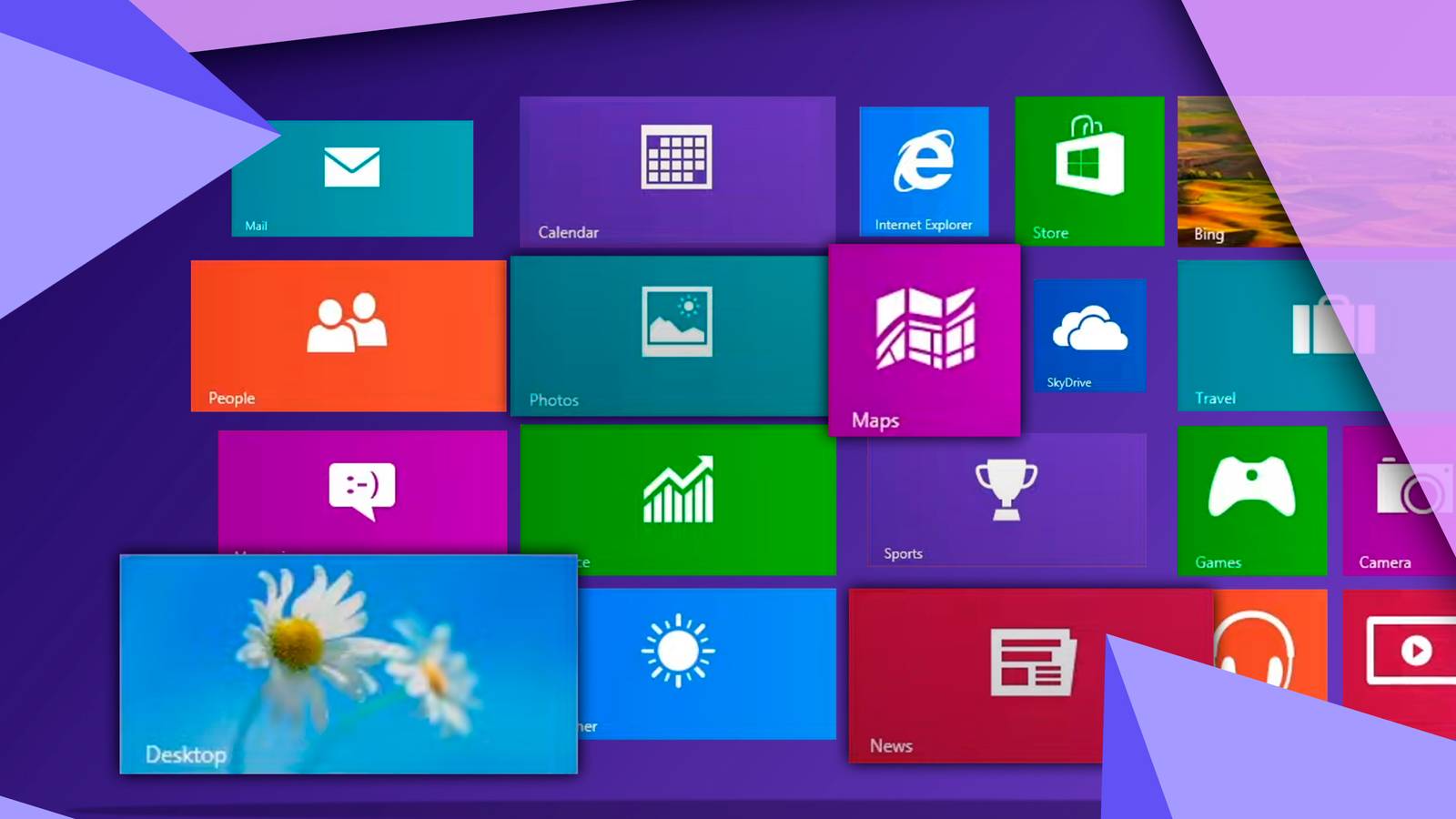
Upon its release, Windows 8 introduced a new user interface that immediately piqued interest. Years later, it became clear that many users disliked the changes it brought. A recent re-evaluation aimed to understand the reasons behind its reception.
Installing Windows 8
Since Microsoft no longer supports Windows 8, obtaining it requires alternative sources, such as Archive.org, where an ISO package for Windows 8.1 was found. The installation process revealed significant differences from contemporary operating systems.
The Windows 11 installer takes about 50 minutes to install the OS, including onboarding, and necessitates an active internet connection. It also mandates logging in with a Microsoft account and even displays advertisements during the process. 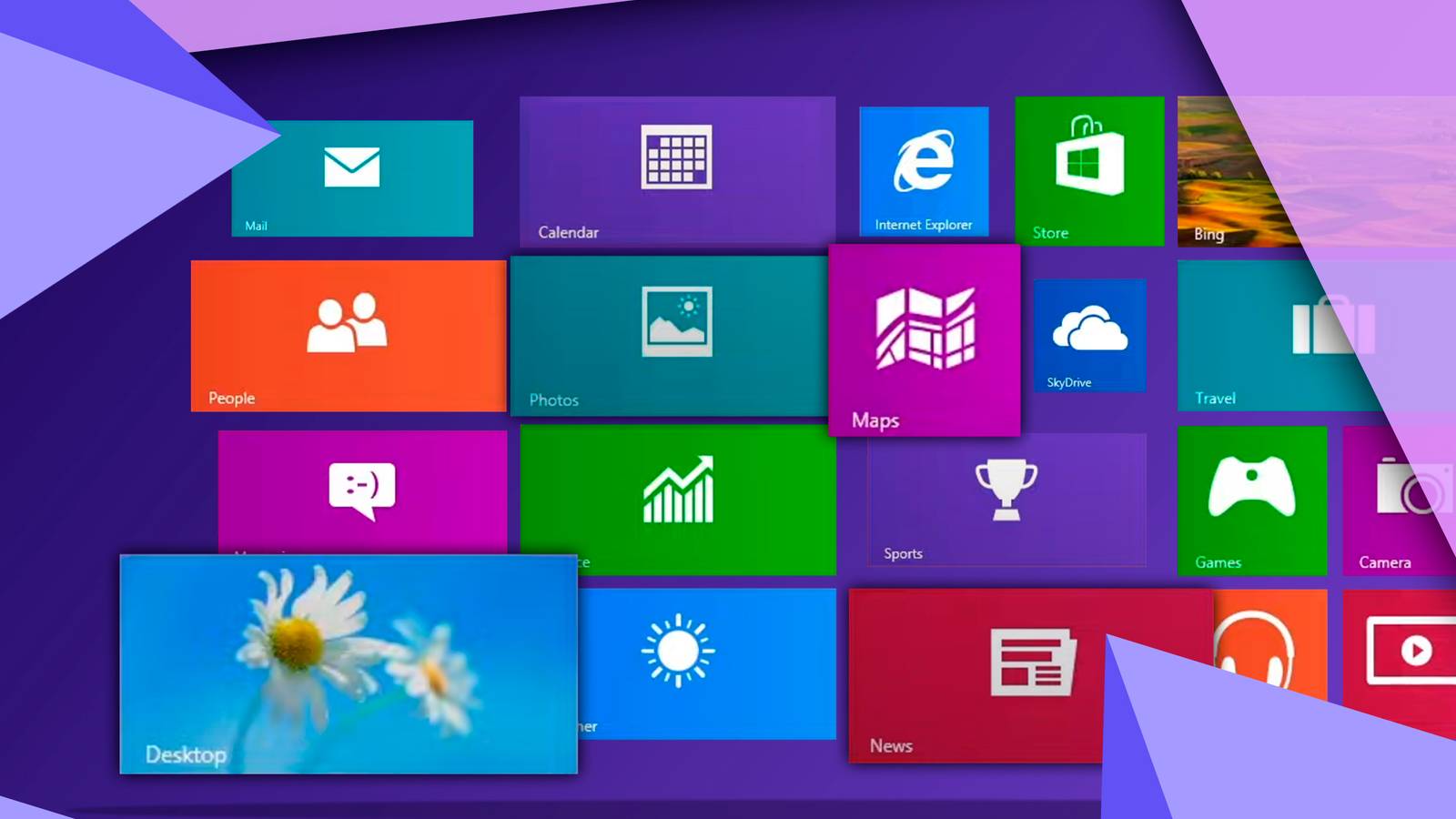
In contrast, Windows 8 installed in approximately 5 minutes on the same machine. The setup was quick, requiring only a username and password to complete.
First Impressions
A surprising amount of Windows 7’s design elements are present in Windows 8. It feels like an transitional operating system, much like Windows Vista bridged Windows XP and Windows 7. The extent of these holdovers became more apparent years later.
Windows 8 incorporates the Aero effects from Windows 7, but with a solid, flat appearance instead of the translucent glass. Icons are largely similar, though “flattened.” System tray icons on the taskbar and the Recycle Bin icon are identical to those found in Windows 7.
A Disjointed User Interface
Microsoft attempted to merge the Windows 7 interface with its new Metro UI. The Metro UI represented a significant departure in both aesthetics and functionality, a style that Windows 10 would later refine. However, in Windows 8, the integration feels inconsistent.
The operating system lacks cohesion, similar to Windows Vista, due to the combination of two distinct user interfaces. The interface features four different “Start” buttons:
- A Start button on the Taskbar, which, when clicked, launches a full-screen Start menu, causing the button to disappear.
- Hovering over the right edge of the display reveals a menu with a Start button in the center.
- When Metro apps are launched, they occupy the entire display, hiding the taskbar. Users must navigate corners to activate an invisible, gesture-based Start button to return to the desktop.
- To switch between desktops, hovering the cursor at the edge of the Start screen might reveal another Start button next to virtual desktops.
App Experience and Account Requirements
Windows 8 introduced duplicate Metro versions of system applications, contributing to an app duplication issue. The Settings app, intended to replace the legacy Control Panel, is particularly complex, featuring numerous submenus and nested screens, making navigation difficult without the search bar.
A notable difference from Windows 11 is the ability to easily disable Bing in the Taskbar search with a simple toggle, unlike Windows 11 where it requires Registry modifications. However, finding most system apps without searching is challenging, as the Start menu screen lacks an “All Apps” button, despite ample screen space. Instead, it displays a limited selection of Metro app tiles for Weather, Calendar, OneDrive, Maps, OneNote, Sports, and Money.
These Metro apps are often locked behind a Microsoft account requirement. Furthermore, many of them, including the Microsoft Store, no longer function due to discontinued support, leaving them perpetually loading.
Internet Explorer, also present, is non-functional. Installing an alternative browser like Pale Moon allowed for internet access. While Windows 8 was initially viewed with fondness, a re-examination reveals its significant flaws. The operating system frequently obstructs user workflow, demanding excessive clicks and disrupting established desktop UI muscle memory, making it impractical for daily use.
