


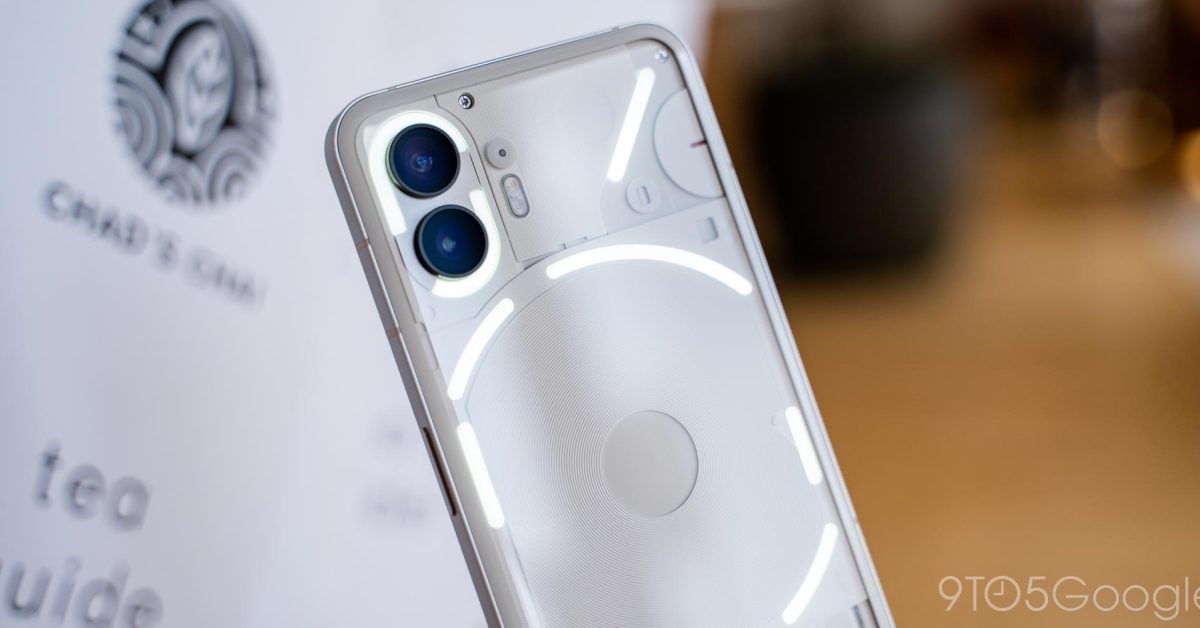
The Nothing Phone (2) stands out with its unique Glyph Interface, a series of LED lights integrated into the phone’s transparent back. This interface serves as a versatile visual communication tool, offering more than just aesthetic appeal. Users can customize these lights to provide distinct alerts for notifications, calls, charging status, and more, without needing to constantly check the screen.

Understanding the Glyph Interface Basics
At its core, the Glyph Interface provides visual cues for various phone activities. When a call comes in, the lights can pulse in a specific pattern. For notifications, different apps can be assigned unique light sequences. The interface also indicates charging progress and can even function as a visual timer.
Customizing Glyph Patterns and Ringtones
One of the most engaging aspects of the Glyph Interface is its extensive customization. Users can access these settings through the phone’s system menu, typically found under “Settings” and then “Glyph Interface.”
- Glyph Ringtones: Each contact can be assigned a unique Glyph pattern that syncs with a specific ringtone. This allows for immediate visual identification of incoming calls.
- Notification Glyphs: Similar to ringtones, notifications from different apps can trigger distinct light patterns, providing a quick visual alert without sound.
- Glyph Composer: This feature allows users to create their own custom Glyph patterns and associated sounds. It’s a creative tool for personalizing the phone’s visual and auditory alerts.
Essential Glyph and Focus Features
The Glyph Interface also includes features designed to help manage distractions and prioritize important alerts.
- Essential Glyph: This setting allows users to designate specific contacts or apps as “essential.” When an essential contact calls or an essential app sends a notification, the main Glyph light will remain on until the user addresses it, even if other lights are off.
- Flip to Glyph: By placing the Nothing Phone (2) face down, the Glyph Interface automatically activates. This mode silences notifications and calls, using only the Glyph lights for essential alerts, promoting a focused environment.
Glyph Progress and Third-Party Integrations
Beyond basic alerts, the Glyph Interface extends its utility through integrations with third-party applications.
- Glyph Progress: Certain apps can utilize the Glyph lights to display progress. For example, a ride-sharing app might show the driver’s arrival progress, or a food delivery app could indicate the order status. This feature provides real-time visual updates without unlocking the phone.
- Volume Indicator: When adjusting the volume, a segment of the Glyph lights can illuminate to visually represent the current volume level.
- Charging Indicator: The Glyph Interface clearly shows the charging status and battery level, offering a quick glance at power levels.
Activating and Managing the Glyph Interface
To get started with the Glyph Interface, navigate to the “Glyph Interface” section within the phone’s settings. From there, users can enable or disable the interface, customize individual features, and explore the Glyph Composer. Experimenting with different patterns and sounds can significantly enhance the personalized experience of the Nothing Phone (2).
