


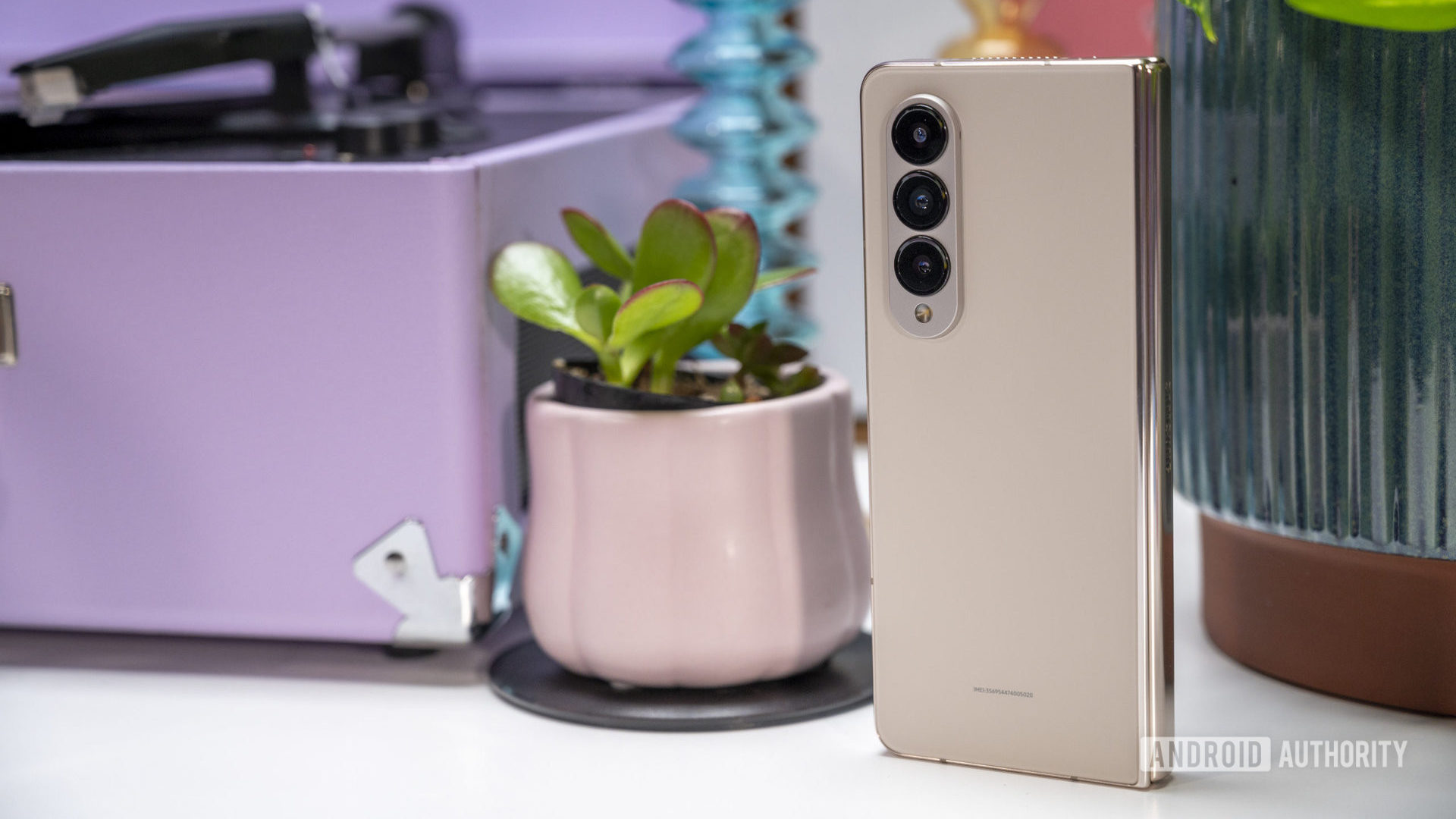
The Samsung Galaxy Z Fold 5 stands out as one of the top Android foldables available, featuring notable enhancements over its predecessor, such as a redesigned hinge and increased durability. However, like any smartphone, this latest Samsung foldable can encounter various bugs and glitches. This guide addresses common Samsung Galaxy Z Fold 5 issues and offers potential solutions.
Problem #1: Delayed notifications
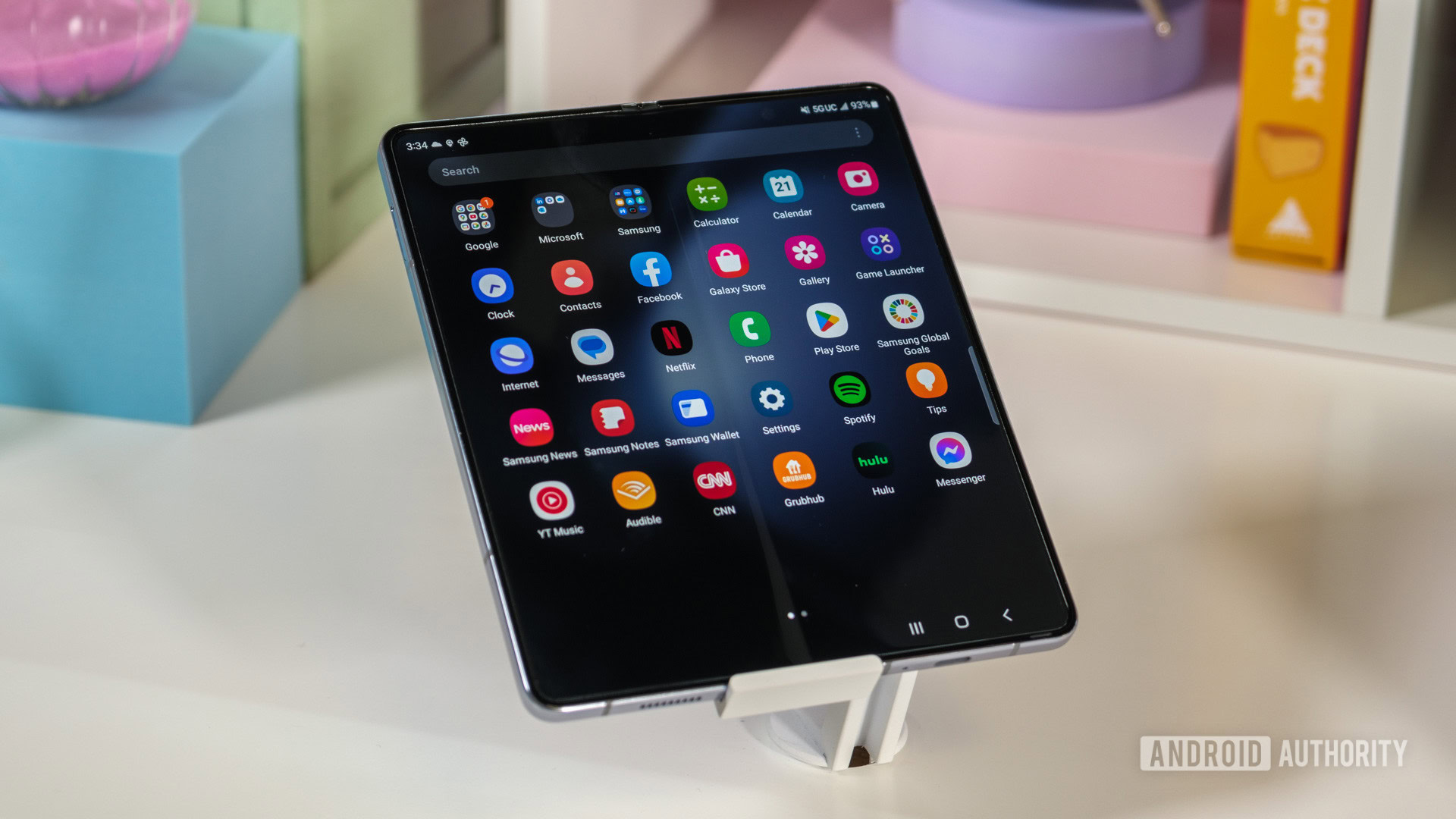
Some Samsung Galaxy Z Fold 5 users have reported that notifications do not appear on their devices until the associated app is opened. Others experience notification delays of 15 minutes or more. This issue does not appear to be specific to any single application.
Potential solutions:
- Samsung devices feature robust battery optimization, which can sometimes lead to delayed notifications. Navigate to Settings > Battery and device care > Battery > Background usage limits and verify that problematic apps are not listed under Sleeping apps or Deep sleeping apps. Proceed to Never Sleeping Apps, tap the plus icon, and add the relevant applications to this list.
- If the issue affects a few specific apps, go to Settings > Apps > (app name) > Battery and select Unrestricted.
- Clearing the app cache can also help resolve the problem. Go to Settings > Apps > (app name) > Storage and tap Clear cache. Clearing data is another option, but this will log you out of your account and may result in data loss, so ensure critical information is backed up first.
- Poor connectivity might also cause notifications to fail. First, enable Developer options on the phone. Go to Settings > About device > Software information and tap the Build number multiple times. A Developer options menu will then appear in Settings. Search for Wi-Fi scan throttling and toggle the setting off.
Problem #2: Android Auto problems
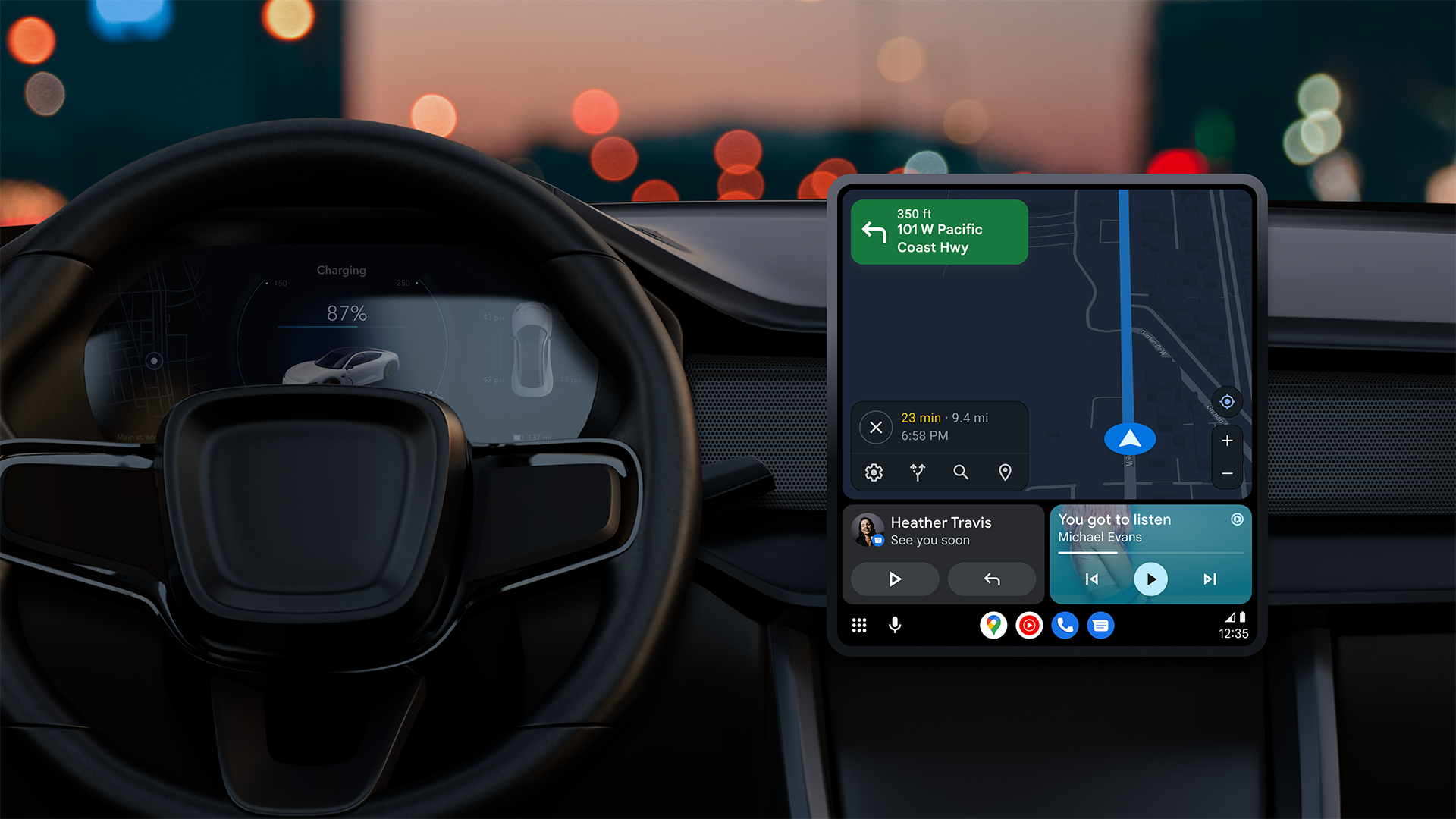
Android Auto connectivity issues are frequently observed with new smartphones, and the Galaxy Z Fold 5 is no exception. While not as widespread as with some other Samsung devices, some users have reported Android Auto disconnecting or failing to connect when using their foldable phone.
Potential solutions:
- Android Auto connectivity problems often arise if Smart Switch was used to set up the new phone. Go to Settings > Apps > Android Auto and tap Force Stop. Then, go to Storage and tap Clear cache and Clear data. If this does not work, uninstalling and reinstalling the app is often the best course of action. Since Android Auto is integrated into the system settings, this must be done via the Google Play Store.
- For issues with Android Auto Wireless, setting up a wired connection initially can often resolve this. Connect the phone using a cable and configure Android Auto. It should then function wirelessly.
- The device or car may have trouble recognizing Android Auto. If using a wired connection, tap the Android System notification in the drop-down panel and set it to Transferring files/Android Auto. However, in some vehicles, selecting Charging only may work instead of the Android Auto-specific setting.
Problem #3: Apps crashing
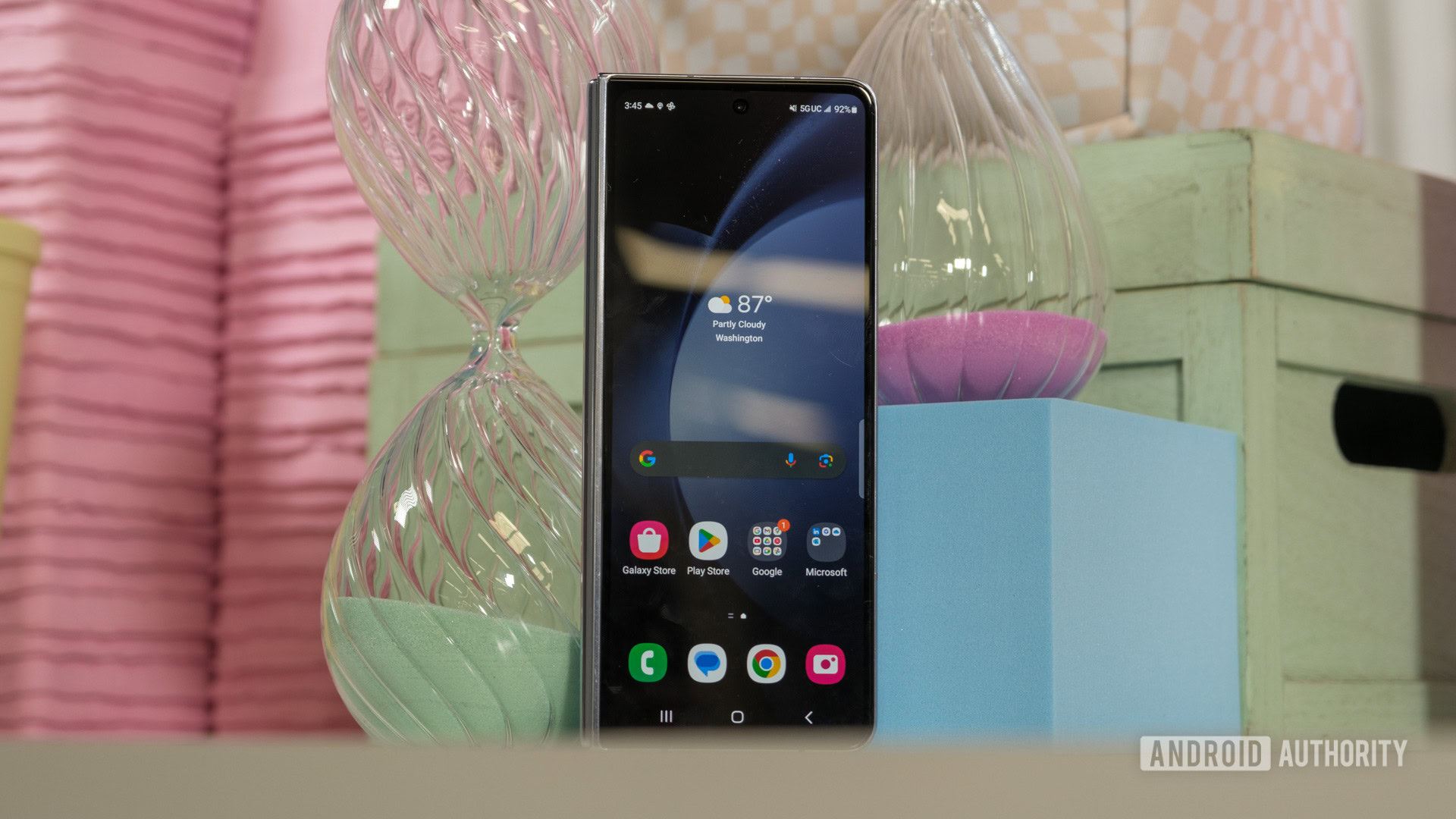
Some Galaxy Z Fold 5 owners encounter issues with applications crashing or the device randomly freezing and restarting.
Potential solutions:
- A faulty app or system service is the likely cause. Try booting the phone into Safe Mode to determine if the issue persists. If it does not, uninstall any recently installed or updated apps to resolve the problem.
- To boot into Safe Mode, hold the power button and volume down key until the power settings menu appears. Touch and hold Power off and confirm when the Safe Mode pop-up appears. If the phone is unresponsive, press and hold the power button and volume down key until it restarts. Release both buttons when the Samsung logo appears, and then press and hold the volume down key. Safe Mode should be visible at the bottom of the screen.
- Wiping the cache partition or using the Repair Apps option in the Recovery menu might also be effective. Some users have reported that wiping the cache partition resolved the problem.
- First, turn the phone off and plug it into a PC. Then, press and hold the power button and volume up key until the Samsung logo appears. Release the power button and then the volume up key. In Recovery mode, use the volume rocker to scroll to Wipe cache partition or Repair apps and press the power button to confirm.
- The Galaxy App Booster feature may also help. Download Good Guardians from the Galaxy Store (some phones may already have it in the app drawer). Open Good Guardians and run Galaxy App Booster.
Problem #4: Problems connecting with Bluetooth accessories
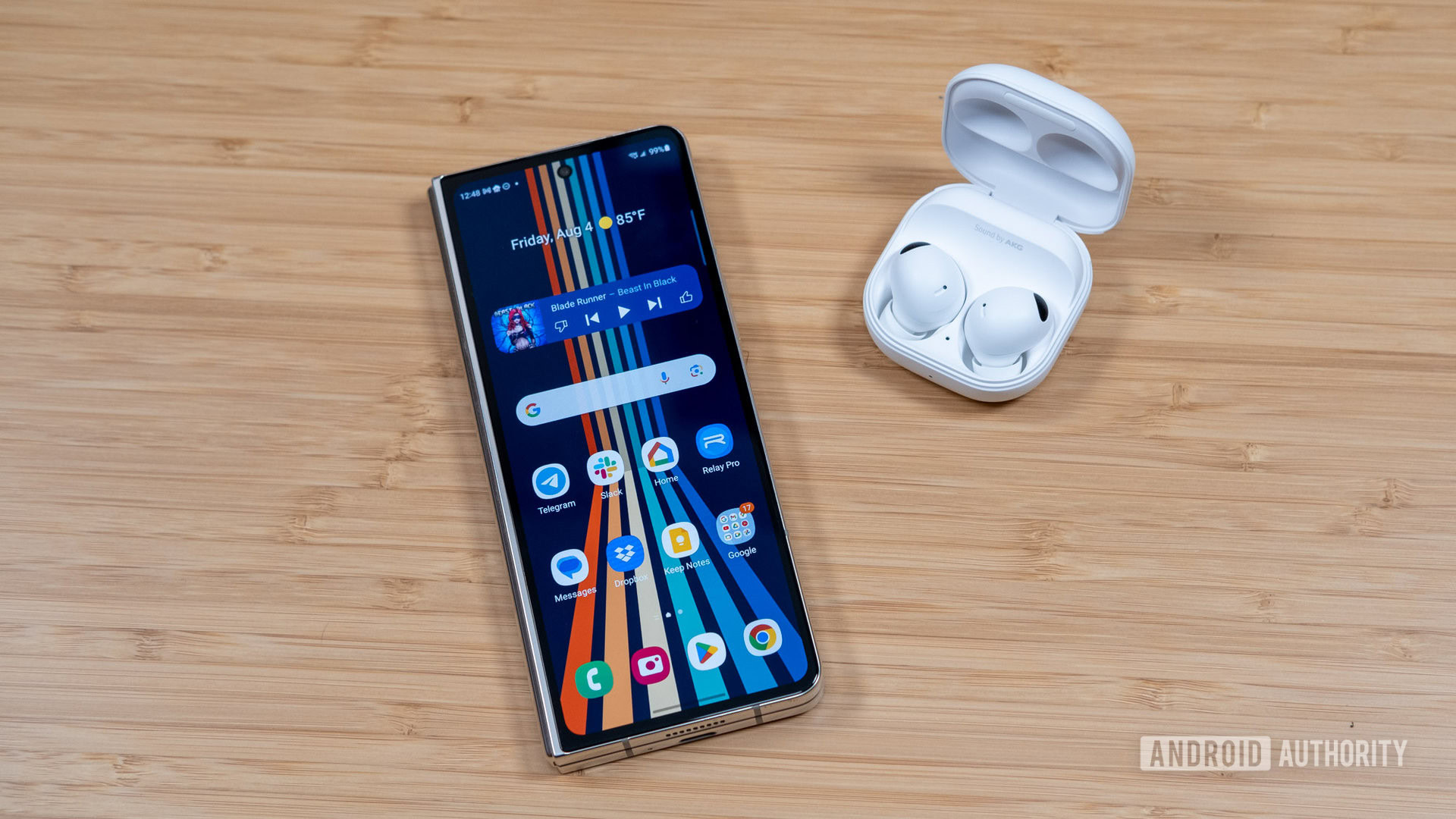
Many Samsung Galaxy Z Fold 5 owners have reported connectivity problems with various Bluetooth accessories, including wireless earphones and smartwatches. For earphones, users describe audio cutting out after a few minutes during music playback or calls.
Potential solutions:
- A Bluetooth configuration issue might be causing the problem, especially if Smart Switch was used to set up the new phone. While resetting device and connectivity settings can be inconvenient, it often proves to be the most effective solution.
- Go to Settings > General Management > Reset and select Reset network settings. This will reset Wi-Fi and all Bluetooth connections, requiring devices to be reconnected as new.
- If experiencing problems connecting to a Samsung smartwatch, uninstall and reinstall the Wear OS and Watch Manager apps. Reset the watch and set it up as new instead of restoring data.
- Wiping the cache partition, using the Repair Apps option in Recovery mode, or running the Galaxy App Booster can also be attempted. The steps for these actions are detailed in Problem #3 above.
- One user reported that the Discord app appeared to cause Bluetooth audio issues, and that deleting the app or clearing its cache provided a solution.
Problem #5: S Pen falling out of Galaxy Z Fold 5 Slim S Pen case
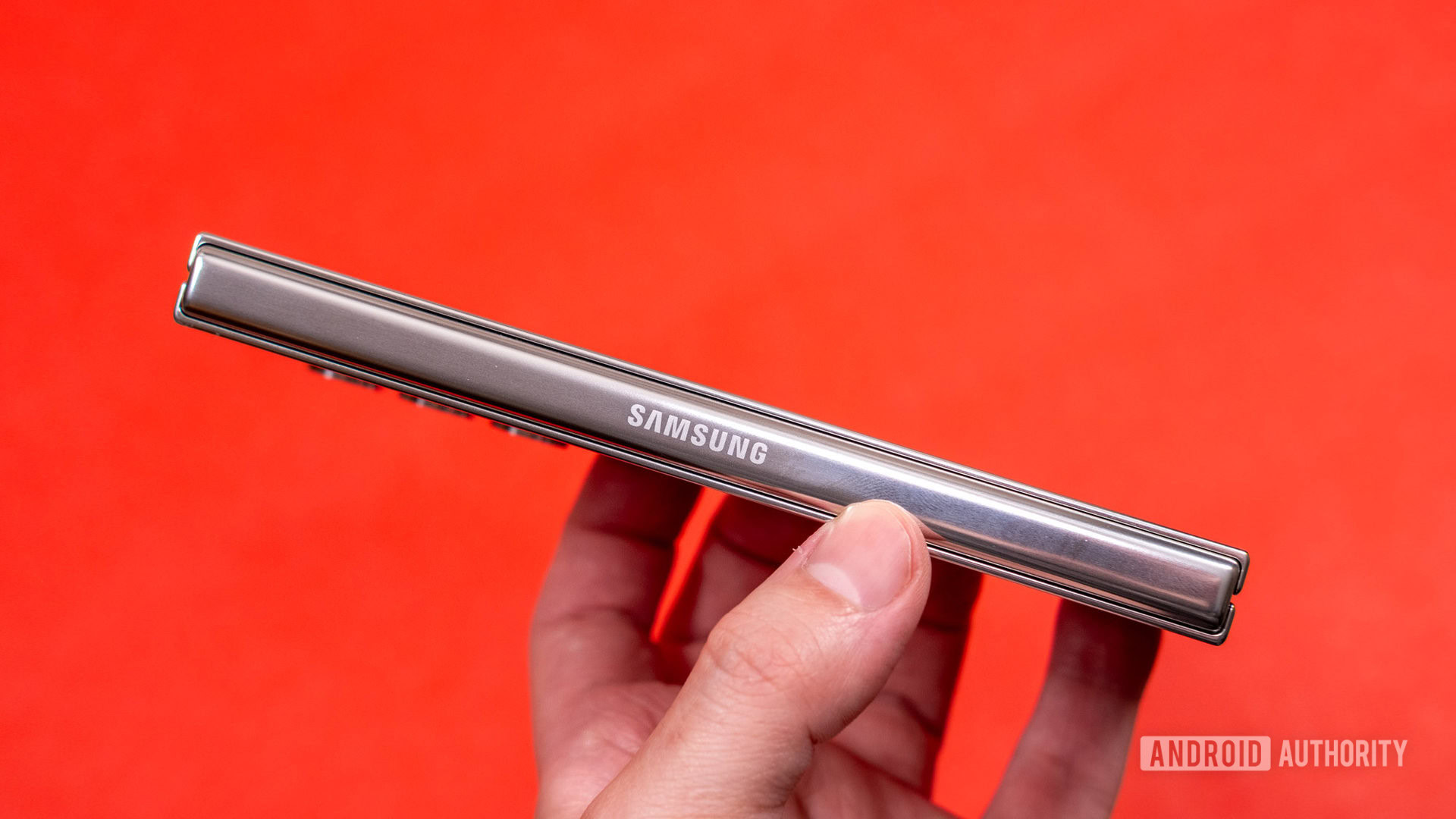
Samsung offers various accessories for its smartphones, including a slim case for the Galaxy Z Fold 5 that features an S Pen slot. This is particularly useful as the phone lacks a built-in stylus compartment. However, numerous users have reported that the S Pen does not securely click into place and tends to slip out.
Potential solutions:
- Samsung is aware of this problem and is offering replacements to affected users. Contact Samsung customer service or the store where the case was purchased to arrange an exchange for a new one.
Problem #6: Unable to send or receive text messages from iPhone users
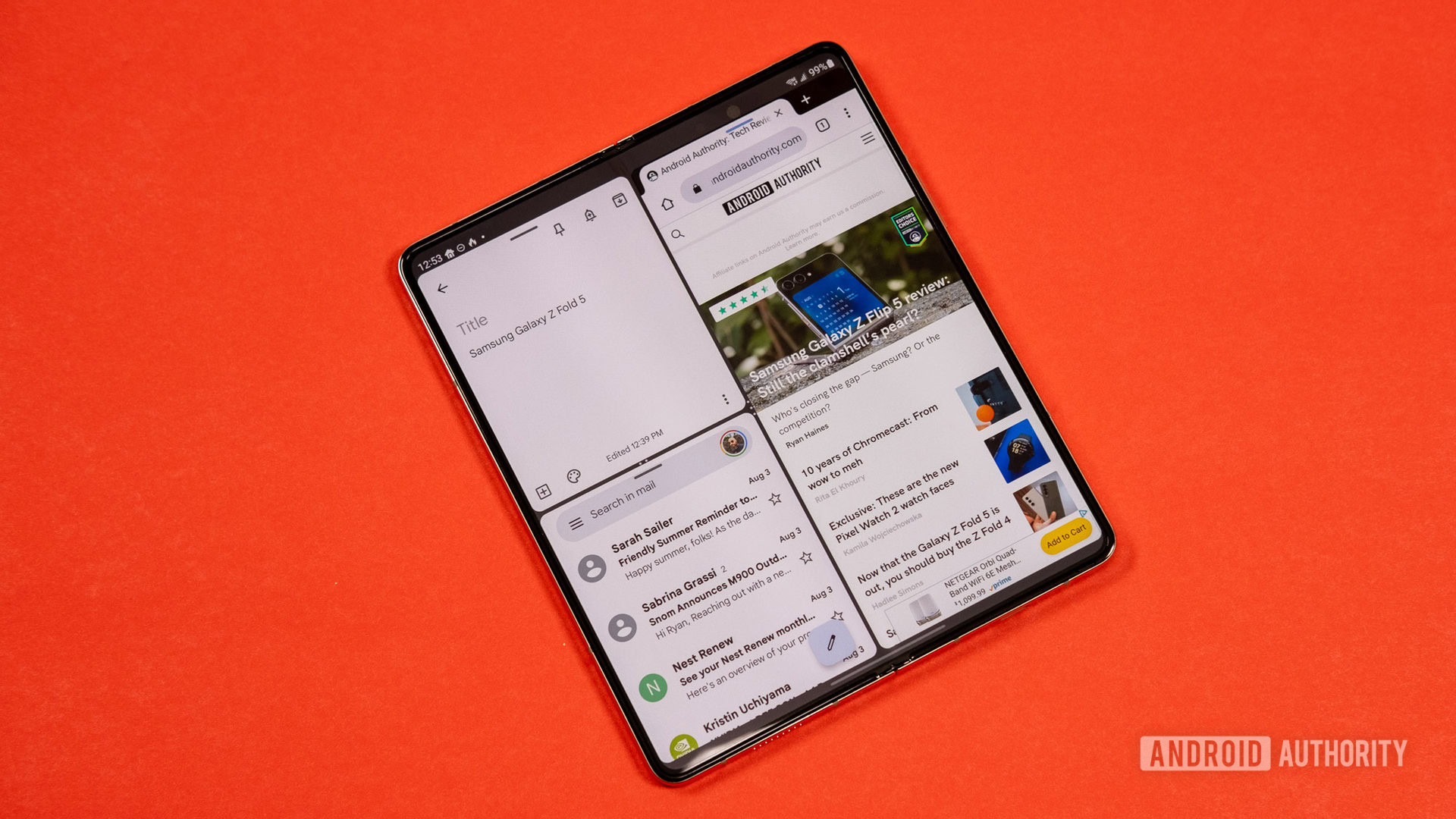
Users have reported an inability to send or receive text messages or pictures to and from iPhone users.
Potential solutions:
- This issue commonly arises for users who have switched from an iPhone to the Galaxy Z Fold 5. De-registering iMessage is necessary to resolve the problem.
- If the older iPhone is still available, swap the SIM card, go to Settings > Messages, and disable iMessage. Return to the previous menu, go to Facetime, and toggle it off as well.
- If the iPhone is unavailable or eSIMs are used, visit Apple’s De-register iMessage page. Enter the phone number and the six-digit confirmation code that Apple will send to de-register iMessage.
- If iMessage is not the issue, try clearing the app cache of the Messages app in use. Go to Settings > Apps > (app name) > Storage and tap Clear cache. The Repair Apps option in the Recovery menu or the Galaxy App Booster (steps mentioned in Problem #3 above) can also be attempted.
Problem #7: The Google Chrome app doesn’t work on the cover screen
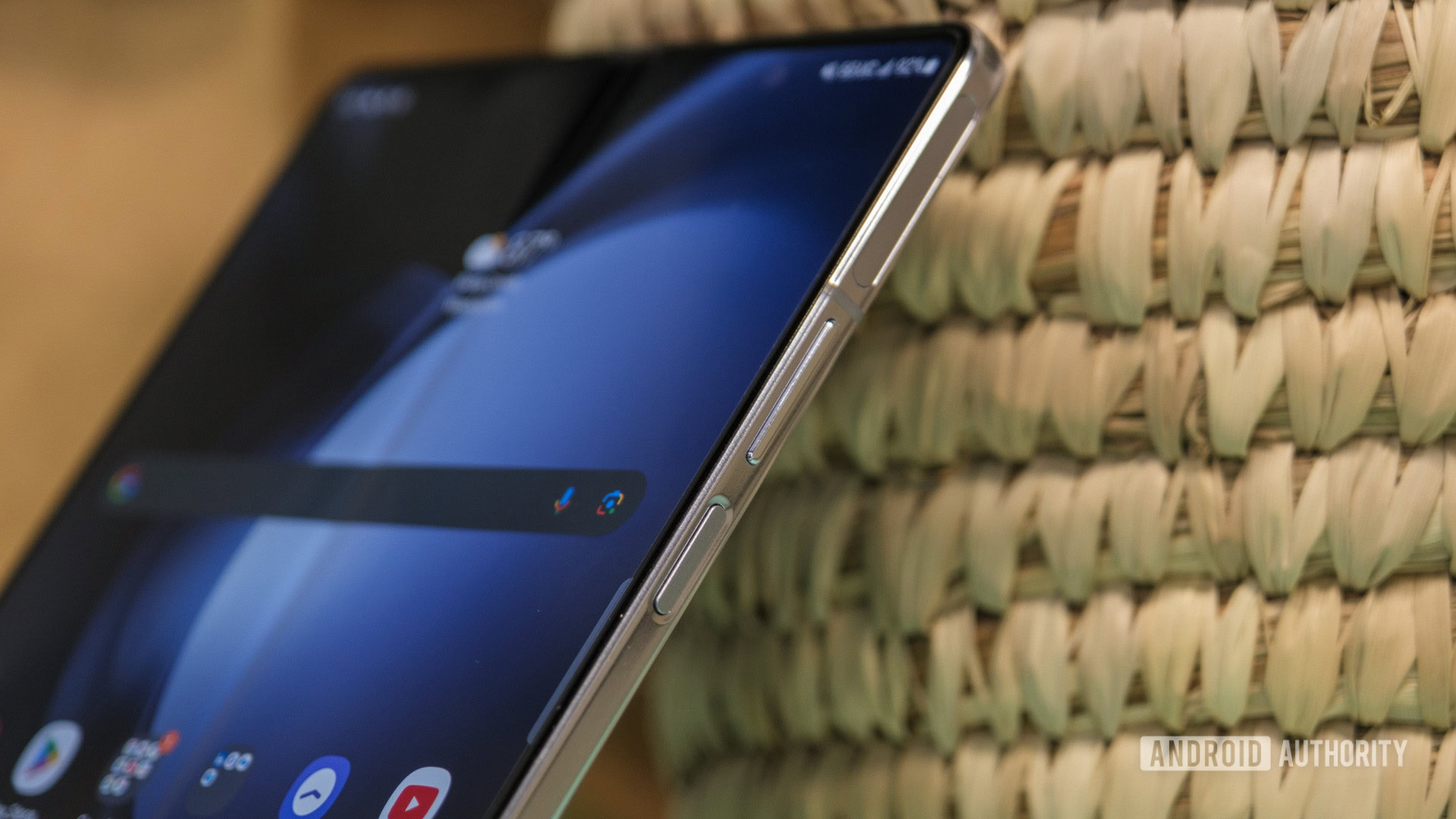
Some users have noted that the Chrome app does not consistently function on the cover screen. The app may enter a reload loop and eventually crash, although it operates normally when the phone is unfolded for browsing on the larger display.
Potential solutions:
- Clearing the Chrome app cache and data may resolve the problem. The Repair Apps option in the Recovery menu or the Galaxy App Booster is also worth trying. However, users suggest the issue often lies with the Android System WebView service. Go to Settings > Apps > All apps and use the search button to find WebView (Show system apps might need to be enabled). Disable and then re-enable Android System WebView to fix the issue.
Problem #8: Windows doesn’t recognize the device
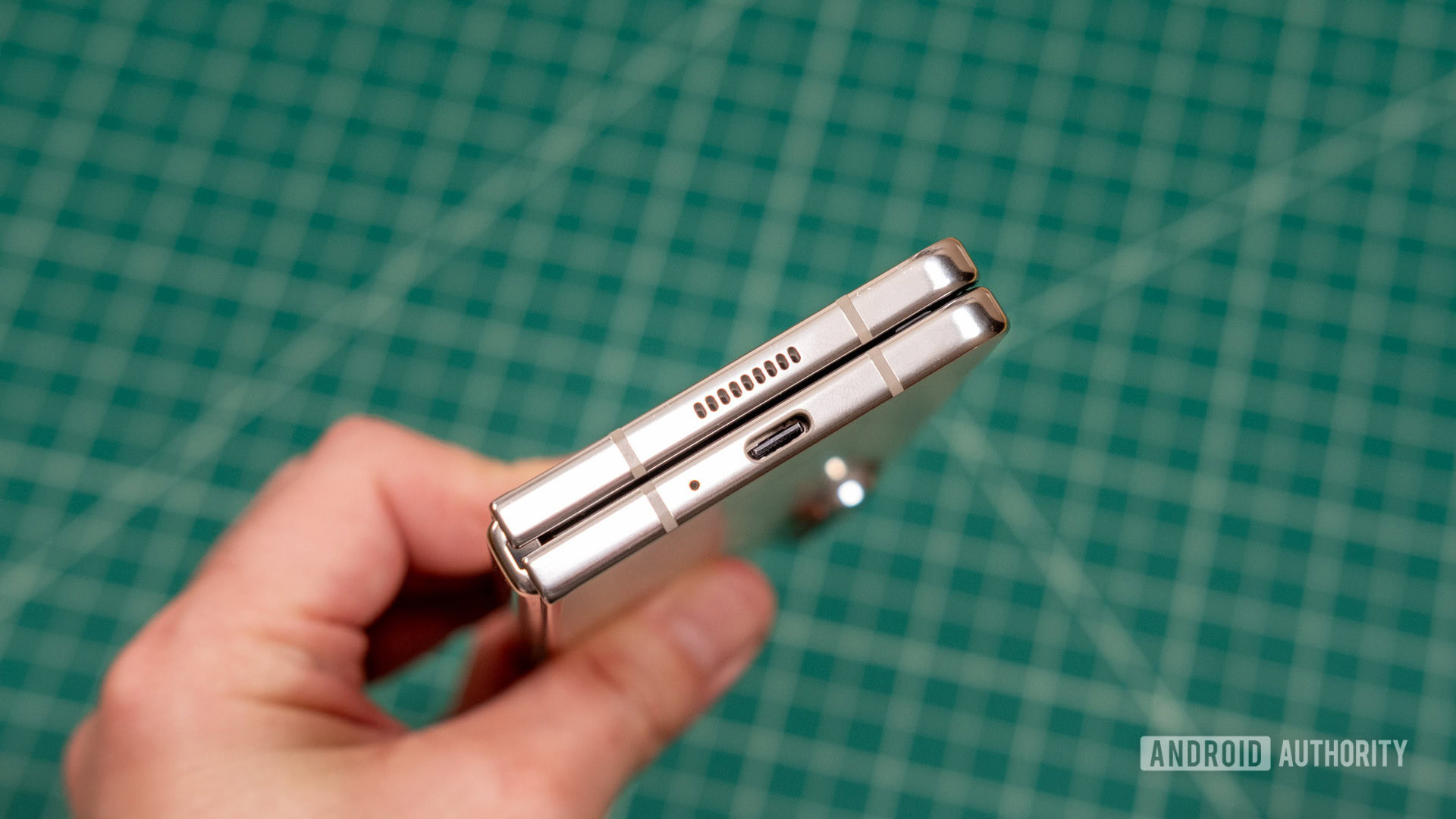
Some users encounter issues with their Windows PC failing to recognize the Galaxy Z Fold 5 when connected via cable.
Potential solutions:
- Enable Developer Options (go to Settings > About Device > Software information and tap the Build number multiple times). Then, navigate to the Developer Options menu in Settings and toggle on USB Debugging.
- The cable itself might be the problem, as not all cables support data transfers. It is best to use the cable included with the phone or confirm whether a third-party cable supports data transfers or is for charging only.
- If the phone does not automatically switch to the correct setting, this can be done manually. Tap the USB connection settings in the drop-down panel and change it to Transferring files.
Should you remove the Galaxy Z Fold 5’s screen protector?
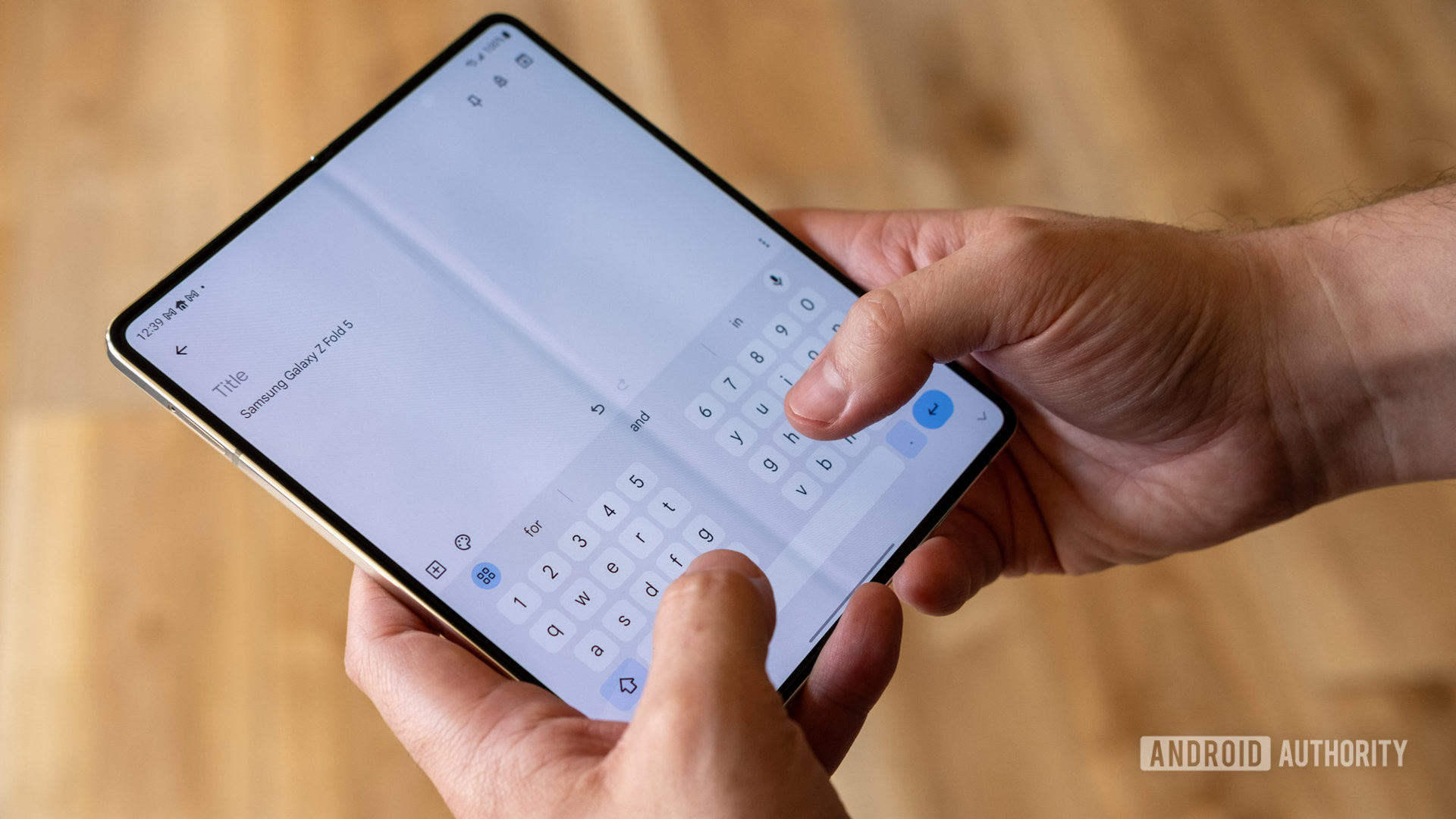
While it is technically possible to remove the screen protector supplied by Samsung for the Galaxy Z Fold 5’s inner display, this action is not recommended. Some users have reported issues such as bubble formation or a popping sound from the screen protector. In certain regions, Samsung provides a free screen protector replacement within the phone’s warranty period; it is advisable to have this service performed at an authorized repair center rather than attempting replacement independently. In some locations, removing the screen protector may void the phone’s warranty.
Using the inner display without a screen protector is not advised. The delicate screen becomes highly vulnerable to damage, which could lead to expensive repair costs.
