


Running Android applications on a Windows computer can offer several advantages. Users might find it beneficial for playing mobile games on a larger monitor with enhanced hardware, or for accessing specific apps that lack a desktop version. For instance, a banking app with a superior mobile interface compared to its website could be a compelling reason to run the Android version on a PC. This guide explains how to achieve this.

What is Windows Subsystem for Android, and why you should use it
Many users initially turn to emulators like BlueStacks, but often become dissatisfied due to its cluttered interface, advertisements, and sponsored content. Another common choice, Genymotion, emulates an entire mobile phone, similar to the emulator included with Android Studio. However, the process of booting a full virtual phone just to use a single app can be cumbersome and inefficient, and these emulators may not offer optimal performance for gaming.
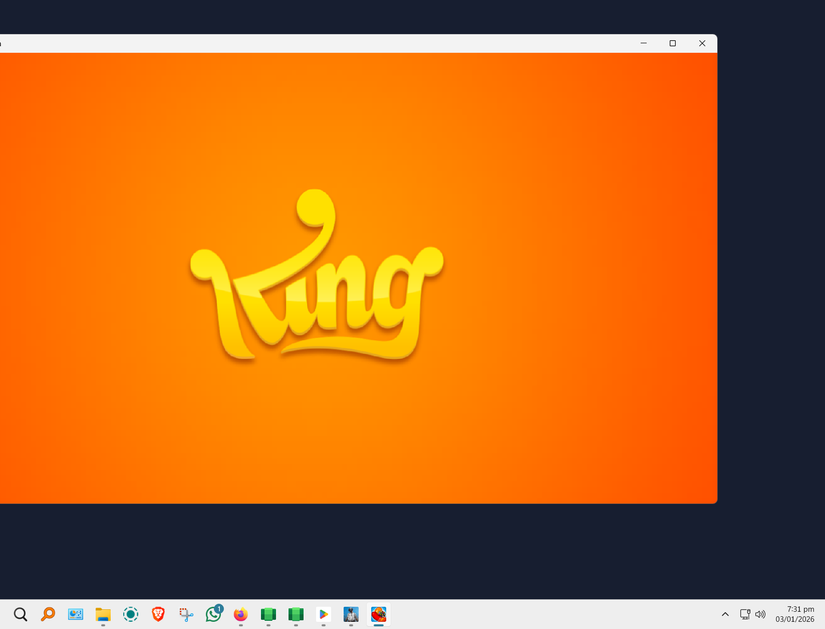
An ideal solution for running Android apps on Windows offers a seamless experience. This means being able to launch applications directly from the taskbar, with each app opening in its own dedicated window, mirroring the behavior of native Windows applications. Furthermore, the ability to install apps directly from the Play Store with a single click, much like from the Microsoft Store, is a key feature. This seamless integration is precisely what the Windows Subsystem for Android (WSA) provides.
For those familiar with the Windows Subsystem for Linux (WSL), the underlying concept for WSA is similar. Windows Subsystem for Android functions as a compatibility layer, enabling Android applications to run ‘natively’ on the Windows operating system.
How to set up WSA on Windows
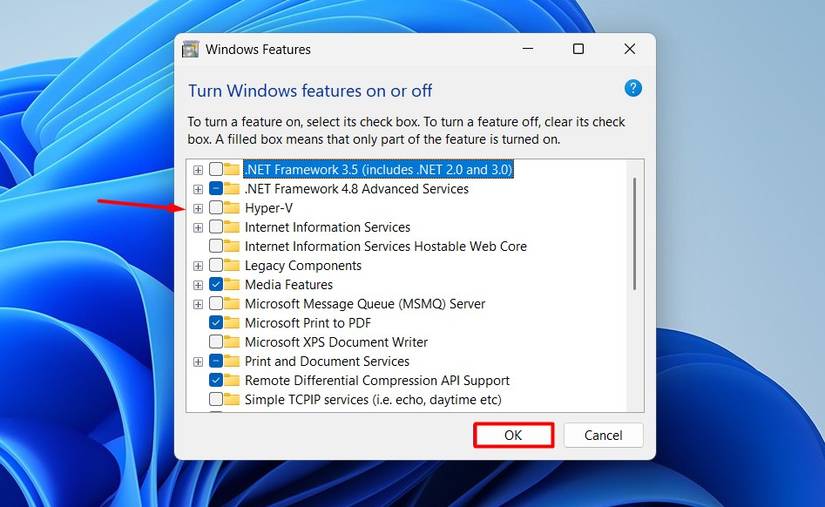
Before setting up WSA, ensure that virtualization is enabled on the computer. This typically involves verifying that Hyper-V and Virtual Machine Platform features are activated within the Windows Features list.
Begin by downloading a Windows Subsystem for Android build from GitHub. Builds labeled ‘MindtheGapps’ include both the Play Store and the Amazon Store. If only the Play Store is desired, select the build with the ‘Removed Amazon’ flag.
Although Microsoft officially discontinued support for WSA in 2025, the community continues to maintain and develop modified builds available on GitHub. Users should be aware that since official development has ceased, there might be compatibility challenges when setting up WSA on newer Windows versions. In some cases, an older build, such as version 2210, might be necessary for successful installation.
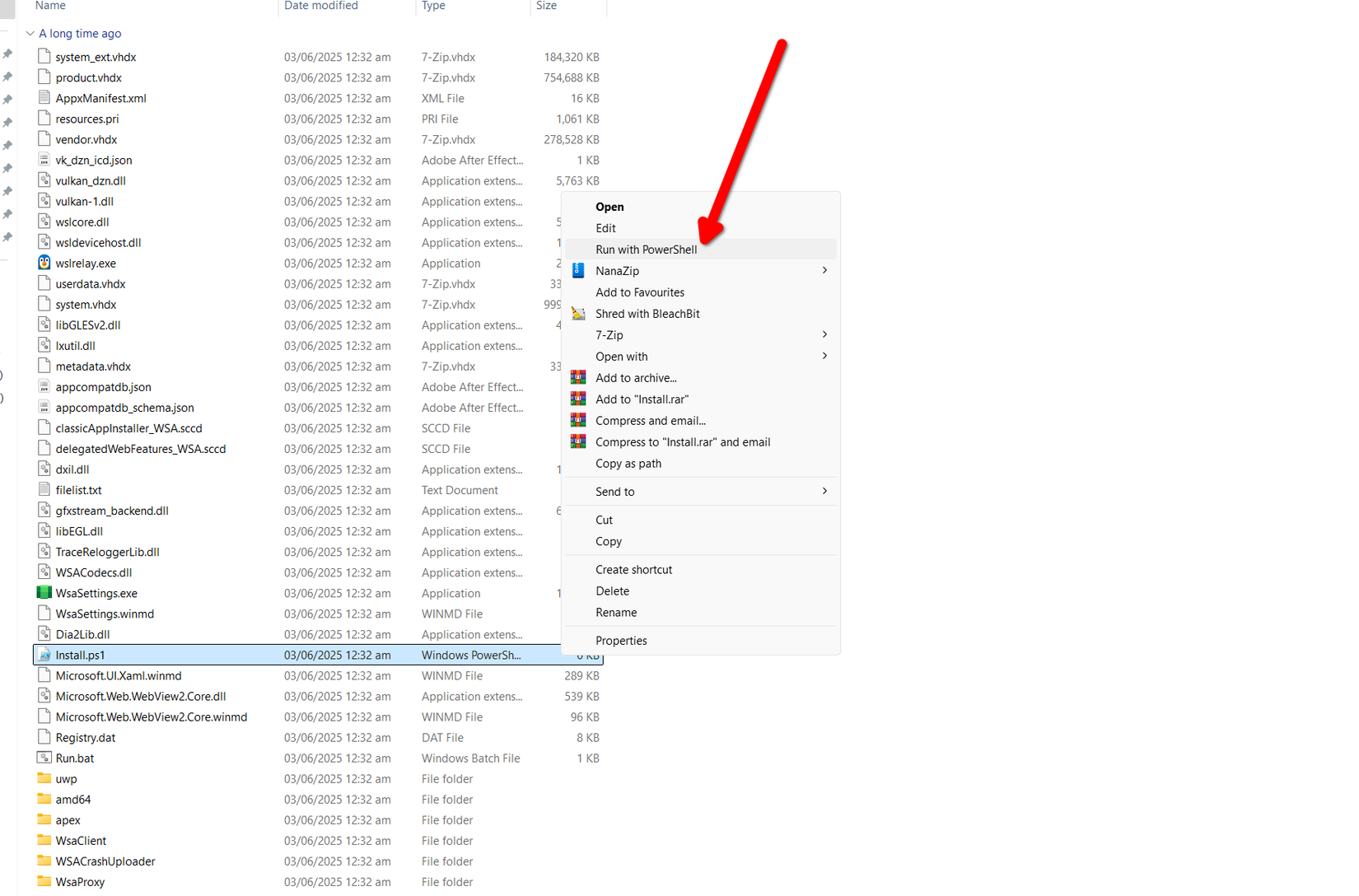
Extract the downloaded archive and navigate to the extracted folder. Locate the ‘install.ps1’ file, right-click it, and select ‘Run with PowerShell.’
The Windows Subsystem for Android window should appear promptly. If it does not, find and double-click ‘Run.bat’ to launch WSA.
How to install apps with WSA
Upon the initial launch, two windows typically appear: one for the emulated device’s Settings app and another for the WSA interface. The WSA interface is organized into ‘System,’ ‘Apps,’ and ‘Advanced Settings’ tabs.
The System tab provides a shortcut to the file manager, allowing access to documents, downloads, and other files. The Apps section lists all installed applications, including the Play Store and Amazon Appstore. Performance settings can be adjusted in the Advanced Settings tab, where Developer Options can also be enabled.
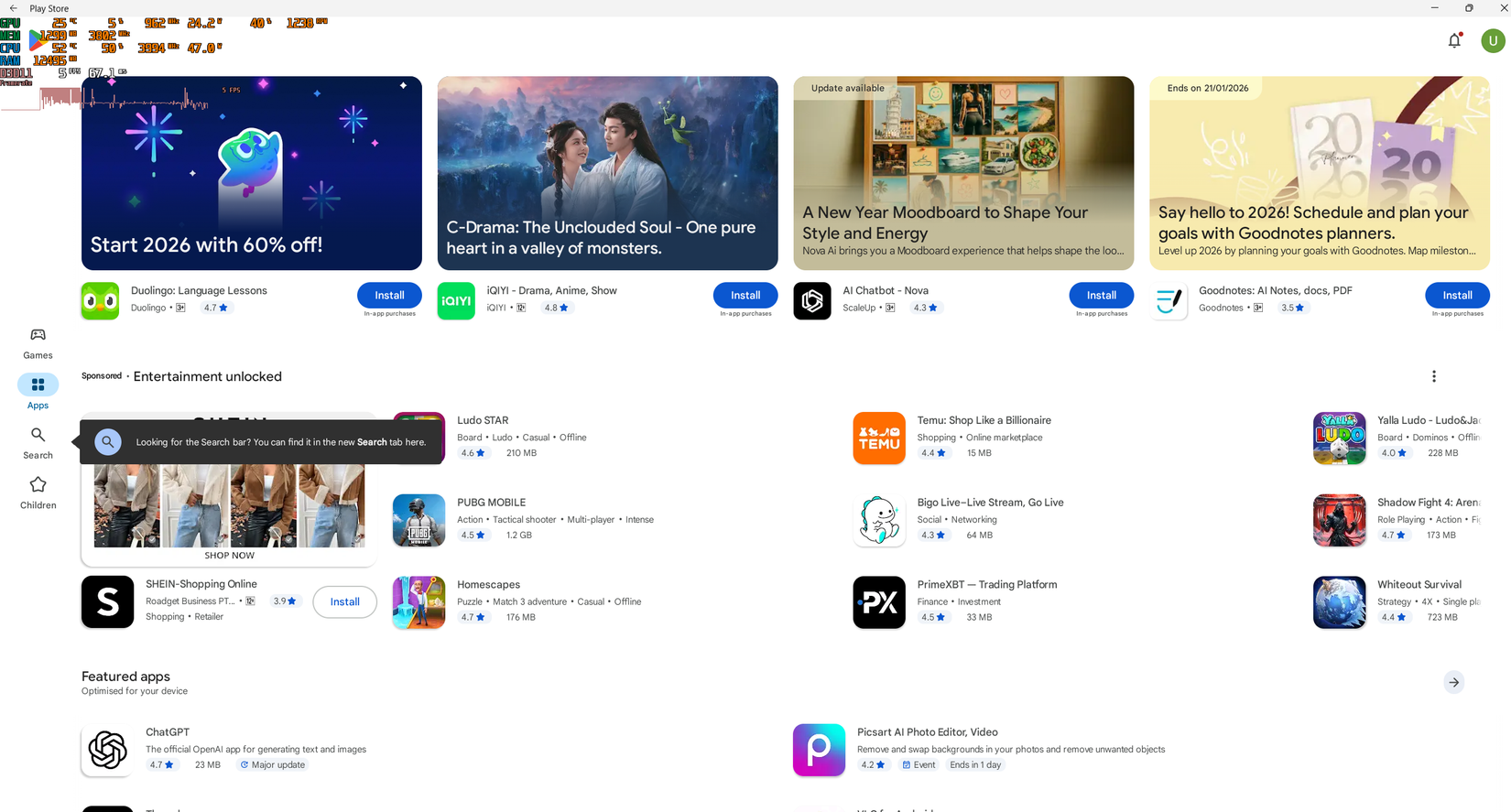
To install new applications, navigate to the Apps section, click the three dots adjacent to ‘Play Store,’ and select ‘Open.’ Users will be prompted to sign in with their Google account. After signing in, the Play Store will load, enabling one-tap installation and updates for apps.
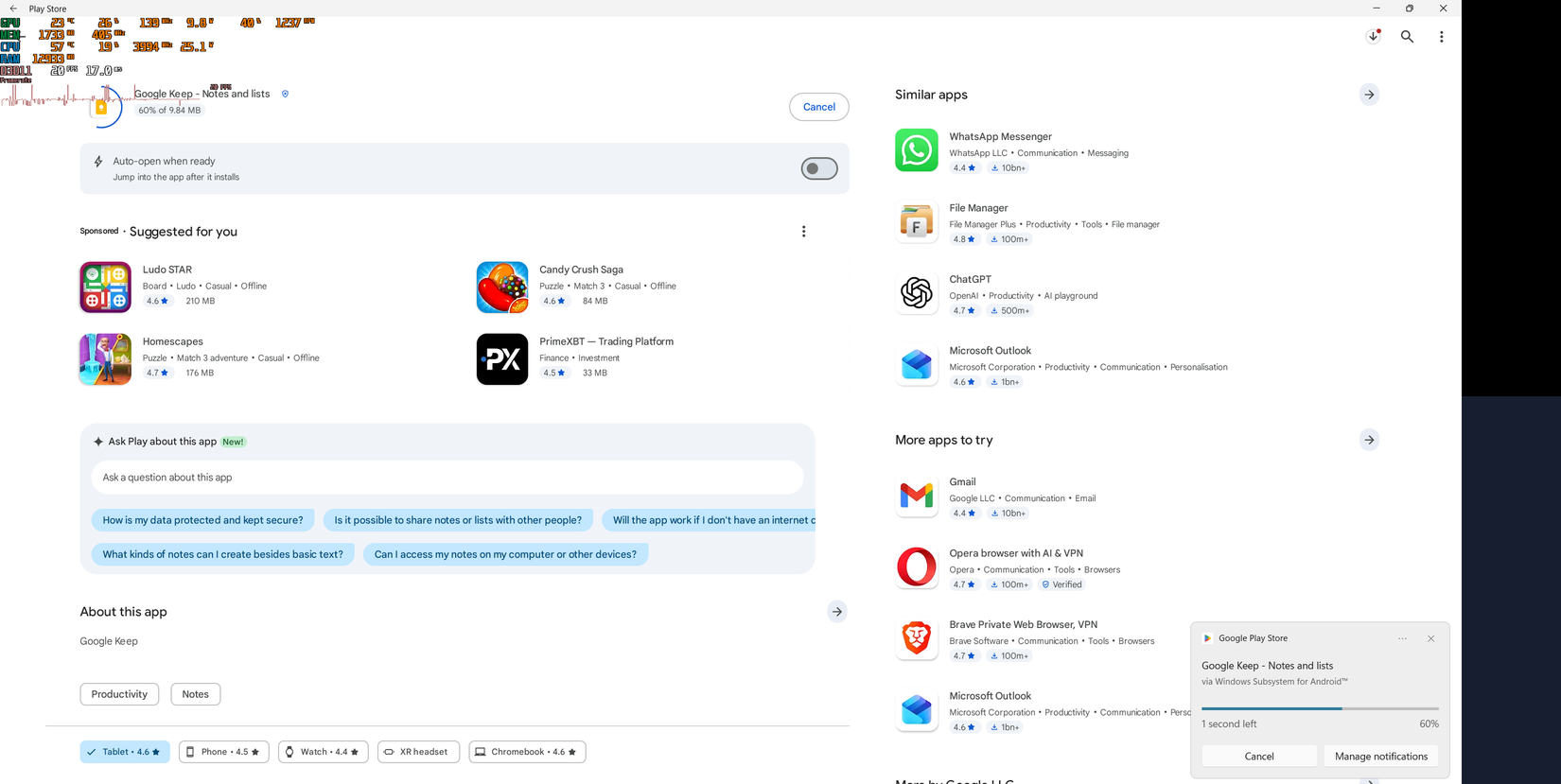
Alternatively, sideloading apps using APK files is possible, though it requires more steps. This involves enabling Developer Options within Advanced Settings. Once activated, an IP address will be displayed, allowing connection via ADB. Users can then utilize ADB in a shell to connect to this IP address and push the desired APK file.
How to run and manage apps with WSA
Launching installed applications is straightforward. Apps can be opened directly from their Play Store page, from the Apps section of the WSA interface, or through the Windows Start menu and app list. Clicking the three dots will initiate the app, which then launches in a separate window with its own taskbar icon. Users can then close, minimize, maximize, or pin the app to the taskbar by right-clicking its icon.
The applications function similarly to native Windows programs, allowing users to interact with them using a mouse for pointing, clicking, and dragging, and a keyboard for input.
To uninstall an application, click the three dots next to its name and select ‘App Settings.’ This action opens a new window where users can modify app permissions, manage storage, or completely remove the application.
Traditional Android app emulation often presented challenges, particularly on older hardware. WSA offers a highly effective solution due to its seamless functionality. While Microsoft’s discontinuation of this project is regrettable, the community’s efforts in maintaining it are commendable.
