


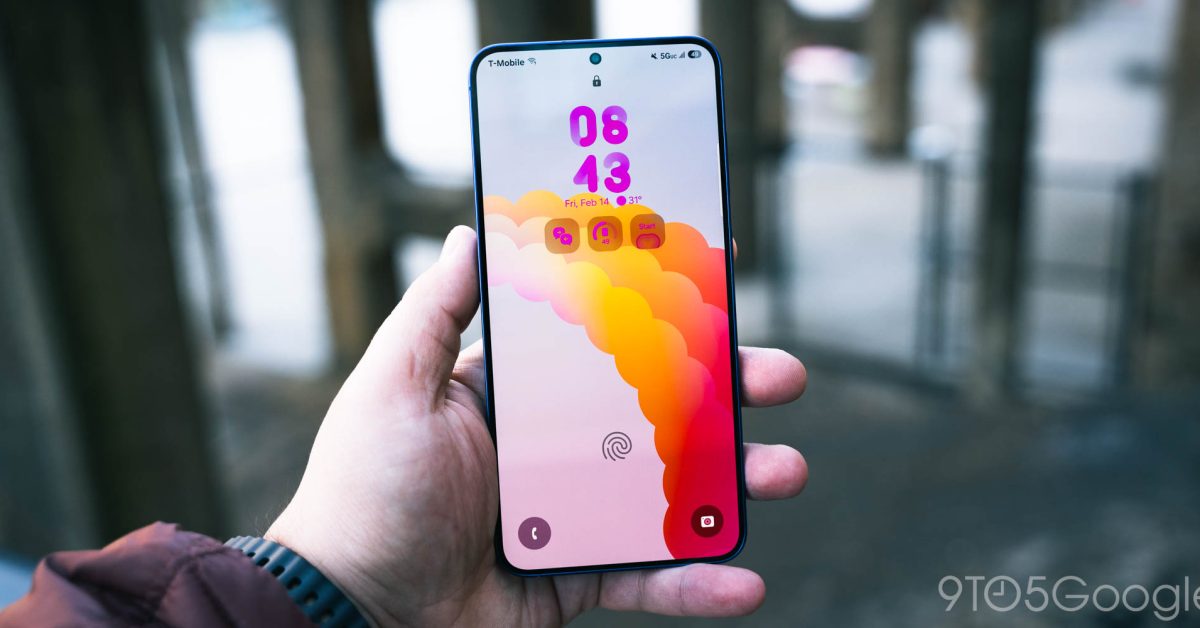
Samsung Galaxy smartphones, especially those running One UI 7, offer extensive control over how notifications are delivered. While the default settings are functional, users can significantly enhance their experience by customizing these alerts to better suit their preferences and reduce distractions.
Understanding Notification Settings in One UI 7
One UI 7 provides a robust set of tools for managing notifications. Accessing these settings allows for granular control over individual apps, notification styles, and how alerts appear on the lock screen or during active use.
Adjusting Notification Styles
Users can choose between “Brief” and “Detailed” notification styles. Brief notifications provide a concise pop-up, often with an icon and a short message, while Detailed notifications expand to show more content directly in the notification panel.
- Brief Notifications: Ideal for minimal interruption, showing only essential information.
- Detailed Notifications: Provides full message content and quick actions directly in the notification shade.
Customizing App-Specific Notifications
Each application can have its notification settings individually configured. This is crucial for prioritizing important apps and silencing less critical ones.
- Navigate to the device’s main “Settings” menu.
- Select “Notifications.”
- Tap on “App notifications” to see a list of all installed applications.
- Choose a specific app to adjust its notification categories.
- Within each app, users can enable or disable specific notification types (e.g., “New messages,” “Promotions,” “Reminders”) and customize their sound, vibration pattern, and whether they appear on the lock screen or as pop-ups.
Managing Lock Screen Notifications
Notifications on the lock screen can be a privacy concern or simply clutter. One UI 7 allows users to control their visibility.
- From the “Notifications” settings, select “Lock screen notifications.”
- Options include showing all content, hiding content, or not showing notifications at all.
- Individual app settings can also override this global setting, allowing sensitive apps to hide content even if the global setting is to show it.
Utilizing Do Not Disturb Mode
For periods requiring focus, “Do Not Disturb” mode is invaluable. It can be scheduled or manually activated to silence all or most notifications, calls, and alarms.
Users can configure exceptions for important contacts or repeated calls, ensuring critical communications still get through.
By taking the time to explore and customize these notification settings in One UI 7 on the Galaxy S25, users can create a more personalized and less disruptive smartphone experience, ensuring they only receive alerts that truly matter.
