


Personalizing settings in navigation apps can significantly enhance your travel experience. Google Maps offers several customization options that can streamline your journeys. Here are five essential settings that users should consider adjusting to optimize their Google Maps experience.
Change your map’s display completely
Google Maps provides extensive customization for your navigation display. This includes altering the map’s color scheme and how buildings appear. To adjust these settings, access your profile in the upper right corner, then navigate to Settings > Navigation > Map display. Here, you can select a color scheme (“Automatic,” which is more adaptive, “Day,” or “Night”) and toggle preferences such as 3D building view, speedometer display, speed limits, and map direction (keeping north up). Additionally, under Settings > App & Display, you can customize units for temperature and distance, along with the map’s scale display. 
Add custom vehicles
Users can also add custom vehicles and their icons within Google Maps. This feature enables the app to suggest fuel-efficient routes tailored to your vehicle’s engine type and provide personalized charging station recommendations for hybrid or electric cars. To configure this, from your Google Maps profile, go to Settings > Your Vehicles. Select your engine type (gas, diesel, hybrid, or electric) and provide additional details like plugs and adapters for enhanced personalization. You can further customize your navigation by setting a driving avatar. Tap “Custom” under “Driving Avatar,” choose a car type (or the default blue pointer), select a color, and then tap “Done.”
Set up labels for frequent locations
Labeling frequently visited places in Google Maps can significantly streamline your travel and navigation. The app allows users to assign custom, private labels to locations, making them easy to find in search results or on your map. To add a label, search for the desired location, tap on its pin, then select “More” from the options. Choose “Add Label,” pick an existing label like “Work” or “Home,” or create a new one. Tap “Done” to save. Labeled locations can be accessed by typing the label in the search bar or by visiting the “You” tab. Furthermore, frequently used routes can be bookmarked. After navigating to directions for a location, tap the “Save” icon. Saved routes are accessible under the “You” tab by selecting “Saved Trips.” This feature supports driving, transit, and two-wheeler trips.
Create multiple lists
For planning trips or exploring local attractions, Google Maps offers a valuable “Lists” feature. This allows users to create multiple private or shared wishlists of locations to visit and bookmark them for future reference. To create a list on a mobile device, tap the bookmark icon (“You”) in the toolbar, then select “New List.” Provide a name and description, choose whether the list is private or shared, and tap “Save.” Next, tap “Add Places,” search for and select a location, then tap “Save” under its name/address to add it to your list. Existing lists can be edited, and new ones created, from the “You” tab by tapping the three dots next to a list’s name.
Set up your favorite parking spots
Drivers can benefit from an often-overlooked Google Maps feature: the ability to save and locate parking spots. This is particularly useful in unfamiliar areas for easily returning to a parked vehicle. To enable this, access your app profile, then navigate to Settings > Navigation > Parking options, and ensure “Automatically save parking” is toggled on. To manually save a parking spot, open its location on Google Maps by tapping the blue dot, then select “Save your parking” (Android) or “Saved parking” (iOS). Saved parking spots can be found by searching “Parking location” (Android) or “Saved parking” (iPhone) in the search bar. 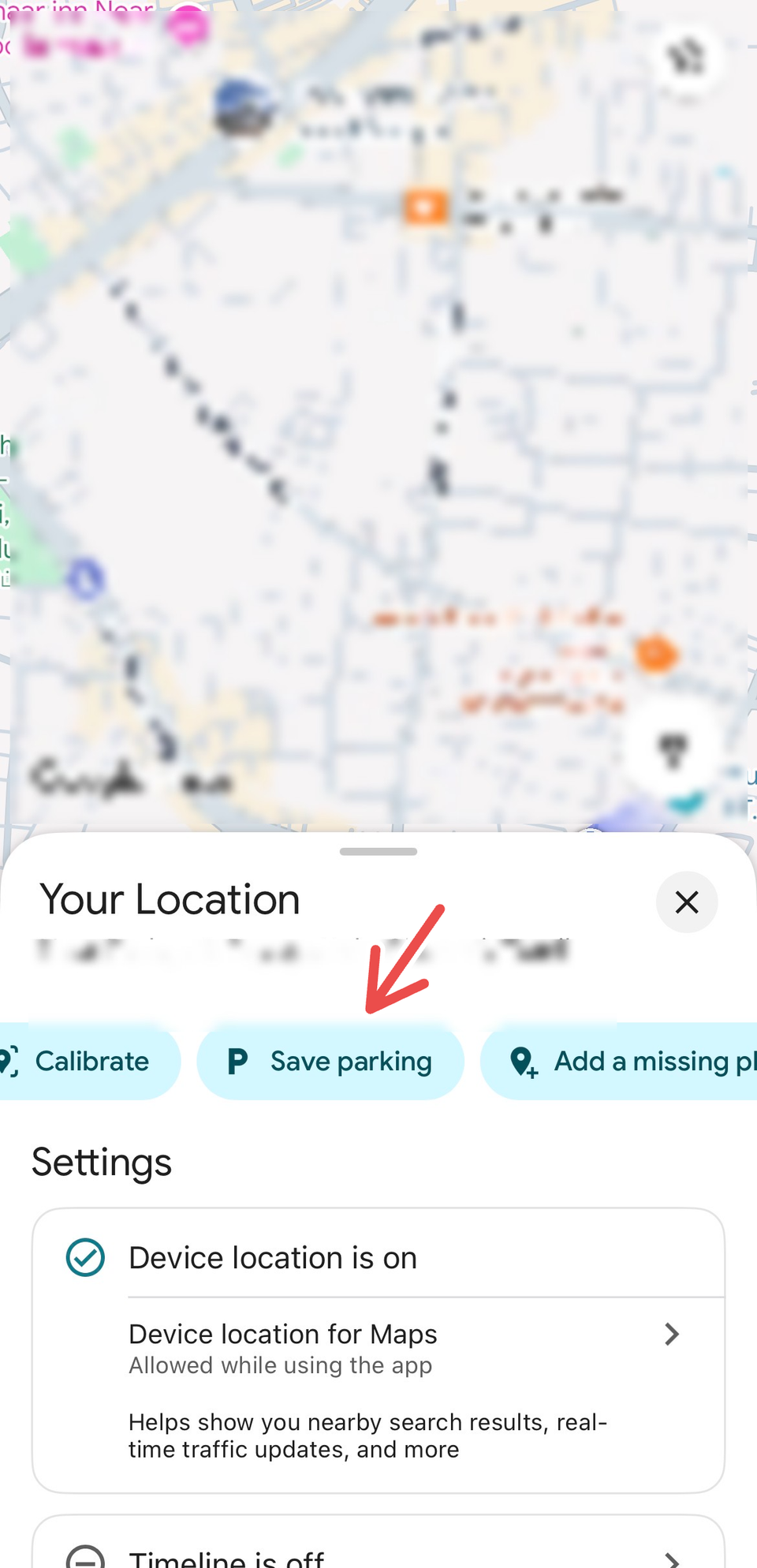
Google Maps offers numerous features that can significantly enhance the navigation experience when used effectively. For new users or those looking to maximize the app’s potential, exploring these simple yet functional tips can be highly beneficial.
