Close Menu
    Latest Post

    Deploy CoreML Models on the Server with Vapor

    January 14, 2026

    How to Create a Slideshow on TikTok

    January 14, 2026

    RugOne Xever 7 Pro Review: A Rugged Phone with Swappable Battery, Held Back by its Processor

    January 13, 2026
    Facebook X (Twitter) Instagram
    Trending
    • Deploy CoreML Models on the Server with Vapor
    • How to Create a Slideshow on TikTok
    • RugOne Xever 7 Pro Review: A Rugged Phone with Swappable Battery, Held Back by its Processor
    • What is Identity Dark Matter?
    • Staying Ahead of the Algorithm: Social Media Tips from the Experts
    • Dreame Introduces Leaptic Cube: A Compact 8K Action Camera
    • Introducing sqlite-vec: Boosting Local AI with Vector Search in SQLite
    • The Rise of AI Therapists: Navigating a New Era of Mental Health Support
    Facebook X (Twitter) Instagram Pinterest Vimeo
    NodeTodayNodeToday
    • Home
    • AI
    • Dev
    • Guides
    • Products
    • Security
    • Startups
    • Tech
    • Tools
    NodeTodayNodeToday
    Home»Guides»How to Create a Slideshow on TikTok
    Guides

    How to Create a Slideshow on TikTok

    Samuel AlejandroBy Samuel AlejandroJanuary 14, 2026No Comments4 Mins Read
    Share Facebook Twitter Pinterest LinkedIn Tumblr Reddit Telegram Email
    src 71heg1 featured
    Share
    Facebook Twitter LinkedIn Pinterest Email

    While short-form videos are common on TikTok, you might also encounter slideshows featuring multiple pictures. If you wish to share vacation memories or recent adventures but lack the time to produce a full video, TikTok’s built-in tools allow for quick and easy slideshow creation.

    There are several methods for creating and sharing slideshows on TikTok. Users can manually select photos, add effects, music, and transitions, or opt for one of the platform’s ready-made templates for a quicker process. The manual approach offers greater customization for those who want to express their creativity. Additionally, the AutoCut option provides a fast way to generate shareable slideshows. For immediate sharing, users can directly edit and post TikTok’s integrated photo templates.

    Table of Contents

    • How to make a slideshow on TikTok manually or with AutoCut
    • How to make a slideshow on TikTok using photo templates

    How to make a slideshow on TikTok manually or with AutoCut

    If a lengthy TikTok video is not desired, photos and videos can be manually chosen to create an appealing slideshow. All of TikTok’s editing features are available for crafting a unique slideshow. However, this method can be time-consuming, especially for new users.

    Manual Slideshow Creation:

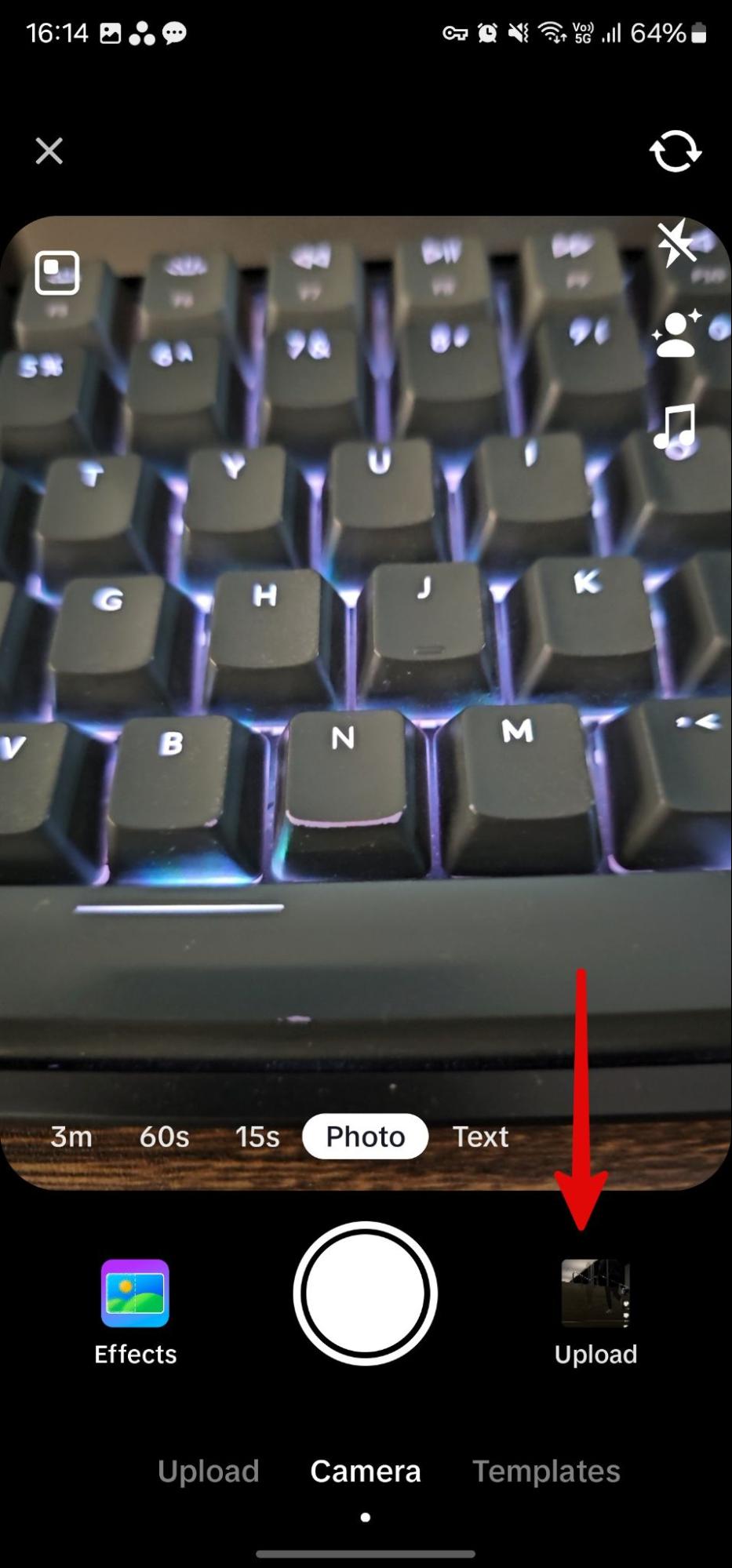
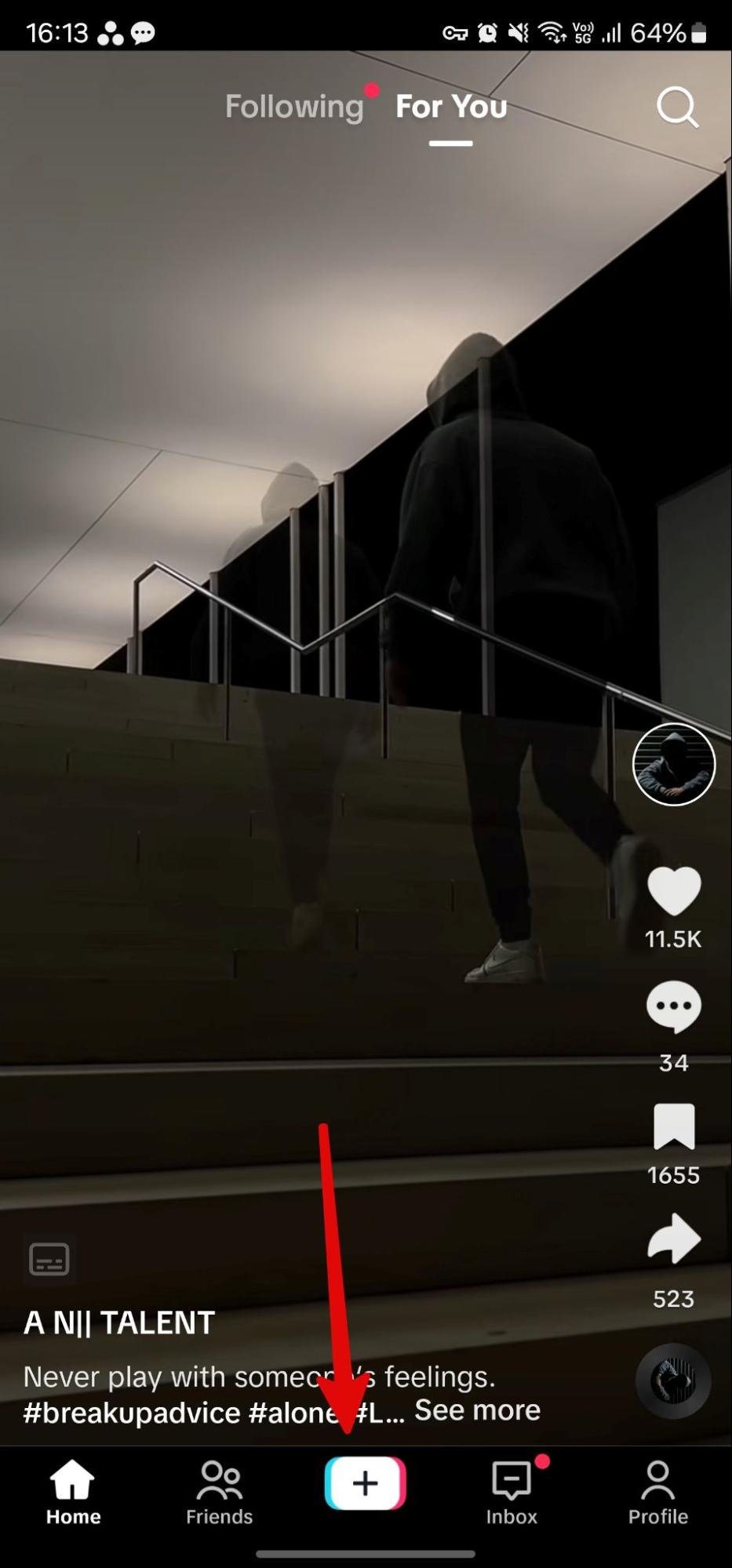
    1. Open TikTok on your device and tap the + icon at the bottom.
    2. Tap “Upload” next to the camera shutter button.
    create tiktok slideshow 011create tiktok slideshow 005

    1. Grant TikTok the necessary media permissions to access your phone’s photos and videos.
    2. Select the photos and videos intended for the slideshow by tapping the radio button above them.
    3. Choose between “AutoCut” or “Next.” For manual editing, tap “Next.”
    4. TikTok will generate a short video slideshow from your selections. Tap “Swipe to photo mode” at the bottom.
    5. The application will switch to a swipeable slide format. Stickers, text, and filters can be added from the right side of the screen. Customize the slideshow as preferred, then tap “Next.”
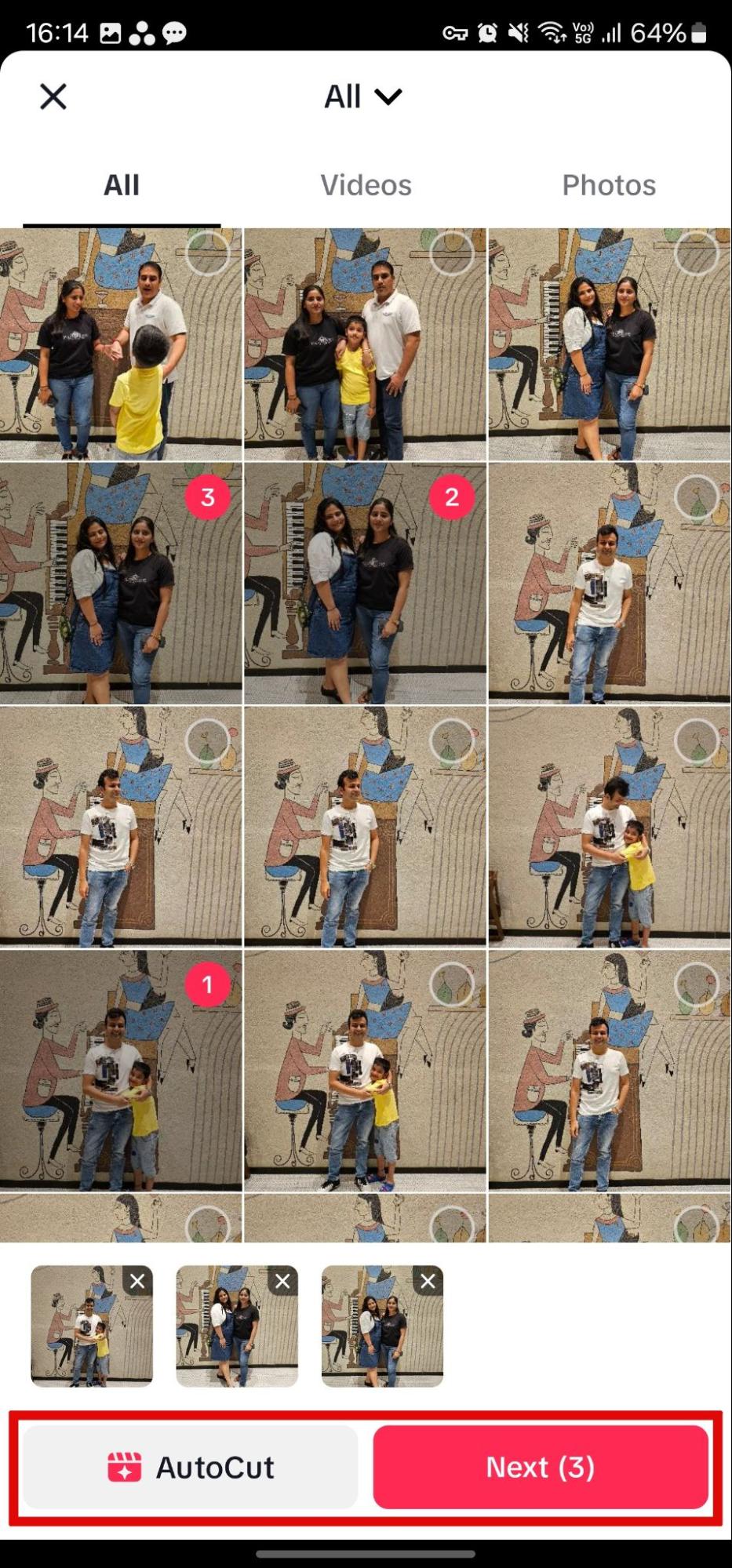
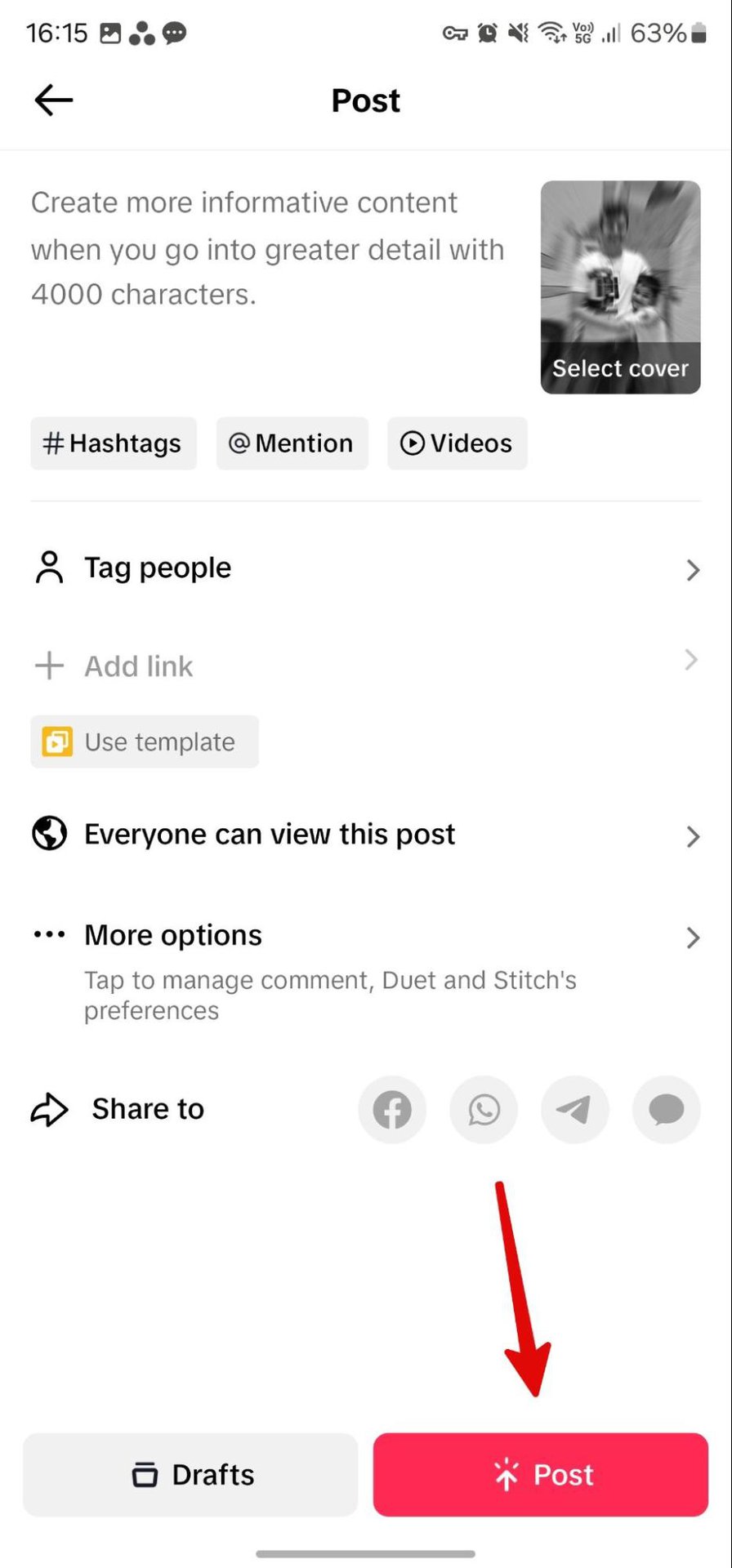
    create tiktok slideshow 001create tiktok slideshow 003create tiktok slideshow 007

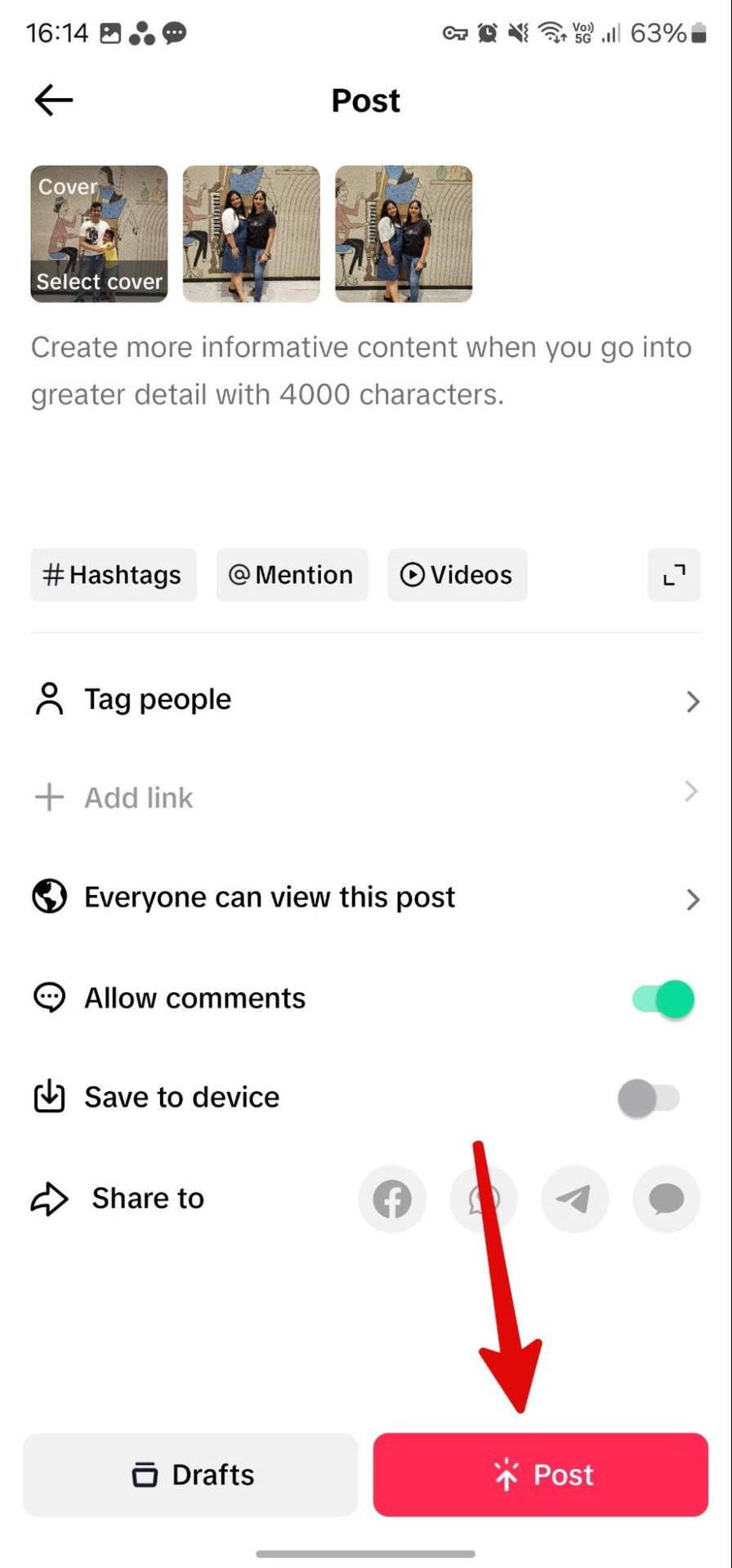
    1. Add content details (up to 4,000 characters), tag individuals, adjust privacy settings, enable or disable comments, save the slideshow to your device, and share it on other platforms. Finally, tap “Post.”

    For those who prefer not to edit the slideshow manually, the AutoCut function is available. This feature automatically generates transitions and adds a music track to the slideshow.

    AutoCut Slideshow Creation:

    1. Launch TikTok and tap +. Tap “Upload” to select photos and videos.
    2. Tap “AutoCut” and allow TikTok to manage the editing process. The processing time will vary based on your phone’s performance and the number of media files chosen.
    3. If the default music track is not suitable, tap the music icon at the top and select a different track from the bottom menu. The current track can also be trimmed from this menu.

    create tiktok slideshow 001create tiktok slideshow 009create tiktok slideshow 006

    1. Utilize the right-side menu to incorporate text, stickers, effects, filters, and sound with voice filters. Tap “Next.”
    2. Review sharing permissions and enter content details at the top. Select “Post.”

    How to make a slideshow on TikTok using photo templates

    TikTok provides numerous ready-to-use templates for creating slideshows. These templates can be used for various themes such as cooking progress, life journeys, birthdays, holidays, and more.

    1. Open TikTok and tap +.
    2. Swipe to the “Templates” section.
    3. Browse through the templates to see available options. Once a suitable template is found, verify how many photos it supports. Tap “Upload photos.”
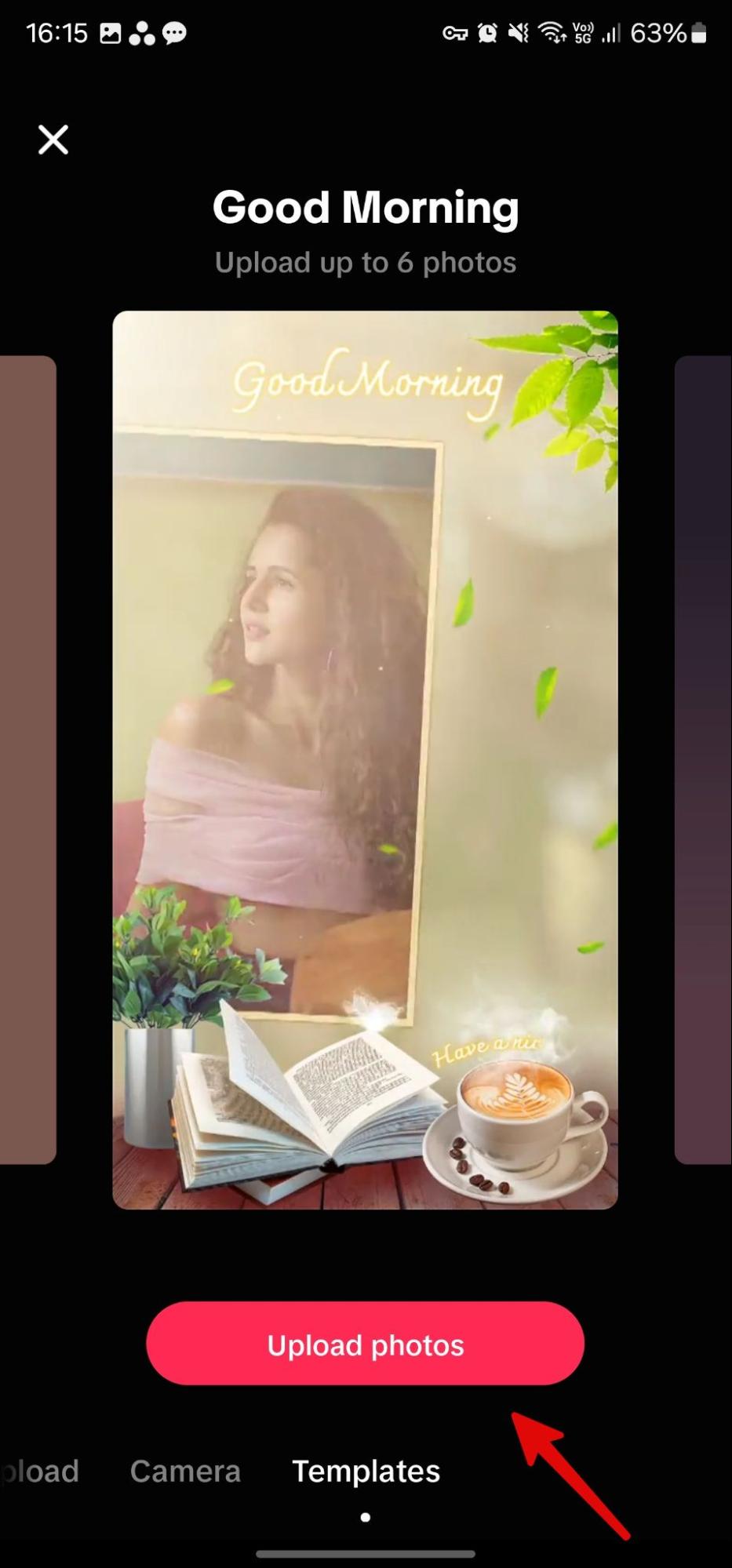
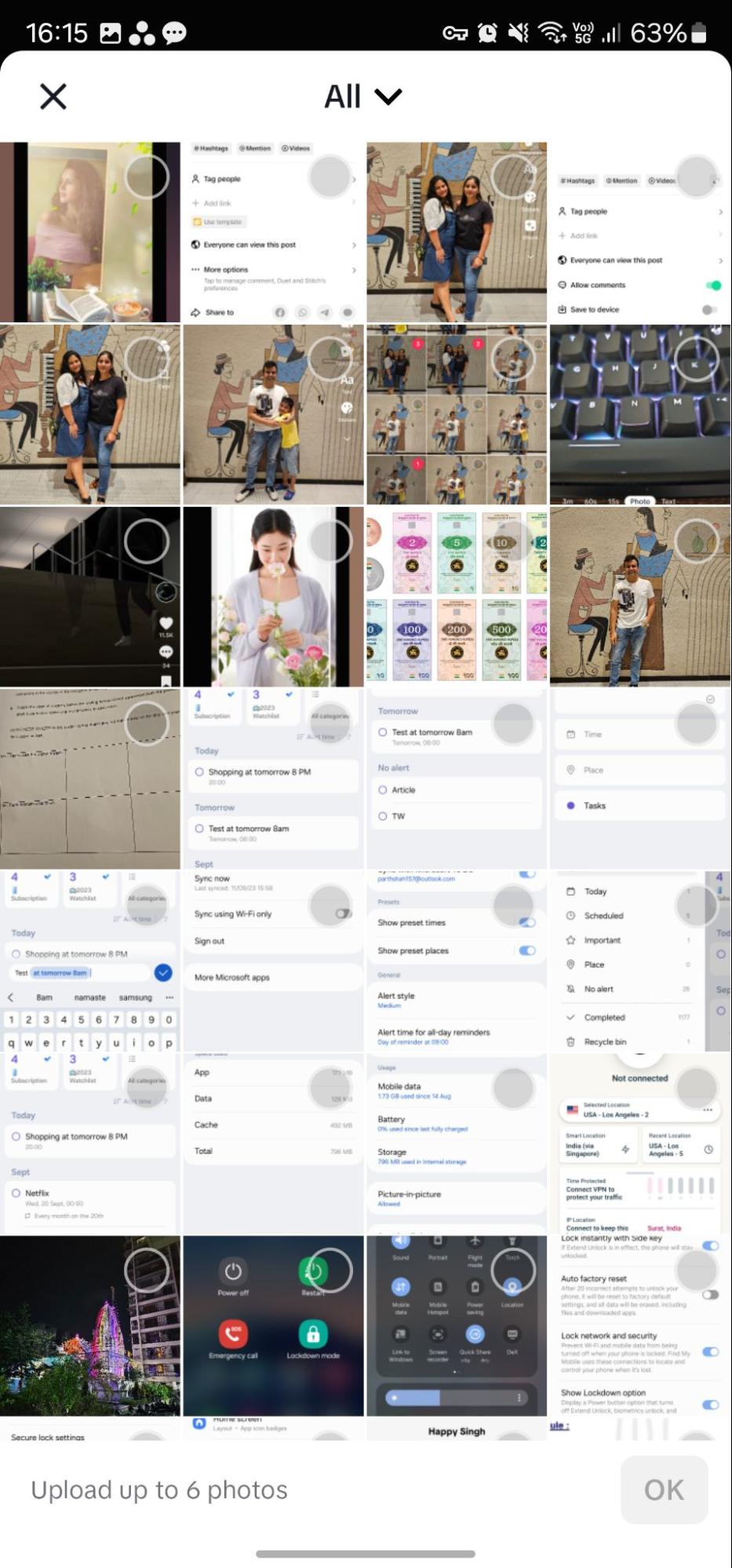
    create tiktok slideshow 010create tiktok slideshow 004

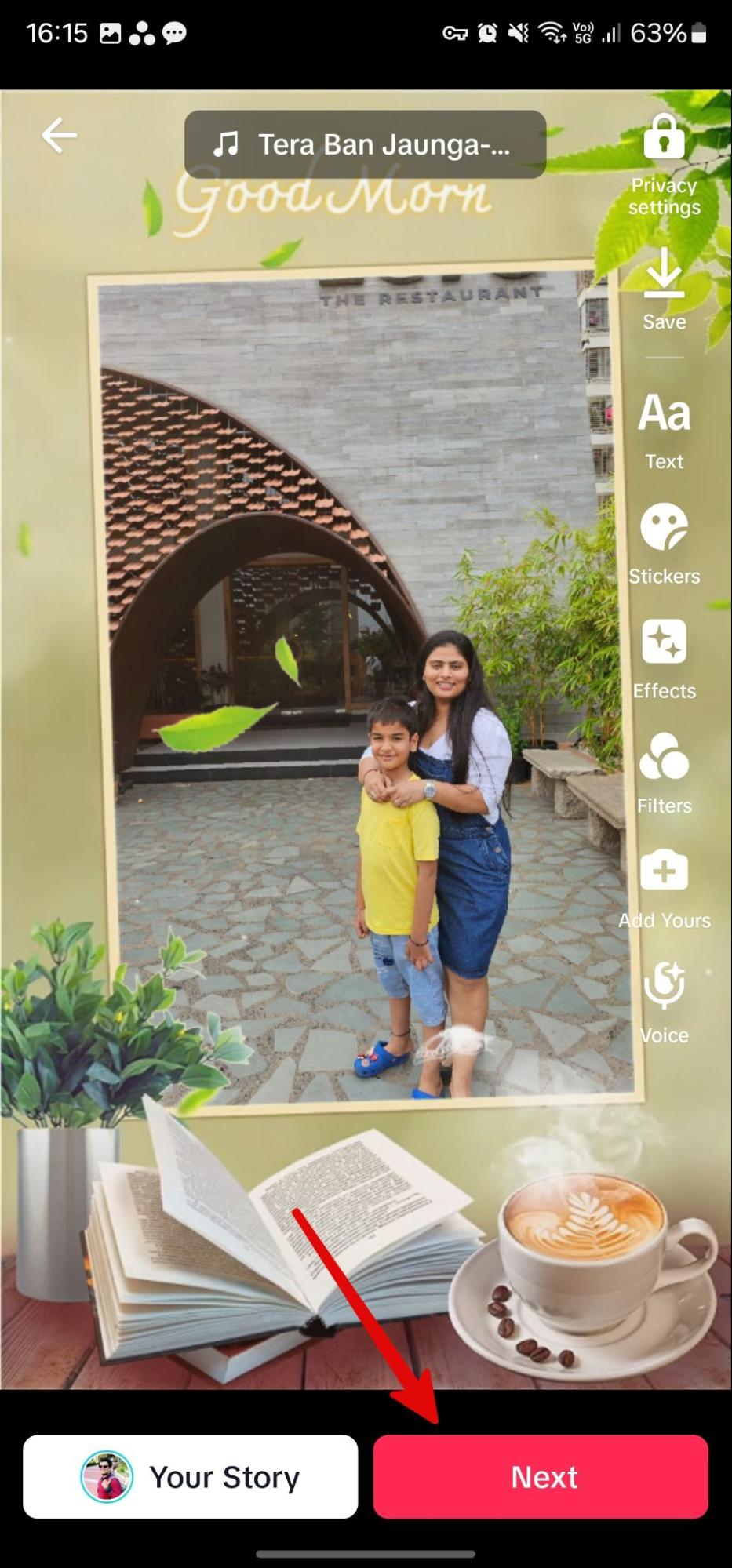
    1. Select photos from the subsequent menu. Preview your photo slideshow.
    2. The slideshow can be enhanced with text, stickers, effects, filters, and other features. Tap “Next.”
    create tiktok slideshow 002create tiktok slideshow 008

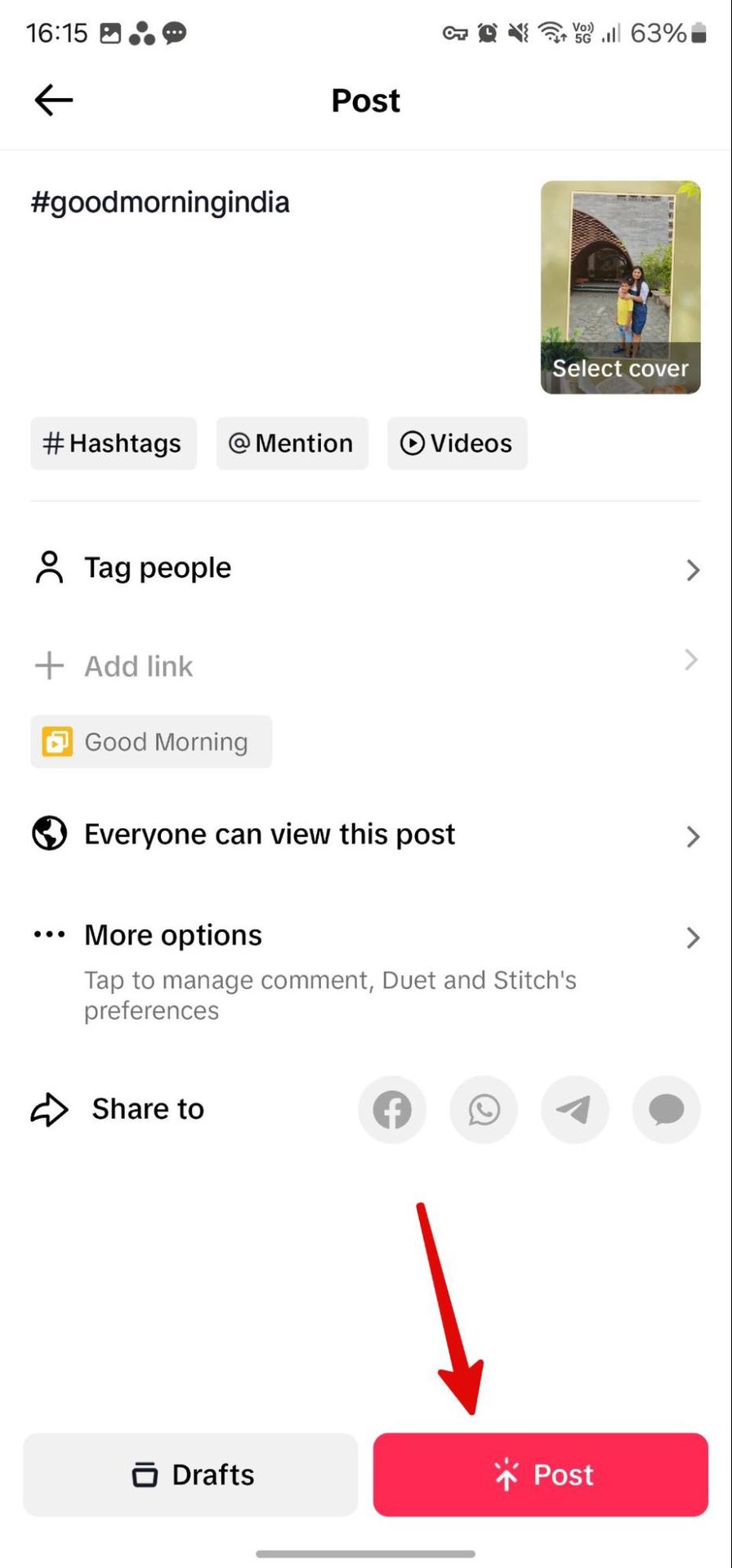
    1. TikTok will automatically add a hashtag based on the chosen template. Tag people, adjust sharing permissions, explore additional options, and tap “Post.”

    TikTok offers a wide selection of photo templates, making it easy to find one that suits your needs. This is often the simplest method for creating quick slideshows on the platform.

    While slideshows are gaining popularity among TikTok users, short-form videos generally remain the preferred format for achieving significant engagement on the platform. Notably, creating TikTok videos is nearly as straightforward as making slideshows.

    Share. Facebook Twitter Pinterest LinkedIn Tumblr Email
    Previous ArticleRugOne Xever 7 Pro Review: A Rugged Phone with Swappable Battery, Held Back by its Processor
    Next Article Deploy CoreML Models on the Server with Vapor
    Samuel Alejandro

    Related Posts

    Guides

    How to Use the Multisport Workout Mode on Apple Watch

    January 13, 2026
    Guides

    Was Windows 8 Really That Bad? A Revisit 13 Years Later

    January 12, 2026
    Tech

    TikTok Removes AI Weight Loss Ads from Fake Boots Account

    January 12, 2026
    Add A Comment
    Leave A Reply Cancel Reply

    Latest Post

    ChatGPT Mobile App Surpasses $3 Billion in Consumer Spending

    December 21, 202512 Views

    Automate Your iPhone’s Always-On Display for Better Battery Life and Privacy

    December 21, 202510 Views

    Creator Tayla Cannon Lands $1.1M Investment for Rebuildr PT Software

    December 21, 20259 Views
    Stay In Touch
    • Facebook
    • YouTube
    • TikTok
    • WhatsApp
    • Twitter
    • Instagram
    About

    Welcome to NodeToday, your trusted source for the latest updates in Technology, Artificial Intelligence, and Innovation. We are dedicated to delivering accurate, timely, and insightful content that helps readers stay ahead in a fast-evolving digital world.

    At NodeToday, we cover everything from AI breakthroughs and emerging technologies to product launches, software tools, developer news, and practical guides. Our goal is to simplify complex topics and present them in a clear, engaging, and easy-to-understand way for tech enthusiasts, professionals, and beginners alike.

    Latest Post

    Deploy CoreML Models on the Server with Vapor

    January 14, 20260 Views

    How to Create a Slideshow on TikTok

    January 14, 20260 Views

    RugOne Xever 7 Pro Review: A Rugged Phone with Swappable Battery, Held Back by its Processor

    January 13, 20260 Views
    Recent Posts
    • Deploy CoreML Models on the Server with Vapor
    • How to Create a Slideshow on TikTok
    • RugOne Xever 7 Pro Review: A Rugged Phone with Swappable Battery, Held Back by its Processor
    • What is Identity Dark Matter?
    • Staying Ahead of the Algorithm: Social Media Tips from the Experts
    Facebook X (Twitter) Instagram Pinterest
    • About Us
    • Contact Us
    • Privacy Policy
    • Terms & Conditions
    • Disclaimer
    • Cookie Policy
    © 2026 NodeToday.

    Type above and press Enter to search. Press Esc to cancel.