


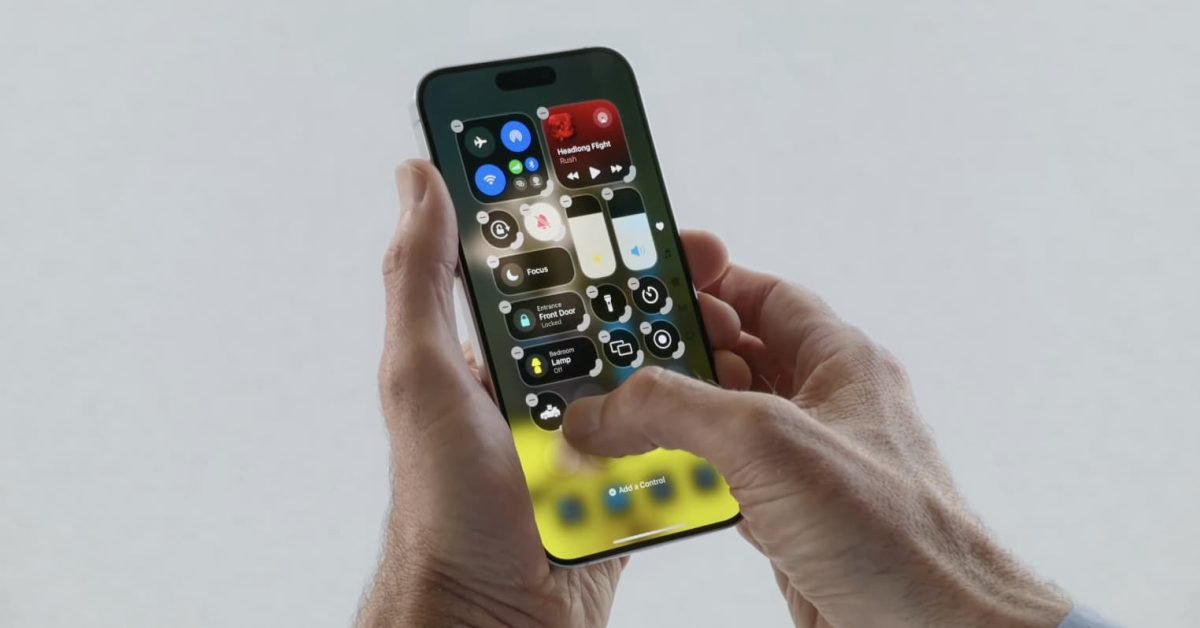

The Control Center in iOS 18 has undergone a significant transformation, providing users with unprecedented levels of personalization. This redesign aims to make essential controls more accessible and adaptable to individual workflows.
Accessing the New Control Center
To open the Control Center, simply swipe down from the top-right corner of your iPhone’s screen, as in previous iOS versions. The most noticeable change is the introduction of multiple pages, allowing for a more organized layout of controls.
Key Features of the Redesigned Control Center
- Multiple Pages: Controls are now organized across several pages, which can be navigated by swiping horizontally. This prevents clutter and allows for a greater number of available controls.
- Resizable Controls: Many controls can be resized, offering a more prominent display for frequently used functions or a compact view for less critical ones.
- Third-Party Integration: For the first time, developers can integrate their app controls directly into the Control Center, expanding its utility beyond Apple’s native offerings.
Customizing Your Control Center
Personalizing the Control Center is straightforward. To enter customization mode, press and hold anywhere on the Control Center background. This action reveals options to modify the layout and content.
Adding and Removing Controls
In customization mode, a ‘+’ button appears in the top-left corner, allowing users to browse and add new controls from a comprehensive list. To remove an existing control, tap the ‘-‘ button that appears on its icon.
Rearranging Controls
While in customization mode, controls can be dragged and dropped to new positions within the current page or even moved to different pages. This flexibility ensures that the most important controls are always within easy reach.
Resizing Controls
Certain controls feature a resize handle, typically a small icon or border, which allows users to adjust their size. Tapping and dragging this handle enables switching between small, medium, and large formats, depending on the control’s functionality.
Utilizing Third-Party App Controls
With iOS 18, third-party applications can offer their own controls within the Control Center. Once an app is installed and supports this feature, its controls will appear in the list of available options for users to add, just like native Apple controls. This opens up new possibilities for quick access to app-specific functions without needing to open the app itself.
Examples of Enhanced Controls
The updated Control Center includes dedicated sections for various functionalities:
- Media Playback: A dedicated page for music and video controls, often featuring larger, more interactive elements.
- Home Controls: Smart home device controls are consolidated, making it easier to manage lights, thermostats, and other accessories.
- Connectivity: Wi-Fi, Bluetooth, and cellular data toggles are still present, potentially with enhanced quick-access options.
The iOS 18 Control Center represents a significant step forward in user interface flexibility, empowering users to tailor their iPhone experience more precisely than ever before.
