


Debugging controllers can be challenging. This article explores how CSS can simplify the process and guides readers in building a reusable visual debugger for their projects.
When a controller is connected, button presses, stick movements, and trigger pulls are often invisible to developers. While the browser registers these inputs, without console logging, the actions remain unseen. This presents a challenge when working with the Gamepad API.
The Gamepad API has existed for years and offers powerful capabilities for reading buttons, sticks, and triggers. However, many developers avoid it due to a lack of visual feedback. There is no dedicated panel in developer tools, making it difficult to confirm if controller inputs are registering as expected, leading to a sense of operating without clear visibility.
This challenge inspired the creation of a tool called Gamepad Cascade Debugger. This tool provides a live, interactive visualization of controller input, eliminating the need to rely solely on console output. When a button is pressed, the on-screen representation reacts. Utilizing CSS Cascade Layers helps maintain organized styles, simplifying the debugging process.
This article will demonstrate the difficulties of debugging controller input, explain how CSS can improve the process, and guide readers through building a reusable visual debugger for their own projects.
Live Demo of the Gamepad Debugger showing recording, exporting, and ghost replay in action.
Upon completion of this article, readers will understand how to:
- Spot the tricky parts of debugging controller input.
- Use Cascade Layers to tame messy CSS.
- Build a live Gamepad debugger.
- Add extra functionalities like recording, replaying, and taking snapshots.
The following sections will delve into the details.
Why Debugging Gamepad Input Is Hard
The thought of building a game or web app where a player uses a controller instead of a mouse could make a developer nervous. It requires responding to actions like:
- Did they press A or B?
- Is the joystick tilted halfway or fully?
- How hard is the trigger pulled?
The Gamepad API exposes and displays all the necessary information, but only as arrays of numbers. Each button has a value (e.g., 0 for not pressed, 1 for fully pressed, and decimals for pressure-sensitive triggers), and each joystick reports its position on the X and Y axes.
Here’s what it looks like in raw form:
// Example: Reading the first connected gamepad
const gamepad = navigator.getGamepads()[0];

console.log(gamepad.buttons.map(b => b.value));
// [0, 0, 1, 0, 0, 0.5, 0, ...]

console.log(gamepad.axes);
// [-0.24, 0.98, -0.02, 0.00]
Is it useful? Technically, yes. Easy to debug? Not at all.
Problem 1: Invisible State
When a physical button is pressed, a click is felt. However, in code, nothing moves on screen unless a display is manually wired up. Unlike keyboard events (which show in browser dev tools) or mouse clicks (which fire visible events), gamepad input lacks built-in visual feedback.
To illustrate the difference, here’s how other input methods give immediate feedback:
// Keyboard events are visible and easy to track
document.addEventListener('keydown', (e) => {
  console.log('Key pressed:', e.key);
  // Outputs: "Key pressed: a"
  // You can see this in DevTools, and many tools show keyboard input
});

// Mouse clicks provide clear event data
document.addEventListener('click', (e) => {
  console.log('Clicked at:', e.clientX, e.clientY);
  // Outputs: "Clicked at: 245, 389"
  // Visual feedback is immediate
});

// But gamepad input? Silent and invisible.
const gamepad = navigator.getGamepads()[0];
if (gamepad) {
  console.log(gamepad.buttons[0]);
  // Outputs: GamepadButton {pressed: false, touched: false, value: 0}
  // No events, no DevTools panel, just polling
}
The gamepad does not fire events when buttons are pressed. It must be constantly polled using requestAnimationFrame, checking values manually. There is no built-in visualization, no dev tools integration, nothing.
This forces developers to repeatedly switch between the console and the controller to log values, interpret numbers, and mentally map them back to physical actions.
Problem 2: Too Many Inputs
A modern controller can have up to 15+ buttons and 4+ axes. That’s over a dozen values updating at once.
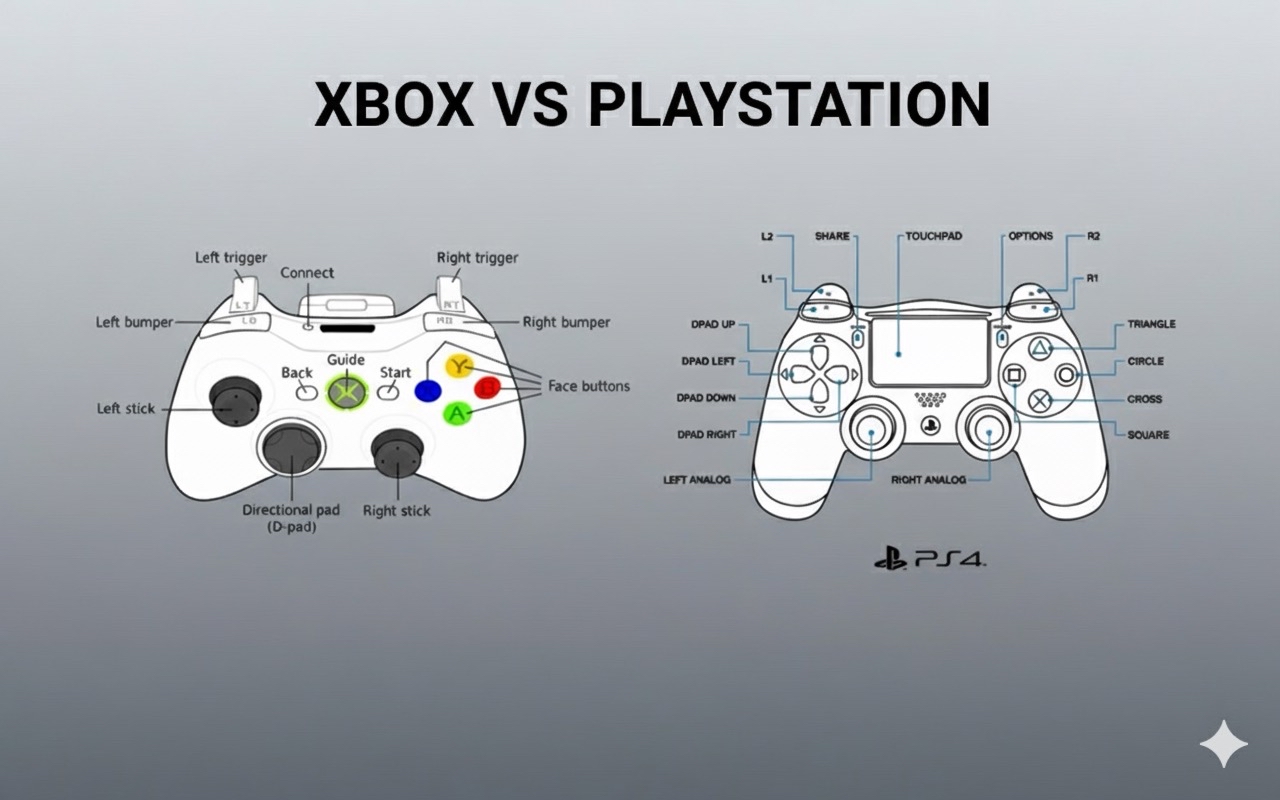 Both Xbox and PlayStation controllers pack 15+ buttons each, and they’re laid out differently. Debugging across platforms means handling all that variety. (Large preview)
Even if all inputs are logged, the result quickly becomes unreadable console spam. For example:
[0,0,1,0,0,0.5,0,...]
[0,0,0,0,1,0,0,...]
[0,0,1,0,0,0,0,...]
Can the pressed button be identified? Perhaps, but only after straining the eyes and missing several inputs. Therefore, debugging is not straightforward when it comes to reading inputs.
Problem 3: Lack Of Structure
Even with a quick visualizer, styles can rapidly become disorganized. Default, active, and debug states can overlap, and without a clear structure, CSS becomes brittle and difficult to extend.
CSS Cascade Layers can help. They group styles into “layers” that are ordered by priority, preventing specificity conflicts and eliminating the need to guess, “Why isn’t my debug style showing?” Instead, separate concerns are maintained:
- Base: The controller’s standard, initial appearance.
- Active: Highlights for pressed buttons and moved sticks.
- Debug: Overlays for developers (e.g., numeric readouts, guides, and so on).
If layers were defined in CSS according to this, they would be:
/* lowest to highest priority */
@layer base, active, debug;

@layer base {
  /* ... */
}

@layer active {
  /* ... */
}

@layer debug {
  /* ... */
}
Because each layer stacks predictably, the winning rules are always clear. That predictability makes debugging not just easier, but actually manageable.
The challenges of invisible and disorganized input have been discussed, along with the proposed solution of a visual debugger constructed with CSS Cascade Layers. The next steps involve a detailed walkthrough of building this debugger.
The Debugger Concept
The easiest way to make hidden input visible is to draw it on the screen. This debugger achieves that by providing a visual representation for buttons, triggers, and joysticks.
- Press A: A circle lights up.
- Nudge the stick: The circle slides around.
- Pull a trigger halfway: A bar fills halfway.
This allows observation of the controller’s live reactions instead of interpreting 0s and 1s.
Naturally, as states like default, pressed, debug information, and potentially a recording mode accumulate, the CSS grows larger and more complex. This is where cascade layers prove useful. Here’s a stripped-down example:
@layer base {
  .button {
    background: #222;
    border-radius: 50%;
    width: 40px;
    height: 40px;
  }
}

@layer active {
  .button.pressed {
    background: #0f0; /* bright green */
  }
}

@layer debug {
  .button::after {
    content: attr(data-value);
    font-size: 12px;
    color: #fff;
  }
}
The layer order matters: base → active → debug.
- base draws the controller.
- active handles pressed states.
- debug throws on overlays.
Breaking it up this way avoids specificity conflicts. Each layer has its designated role, ensuring clarity on which styles take precedence.
Building It Out
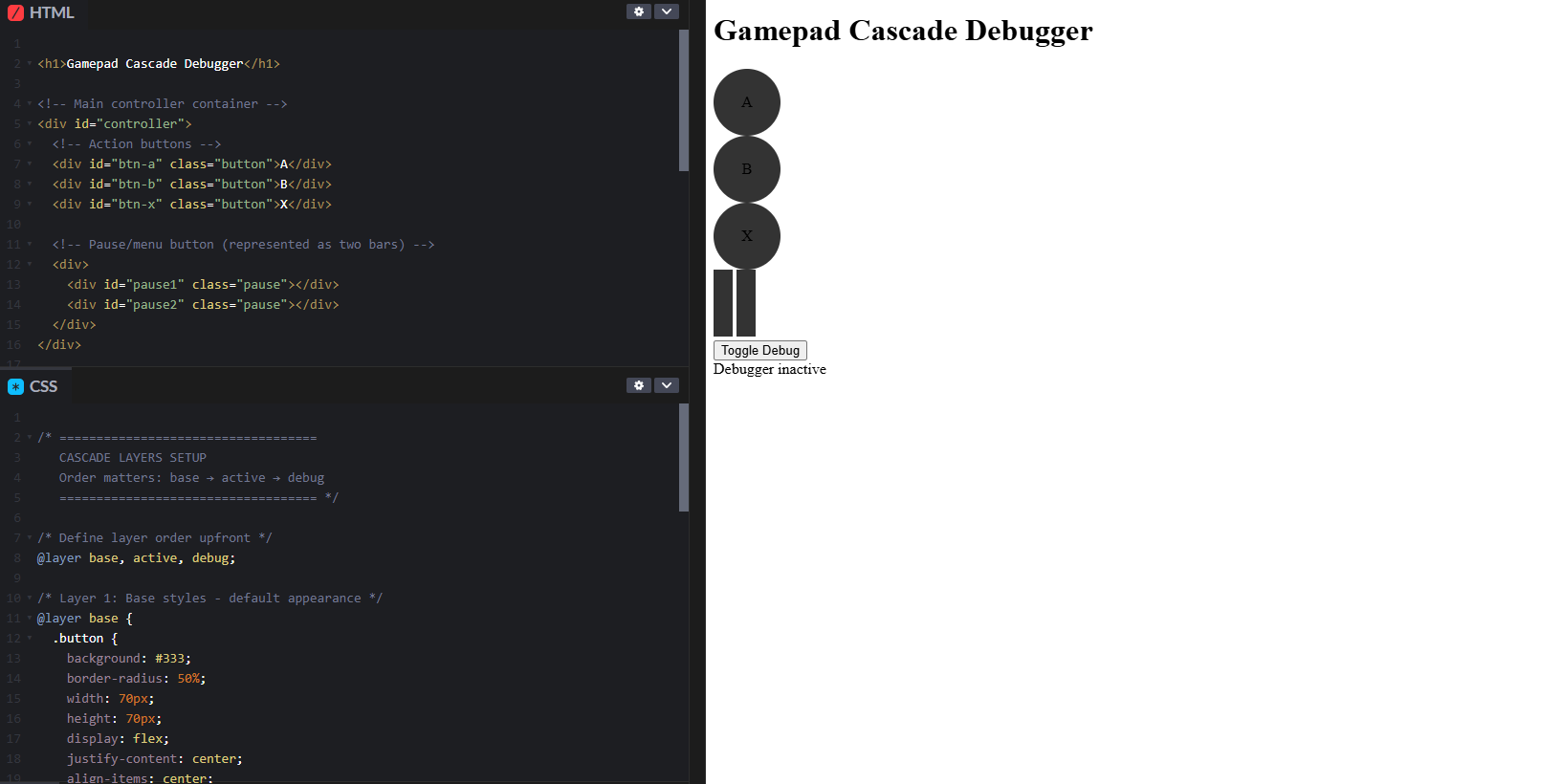
To begin, a basic on-screen representation is needed. Its initial appearance is less important than its presence, providing a foundation for further development.
<h1>Gamepad Cascade Debugger</h1>

<!-- Main controller container -->
<div id="controller">
  <!-- Action buttons -->
  <div id="btn-a" class="button">A</div>
  <div id="btn-b" class="button">B</div>
  <div id="btn-x" class="button">X</div>

  <!-- Pause/menu button (represented as two bars) -->
  <div>
    <div id="pause1" class="pause"></div>
    <div id="pause2" class="pause"></div>
  </div>
</div>

<!-- Toggle button to start/stop the debugger -->
<button id="toggle">Toggle Debug</button>

<!-- Status display for showing which buttons are pressed -->
<div id="status">Debugger inactive</div>

<script src="script.js"></script>
These are simply boxes. While not yet exciting, they provide elements to manipulate later with CSS and JavaScript.
CSS Cascade Layers are employed to maintain organization as more states are introduced. A preliminary example is provided:
/* ===================================
   CASCADE LAYERS SETUP
   Order matters: base → active → debug
   =================================== */

/* Define layer order upfront */
@layer base, active, debug;

/* Layer 1: Base styles - default appearance */
@layer base {
  .button {
    background: #333;
    border-radius: 50%;
    width: 70px;
    height: 70px;
    display: flex;
    justify-content: center;
    align-items: center;
  }

  .pause {
    width: 20px;
    height: 70px;
    background: #333;
    display: inline-block;
  }
}

/* Layer 2: Active states - handles pressed buttons */
@layer active {
  .button.active {
    background: #0f0; /* Bright green when pressed */
    transform: scale(1.1); /* Slightly enlarges the button */
  }

  .pause.active {
    background: #0f0;
    transform: scaleY(1.1); /* Stretches vertically when pressed */
  }
}

/* Layer 3: Debug overlays - developer info */
@layer debug {
  .button::after {
    content: attr(data-value); /* Shows the numeric value */
    font-size: 12px;
    color: #fff;
  }
}
The advantage of this approach is that each layer serves a clear purpose. The base layer cannot override active, and active cannot override debug, regardless of specificity. This eliminates the CSS specificity wars that often complicate debugging tools.
Currently, some clusters appear on a dark background, which is a reasonable starting point.
Adding the JavaScript
Now, it is time for JavaScript, which enables the controller’s functionality. This will be built step by step.
Step 1: Set Up State Management
Initially, variables are required to monitor the debugger’s state:
// ===================================
// STATE MANAGEMENT
// ===================================

let running = false; // Tracks whether the debugger is active
let rafId; // Stores the requestAnimationFrame ID for cancellation
These variables control the animation loop that continuously reads gamepad input.
Step 2: Grab DOM References
Subsequently, references to all HTML elements slated for updates are obtained:
// ===================================
// DOM ELEMENT REFERENCES
// ===================================

const btnA = document.getElementById("btn-a");
const btnB = document.getElementById("btn-b");
const btnX = document.getElementById("btn-x");
const pause1 = document.getElementById("pause1");
const pause2 = document.getElementById("pause2");
const status = document.getElementById("status");
Storing these references upfront is more efficient than repeatedly querying the DOM.
Step 3: Add Keyboard Fallback
To facilitate testing without a physical controller, keyboard keys can be mapped to corresponding buttons:
// ===================================
// KEYBOARD FALLBACK (for testing without a controller)
// ===================================

const keyMap = {
  "a": btnA,
  "b": btnB,
  "x": btnX,
  "p": [pause1, pause2] // 'p' key controls both pause bars
};
This allows testing the UI by pressing keys on a keyboard.
Step 4: Create The Main Update Loop
This function, which continuously reads gamepad state, is central to the debugger’s operation:
// ===================================
// MAIN GAMEPAD UPDATE LOOP
// ===================================

function updateGamepad() {
  // Get all connected gamepads
  const gamepads = navigator.getGamepads();
  if (!gamepads) return;

  // Use the first connected gamepad
  const gp = gamepads[0];

  if (gp) {
    // Update button states by toggling the "active" class
    btnA.classList.toggle("active", gp.buttons[0].pressed);
    btnB.classList.toggle("active", gp.buttons[1].pressed);
    btnX.classList.toggle("active", gp.buttons[2].pressed);

    // Handle pause button (button index 9 on most controllers)
    const pausePressed = gp.buttons[9].pressed;
    pause1.classList.toggle("active", pausePressed);
    pause2.classList.toggle("active", pausePressed);

    // Build a list of currently pressed buttons for status display
    let pressed = [];
    gp.buttons.forEach((btn, i) => {
      if (btn.pressed) pressed.push("Button " + i);
    });

    // Update status text if any buttons are pressed
    if (pressed.length > 0) {
      status.textContent = "Pressed: " + pressed.join(", ");
    }
  }

  // Continue the loop if debugger is running
  if (running) {
    rafId = requestAnimationFrame(updateGamepad);
  }
}
The classList.toggle() method adds or removes the active class based on whether the button is pressed, which triggers the CSS layer styles.
Step 5: Handle Keyboard Events
These event listeners enable the keyboard fallback functionality:
// ===================================
// KEYBOARD EVENT HANDLERS
// ===================================

document.addEventListener("keydown", (e) => {
  if (keyMap[e.key]) {
    // Handle single or multiple elements
    if (Array.isArray(keyMap[e.key])) {
      keyMap[e.key].forEach(el => el.classList.add("active"));
    } else {
      keyMap[e.key].classList.add("active");
    }
    status.textContent = "Key pressed: " + e.key.toUpperCase();
  }
});

document.addEventListener("keyup", (e) => {
  if (keyMap[e.key]) {
    // Remove active state when key is released
    if (Array.isArray(keyMap[e.key])) {
      keyMap[e.key].forEach(el => el.classList.remove("active"));
    } else {
      keyMap[e.key].classList.remove("active");
    }
    status.textContent = "Key released: " + e.key.toUpperCase();
  }
});
Step 6: Add Start/Stop Control
Lastly, a mechanism is needed to toggle the debugger’s activation and deactivation:
// ===================================
// TOGGLE DEBUGGER ON/OFF
// ===================================

document.getElementById("toggle").addEventListener("click", () => {
  running = !running; // Flip the running state

  if (running) {
    status.textContent = "Debugger running...";
    updateGamepad(); // Start the update loop
  } else {
    status.textContent = "Debugger inactive";
    cancelAnimationFrame(rafId); // Stop the loop
  }
});
With this setup, pressing a button illuminates its on-screen counterpart, and moving a joystick causes its visual representation to shift.
Additionally, there are instances where raw numerical values are preferred over visual indicators.
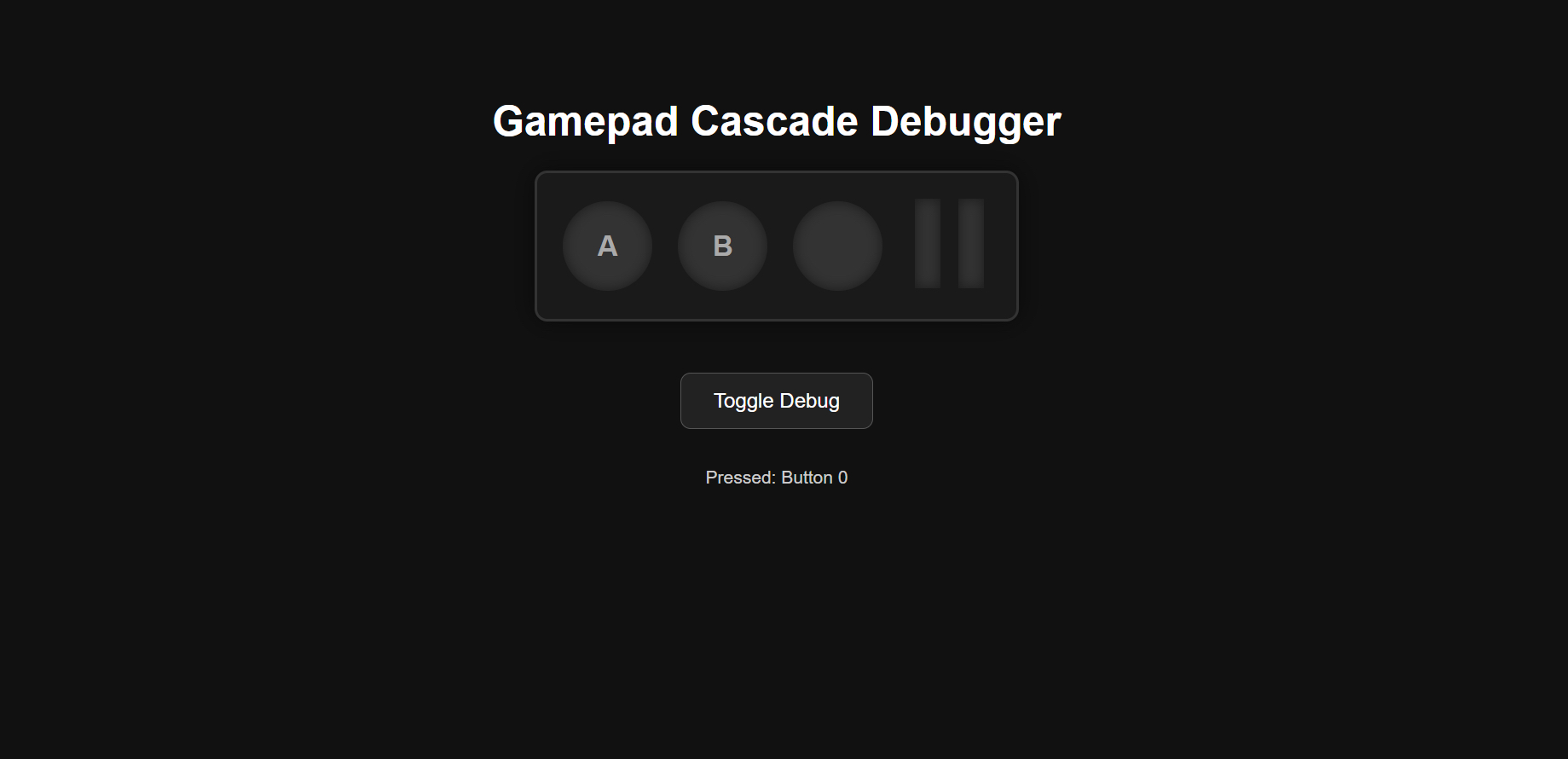 The Gamepad Cascade Debugger in its idle state with no inputs detected (Pressed buttons: 0). (Large preview)
At this stage, the following should be visible:
- A simple on-screen controller,
- Buttons that react to interaction, and
- An optional debug readout showing pressed button indices.
To make this less abstract, here’s a quick demo of the on-screen controller reacting in real time:
Live demo of the on-screen controller lighting up as buttons are pressed and released.
That forms the entire foundation. From here, additional features like record/replay and snapshots can be integrated.
Enhancements: From Toy To Tool
While a static visualizer offers some utility, developers frequently require more than a momentary snapshot of controller state. Features such as input history, analysis, and replay capabilities are often desired. These functionalities can be integrated into the debugger.
1. Recording & Stopping Input Logs
Two buttons can be added:
<div class="controls">
  <button id="start-record" class="btn">Start Recording</button>
  <button id="stop-record" class="btn" disabled>Stop Recording</button>
</div>
Step 1: Set Up Recording State
Initially, variables are required to track recordings:
// ===================================
// RECORDING STATE
// ===================================

let recording = false; // Tracks if we're currently recording
let frames = []; // Array to store captured input frames

// Get button references
const startBtn = document.getElementById("start-record");
const stopBtn = document.getElementById("stop-record");
The frames array will store snapshots of the gamepad state at each frame, creating a complete timeline of input.
Step 2: Handle Start Recording
When the user clicks “Start Recording,” a new recording session is initialized:
// ===================================
// START RECORDING
// ===================================

startBtn.addEventListener("click", () => {
  frames = []; // Clear any previous recording
  recording = true;

  // Update UI: disable start, enable stop
  stopBtn.disabled = false;
  startBtn.disabled = true;

  console.log("Recording started...");
});
Step 3: Handle Stop Recording
To stop recording, the state is reverted, and the Start button is re-enabled:
// ===================================
// STOP RECORDING
// ===================================

stopBtn.addEventListener("click", () => {
  recording = false;

  // Update UI: enable start, disable stop
  stopBtn.disabled = true;
  startBtn.disabled = false;

  console.log("Recording stopped. Frames captured:", frames.length);
});
Step 4: Capture Frames During Gameplay
Finally, frames need to be captured during the update loop. This should be added inside the updateGamepad() function:
// ===================================
// CAPTURE FRAMES (add this inside updateGamepad loop)
// ===================================

if (recording && gp) {
  // Store a snapshot of the current gamepad state
  frames.push({
    t: performance.now(), // Timestamp for accurate replay
    buttons: gp.buttons.map(b => ({
      pressed: b.pressed,
      value: b.value
    })),
    axes: [...gp.axes] // Copy the axes array
  });
}
Each frame captures the exact state of every button and joystick at that moment in time.
Once wired up, the interface displays a simple recording panel. A Start button initiates input logging, while the recording state, frame count, and duration remain at zero until recording begins. The following figure shows the debugger in its initial idle state.
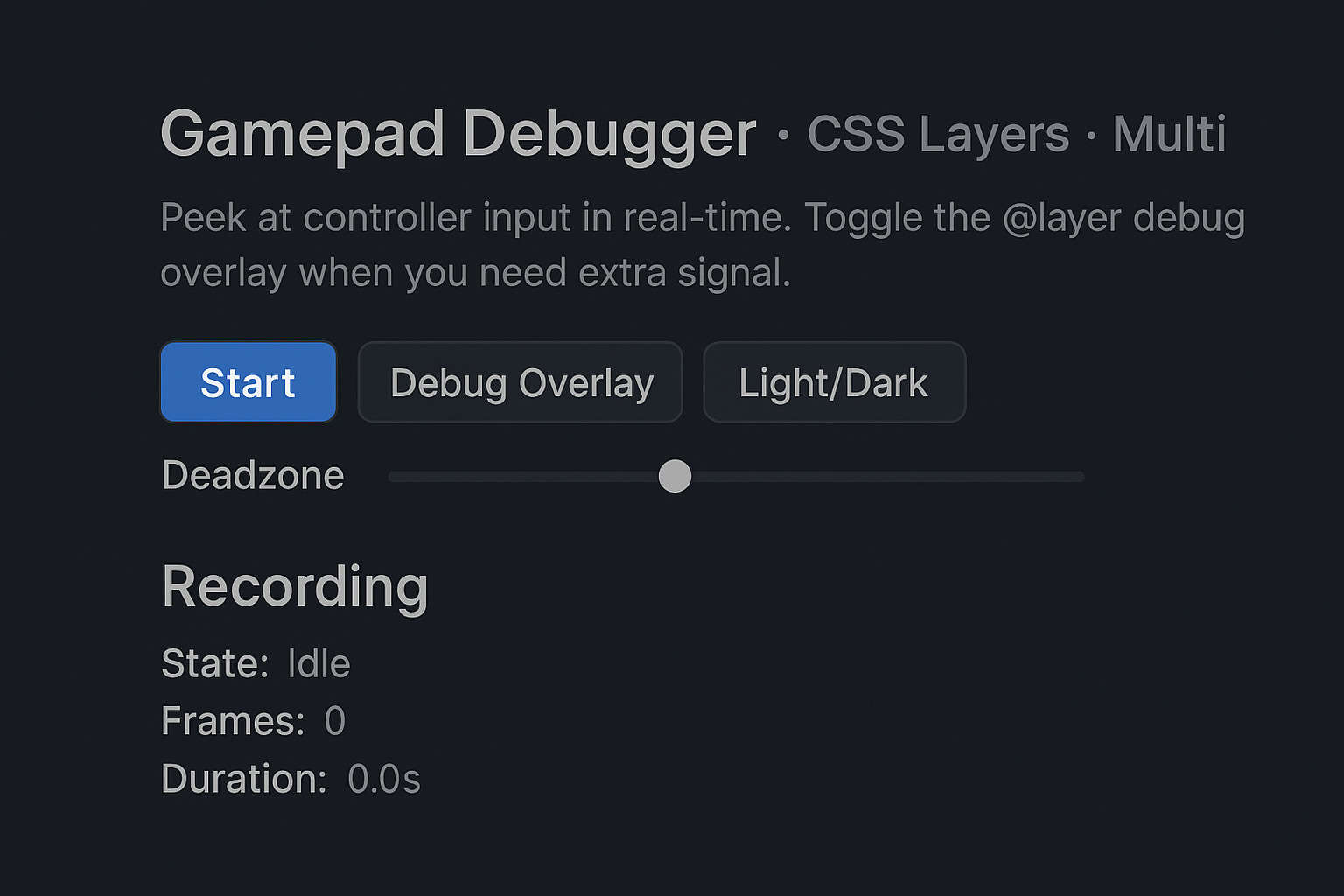 Recording panel in its idle state, with only the start button active. (Large preview)
Now, pressing Start Recording logs everything until Stop Recording is activated.
2. Exporting Data to CSV/JSON
Once a log is obtained, it will likely need to be saved.
<div class="controls">
  <button id="export-json" class="btn">Export JSON</button>
  <button id="export-csv" class="btn">Export CSV</button>
</div>
Step 1: Create The Download Helper
First, a helper function is necessary to manage file downloads within the browser:
// ===================================
// FILE DOWNLOAD HELPER
// ===================================

function downloadFile(filename, content, type = "text/plain") {
  // Create a blob from the content
  const blob = new Blob([content], { type });
  const url = URL.createObjectURL(blob);

  // Create a temporary download link and click it
  const a = document.createElement("a");
  a.href = url;
  a.download = filename;
  a.click();

  // Clean up the object URL after download
  setTimeout(() => URL.revokeObjectURL(url), 100);
}
This function operates by creating a Blob (binary large object) from the data, generating a temporary URL for it, and programmatically clicking a download link. The cleanup ensures no memory leaks.
Step 2: Handle JSON Export
JSON is ideal for preserving the complete data structure:
// ===================================
// EXPORT AS JSON
// ===================================

document.getElementById("export-json").addEventListener("click", () => {
  // Check if there's anything to export
  if (!frames.length) {
    console.warn("No recording available to export.");
    return;
  }

  // Create a payload with metadata and frames
  const payload = {
    createdAt: new Date().toISOString(),
    frames
  };

  // Download as formatted JSON
  downloadFile(
    "gamepad-log.json",
    JSON.stringify(payload, null, 2),
    "application/json"
  );
});
The JSON format maintains a structured and easily parseable representation, making it suitable for loading back into dev tools or sharing with teammates.
Step 3: Handle CSV Export
For CSV exports, the hierarchical data needs to be flattened into rows and columns:
// ===================================
// EXPORT AS CSV
// ===================================

document.getElementById("export-csv").addEventListener("click", () => {
  // Check if there's anything to export
  if (!frames.length) {
    console.warn("No recording available to export.");
    return;
  }

  // Build CSV header row (columns for timestamp, all buttons, all axes)
  const headerButtons = frames[0].buttons.map((_, i) => `btn${i}`);
  const headerAxes = frames[0].axes.map((_, i) => `axis${i}`);
  const header = ["t", ...headerButtons, ...headerAxes].join(",") + "\n";

  // Build CSV data rows
  const rows = frames.map(f => {
    const btnVals = f.buttons.map(b => b.value);
    return [f.t, ...btnVals, ...f.axes].join(",");
  }).join("\n");

  // Download as CSV
  downloadFile("gamepad-log.csv", header + rows, "text/csv");
});
CSV is excellent for data analysis as it opens directly in Excel or Google Sheets, allowing for chart creation, data filtering, or visual pattern identification.
With the export buttons integrated, two new options appear on the panel: Export JSON and Export CSV. JSON is useful for importing raw logs into dev tools or examining the data structure. CSV, conversely, opens directly in Excel or Google Sheets, enabling charting, filtering, or comparing inputs. The following figure illustrates the panel with these additional controls.
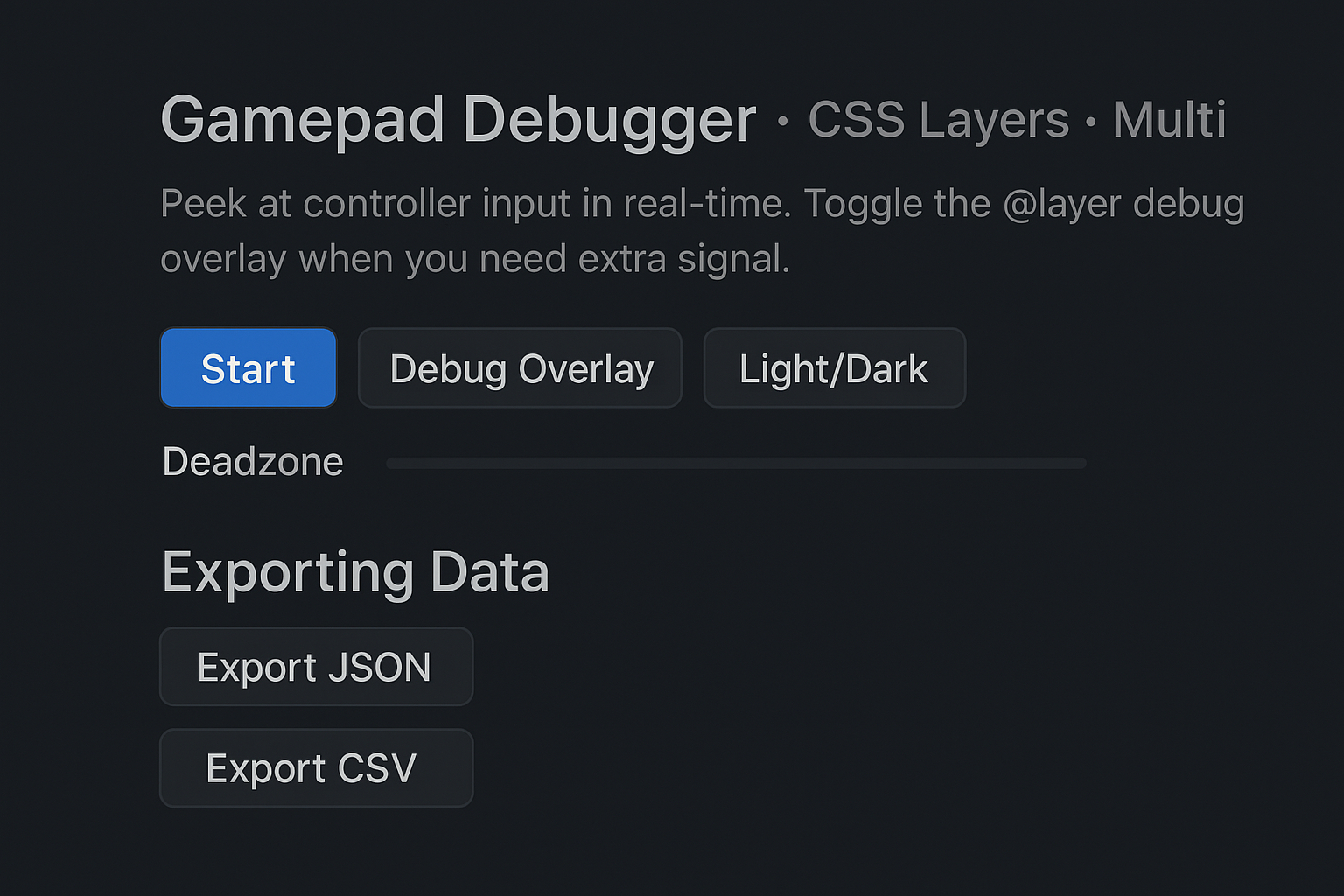 Export panel with JSON and CSV buttons for saving logs. (Large preview)
3. Snapshot System
Sometimes a full recording is not needed, only a quick “screenshot” of input states. A Take Snapshot button addresses this need.
<div class="controls">
  <button id="snapshot" class="btn">Take Snapshot</button>
</div>
And the JavaScript:
// ===================================
// TAKE SNAPSHOT
// ===================================

document.getElementById("snapshot").addEventListener("click", () => {
  // Get all connected gamepads
  const pads = navigator.getGamepads();
  const activePads = [];

  // Loop through and capture the state of each connected gamepad
  for (const gp of pads) {
    if (!gp) continue; // Skip empty slots

    activePads.push({
      id: gp.id, // Controller name/model
      timestamp: performance.now(),
      buttons: gp.buttons.map(b => ({
        pressed: b.pressed,
        value: b.value
      })),
      axes: [...gp.axes]
    });
  }

  // Check if any gamepads were found
  if (!activePads.length) {
    console.warn("No gamepads connected for snapshot.");
    alert("No controller detected!");
    return;
  }

  // Log and notify user
  console.log("Snapshot:", activePads);
  alert(`Snapshot taken! Captured ${activePads.length} controller(s).`);
});
Snapshots capture the exact state of the controller at a single moment in time.
4. Ghost Input Replay
A ghost input replay feature allows a recorded log to be visually played back, simulating a phantom player’s controller usage.
<div class="controls">
  <button id="replay" class="btn">Replay Last Recording</button>
</div>
JavaScript for replay:
// ===================================
// GHOST REPLAY
// ===================================

document.getElementById("replay").addEventListener("click", () => {
  // Ensure we have a recording to replay
  if (!frames.length) {
    alert("No recording to replay!");
    return;
  }

  console.log("Starting ghost replay...");

  // Track timing for synced playback
  let startTime = performance.now();
  let frameIndex = 0;

  // Replay animation loop
  function step() {
    const now = performance.now();
    const elapsed = now - startTime;

    // Process all frames that should have occurred by now
    while (frameIndex < frames.length && frames[frameIndex].t <= elapsed) {
      const frame = frames[frameIndex];

      // Update UI with the recorded button states
      btnA.classList.toggle("active", frame.buttons[0].pressed);
      btnB.classList.toggle("active", frame.buttons[1].pressed);
      btnX.classList.toggle("active", frame.buttons[2].pressed);

      // Update status display
      let pressed = [];
      frame.buttons.forEach((btn, i) => {
        if (btn.pressed) pressed.push("Button " + i);
      });
      if (pressed.length > 0) {
        status.textContent = "Ghost: " + pressed.join(", ");
      }

      frameIndex++;
    }

    // Continue loop if there are more frames
    if (frameIndex < frames.length) {
      requestAnimationFrame(step);
    } else {
      console.log("Replay finished.");
      status.textContent = "Replay complete";
    }
  }

  // Start the replay
  step();
});
For a more interactive debugging experience, a ghost replay feature has been incorporated. After recording a session, users can initiate replay to observe the UI mimicking the recorded inputs, as if a phantom player were operating the controller. A new Replay Ghost button appears on the panel for this purpose.
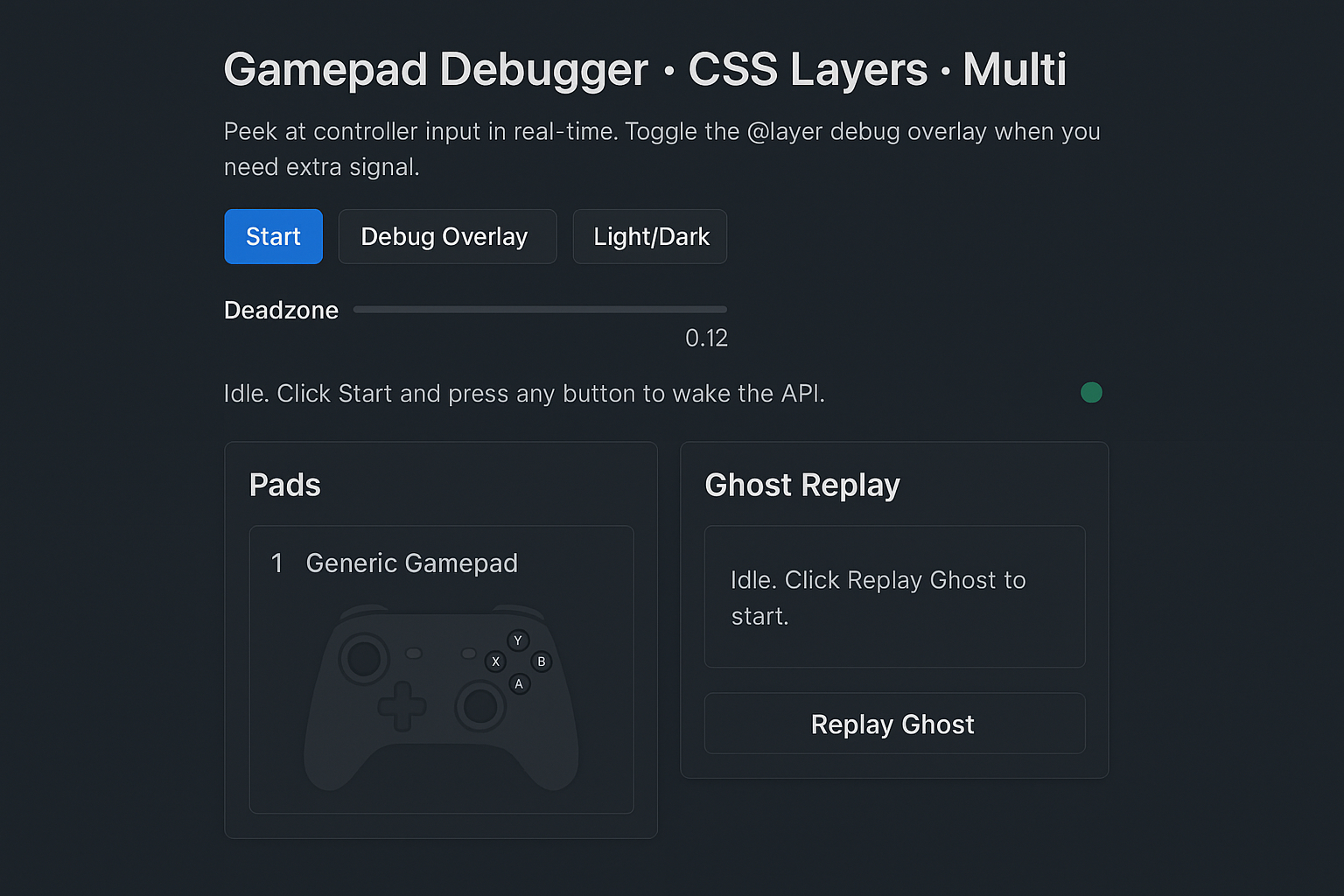 Ghost replay mode with a session playing back on the debugger. (Large preview)
Users can activate Record, interact with the controller, stop recording, and then replay the session. The UI will then replicate all recorded actions, similar to a ghost following the inputs.
What is the purpose of these additional features?
- Recording/export simplifies the process for testers to demonstrate exactly what occurred.
- Snapshots freeze a moment in time, proving highly useful when tracking down elusive bugs.
- Ghost replay is beneficial for tutorials, accessibility checks, or comparing control setups side-by-side.
At this point, it transitions from a mere demonstration to a practical development tool.
Real-World Use Cases
This debugger offers extensive capabilities, including live input display, log recording, data export, and replay functionality. The practical applications and target users for such a tool are worth exploring.
Game Developers
While controllers are integral to game development, debugging them can be challenging. For instance, when testing a fighting game combo like ↓ → + punch, instead of repeatedly attempting to replicate the exact input, a developer can record it once and replay it. JSON logs can also be exchanged with teammates to verify consistent multiplayer code behavior across different machines, which is a significant advantage.
Accessibility Practitioners
Not all users interact with standard controllers; adaptive controllers, for example, can sometimes produce unusual signals. This tool provides a clear view of these inputs, allowing educators, researchers, and others to capture logs, compare them, or replay inputs side-by-side. This capability makes previously invisible interactions readily apparent.
Quality Assurance Testing
Testers often provide vague reports such as “buttons were pressed, and it broke.” With this tool, they can precisely capture button presses, export the log, and share it, eliminating ambiguity.
Educators
For creating tutorials or video content, ghost replay is invaluable. It allows creators to demonstrate controller actions visually while explaining them, significantly enhancing clarity.
Beyond Games
Beyond gaming, controllers are utilized in various applications, including robotics, art installations, and accessibility interfaces. A recurring challenge in these contexts is understanding how the browser interprets controller inputs. This tool removes the guesswork.
Conclusion
Debugging controller input has historically lacked clear visibility. Unlike the DOM or CSS, gamepads do not have a built-in inspector, providing only raw numerical data in the console that can be difficult to interpret.
Using a combination of HTML, CSS, and JavaScript, a distinct solution was developed:
- A visual debugger that makes invisible inputs visible.
- A layered CSS system that keeps the UI clean and debuggable.
- A set of enhancements (recording, exporting, snapshots, ghost replay) that elevate it from demo to developer tool.
This project demonstrates the potential achieved by combining the power of the Web Platform with innovative use of CSS Cascade Layers.
The tool described is open-source. Users can clone the GitHub repository to experiment with it.
More significantly, the tool is customizable. Users can add their own layers, develop unique replay logic, integrate it into game prototypes, or adapt it for purposes such as teaching, accessibility, or data analysis.
Ultimately, this project extends beyond gamepad debugging. It aims to illuminate hidden inputs, empowering developers to confidently work with hardware that the web platform is still evolving to fully support.
To explore its capabilities, connect a controller, open a code editor, and begin experimenting. The potential of the browser and CSS in this context may be surprising.
