


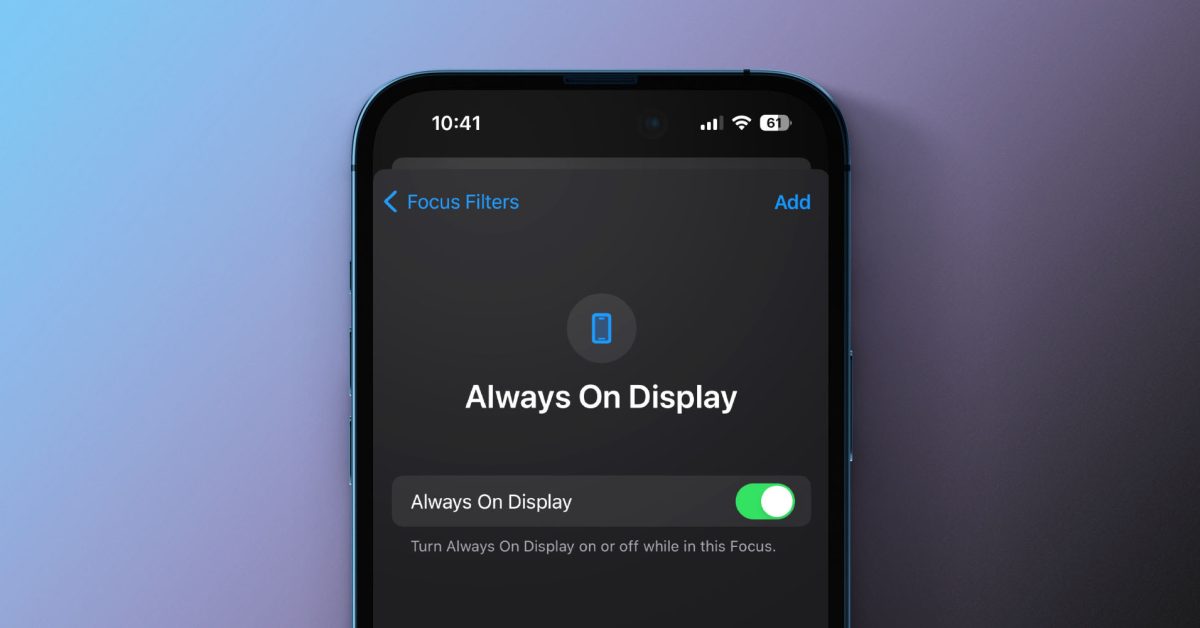
The Always-On Display feature, available on iPhone 14 Pro and iPhone 15 Pro models, keeps your lock screen visible even when the device is idle. While useful for quick glances at information, there are times when users might prefer to disable it, such as during sleep or when the phone is put away. Manually toggling this setting can be cumbersome, but iPhone’s Shortcuts app offers a powerful solution for automation.
Understanding Always-On Display Automation
By leveraging the Shortcuts app, users can set up automations that automatically turn the Always-On Display on or off based on specific conditions. This not only enhances convenience but can also contribute to better battery management and privacy.

Common Automation Triggers
- Focus Modes: Automatically disable AOD when a specific Focus mode, like Sleep or Work, is active.
- Time of Day: Turn off AOD during nighttime hours and re-enable it in the morning.
- Location: Disable AOD when arriving at certain locations, such as home or office.
- Charging Status: Adjust AOD behavior when the iPhone is charging or unplugged.
Step-by-Step Guide to Automate Always-On Display
1. Create an Automation to Turn Off AOD
- Open the Shortcuts app on your iPhone.
- Navigate to the Automation tab.
- Tap the + icon in the top right corner and select New Automation.
- Choose a trigger for your automation. For example, select Sleep under the Focus category to turn off AOD when Sleep Focus activates.
- Select When Turning On for the chosen trigger and tap Next.
- Tap Add Action.
- Search for “Always On Display” and select Set Always On Display.
- Ensure the action is set to Turn Off.
- Tap Next.
- Toggle off Ask Before Running to ensure the automation runs automatically without confirmation. Confirm by tapping Don’t Ask.
- Tap Done to save your automation.
2. Create an Automation to Turn On AOD (Optional but Recommended)
To ensure the Always-On Display reactivates when the condition changes, it is recommended to create a corresponding automation.
- Open the Shortcuts app and go to the Automation tab.
- Tap the + icon and select New Automation.
- Choose the same trigger as before, but this time select When Turning Off. For example, if you chose Sleep Focus, select Sleep and then When Turning Off.
- Tap Next.
- Tap Add Action.
- Search for “Always On Display” and select Set Always On Display.
- Ensure the action is set to Turn On.
- Tap Next.
- Toggle off Ask Before Running and confirm with Don’t Ask.
- Tap Done to save this automation.
By setting up these automations, the Always-On Display will seamlessly adjust to your daily routines, providing a more personalized and efficient iPhone experience.
