


A fresh Windows installation requires effort, and after completing it, the desire to use the device immediately is common. While initial use is acceptable, several steps should not be postponed. These actions contribute to system stability, safeguard privacy, and facilitate easier recovery if issues arise.
Create a Restore Point
When Windows encounters problems, initial attempts often involve simple fixes. However, if these don’t work, Windows System Restore can be invaluable. This built-in feature allows a rollback of system files and settings to an earlier state, frequently resolving issues. Since System Restore is typically disabled by default, activating it should be a priority.
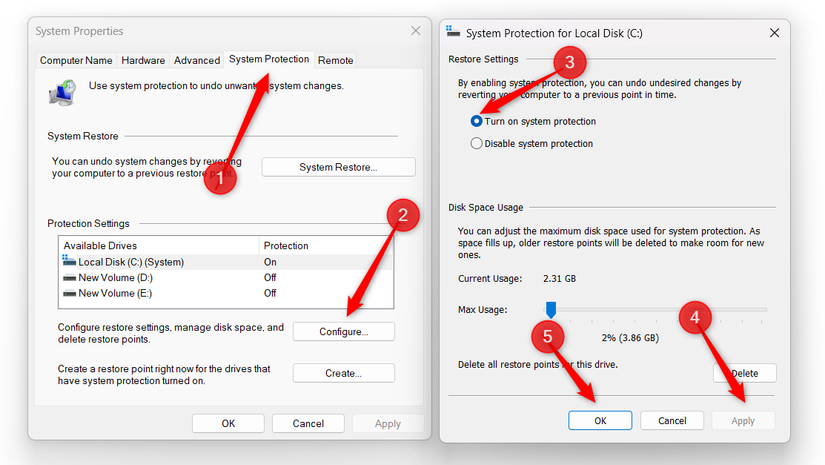
To enable it, search for View advanced system settings and open the corresponding result. Navigate to the “System Protection” tab, click “Configure,” and then select “Turn on System Protection.”
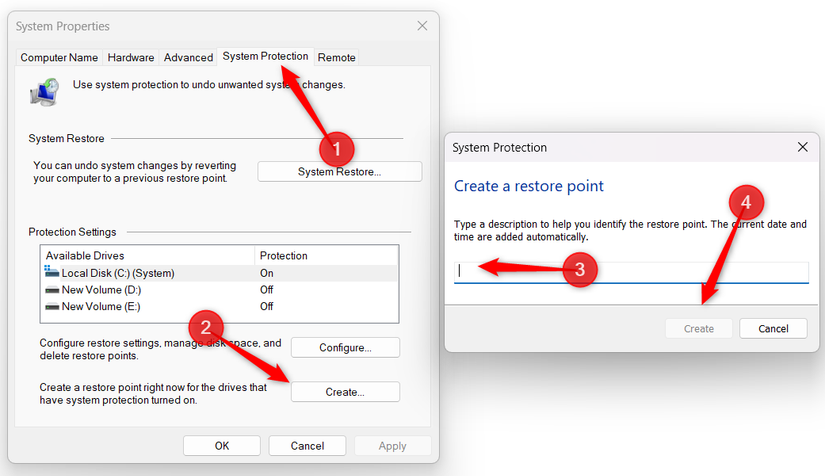
Once enabled, proceed to create the first restore point. Return to the “System Protection” tab, click “Create,” assign a name to the restore point, and follow the on-screen instructions to finalize the process.
Back up your BitLocker recovery key
Windows now activates BitLocker device encryption automatically after a clean installation, encrypting drives by default. Accessing this encrypted data typically requires signing in with a Microsoft account. While this works seamlessly with account access, losing access to the Microsoft account means being unable to unlock the data without the recovery key.
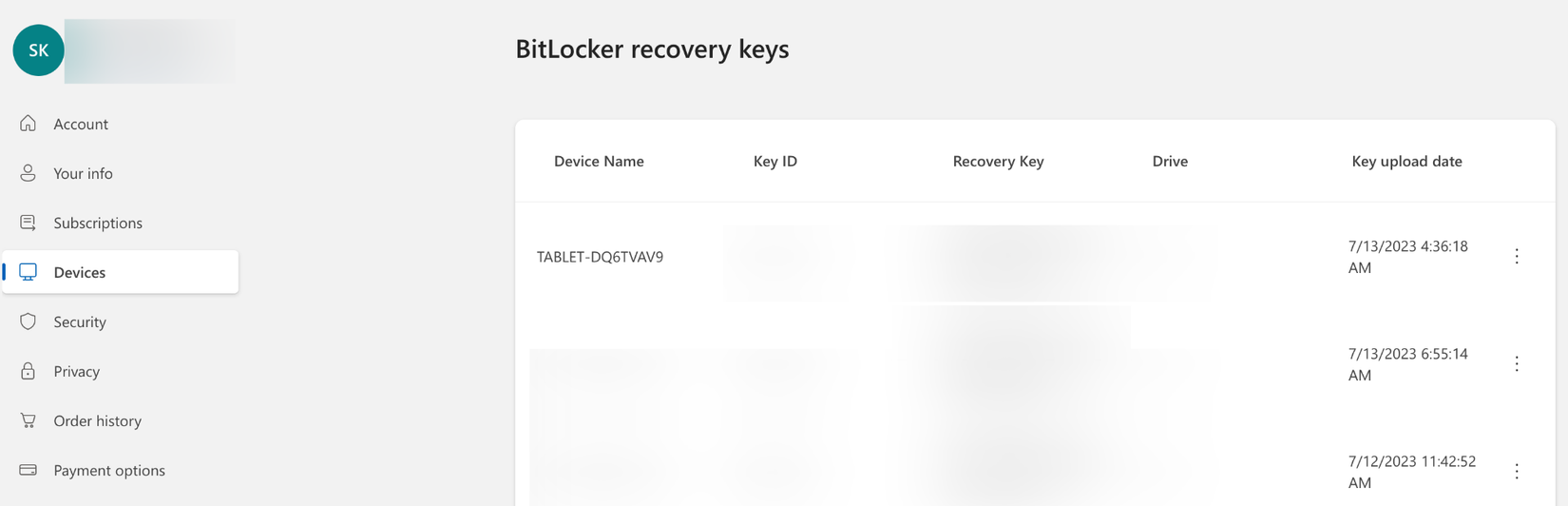
Although BitLocker secures data in cases of device loss or theft, there is a minor risk of being locked out of a drive. Therefore, it is advisable to back up the recovery key. To do this, sign in to your Microsoft account online, go to “Devices,” select your device, click “Manage recovery keys,” and a list of recovery keys will appear. Copy each recovery key along with its ID and store them securely.
Go through your privacy settings
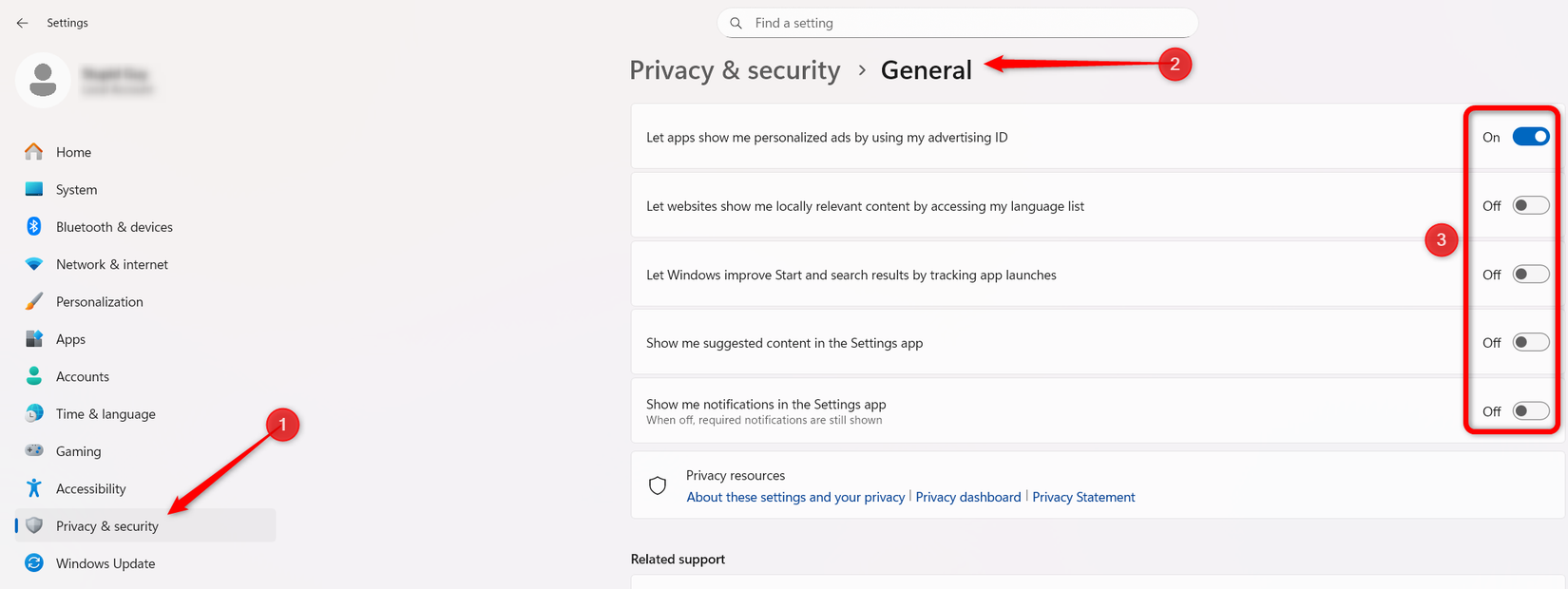
A fresh Windows installation often resets many privacy settings to their default values. It is important to review what the system is permitted to track, access, and share before regular use. Right-click the Start button, open “Settings,” then go to Privacy & Security > General and disable any unwanted permissions.
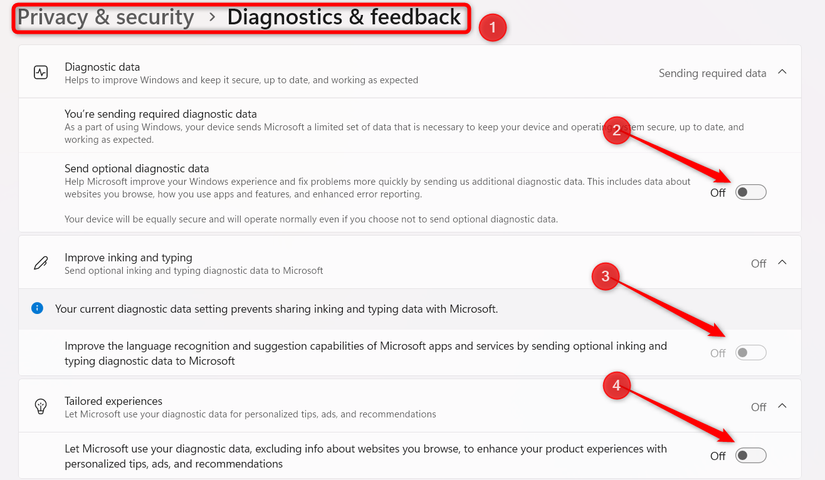
Next, open “Diagnostics & Feedback” and disable options such as “Optional Diagnostic Data,” “Improve Inking and Typing,” and “Tailored Experiences.”
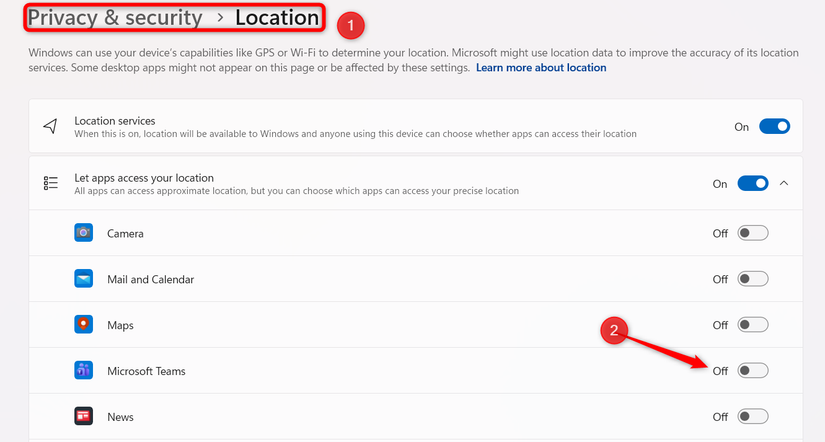
Finally, examine the Location, Camera, Microphone, and other privacy sections, and disable app permissions that Windows or other applications should not access.
Install any pending updates
A new Windows installation does not always mean the system is on the absolute latest version. If the installation media was created some time ago, certain updates might still be pending. Operating the system without installing these updates means missing critical patches and security fixes. Therefore, it is essential to check for and install updates, including optional ones that are sometimes overlooked.
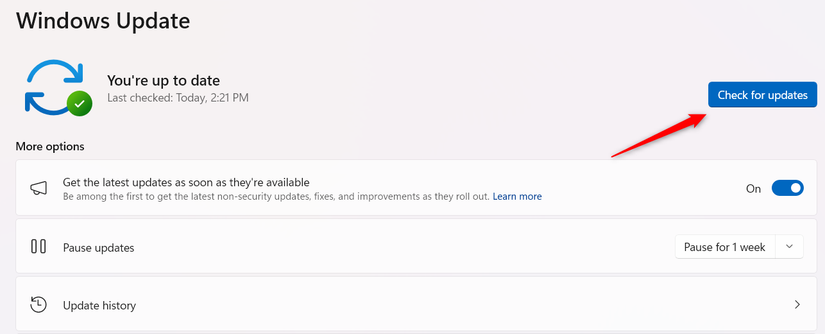
To do this, right-click the Start button, open the “Settings” app, go to “Windows Update,” and click “Check for Updates.” If updates are available, select “Download and Install” (or a similar prompt).
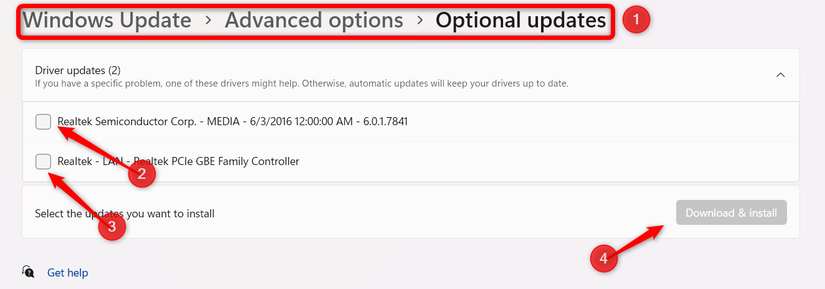
Afterward, open “Advanced Options,” select “Optional Updates,” choose the desired updates, and click “Download and Install” to complete the process.
Optimize key system settings
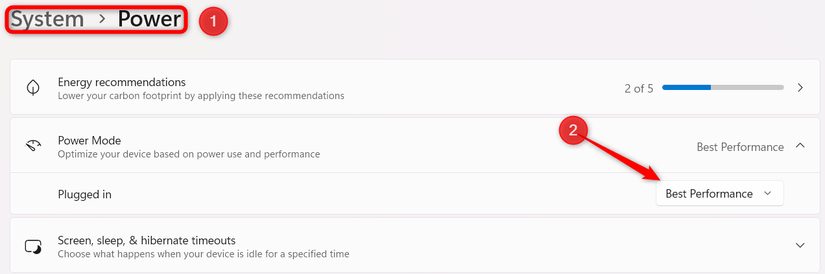
Similar to privacy settings, a clean Windows installation also resets important system settings that may have been previously optimized. For instance, if performance is a priority, Windows might default battery settings to favor power savings. To correct this, right-click the Start button, open the “Settings” app, go to System > Power & Battery, and set it to “Best Performance.”
Additionally, Windows may enable visual effects to enhance appearance, even if higher performance is preferred. To adjust this, type Performance Options in the search bar, open the matching result, and select “Adjust for Best Performance.” Then click Apply > OK. It is also advisable to review and fine-tune any other settings that could impact system performance or usability.

Create a reliable backup plan
While Windows is typically most stable immediately after a clean install, accidental deletions, ransomware, or software corruption can occur, potentially erasing significant work in moments. For this reason, establishing a reliable backup plan is crucial. While built-in or cloud backup options are available, a trusted third-party service like Backblaze can be considered.
Unlike built-in backup options that often cover only a few folders, third-party services typically allow backing up the entire computer. Although these are paid services, the investment can be worthwhile. It is important not to simply create a backup and forget it; regularly test it to ensure proper functionality and avoid unpleasant surprises when restoration is needed.
A fresh Windows installation offers an opportunity for a new beginning, but neglecting these initial steps can lead to future complications. Taking the time to implement these recommendations helps maintain system stability, protect data and privacy, fine-tune settings, and more, ensuring a faster, more reliable, and stress-free experience from the outset.
