
Close Menu
    Latest Post

    Verifying 5G Standalone Activation on Your iPhone

    March 1, 2026

    Hands on: the Galaxy S26 and S26 Plus are more of the same for more money

    March 1, 2026

    IronCurtain: A Secure AI Agent Designed to Prevent Rogue Actions

    March 1, 2026
    Facebook X (Twitter) Instagram
    Trending
    • Verifying 5G Standalone Activation on Your iPhone
    • Hands on: the Galaxy S26 and S26 Plus are more of the same for more money
    • IronCurtain: A Secure AI Agent Designed to Prevent Rogue Actions
    • Kwasi Asare’s Entrepreneurial Journey: Risk, Reputation, and Resilience
    • The Rubin Observatory’s alert system sent 800,000 pings on its first night
    • GitHub Actions Now Supports Unzipped Artifact Uploads and Downloads
    • Project Genie: Experimenting with Infinite, Interactive Worlds
    • Text Generation Using Diffusion Models and ROI with LLMs
    Facebook X (Twitter) Instagram Pinterest Vimeo
    NodeTodayNodeToday
    • Home
    • AI
    • Dev
    • Guides
    • Products
    • Security
    • Startups
    • Tech
    • Tools
    NodeTodayNodeToday
    Home»Guides»Unlocking the Potential of the Nothing Phone (2) Glyph Interface
    Guides

    Unlocking the Potential of the Nothing Phone (2) Glyph Interface

    Samuel AlejandroBy Samuel AlejandroJanuary 3, 2026No Comments3 Mins Read
    Share Facebook Twitter Pinterest LinkedIn Tumblr Reddit Telegram Email
    src 12ptc94 featured
    Share
    Facebook Twitter LinkedIn Pinterest Email

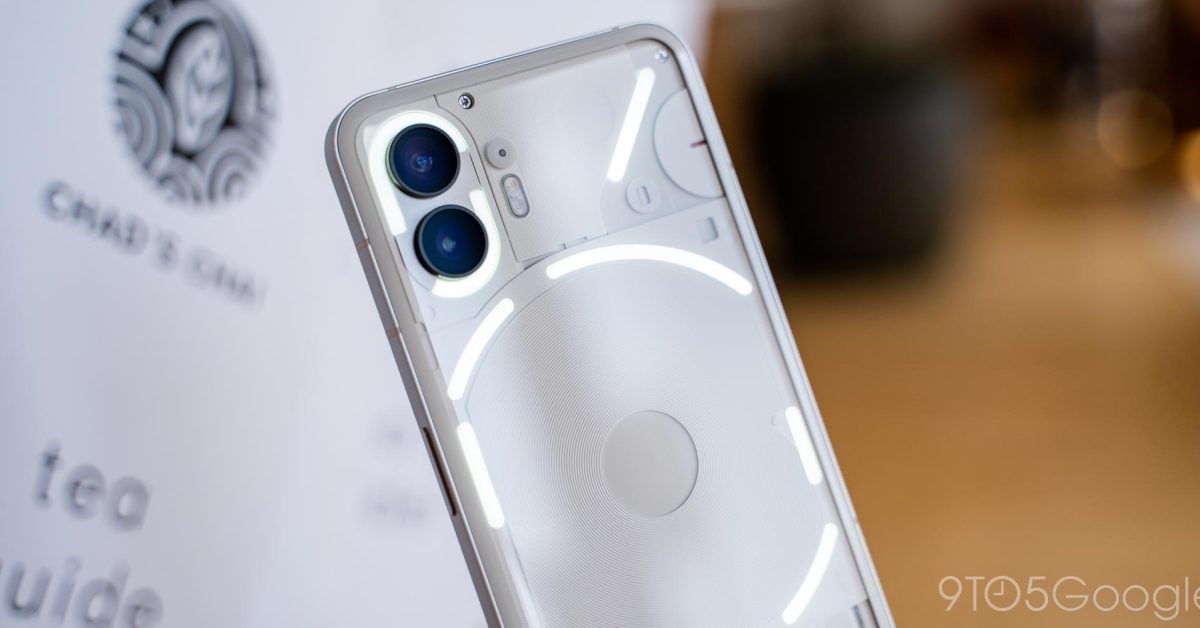
    The Nothing Phone (2) stands out with its unique Glyph Interface, a series of LED lights integrated into the phone’s transparent back. This interface serves as a versatile visual communication tool, offering more than just aesthetic appeal. Users can customize these lights to provide distinct alerts for notifications, calls, charging status, and more, without needing to constantly check the screen.

    Image 1

    Understanding the Glyph Interface Basics

    At its core, the Glyph Interface provides visual cues for various phone activities. When a call comes in, the lights can pulse in a specific pattern. For notifications, different apps can be assigned unique light sequences. The interface also indicates charging progress and can even function as a visual timer.

    Customizing Glyph Patterns and Ringtones

    One of the most engaging aspects of the Glyph Interface is its extensive customization. Users can access these settings through the phone’s system menu, typically found under “Settings” and then “Glyph Interface.”

    • Glyph Ringtones: Each contact can be assigned a unique Glyph pattern that syncs with a specific ringtone. This allows for immediate visual identification of incoming calls.
    • Notification Glyphs: Similar to ringtones, notifications from different apps can trigger distinct light patterns, providing a quick visual alert without sound.
    • Glyph Composer: This feature allows users to create their own custom Glyph patterns and associated sounds. It’s a creative tool for personalizing the phone’s visual and auditory alerts.

    Essential Glyph and Focus Features

    The Glyph Interface also includes features designed to help manage distractions and prioritize important alerts.

    • Essential Glyph: This setting allows users to designate specific contacts or apps as “essential.” When an essential contact calls or an essential app sends a notification, the main Glyph light will remain on until the user addresses it, even if other lights are off.
    • Flip to Glyph: By placing the Nothing Phone (2) face down, the Glyph Interface automatically activates. This mode silences notifications and calls, using only the Glyph lights for essential alerts, promoting a focused environment.

    Glyph Progress and Third-Party Integrations

    Beyond basic alerts, the Glyph Interface extends its utility through integrations with third-party applications.

    • Glyph Progress: Certain apps can utilize the Glyph lights to display progress. For example, a ride-sharing app might show the driver’s arrival progress, or a food delivery app could indicate the order status. This feature provides real-time visual updates without unlocking the phone.
    • Volume Indicator: When adjusting the volume, a segment of the Glyph lights can illuminate to visually represent the current volume level.
    • Charging Indicator: The Glyph Interface clearly shows the charging status and battery level, offering a quick glance at power levels.

    Activating and Managing the Glyph Interface

    To get started with the Glyph Interface, navigate to the “Glyph Interface” section within the phone’s settings. From there, users can enable or disable the interface, customize individual features, and explore the Glyph Composer. Experimenting with different patterns and sounds can significantly enhance the personalized experience of the Nothing Phone (2).

    Share. Facebook Twitter Pinterest LinkedIn Tumblr Email
    Previous ArticleThe Canon EOS R6 Mark III is great, but this lens is amazing
    Next Article The Great Unracking: Saying goodbye to the servers at our physical datacenter
    Samuel Alejandro

    Related Posts

    Guides

    Verifying 5G Standalone Activation on Your iPhone

    March 1, 2026
    Guides

    Modern PC hardware failure rates aren’t increasing, the expectations are just higher

    March 1, 2026
    Guides

    Android 17 Beta 2 Introduces Apple-Like Handoff and “Bubbles” Multitasking

    February 28, 2026
    Add A Comment
    Leave A Reply Cancel Reply

    Latest Post

    ChatGPT Mobile App Surpasses $3 Billion in Consumer Spending

    December 21, 202517 Views

    Automate Your iPhone’s Always-On Display for Better Battery Life and Privacy

    December 21, 202515 Views

    Creator Tayla Cannon Lands $1.1M Investment for Rebuildr PT Software

    December 21, 202514 Views
    Stay In Touch
    • Facebook
    • YouTube
    • TikTok
    • WhatsApp
    • Twitter
    • Instagram
    About

    Welcome to NodeToday, your trusted source for the latest updates in Technology, Artificial Intelligence, and Innovation. We are dedicated to delivering accurate, timely, and insightful content that helps readers stay ahead in a fast-evolving digital world.

    At NodeToday, we cover everything from AI breakthroughs and emerging technologies to product launches, software tools, developer news, and practical guides. Our goal is to simplify complex topics and present them in a clear, engaging, and easy-to-understand way for tech enthusiasts, professionals, and beginners alike.

    Latest Post

    Verifying 5G Standalone Activation on Your iPhone

    March 1, 20264 Views

    Hands on: the Galaxy S26 and S26 Plus are more of the same for more money

    March 1, 20265 Views

    IronCurtain: A Secure AI Agent Designed to Prevent Rogue Actions

    March 1, 20264 Views
    Recent Posts
    • Verifying 5G Standalone Activation on Your iPhone
    • Hands on: the Galaxy S26 and S26 Plus are more of the same for more money
    • IronCurtain: A Secure AI Agent Designed to Prevent Rogue Actions
    • Kwasi Asare’s Entrepreneurial Journey: Risk, Reputation, and Resilience
    • The Rubin Observatory’s alert system sent 800,000 pings on its first night
    Facebook X (Twitter) Instagram Pinterest
    • About Us
    • Contact Us
    • Privacy Policy
    • Terms & Conditions
    • Disclaimer
    • Cookie Policy
    © 2026 NodeToday.

    Type above and press Enter to search. Press Esc to cancel.