


The iPhone 16, like any advanced smartphone, may occasionally require troubleshooting. Understanding how to perform a force restart, enter recovery mode, or utilize DFU mode can be crucial for resolving various software issues. This guide outlines these essential procedures, along with details on wireless restore options.
Force Restarting the iPhone 16
A force restart can often resolve minor software glitches without erasing any data. This process is different from simply turning the device off and on.
- Quickly press and release the Volume Up button.
- Quickly press and release the Volume Down button.
- Press and hold the Side button until the Apple logo appears.

Entering Recovery Mode
Recovery mode is a more advanced troubleshooting state used when an iPhone is experiencing significant software problems, such as being stuck in a boot loop or failing to update. It allows for restoring the device via a computer.
- Connect the iPhone 16 to a computer using a USB cable.
- Quickly press and release the Volume Up button.
- Quickly press and release the Volume Down button.
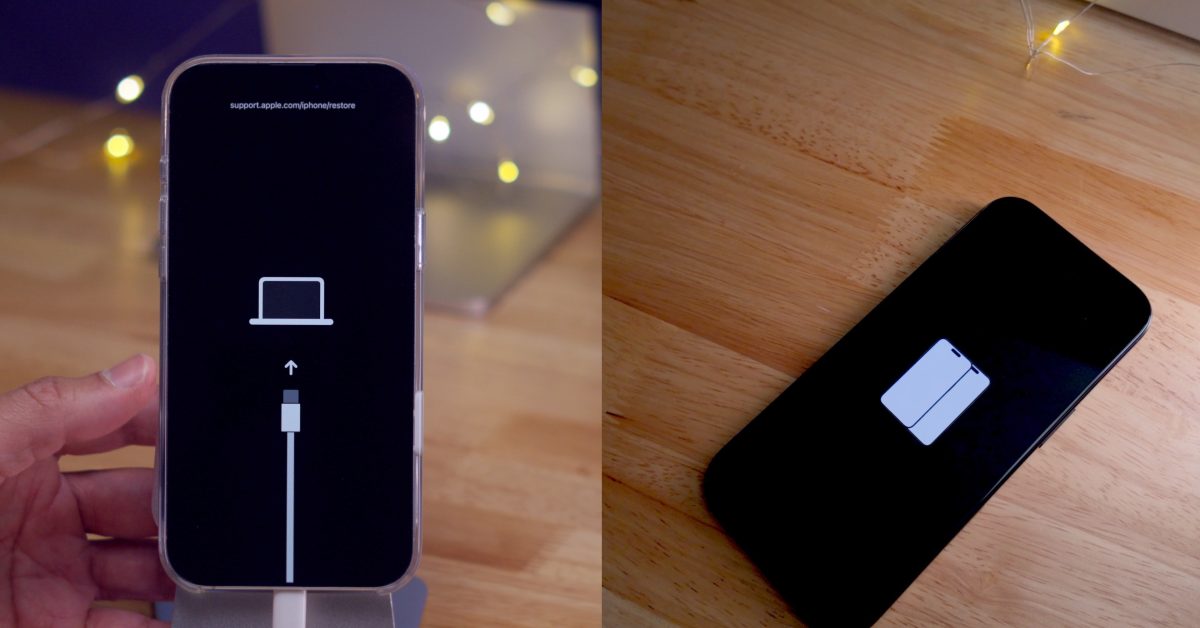
- Press and hold the Side button. Do not release it when the Apple logo appears. Continue holding until the recovery mode screen (a computer icon with a cable) is displayed.
- On the computer, locate the iPhone in Finder (macOS Catalina or later) or iTunes (macOS Mojave or earlier, or Windows) and choose to Update or Restore.
Accessing DFU Mode (Device Firmware Update)
DFU mode is the deepest restore mode available, allowing for a complete reinstallation of the iPhone’s firmware and operating system. It should be used as a last resort when recovery mode fails.
- Connect the iPhone 16 to a computer.
- Quickly press and release the Volume Up button.
- Quickly press and release the Volume Down button.
- Press and hold the Side button for 10 seconds until the screen turns black.
- While still holding the Side button, press and hold the Volume Down button for 5 seconds.
- Release the Side button but continue holding the Volume Down button for another 10 seconds. The screen should remain black. If the Apple logo or “Connect to iTunes/Computer” screen appears, the device is not in DFU mode, and the process needs to be restarted.
- On the computer, Finder or iTunes should detect an iPhone in recovery mode, even though the screen is black. Proceed with the restore.
Wireless Restore and Restore from Nearby iPhone
Modern iPhones offer convenient ways to restore or set up a new device without a direct computer connection.
- Wireless Restore: This typically refers to restoring from an iCloud backup during the initial setup process of a new or erased iPhone. When setting up, select “Restore from iCloud Backup” and follow the on-screen prompts.
- Restore from Nearby iPhone: This feature allows for quick transfer of data and settings from an existing iPhone to a new one by placing them close together during the setup process.
Disabling Face ID
To temporarily disable Face ID, navigate to Settings > Face ID & Passcode. Enter the passcode, then toggle off the features where Face ID is used, such as iPhone Unlock, iTunes & App Store, Wallet & Apple Pay, and Password Autofill. Alternatively, repeatedly pressing the Side button five times will bring up the Emergency SOS screen and temporarily disable Face ID, requiring a passcode for the next unlock.
Using Find My
The Find My app helps locate a lost or stolen iPhone, play a sound, mark it as lost, or remotely erase its data. This feature can be accessed from another Apple device or via iCloud.com.
Emergency SOS
Emergency SOS allows users to quickly call emergency services and notify emergency contacts. To activate it, press and hold the Side button and either of the Volume buttons simultaneously until the Emergency SOS slider appears. Alternatively, repeatedly press the Side button five times. Drag the Emergency SOS slider to initiate a call to emergency services.
