


Facebook is a widely used social network, boasting over three billion active users as of February 2024. For many, it’s a primary tool for communication. Encountering unexpected bugs or issues can be frustrating. This guide offers a list of solutions to help resolve common Facebook problems and get the platform working again quickly.
- Check if Facebook is down
- Close and reopen the app
- Check for updates
- Restart the phone
- Check your internet
- Check the app’s network permissions
- Clear the app cache
- Can’t play Facebook videos
- Not able to upload photos
- Can’t upload videos
Check if Facebook is down
If Facebook is not functioning, it might be a widespread issue affecting many users, not just an individual problem. To confirm this, try accessing Facebook from a different browser or device. Alternatively, websites like Down Detector can indicate if Facebook is experiencing a general outage. If a site-wide problem is confirmed, the only solution is to wait for it to be resolved.
Close and reopen the app
If Facebook issues appear to be isolated to your device, consider local troubleshooting. Occasionally, applications can malfunction, and a simple fix might be to close and then reopen the app or website. Logging out of Facebook and then logging back in can also be beneficial, as this action often resynchronizes data and resolves minor glitches.
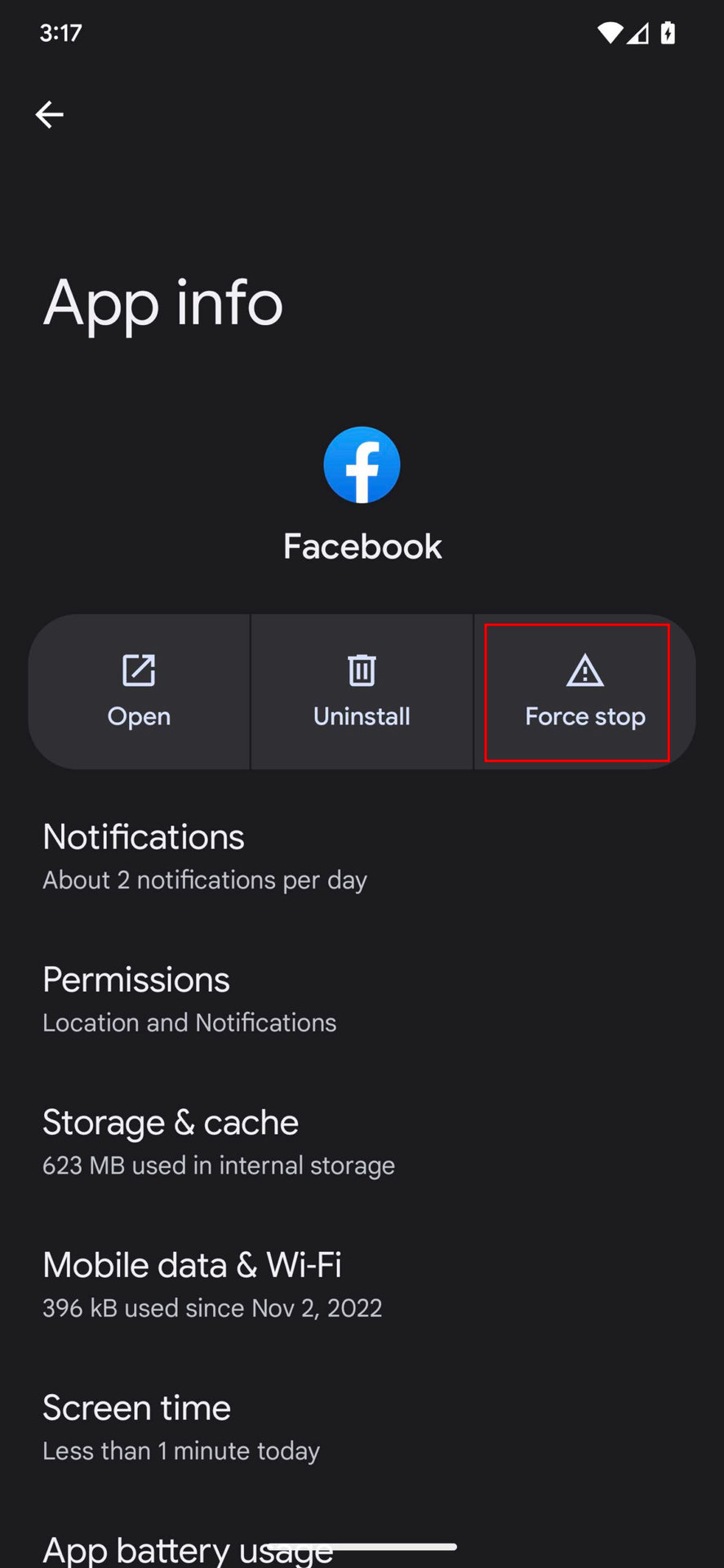
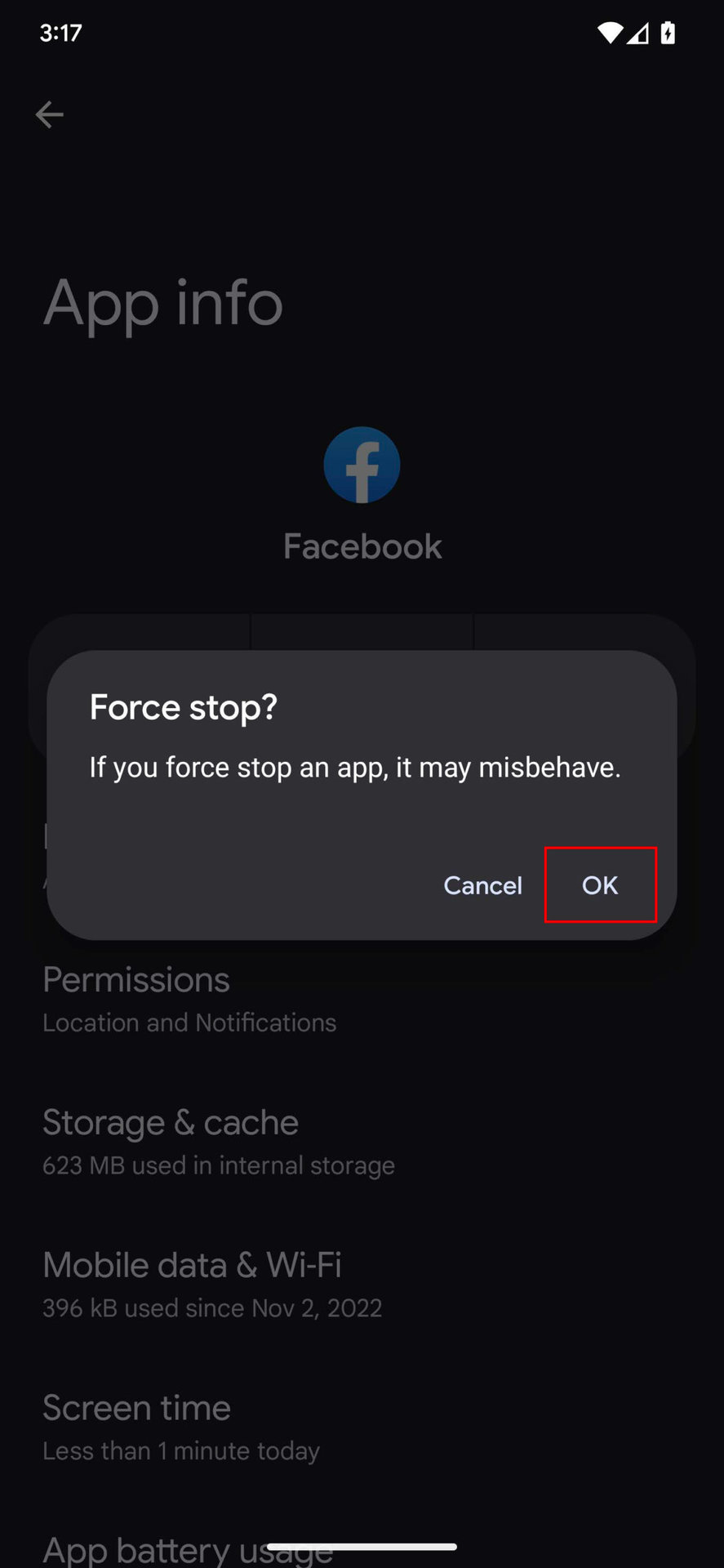
How to Force close the Facebook app on Android:
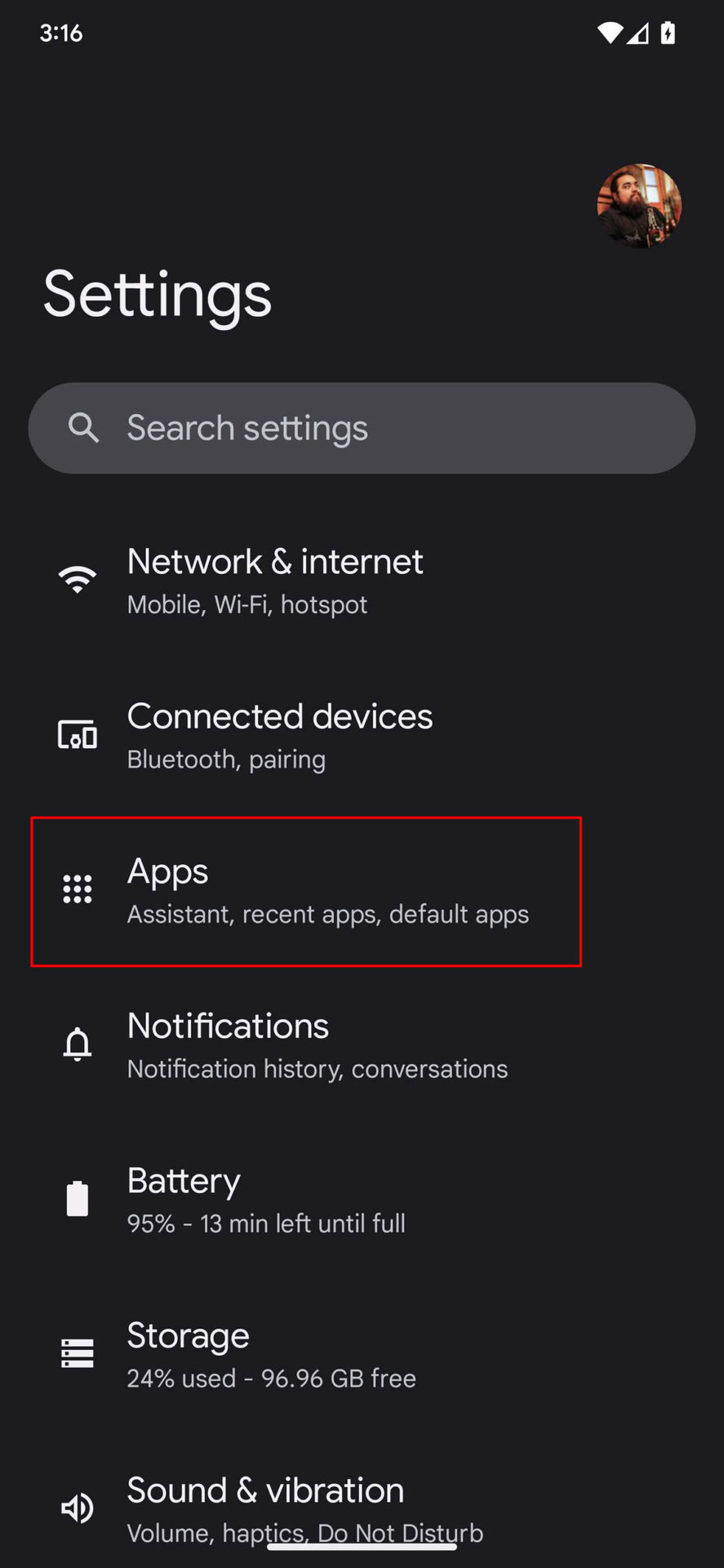
- Open the Settings app.
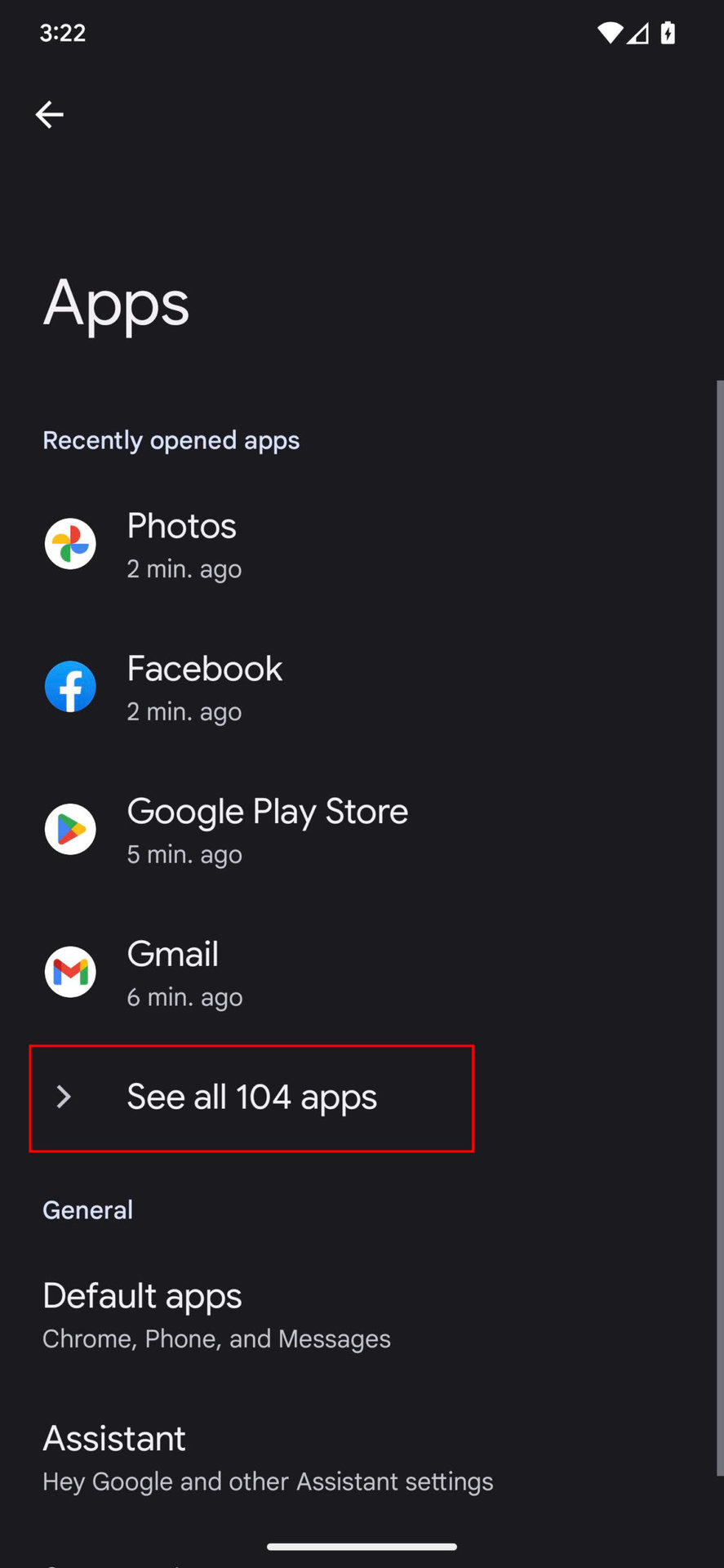
- Go into Apps.
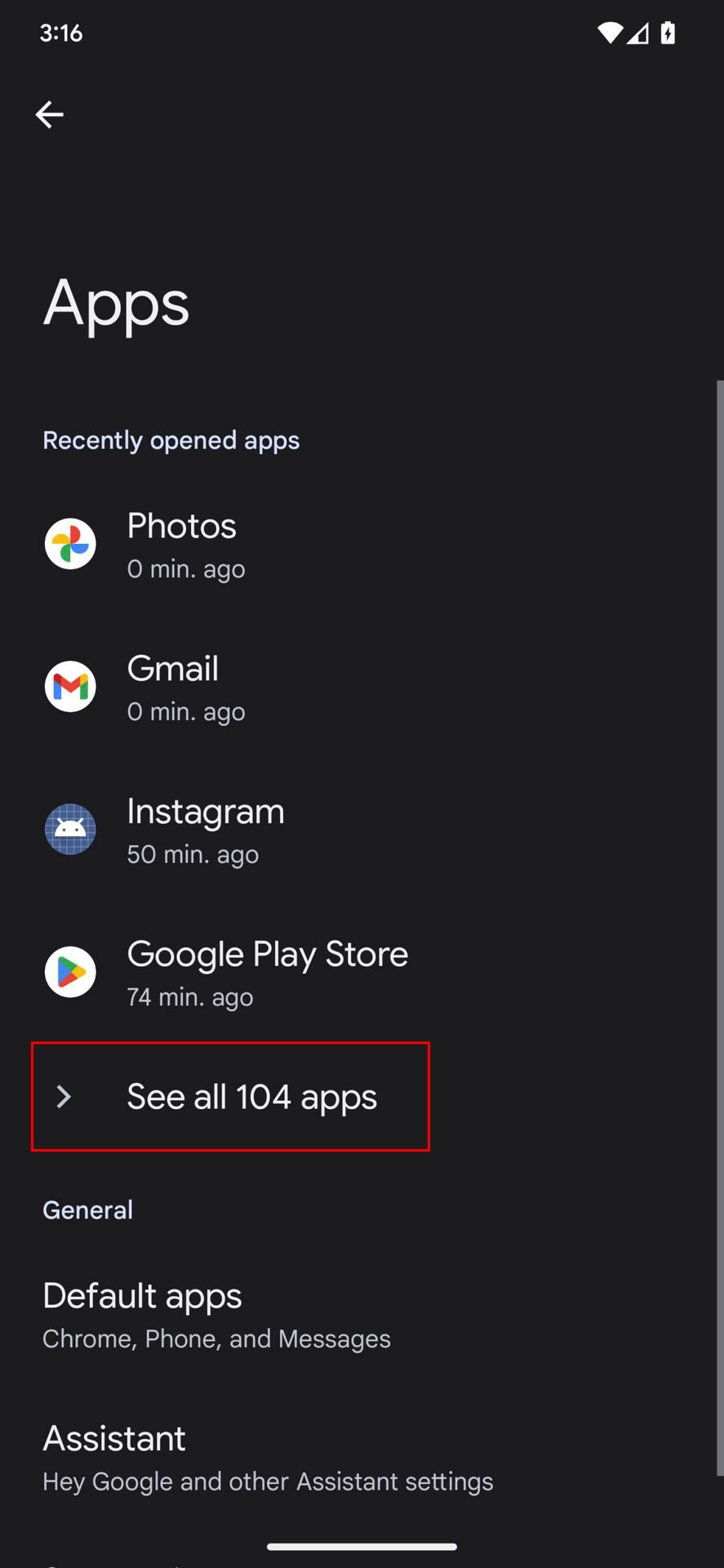
- Tap on See all apps.
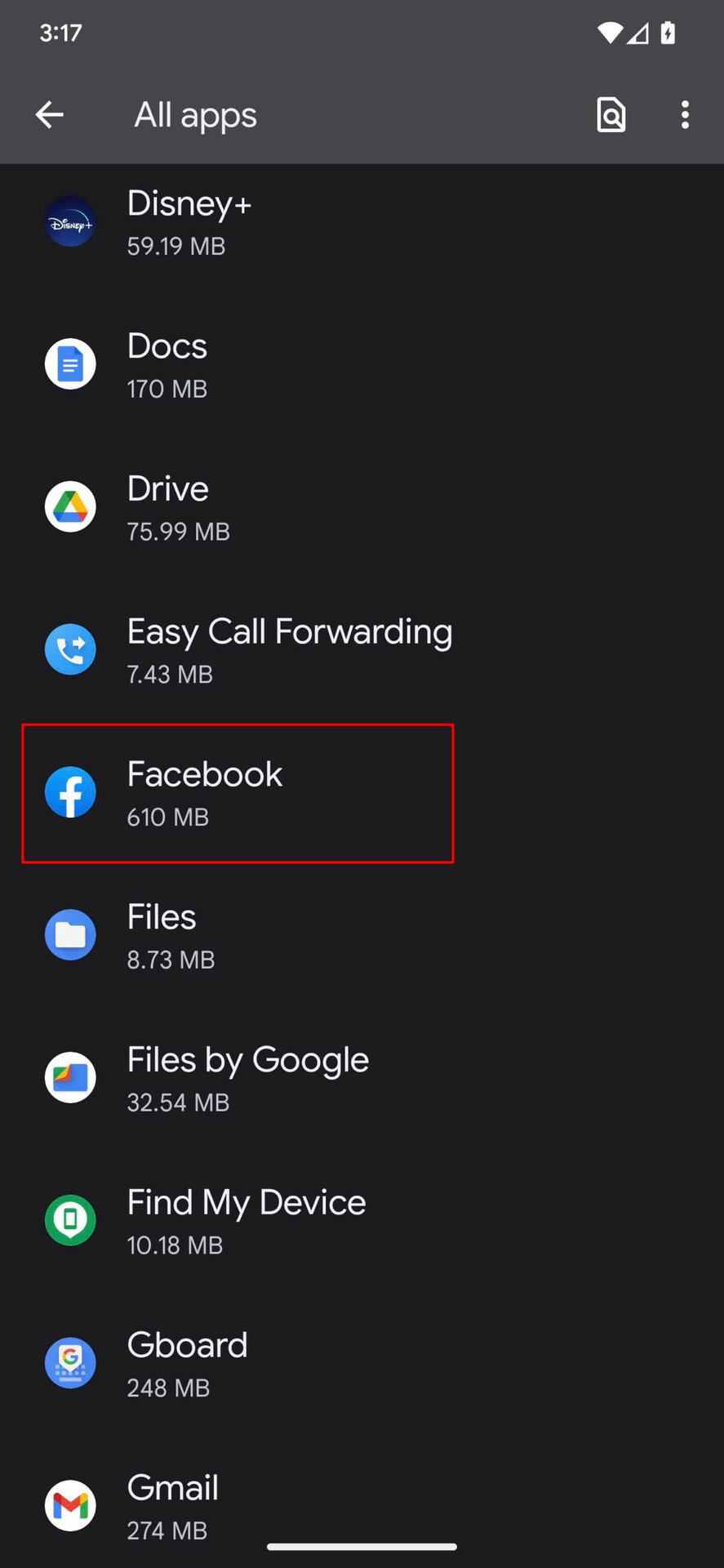
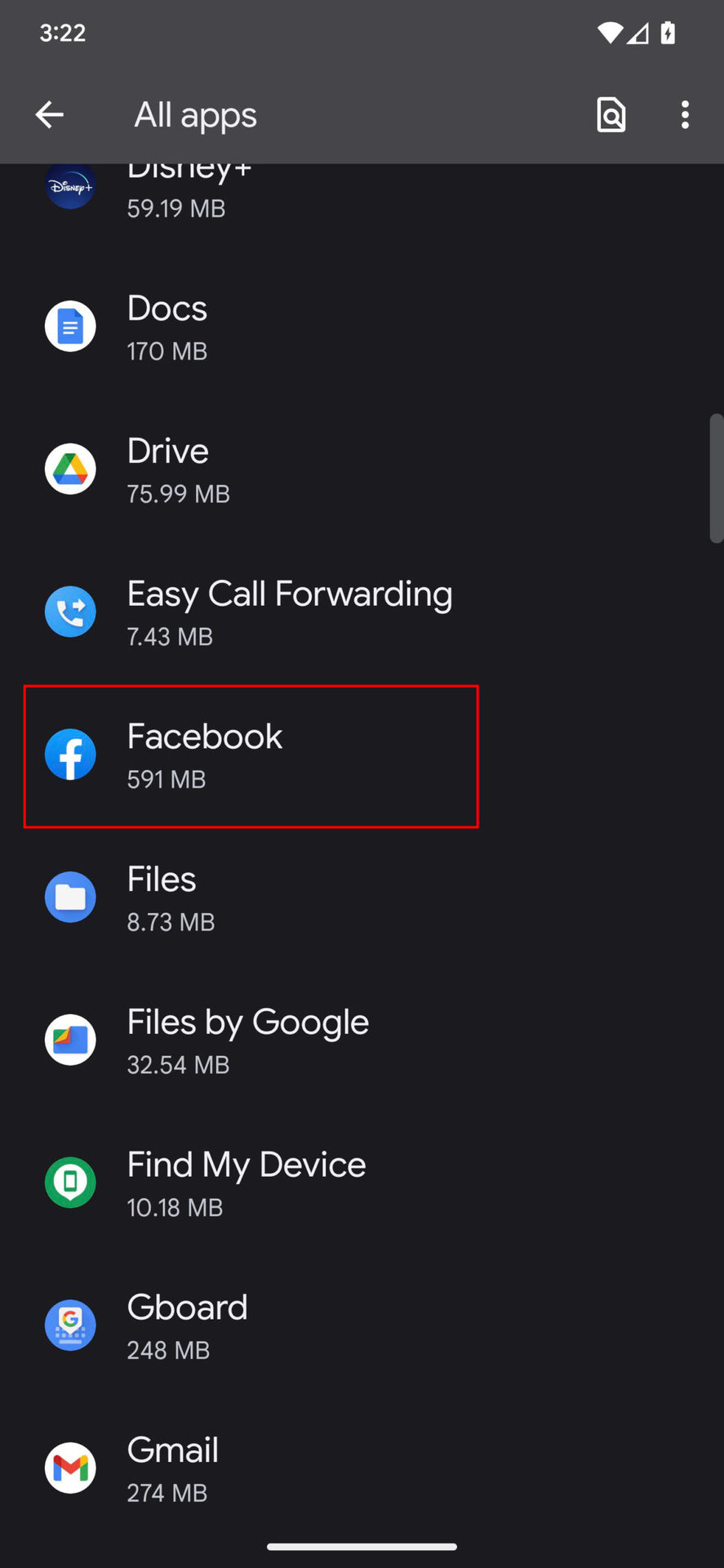
- Find Facebook and tap on it.
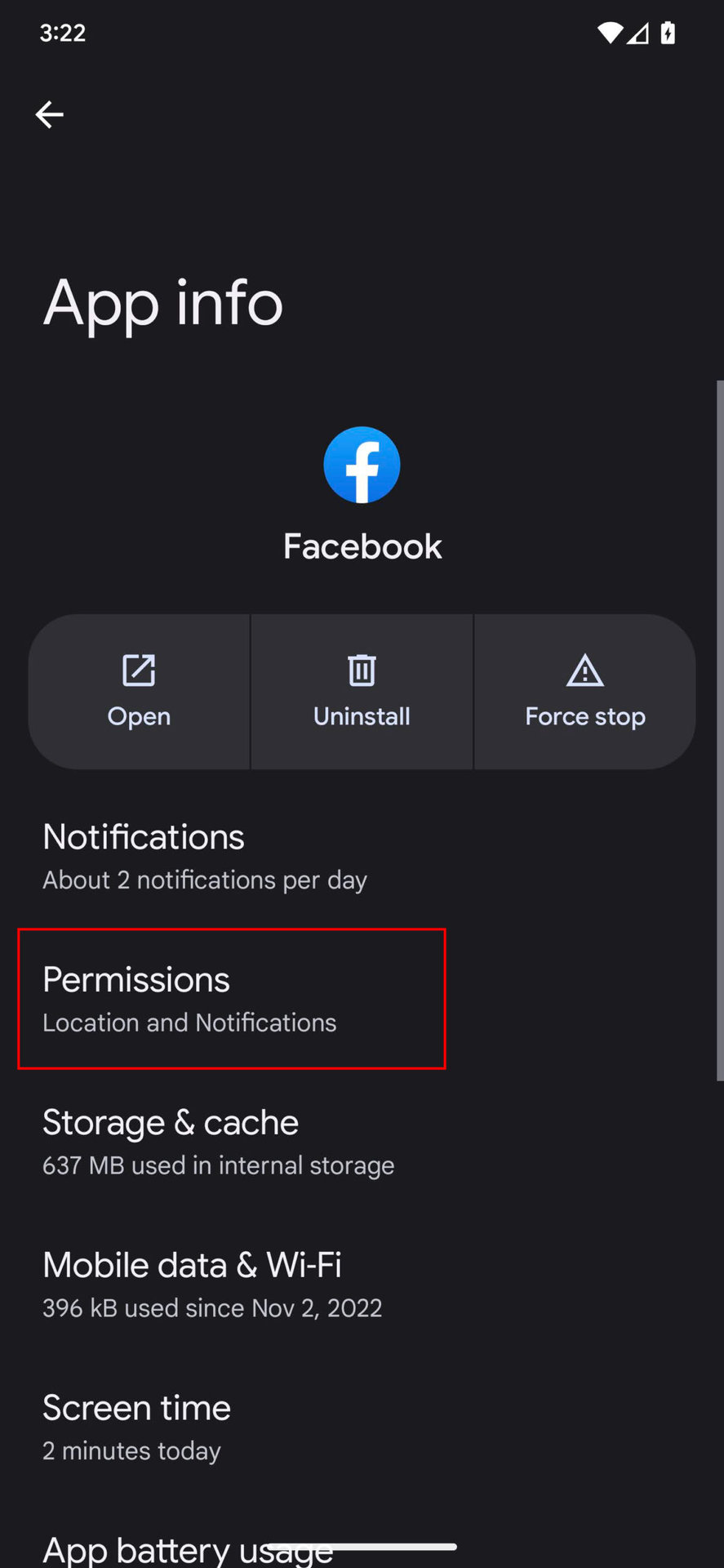
- Hit Force stop.
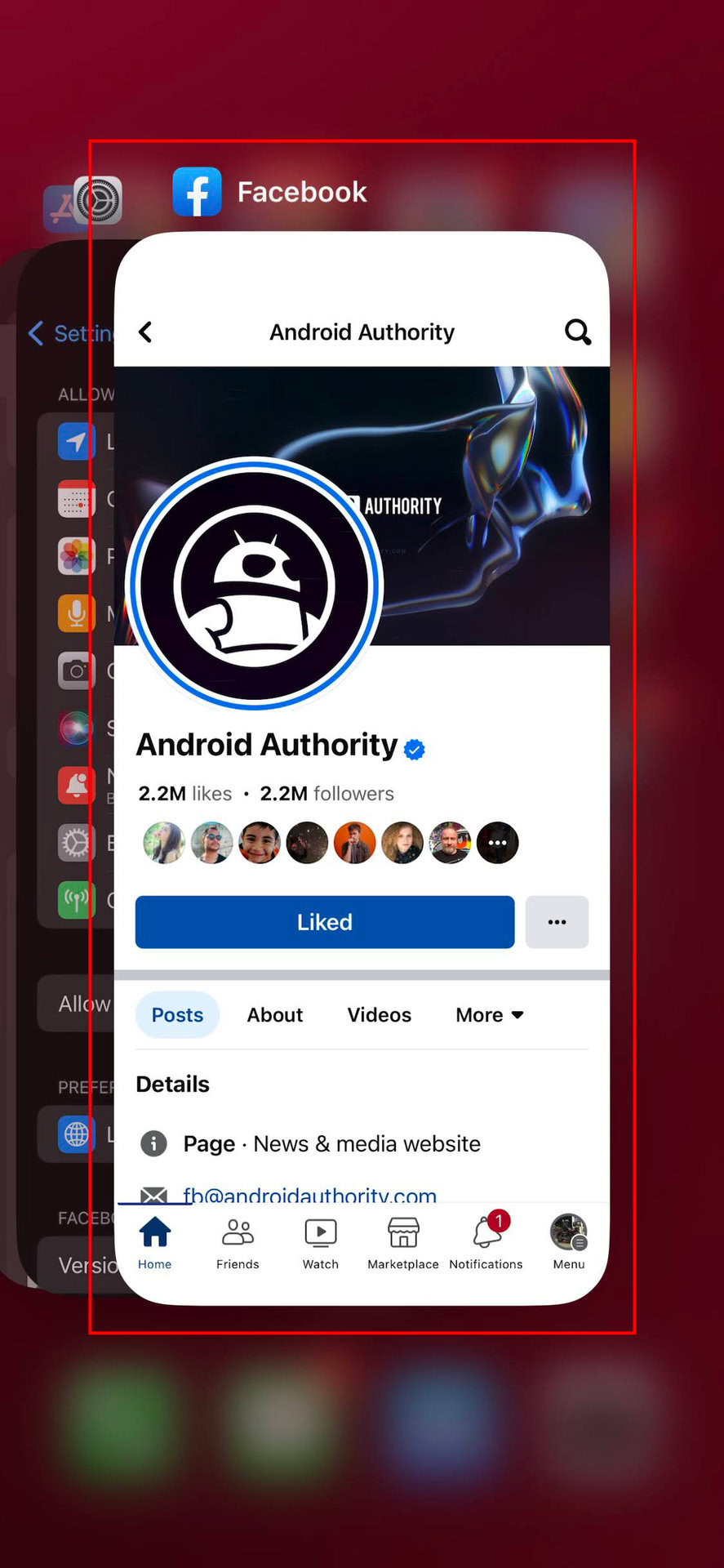
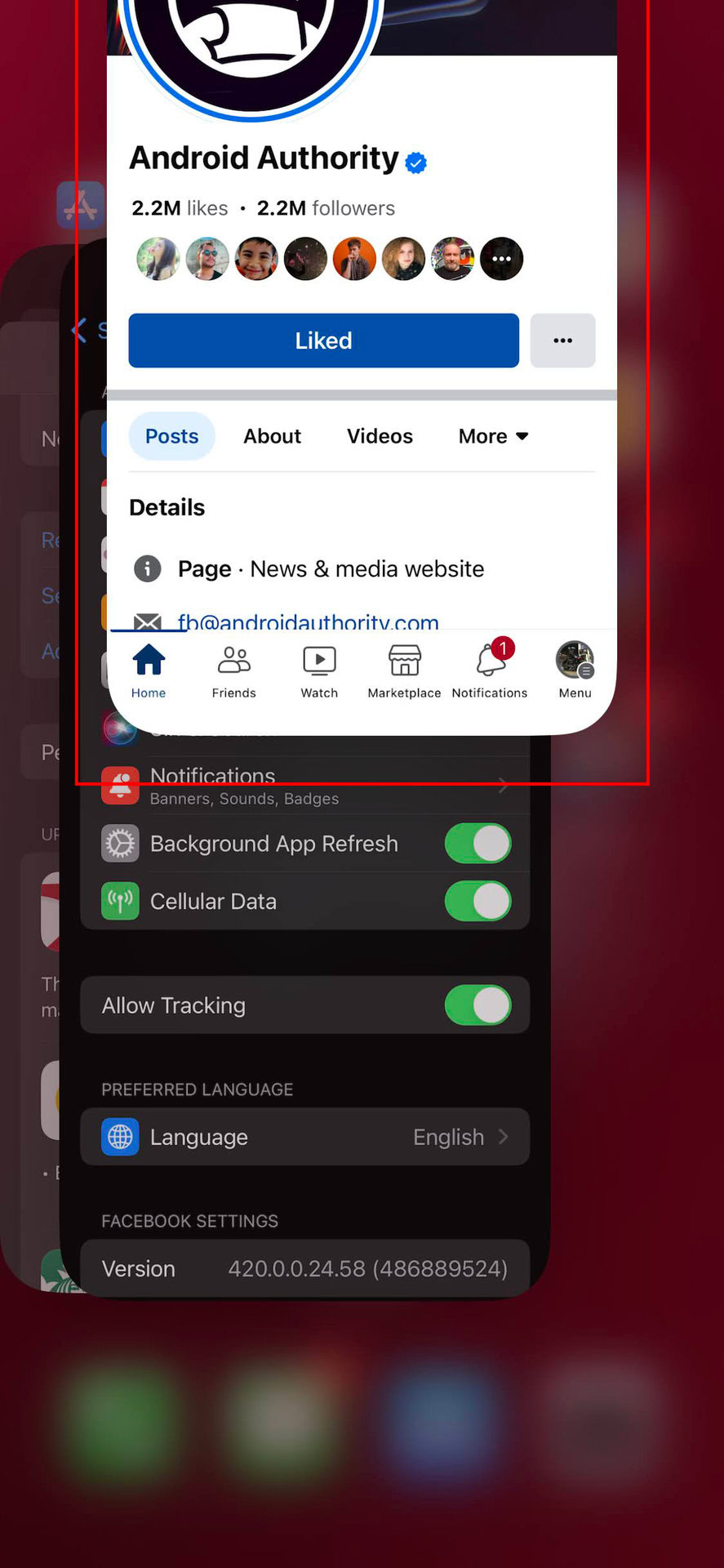
How to Force close the Facebook app on iPhone:
- Slide your finger up from the bottom of the screen and hold for a bit.
- You’ll enter the app switcher.
- Find Facebook and slide it all the way up.
Check for app updates
Outdated application versions can sometimes lead to performance issues. If Facebook continues to malfunction, verify that you have the most recent version installed. Visit the Google Play Store or Apple App Store to check for and install any available updates. Updating the app may resolve the problem.
How to update the Facebook app on Android:
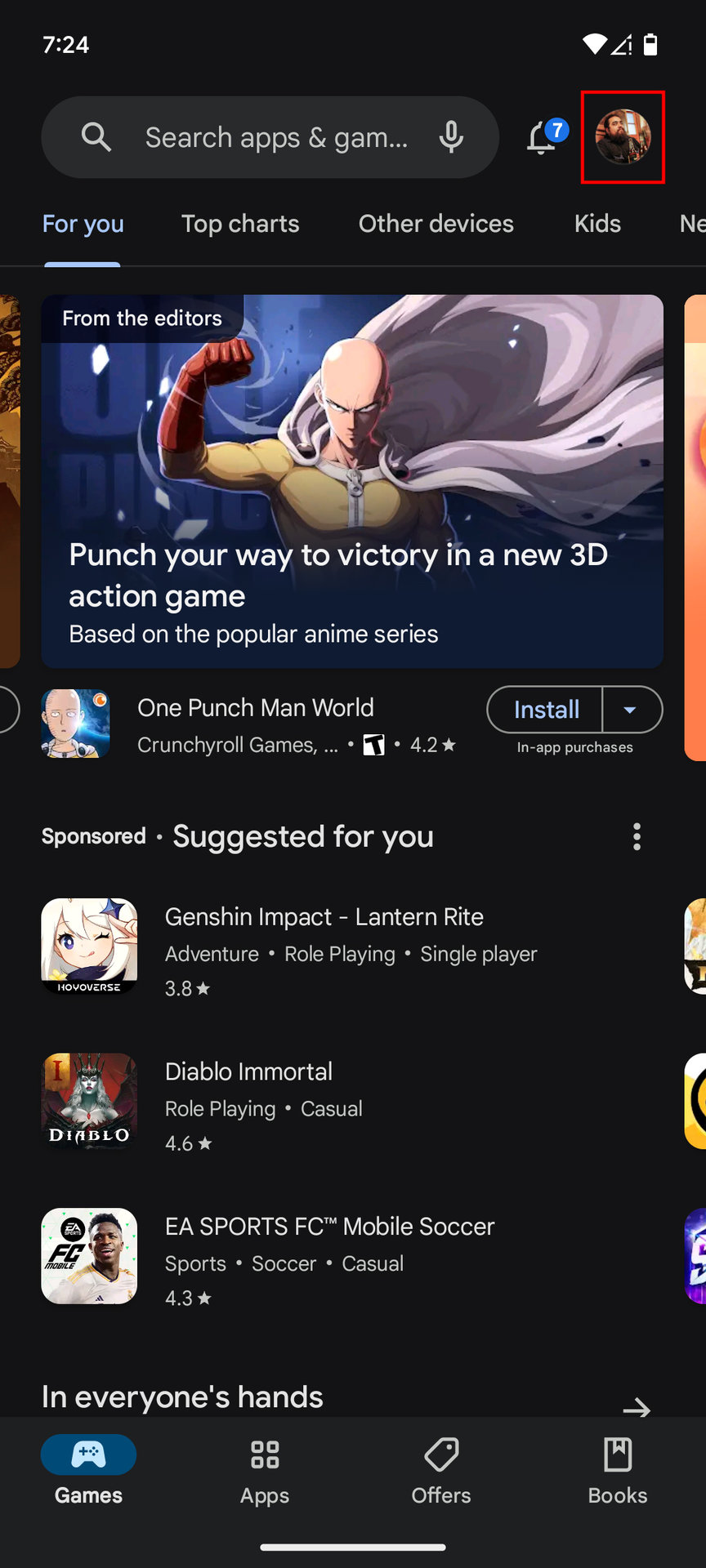
- Open the Google Play Store.
- Tap on your profile image in the top-right corner.
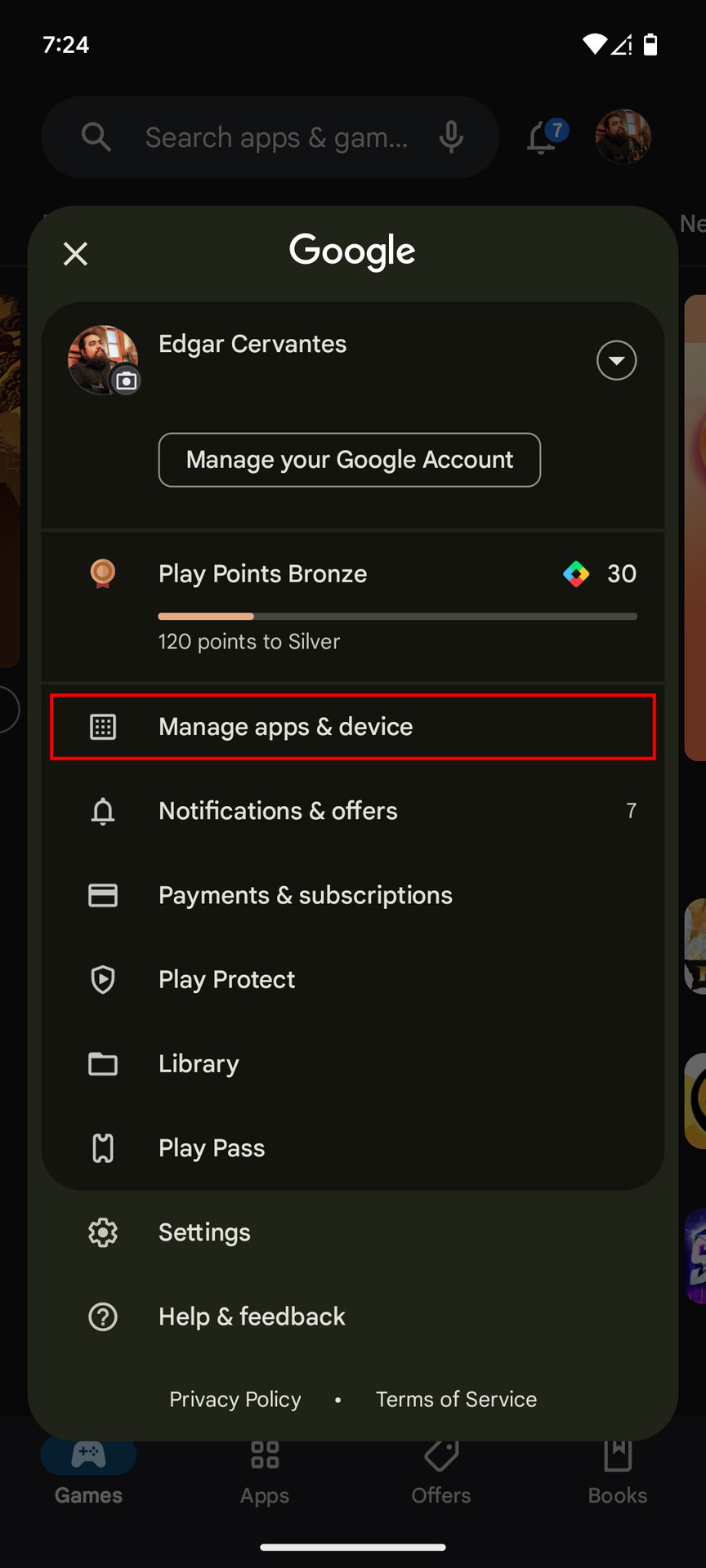
- Select Manage apps & device.
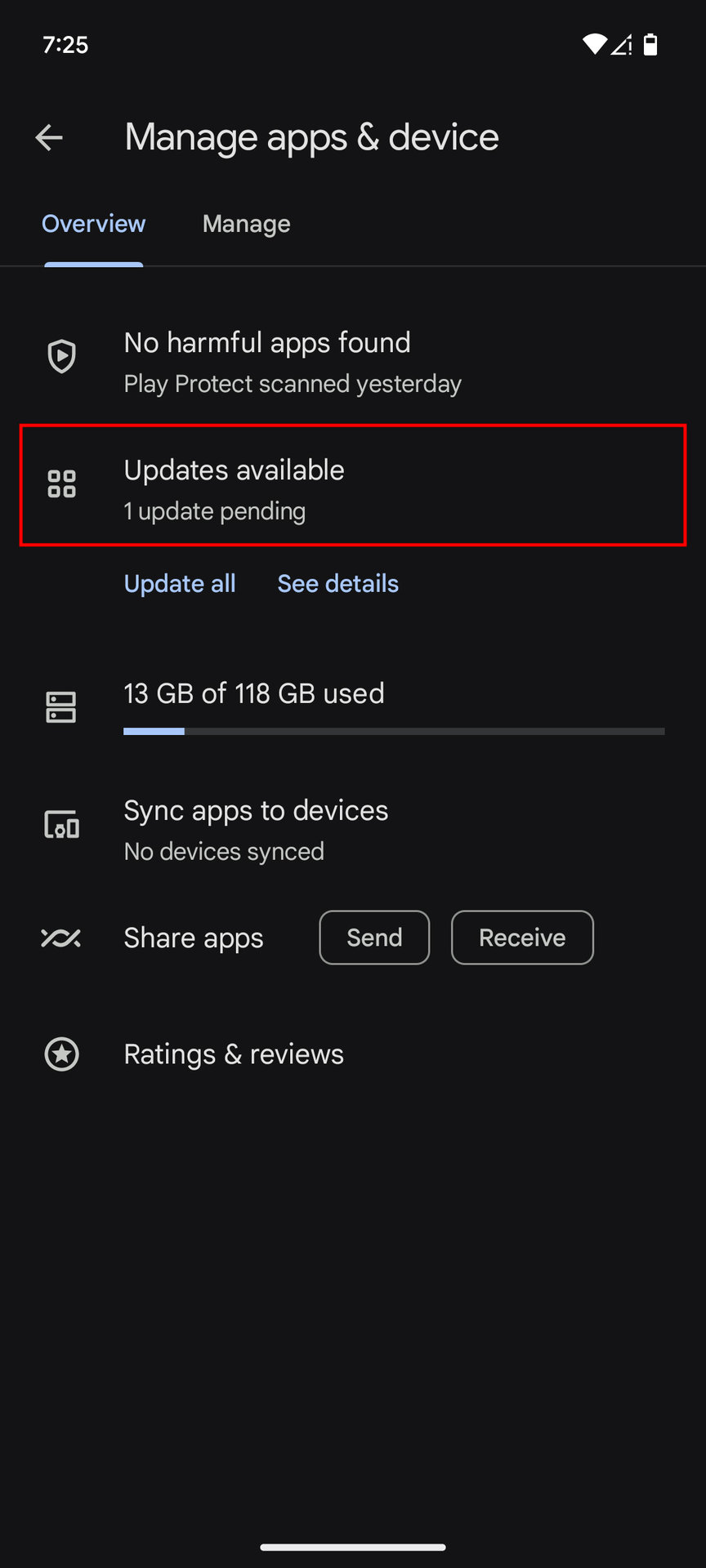
- Tap on Updates available.
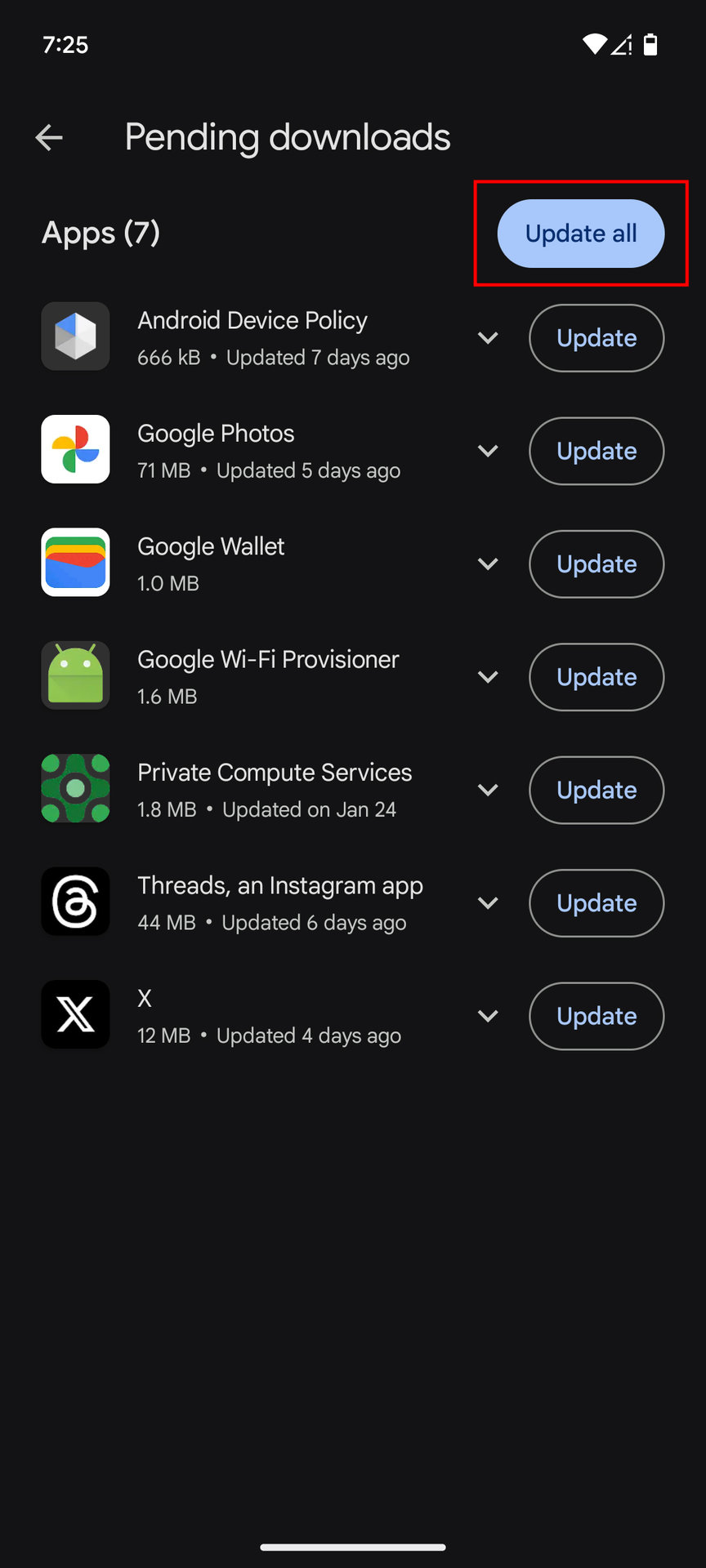
- Find Facebook. If there’s an available update, you should see an Update button next to it. Tap on it.
- Alternatively, you can select Update all.
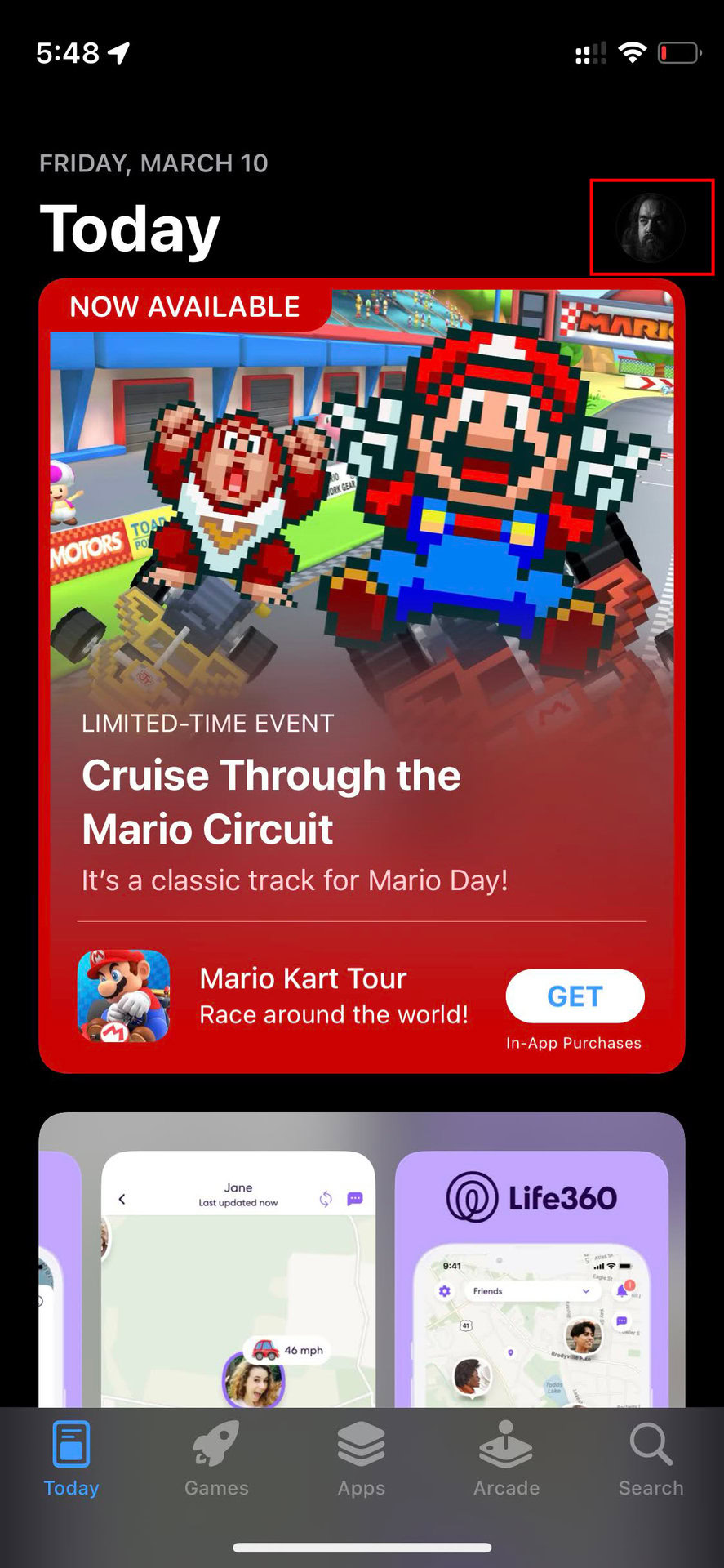
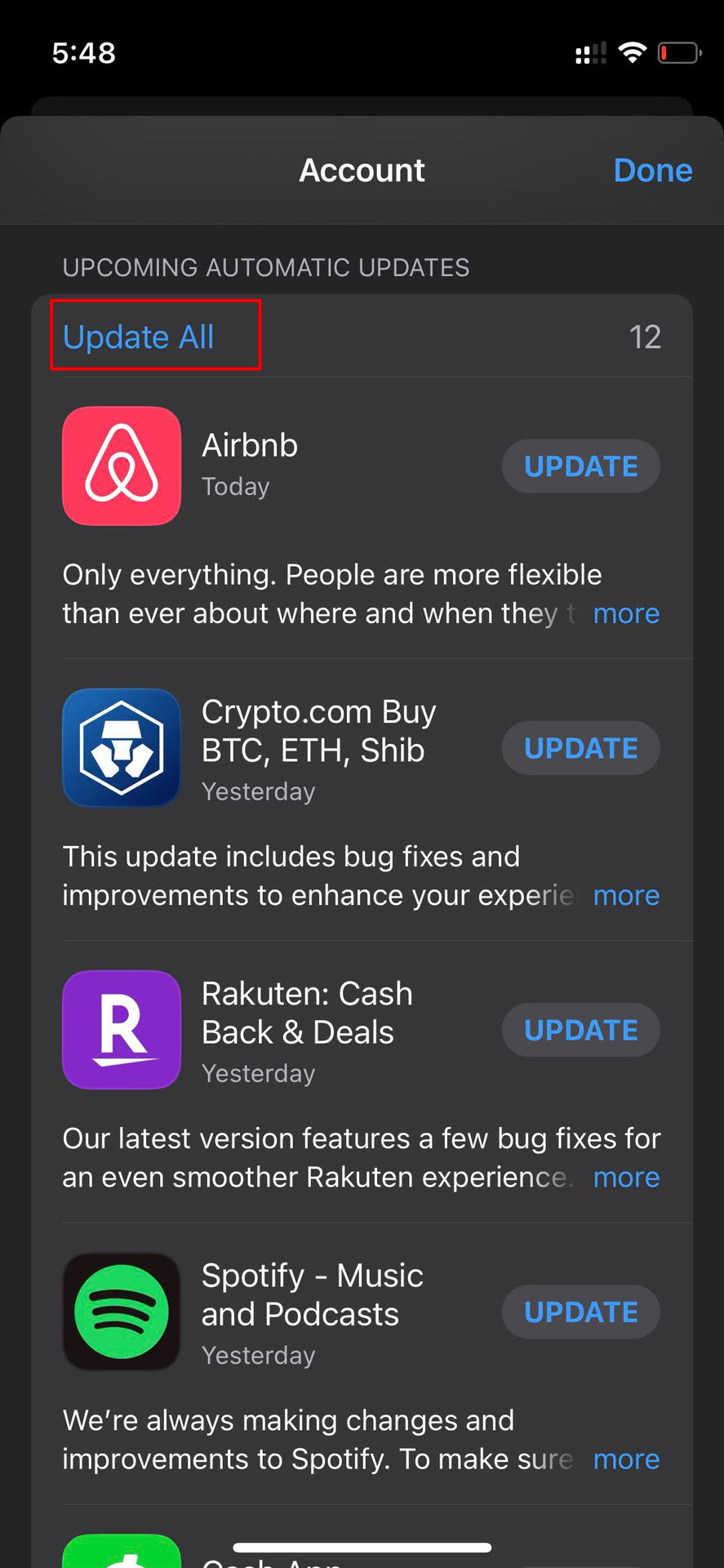
How to update the Facebook app on iPhone:
- Launch the Apple App Store.
- Tap on your profile icon.
- Scroll down until you see your available updates. Check if Facebook has one, and hit Update next to it.
- You can also tap on Update All to take care of all updates in one sweep.
Restart the device
A simple device restart can often resolve a wide range of technical issues. If Facebook is not working, restarting your phone or tablet is a common and effective troubleshooting step that frequently restores normal functionality.
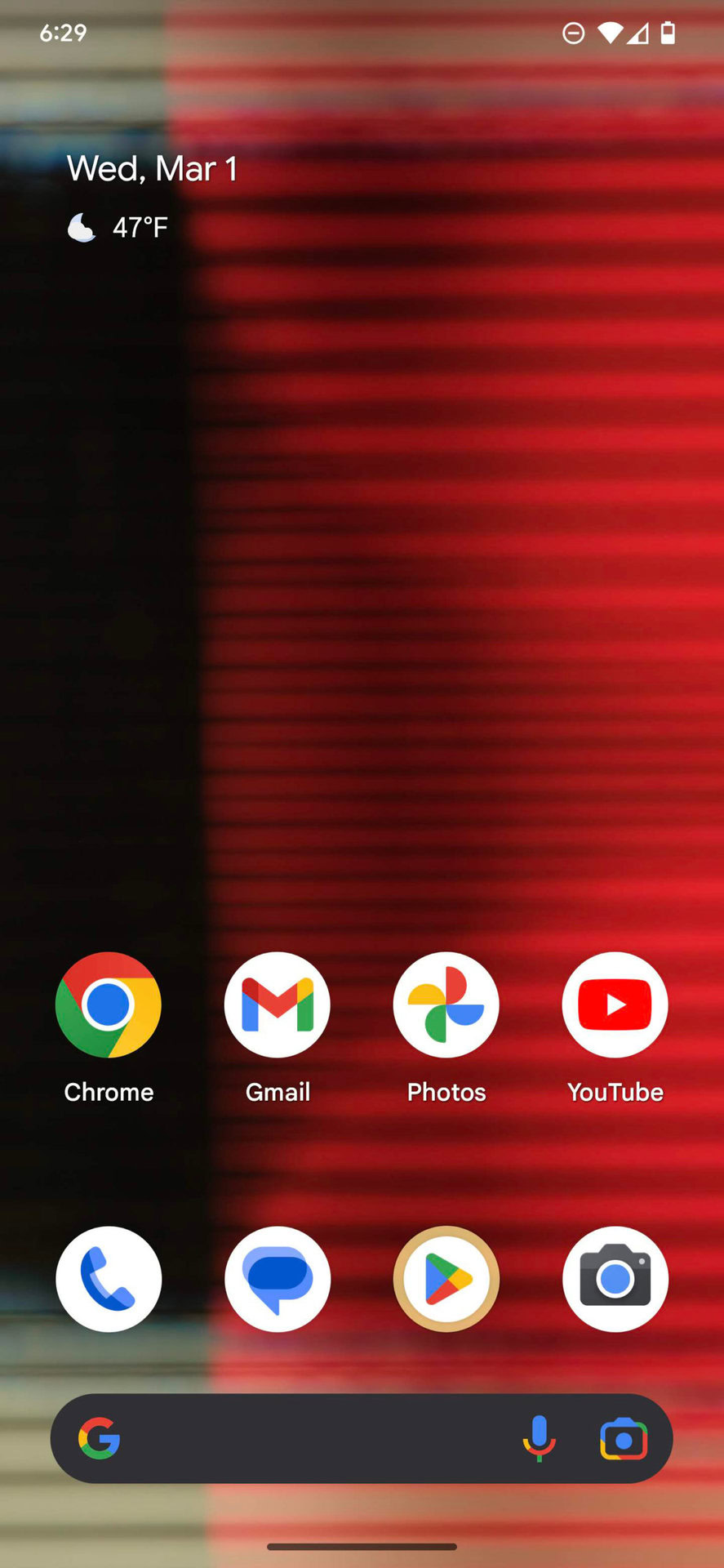
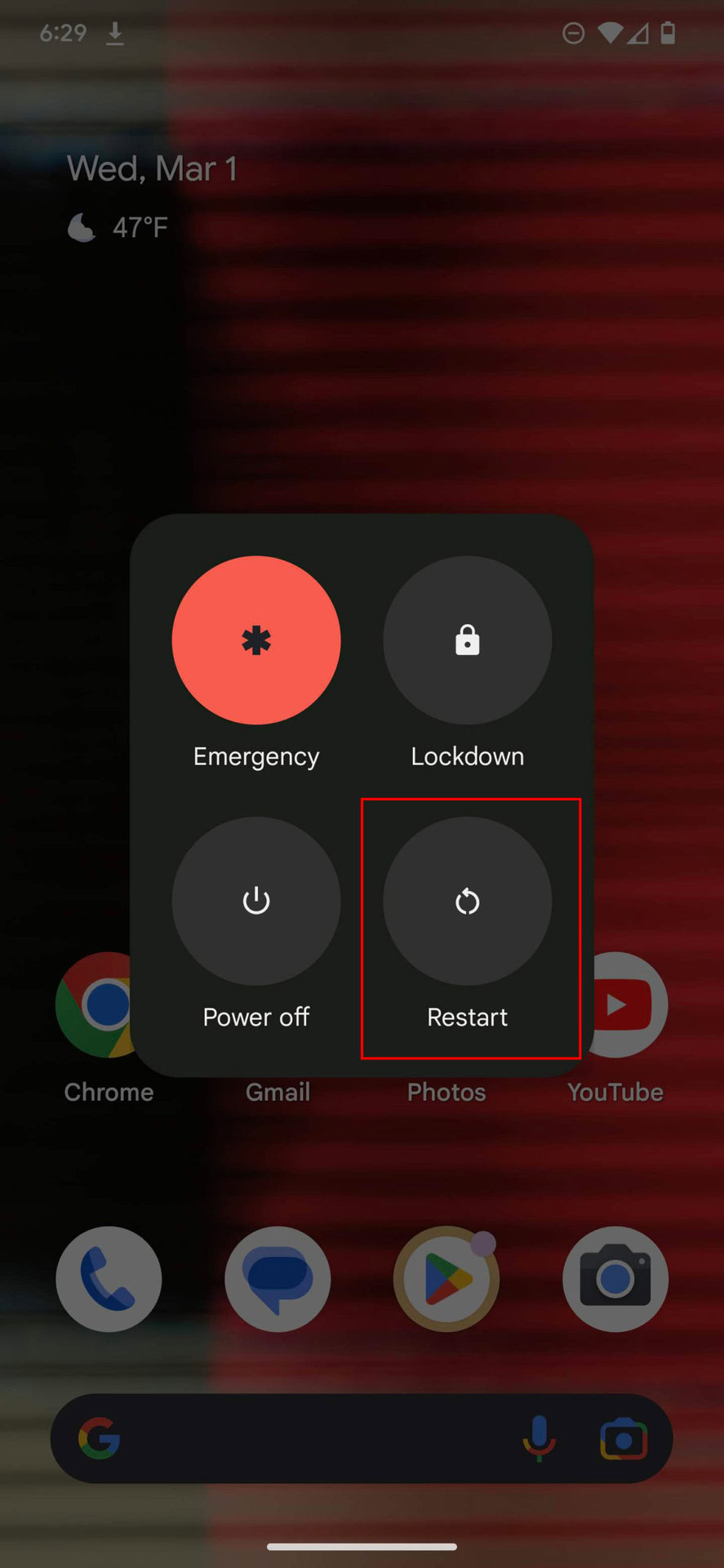
How to restart an Android phone:
- Press the side and volume up buttons simultaneously.
- Select Restart.
How to restart an iPhone:
- Press and hold onto the power and volume up or volume down buttons simultaneously for a few seconds.
- Use the slide to power off slider.
- When the device is turned off, press and hold the side button for a few seconds until you see the Apple logo on the screen.
Note: Screenshots of the power menu are not permitted on Apple devices, so visual aids for this process are unavailable.
Check your internet connection
A non-functional internet connection is a common cause for Facebook not working. Test other applications or websites to determine if your internet is generally unavailable. For Wi-Fi or LAN users, inspect your router to confirm it’s connected to the internet.
Restarting your router is also advisable. Some routers feature dedicated reset buttons or can be managed via an official app. If these options are not available, simply unplugging the router, waiting for approximately one minute, and then plugging it back in can often resolve connectivity issues.
If you are using cellular data, ensure your mobile data connection is active.
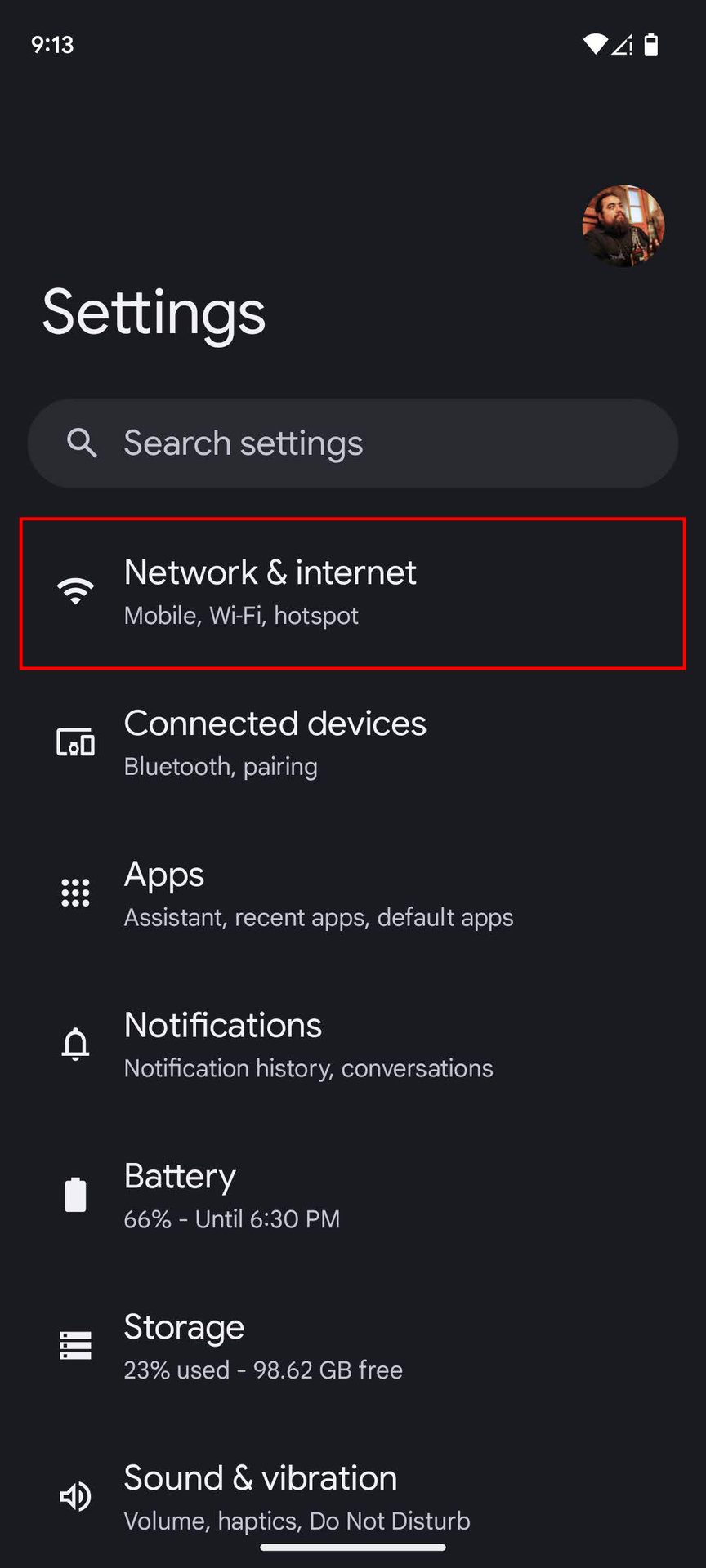
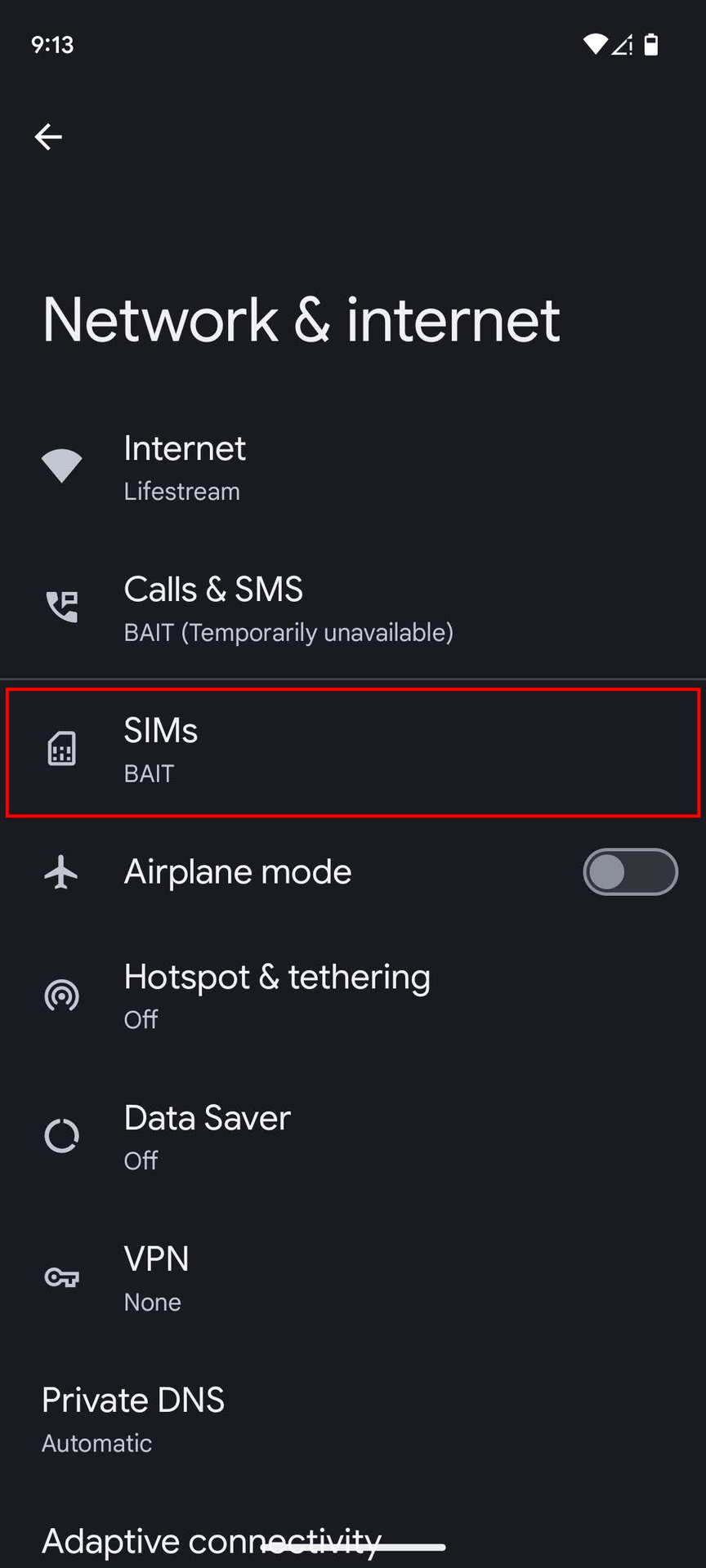
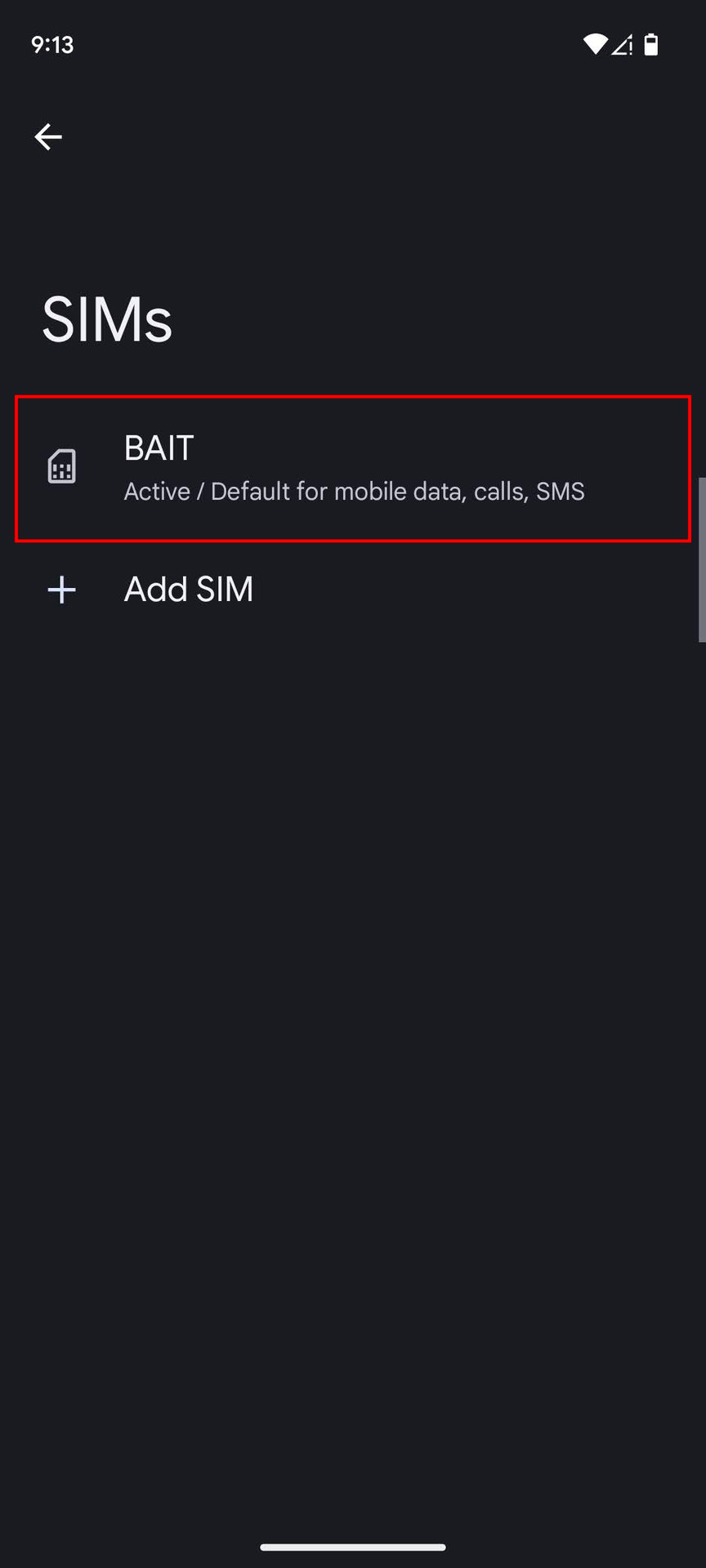
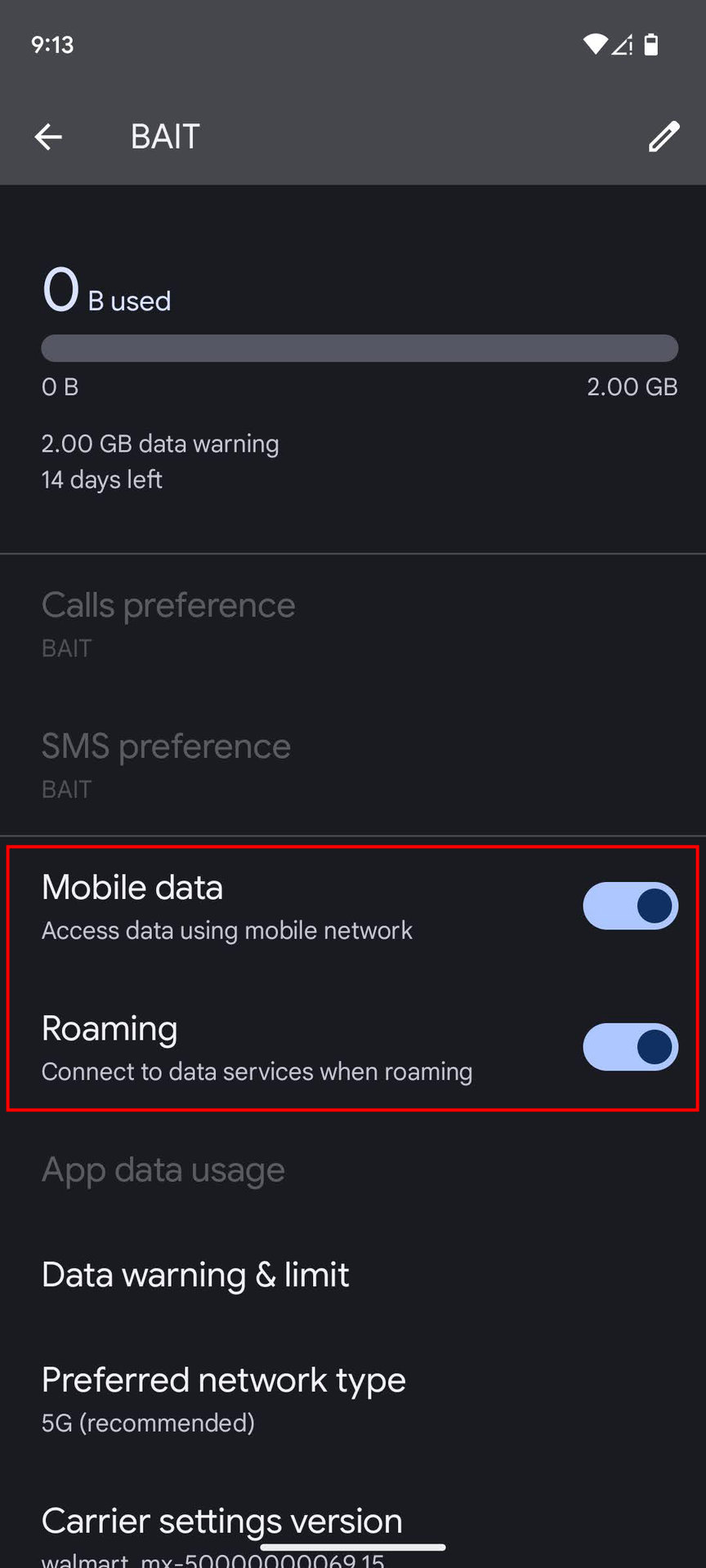
How to turn on mobile data on Android:
- Open the Settings app.
- Go into Network & internet.
- Tap on SIMs.
- Select your SIM.
- Toggle Mobile data on.
- If you’re outside your country or network coverage, also toggle Roaming on (this may incur extra charges).
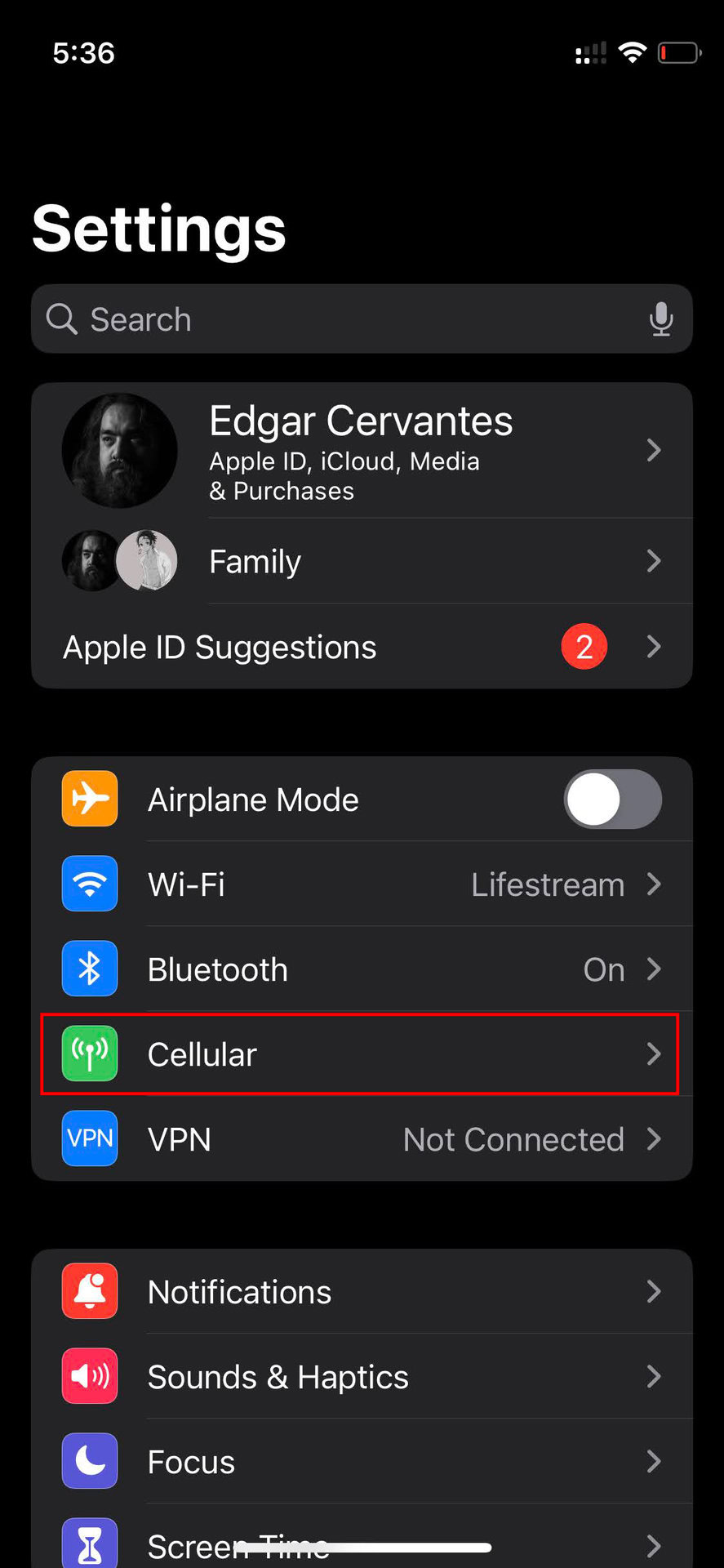
How to turn on mobile data on iPhone:
- Launch the Settings app.
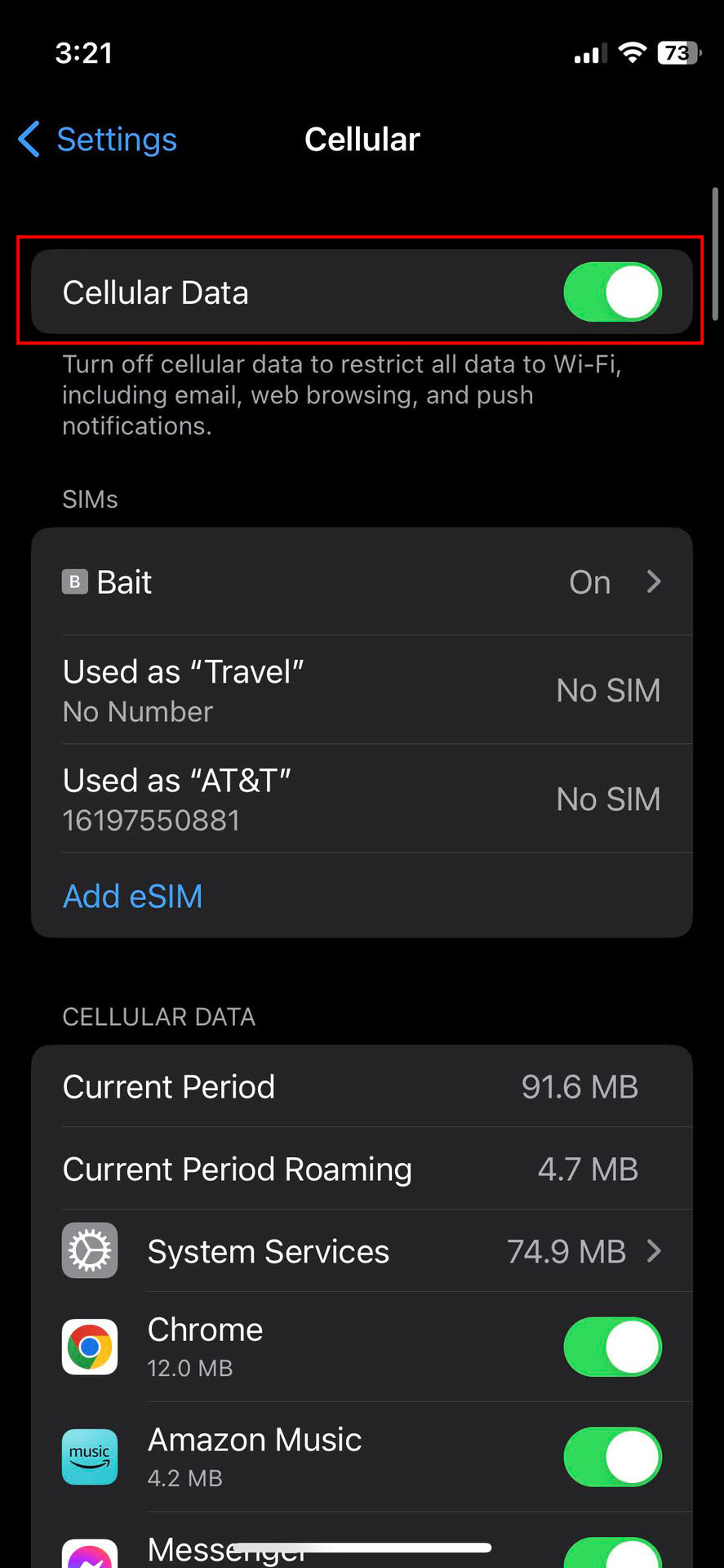
- Go into Cellular.
- Make sure Cellular Data is toggled on.
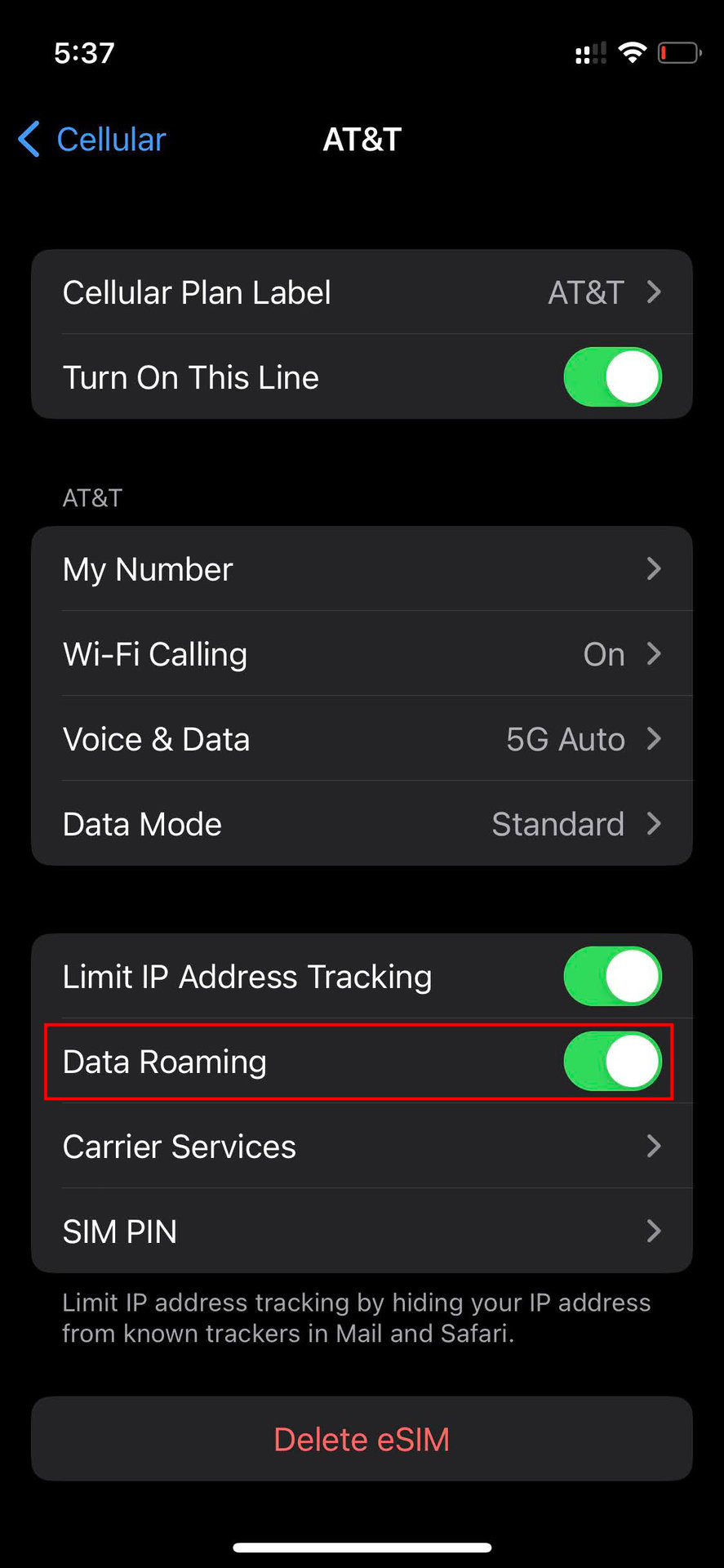
- If you want to turn on roaming, Go into your main SIM under SIMs, then toggle on Data Roaming.
Check the app’s network permissions
Even with a robust internet connection, Facebook might not work correctly if there are permission conflicts. Verify that the social network has all the necessary access permissions on your device to ensure its proper operation.
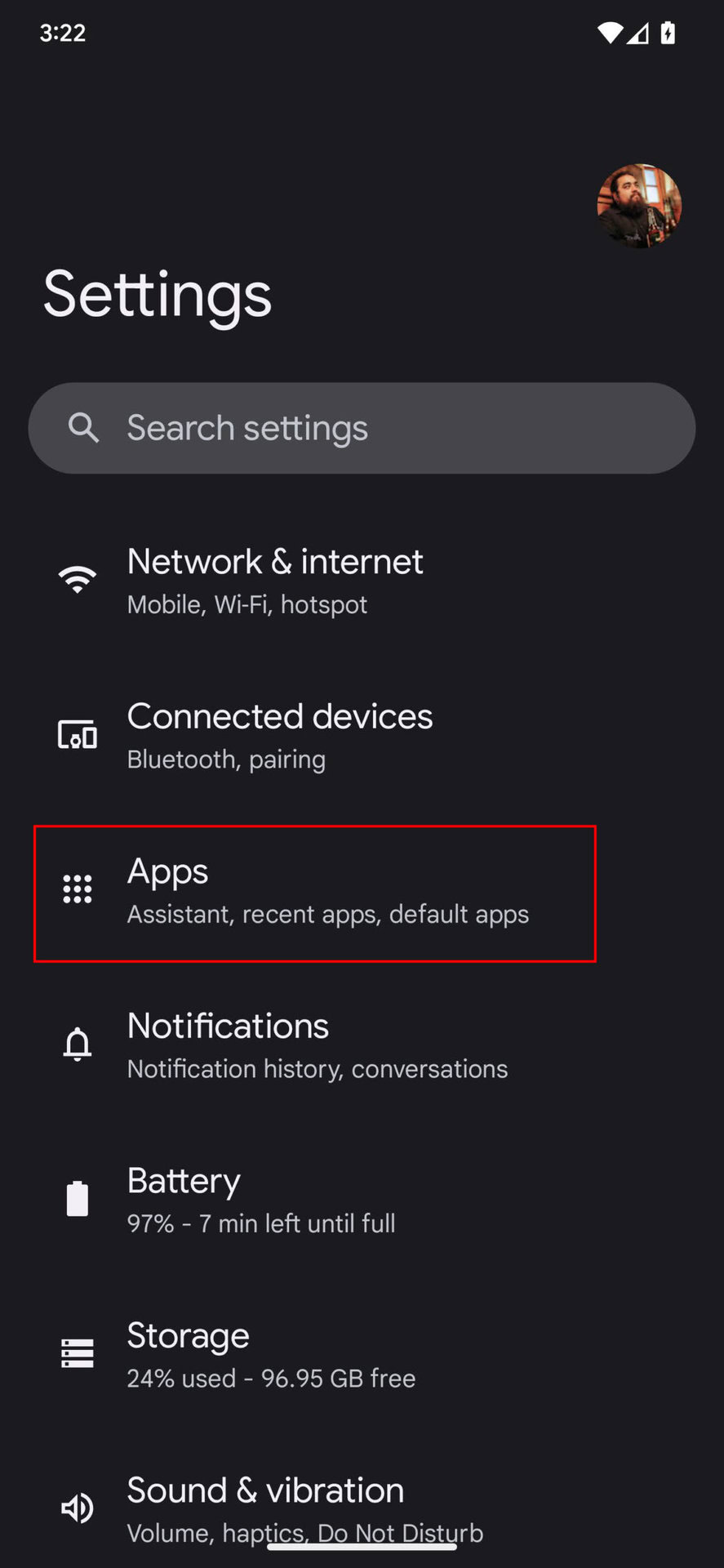
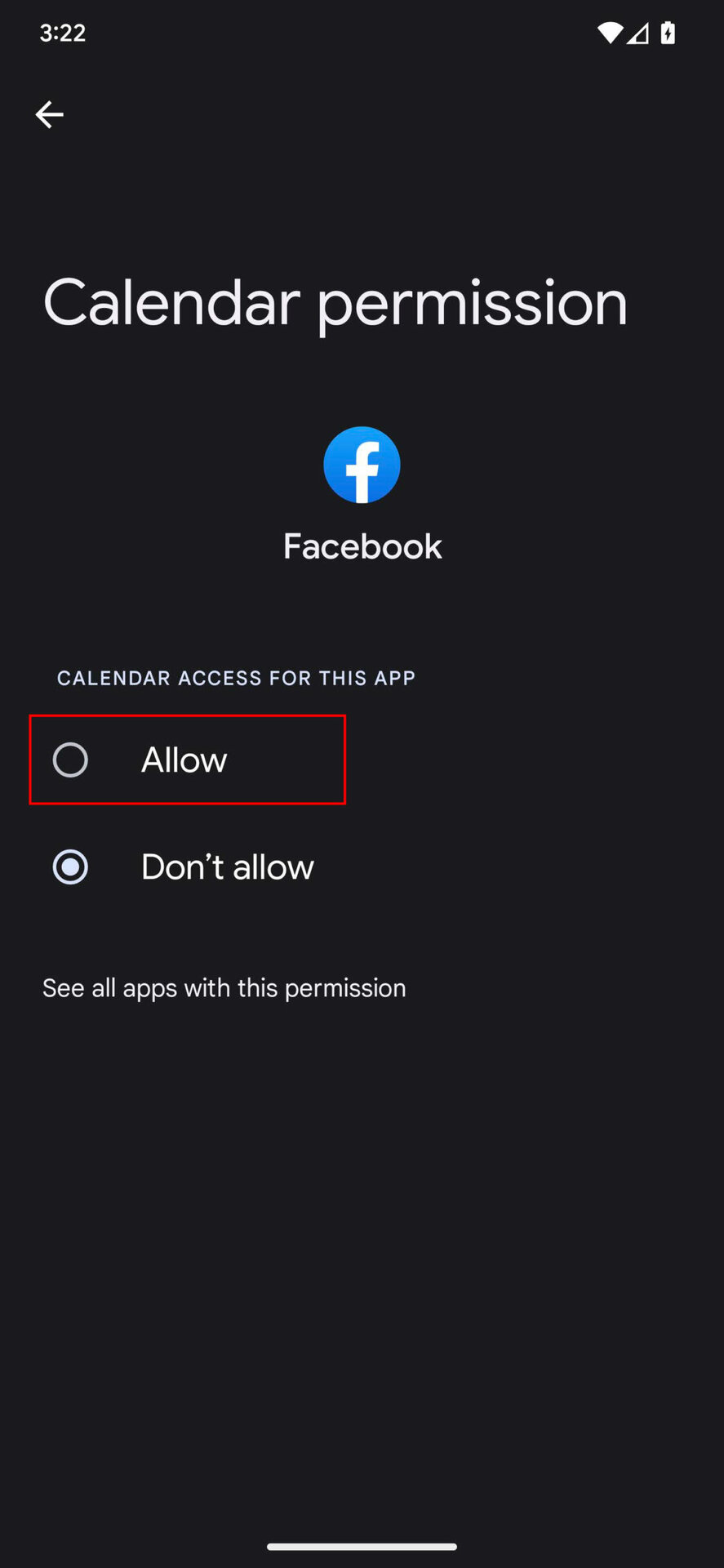
How to allow permissions on the Facebook Android app:
- Open the Settings app.
- Go into Apps.
- Tap on See all apps.
- Find and select Facebook.
- Hit Permissions.
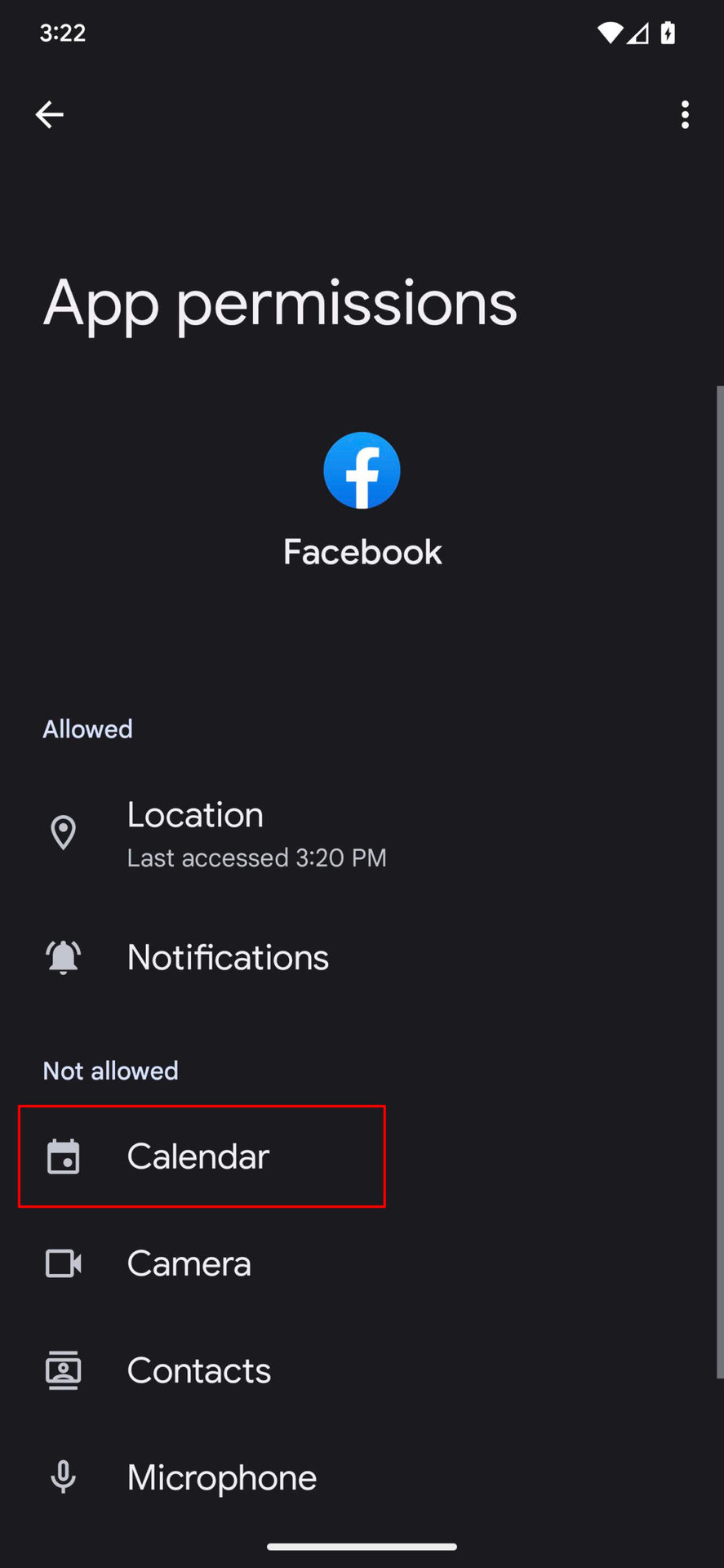
- Under Not allowed, go through each option and allow permission.
How to allow permissions on the Facebook iOS app:
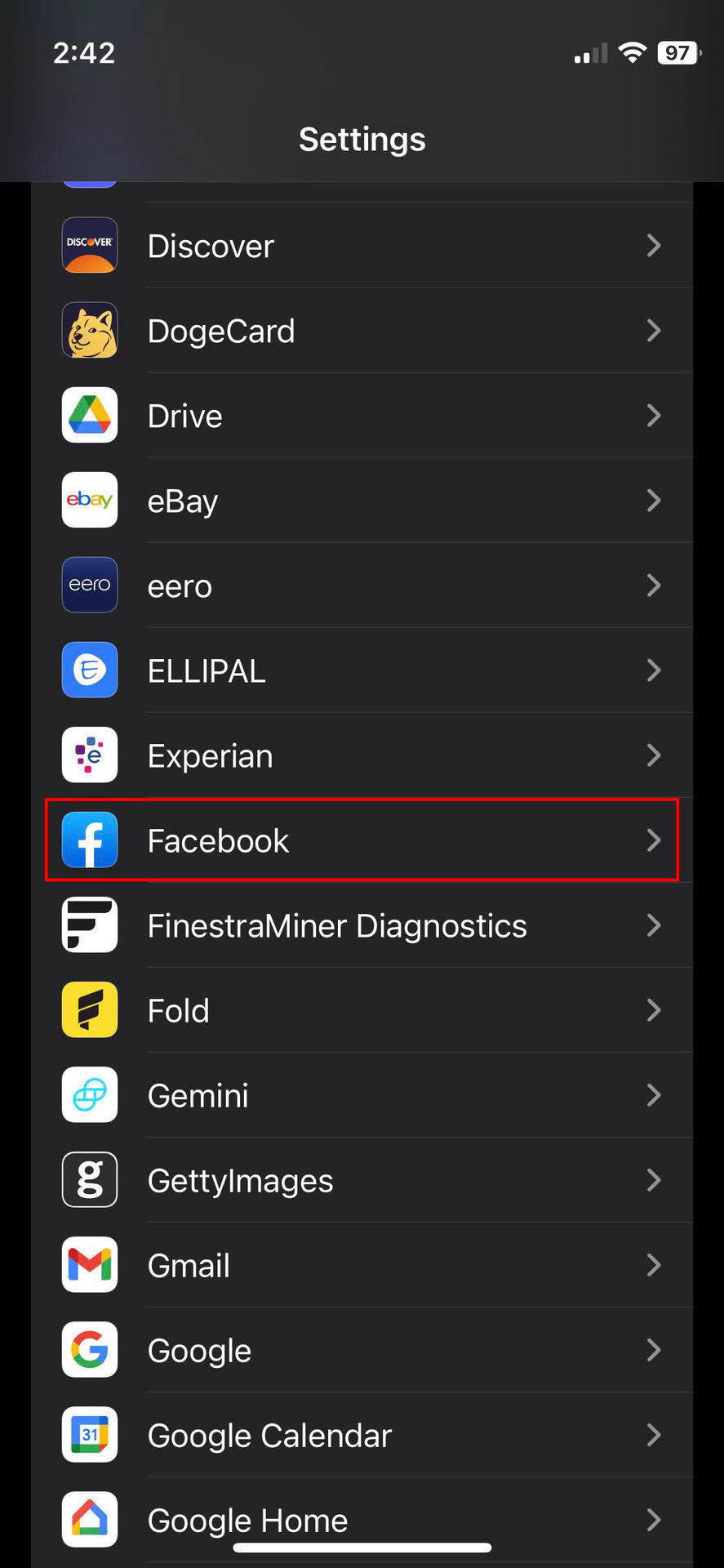
- Launch the Settings app.
- Find Facebook and tap on it.
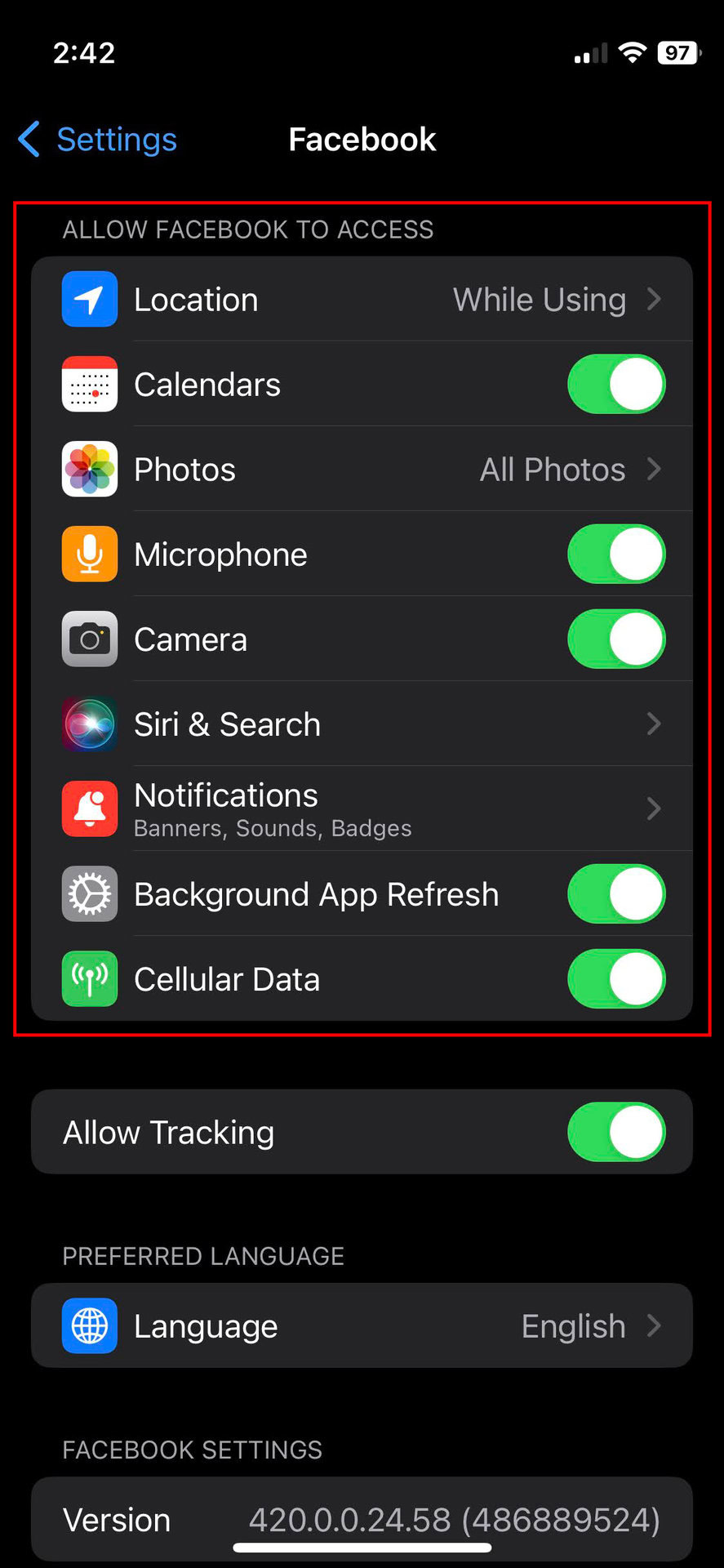
- Under Allow Facebook To Access, make sure everything is enabled.
Clear the cache
Cached data is typically beneficial, allowing for faster access to frequently used information by storing it locally. However, corrupted cache data can lead to application issues. Clearing the cache periodically, especially when Facebook is experiencing problems, can be a useful troubleshooting step. Instructions for Android and Chrome are provided below.
Clear Chrome cache:
- Open your Chrome browser.
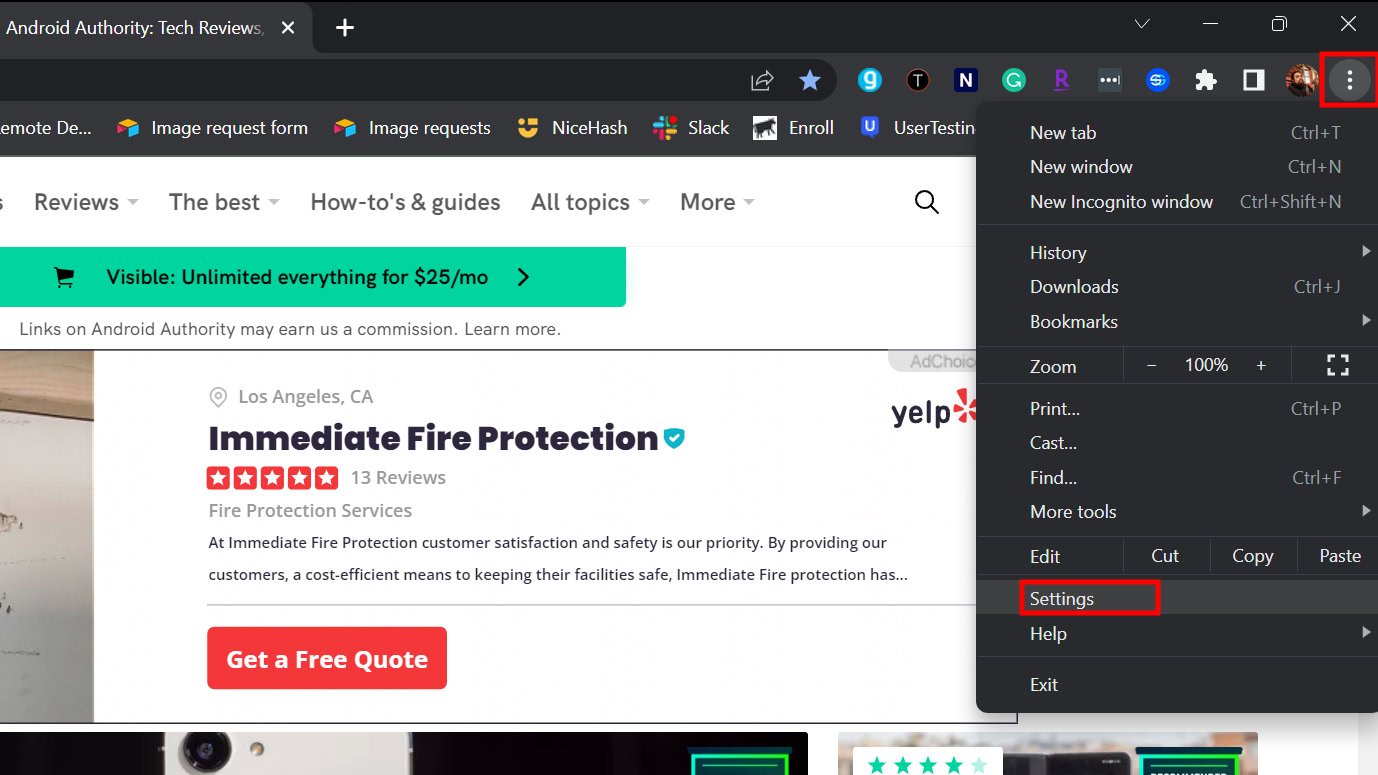
- Click on the three-dot menu button in the top-right corner.
- Select Settings.
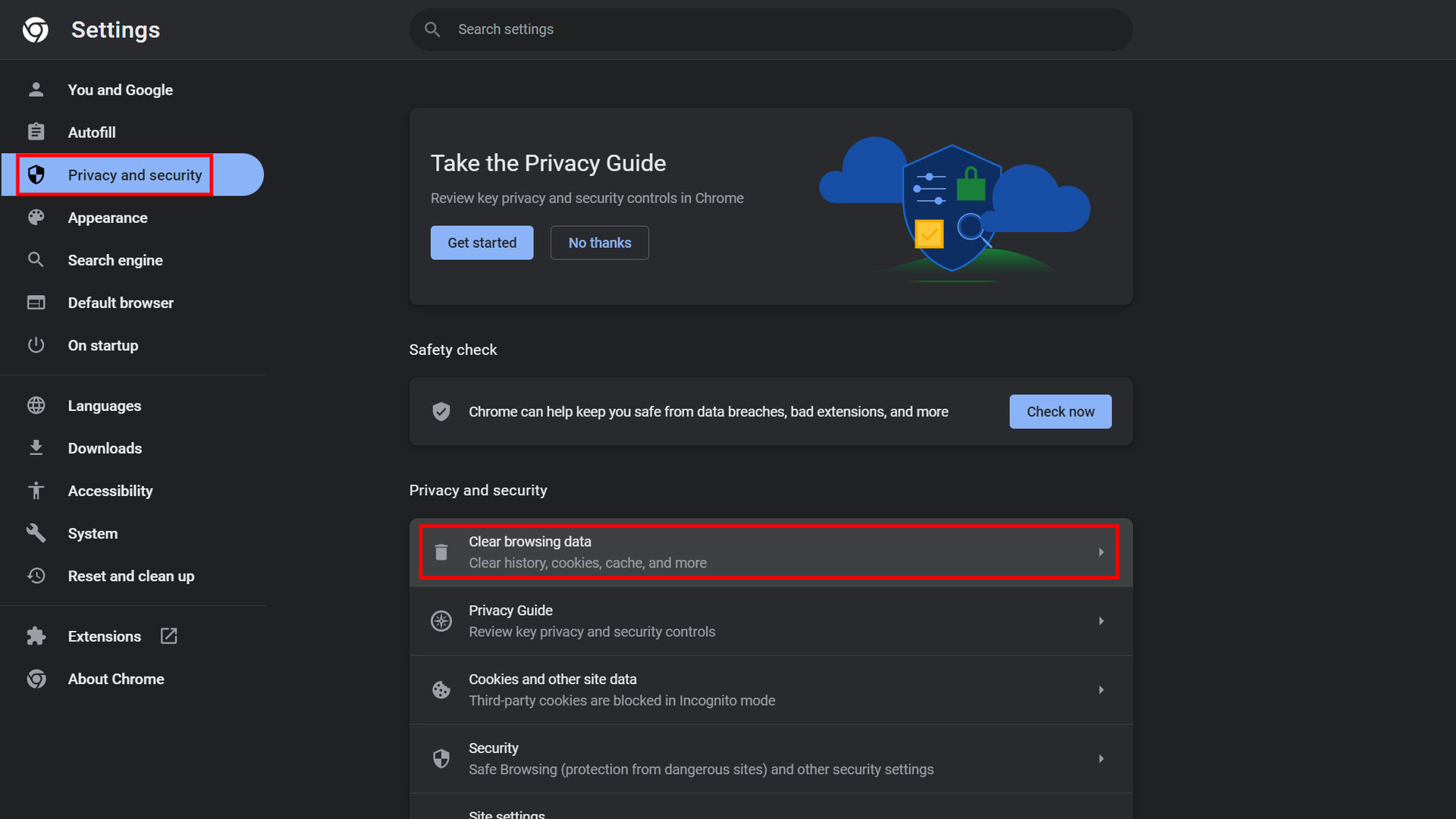
- Go into Privacy and security.
- Hit Clear browsing data.
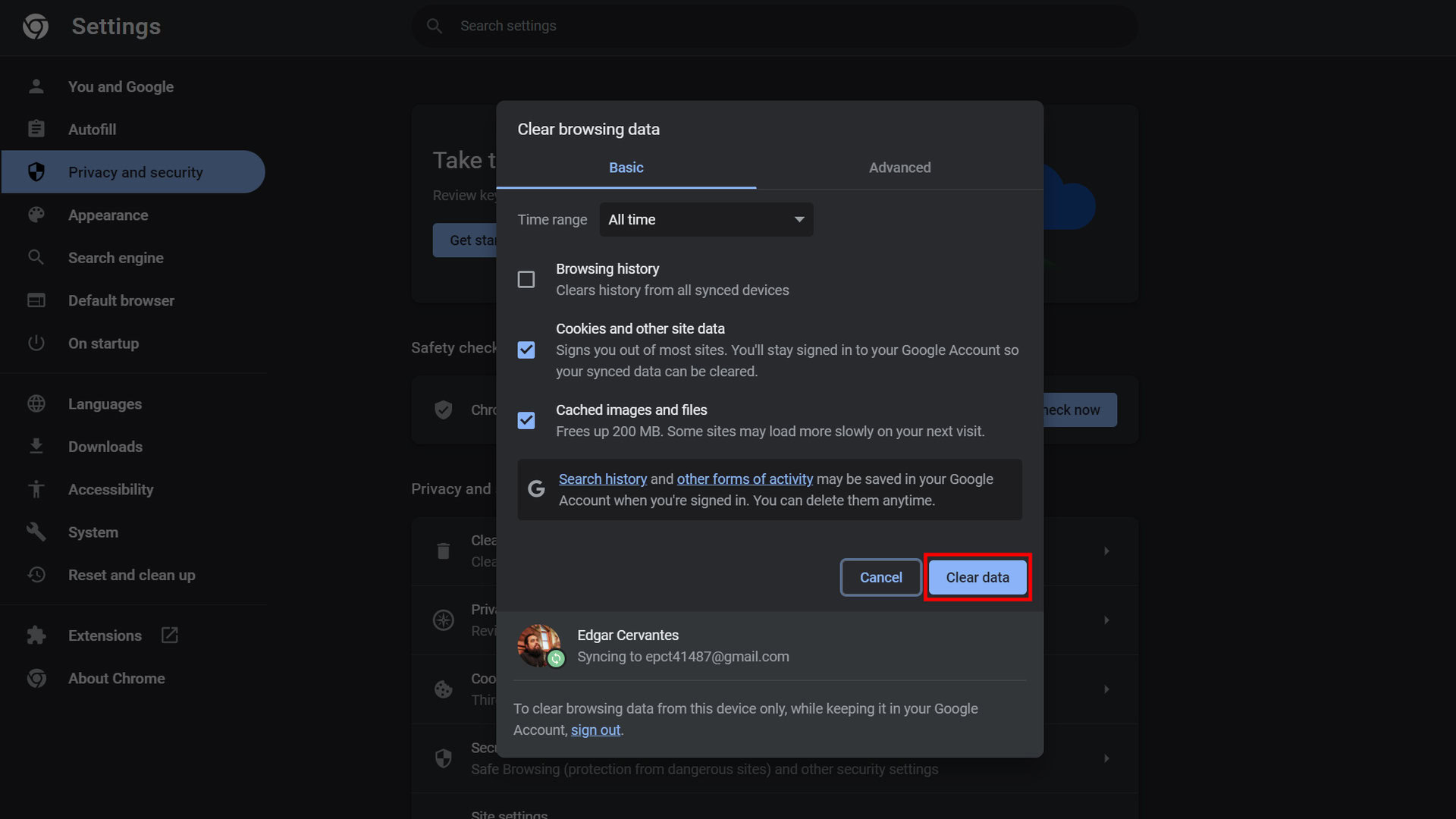
- You can delete only the cache, but it is also advisable to clear cookies and history.
- Select All time and hit Clear data.
Clear cache on Android:
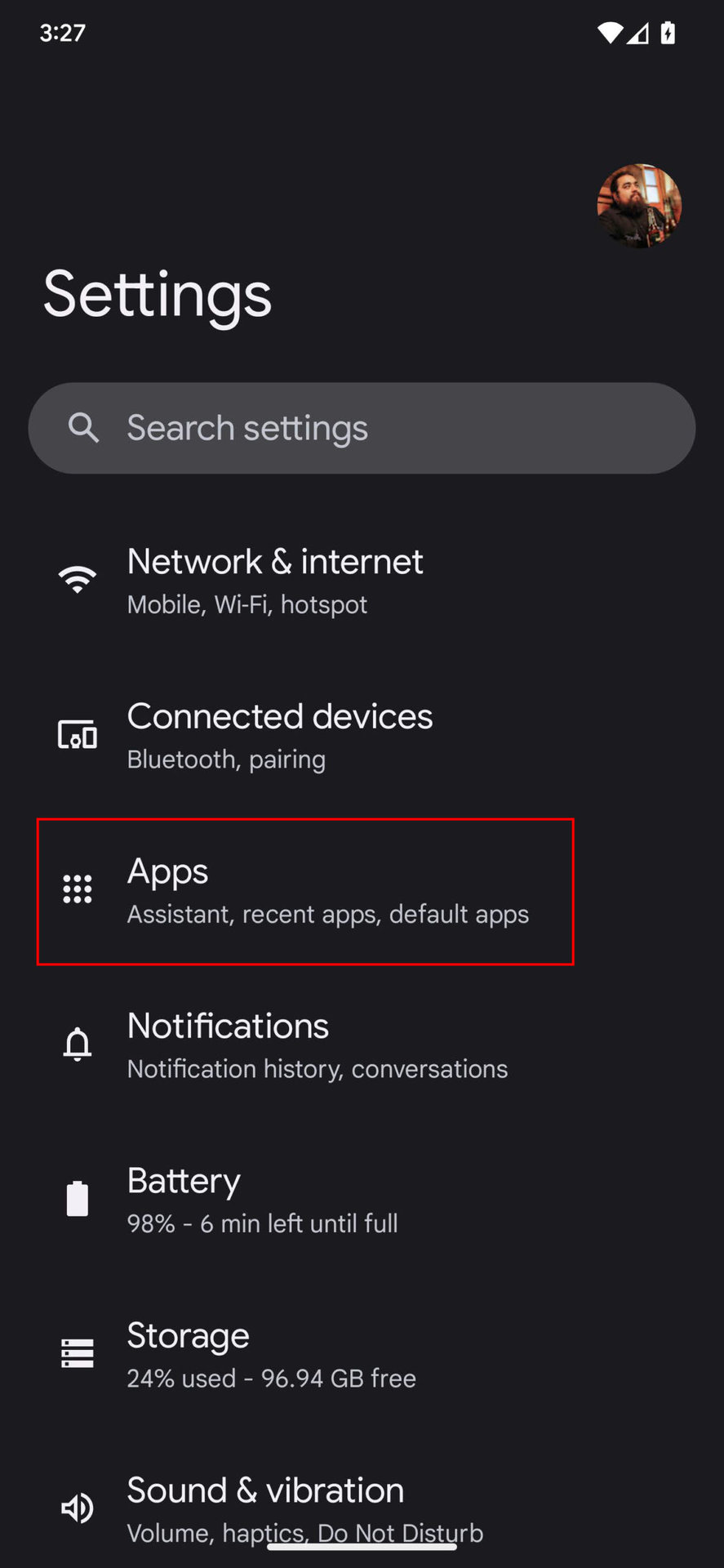
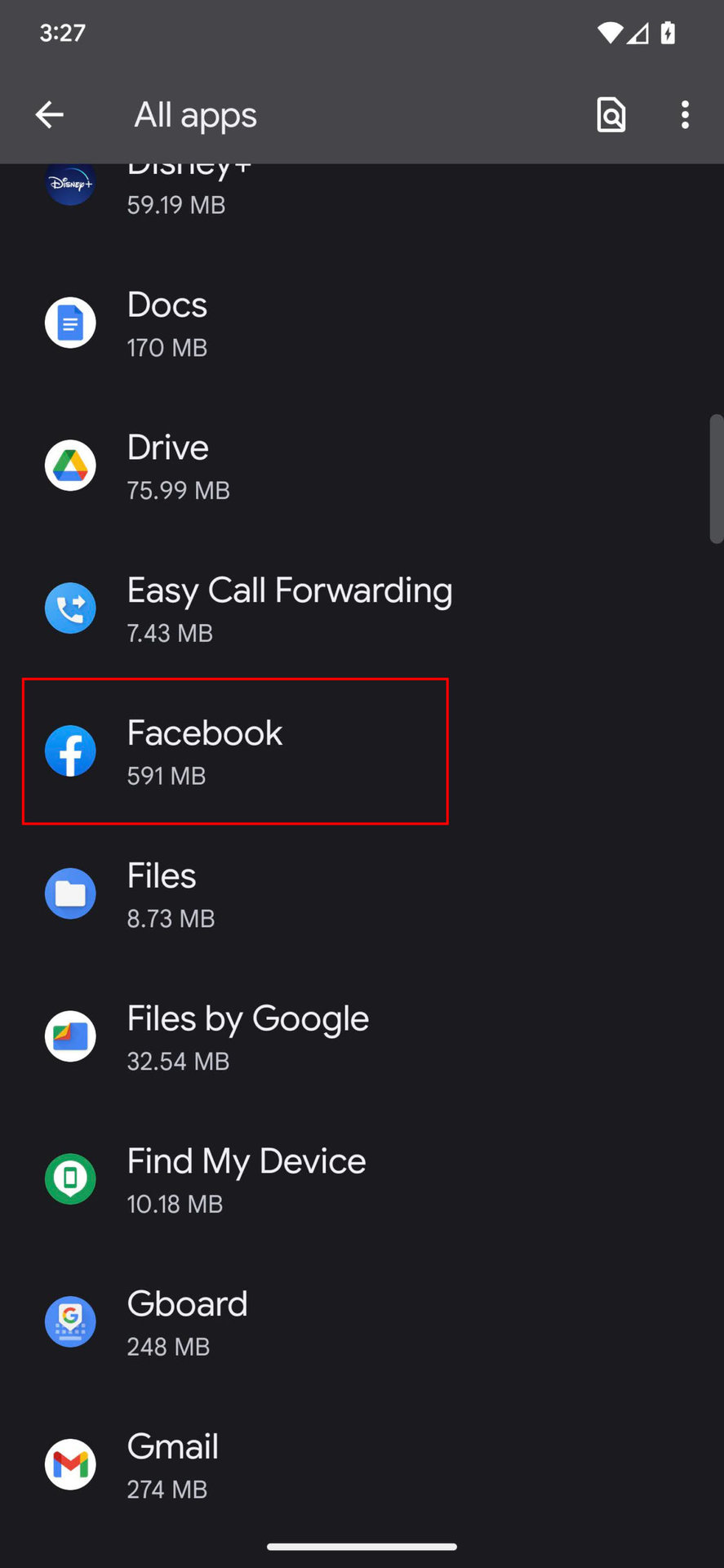
- Open the Settings app.
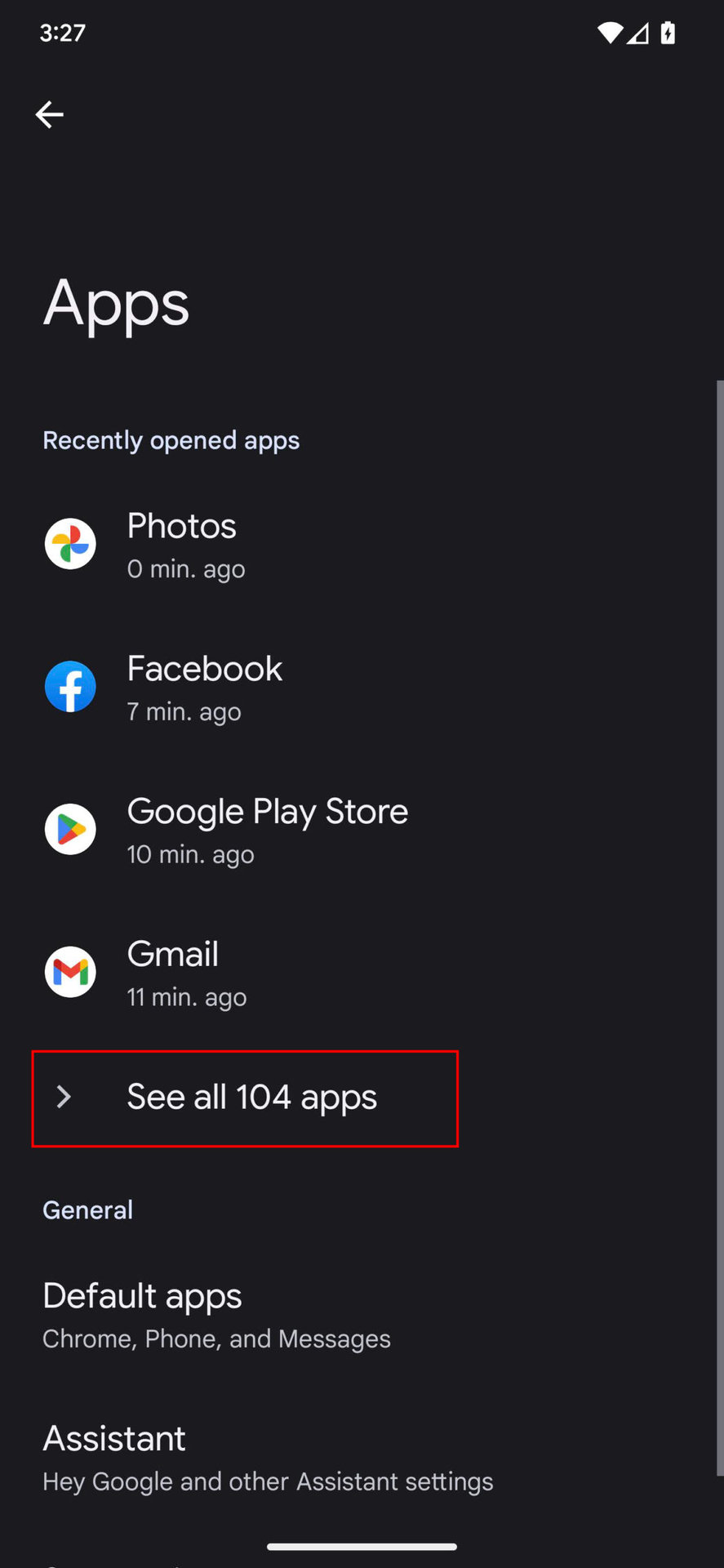
- Go into Apps.
- Find the Facebook app under See all apps.
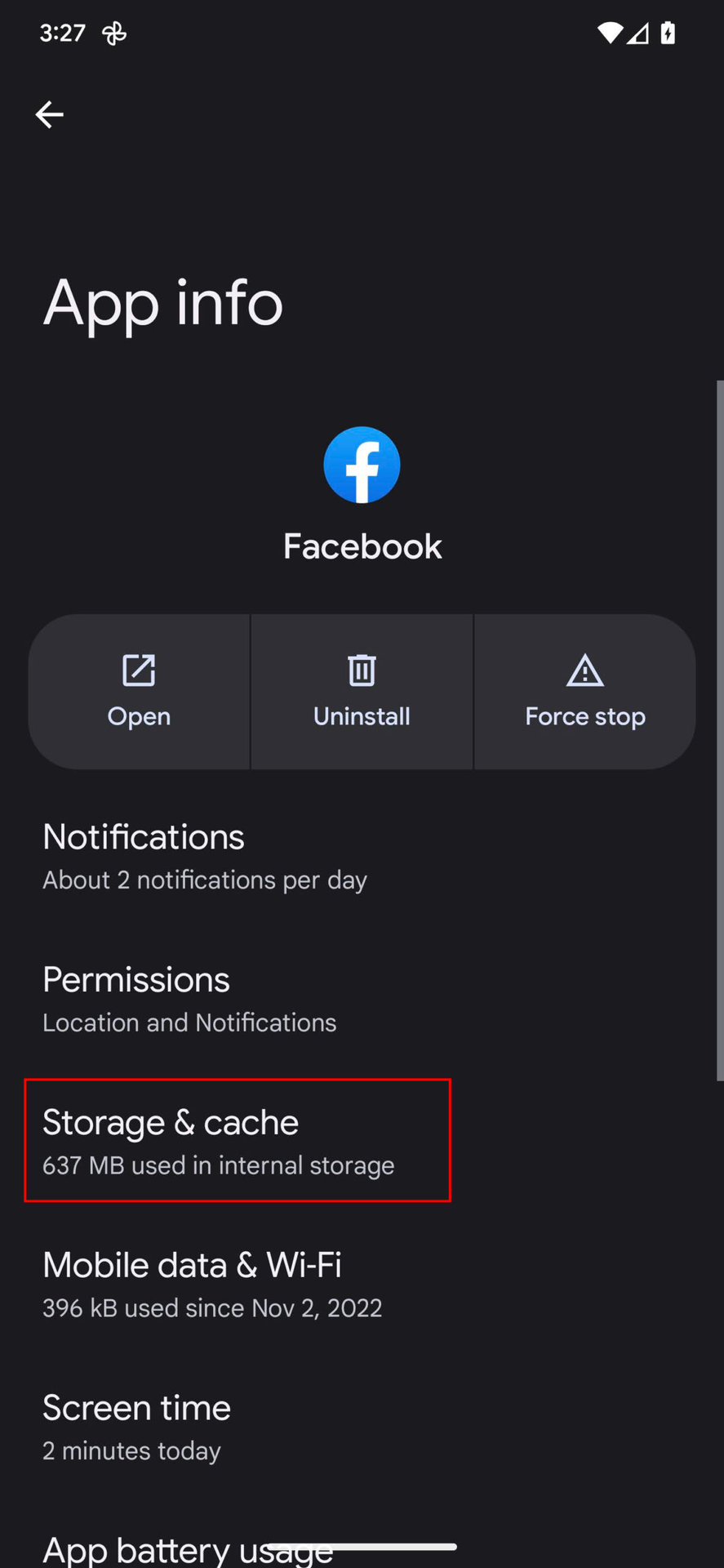
- Tap on Storage & cache.
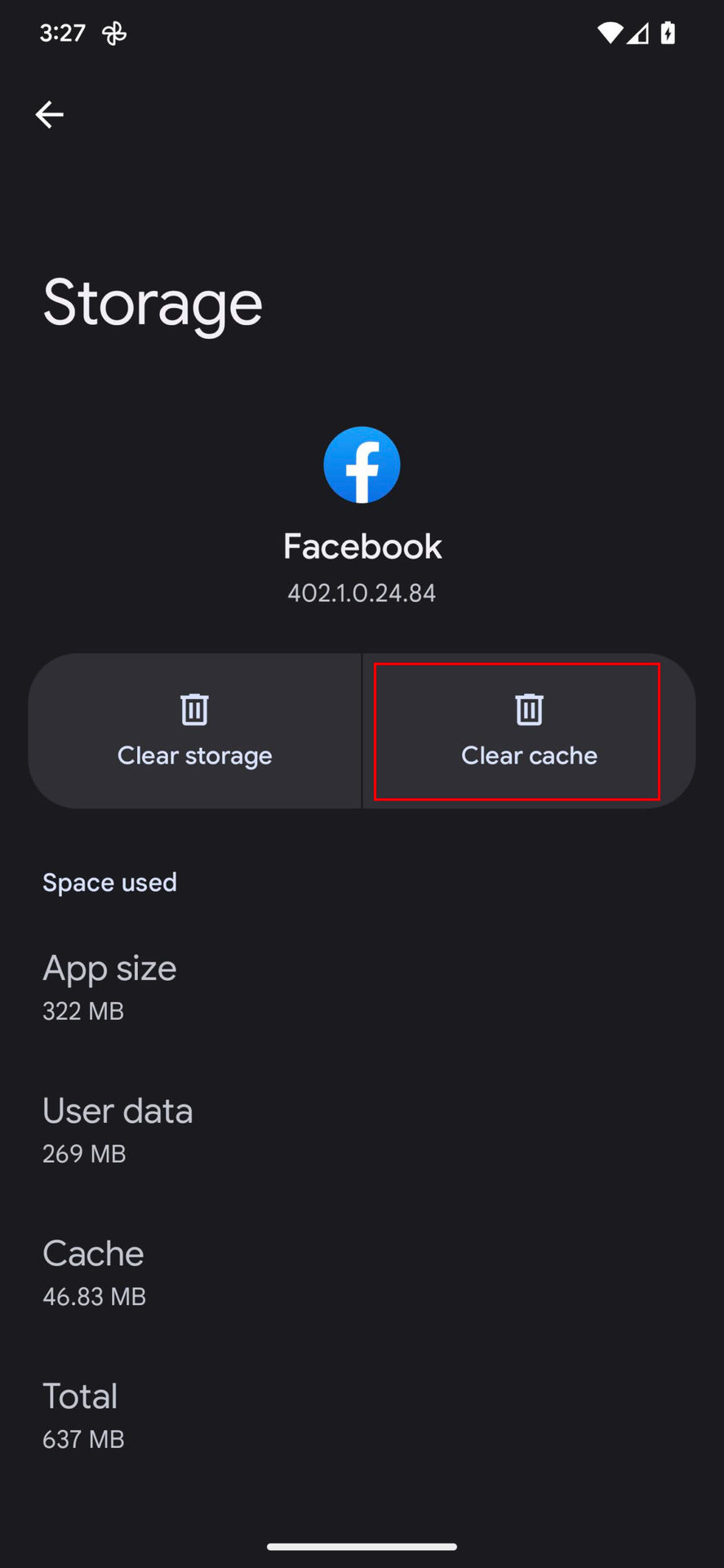
- Hit Clear Cache.
- You can also select Clear storage for a clean start.
Clearing the cache directly within iOS apps is not typically an option. The most effective method to achieve this on iOS is by uninstalling and then reinstalling the application.
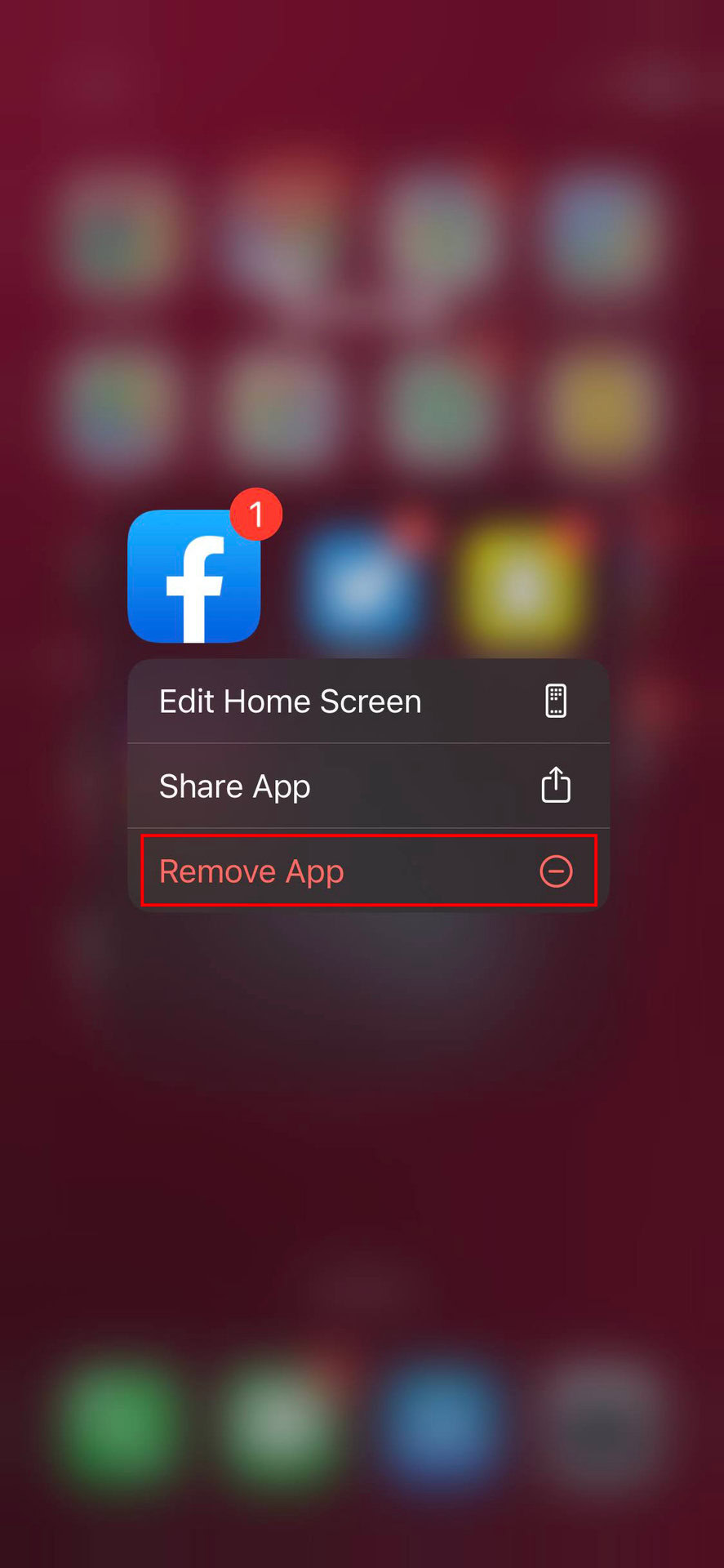
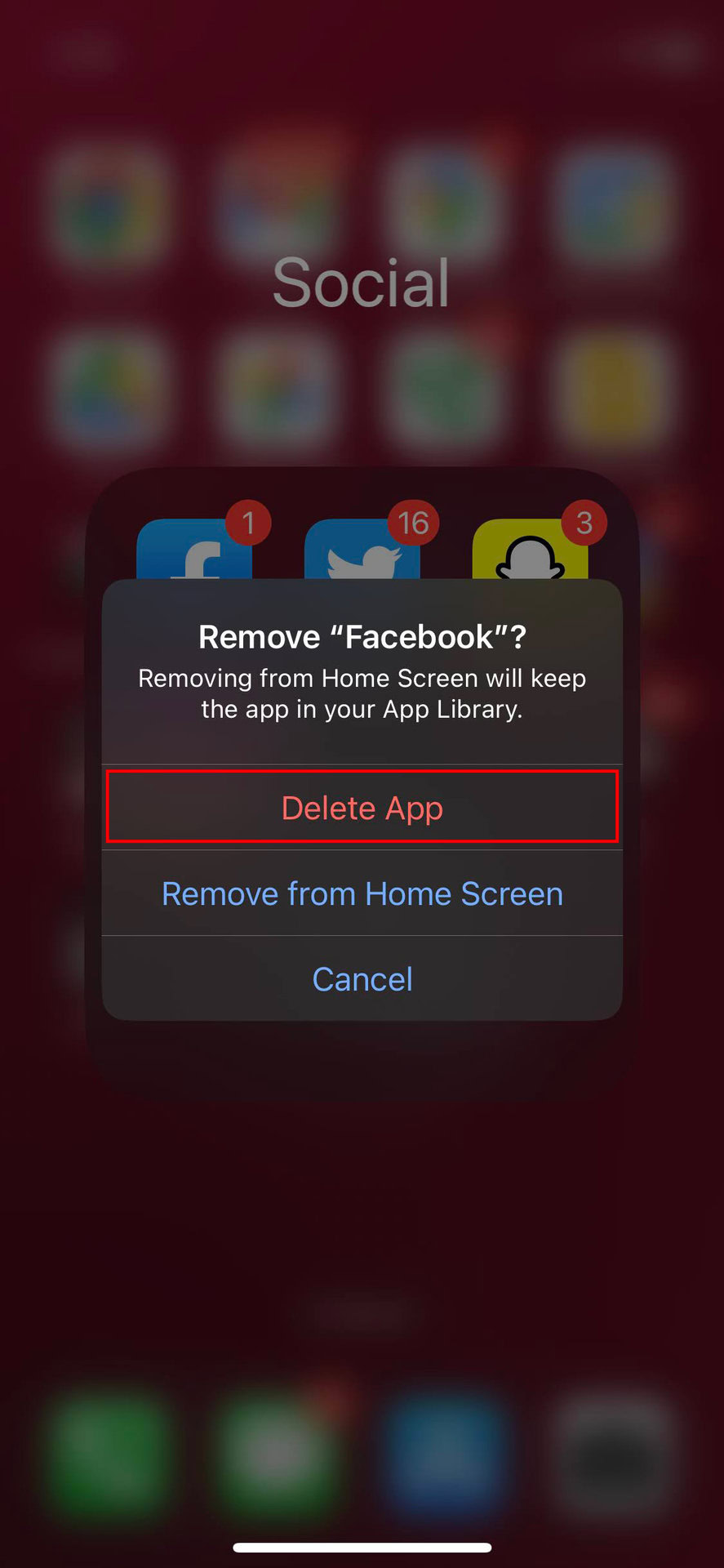
How to uninstall Facebook on iPhone:
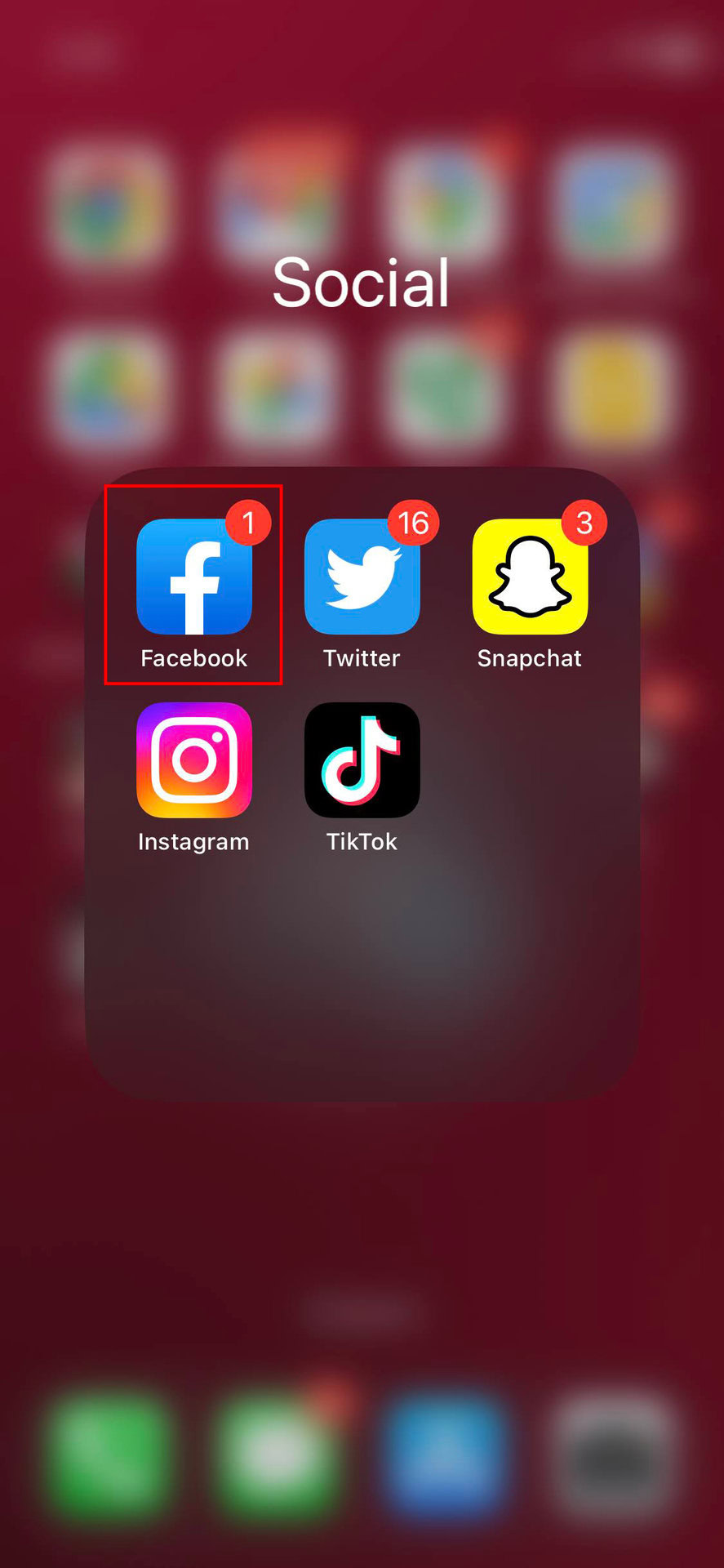
- Find the Facebook app. Tap and hold onto it for a couple or few seconds.
- Tap on Remove App.
- Hit Delete App.
- Go back to the Apple App Store and re-download Facebook.
Can’t play Facebook videos?
Issues with Facebook video playback can arise depending on the device or browser being used. Older Windows operating systems, such as Windows 7, Vista, or XP, might necessitate switching to a different browser like Chrome or Firefox if you are not already using one.
Additional common troubleshooting steps include restarting your computer, closing and reopening your browser, and verifying your internet connection.
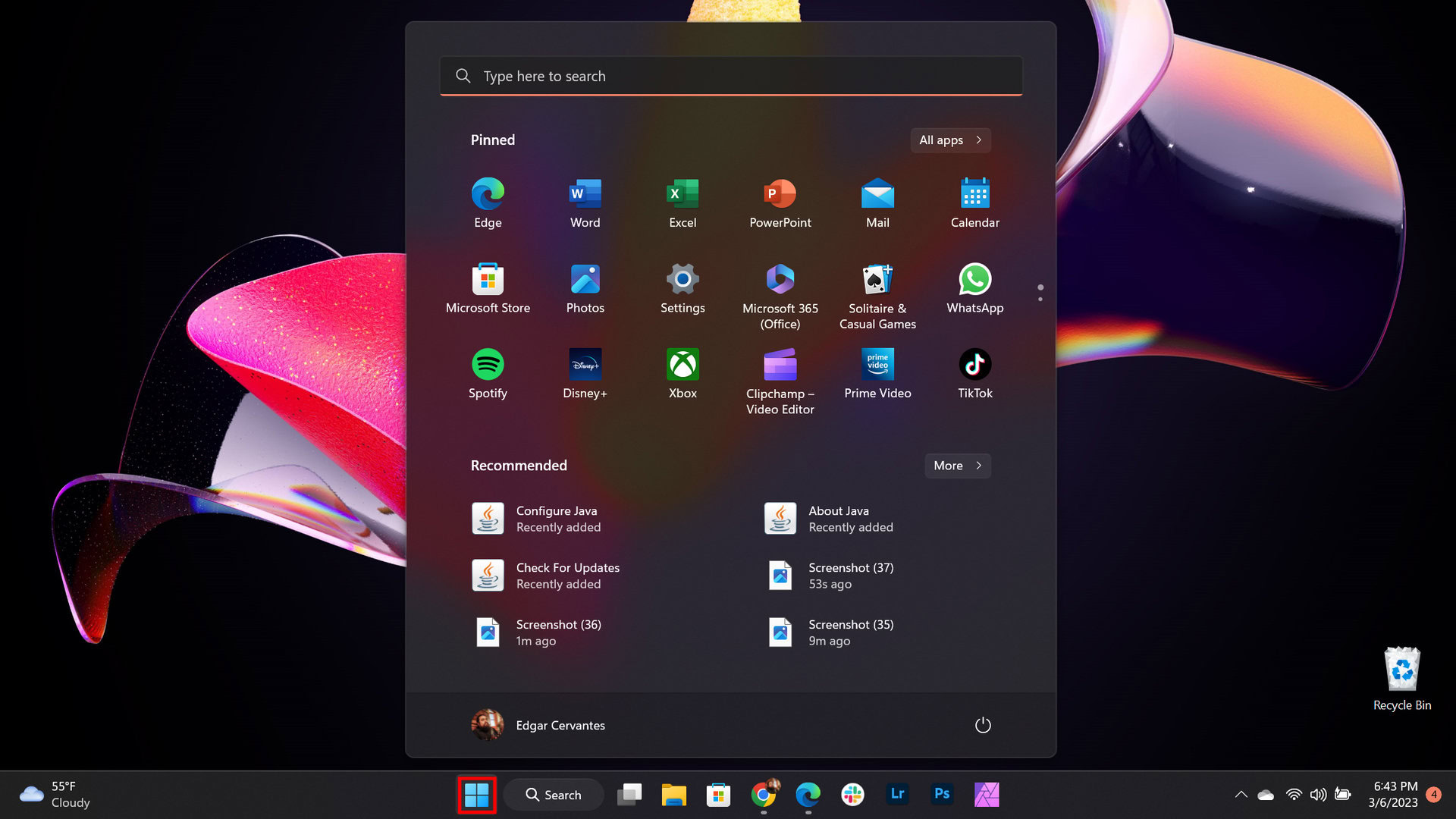
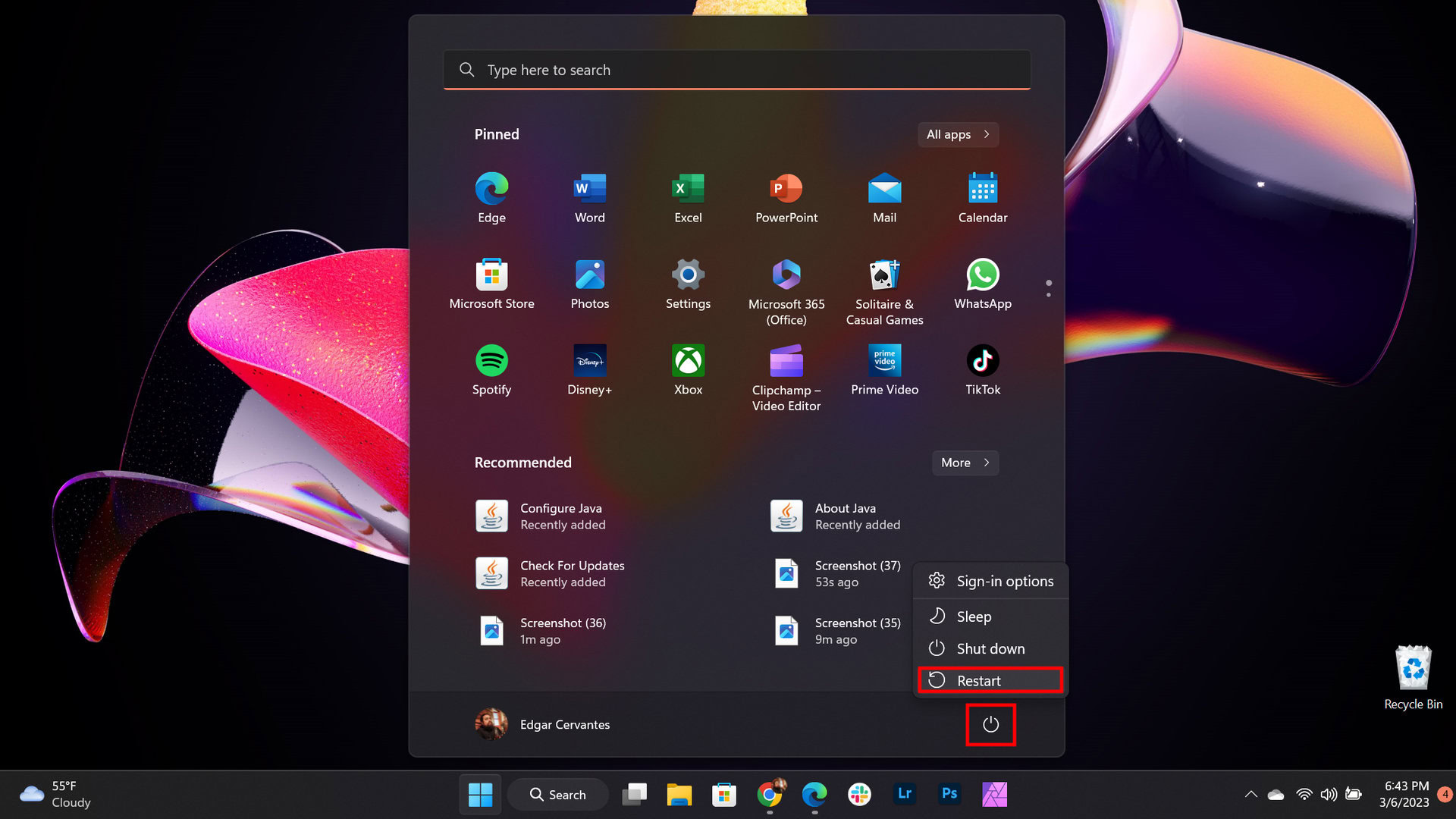
How to restart Windows:
- Click on the Windows button.
- Select the Power button.
- Pick Restart.
Not able to upload photos
Sharing life’s important moments often involves uploading images to Facebook. If you are experiencing issues with photo uploads, several solutions can help resolve the problem.
First, confirm that you are using the latest version of the Facebook app or browser. Additionally, disable any ad-blocking software or ensure Facebook is added as an exception. If the issue persists, it might stem from a photo editing format problem. Attempt to upload the original, unedited photo. If successful, re-export the image from your editing software in a supported format such as JPEG, BMP, PNG, GIF, or TIFF. Large image files can also cause difficulties; aim to keep Facebook photos under 15MB.
Facebook may also temporarily restrict photo uploads if content is deemed abusive. Check your Support Inbox for any related alerts. A guide on how to recover your Facebook account is available if needed.
Can’t upload videos
Similar to photo uploads, issues can arise when uploading videos to Facebook. If a video fails to upload, first verify that it is in a supported format; Facebook generally prefers MP4 and MOV files. Also, check the video’s length and file size. The maximum allowed length is 240 minutes, and the file size should not exceed 10GB.
Always ensure you are using the latest version of the app or browser and that your internet connection is stable.
If these troubleshooting steps do not resolve the issue, consider seeking further assistance. Facebook’s Help Center offers additional support. Users can also file a report by accessing their Facebook account, clicking on the Profile icon, and navigating to Help & support > Report a problem.
