


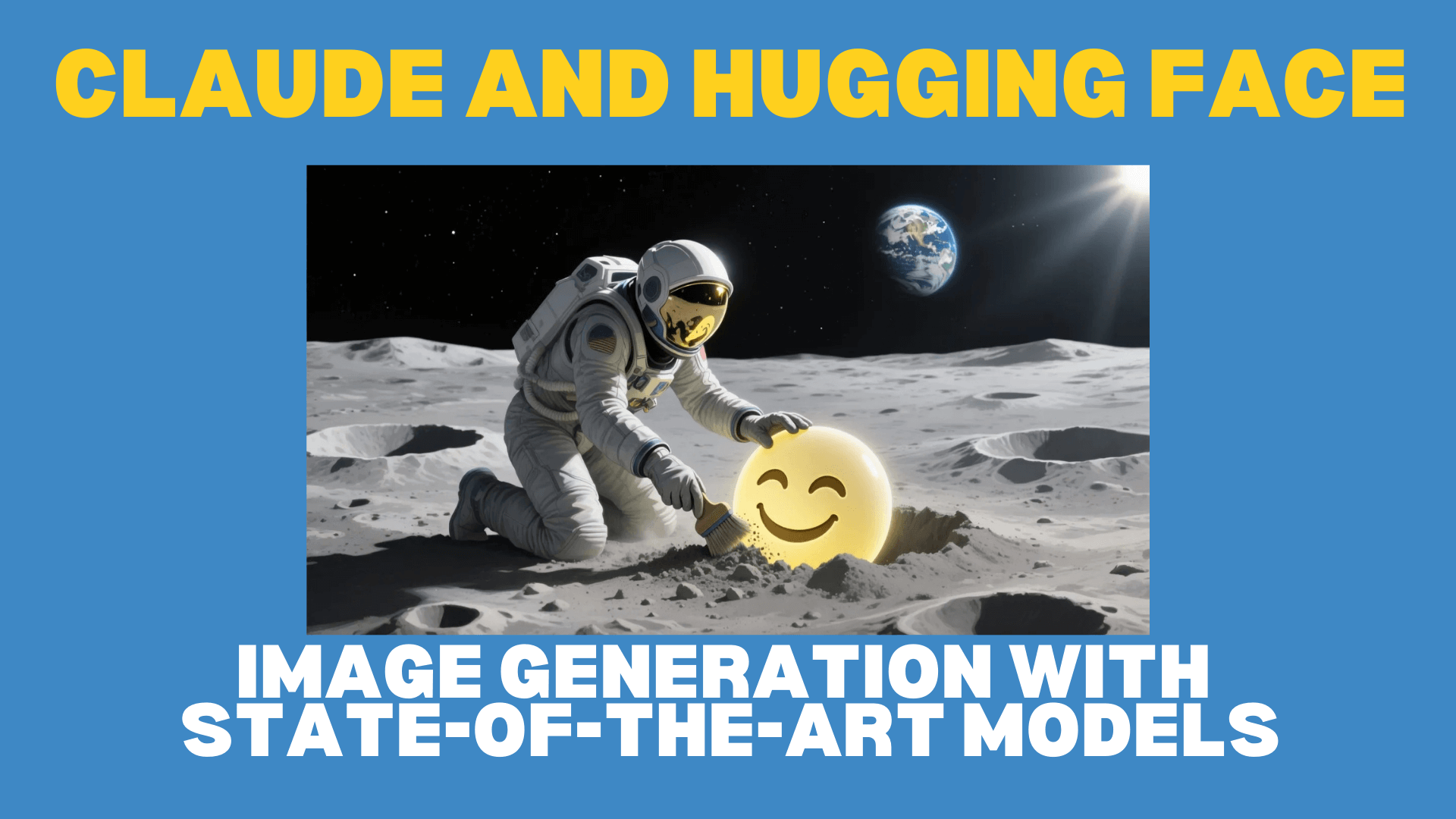
TL;DR: Generating detailed images with advanced AI models is now simpler than ever by connecting Claude to Hugging Face Spaces. This article explains the process and benefits, introducing recently launched models that excel at producing natural-looking images or those incorporating text.
Update October 2025: Due to an update in Anthropic’s Connector Directory Policy, users must now utilize the “Add custom connector” option. Set the Remote MCP server URL to https://huggingface.co/mcp?login to enable Image Generation and other Gradio Spaces within Claude.
Introduction
Recent advancements in image generation models have significantly improved their ability to create realistic outputs and integrate high-quality text. These models are now more accessible through direct connection to Claude.
The advantages of generating images this way include:
- AI can assist in crafting detailed prompts, potentially enhancing the quality of generated images.
- AI can analyze generated images, then help refine designs and techniques for optimal results.
- Users can easily switch between the latest models or select the most suitable one for specific needs.
To begin, create a free Hugging Face account. Then, connect Claude via its “Search and tools” menu within the chat input box.
Once Claude is connected, it can utilize tools from the Hugging Face MCP Server, expanding its capabilities. This includes access to AI applications running on innovative ZeroGPU powered Spaces. A Hugging Face account provides free credits for using these powerful models.
After establishing the connection between Claude and Hugging Face, the next step involves configuring the image generation tools Claude can employ.
Natural Images with Flux.1 Krea Dev
FLUX.1 Krea [dev] aims to eliminate the common “AI look” often found in generated images, such as plastic-like skin, oversaturated colors, or excessively smooth textures. For images that resemble professional photography rather than computer-generated art, Krea provides realistic textures, natural lighting, and authentic aesthetics that other AI models often lack. Further details on its development are available on their blog.

Examples from the Krea Image Generator
To use Krea with Claude, navigate to huggingface.co/mcp/settings and add mcp-tools/FLUX.1-Krea-dev to your “Spaces Tools.” This simple step enables Claude to generate high-quality, realistic images.
Users can then try a prompt in Claude, such as: “Use Krea to create an image of a vibrant garden with victorian house.” This initiates the image generation process.
Qwen Image
Qwen-Image is an effective AI image generator known for its prompt adherence and accurate text rendering. This makes it suitable for creating posters, signs, infographics, and marketing materials where text quality is crucial. More information about the Qwen-Image model can be found in its blog post.

Examples from the Qwen-Image Generator
To use Qwen-Image, add mcp-tools/qwen-image from the MCP Servers setting page, then ensure it is enabled in Claude to begin using it.
Qwen-Image includes a Prompt Enhancer designed to assist in writing detailed prompts. To use it, select “Qwen Prompt Enhancer” from the prompts menu and input an idea before submitting it to Claude.
Both Krea and Qwen-Image can be enabled simultaneously, allowing for direct comparison of results. For instance, a user could prompt: “Use Krea and Qwen to generate a street scene with ‘Hugging Face’ graffiti sprayed on the wall.”

Hugging Face Graffiti Street Scene
Conclusion
Integrating Claude with Hugging Face Spaces simplifies the use of cutting-edge models, even immediately after their release. The AI App Directory at https://huggingface.co/spaces offers extensive possibilities, including Video Generation, Web Search, Image Editing, and thousands more applications. A Pro account provides increased usage limits and additional benefits.
