


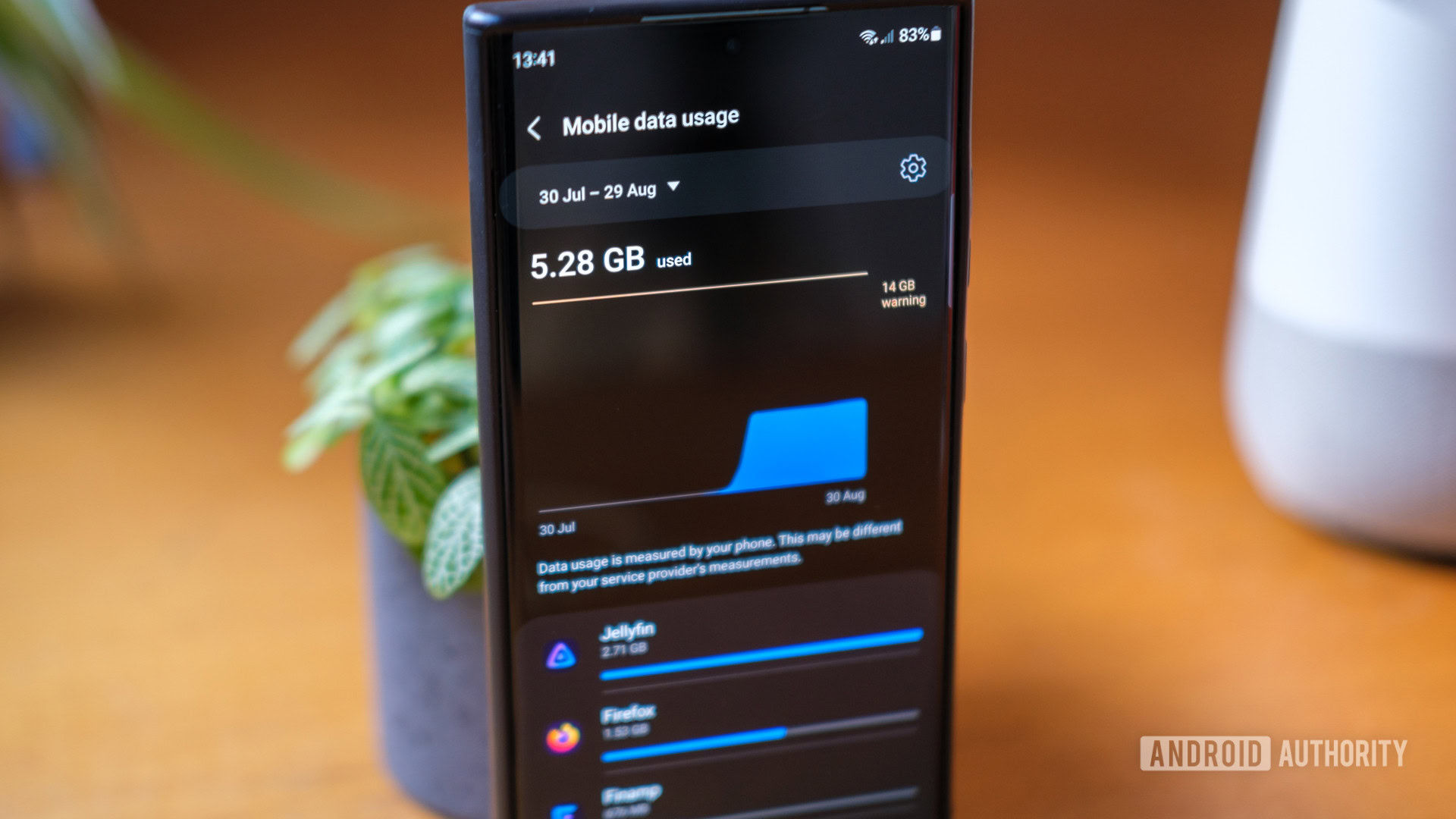
With fast 5G networks and abundant video content, mobile data consumption on devices is increasing rapidly. This can be an issue for users with limited data plans, especially when facing overage charges or international roaming fees. Even unlimited plans may experience throttled speeds after a certain usage threshold. Therefore, understanding how to monitor and manage data usage on an Android device is crucial.
This guide provides essential information on checking and managing data usage on Android devices. (For iOS users, a separate guide is available for checking mobile data usage on iPhone.)
QUICK ANSWER
Depending on your device, use the following app navigations to check your data usage on Android.
OnePlus: Settings -> Mobile network -> Data usage.
Google: Settings -> Network & internet -> SIMs -> App data usage.
Samsung: Settings -> Connections -> Data Usage -> Mobile data usage.
How to check data usage on your Android phone or tablet
Data usage information is accessible within your Android phone settings. While the exact steps might differ slightly based on the device’s operating system, the general process remains consistent. For example, on a OnePlus device:
- Access your device’s Settings. This can be done by locating the settings app in your app drawer or through the quick settings menu, typically identified by a cog icon.
- Within the settings menu, select Mobile network.
- Tap Data usage on the subsequent screen.
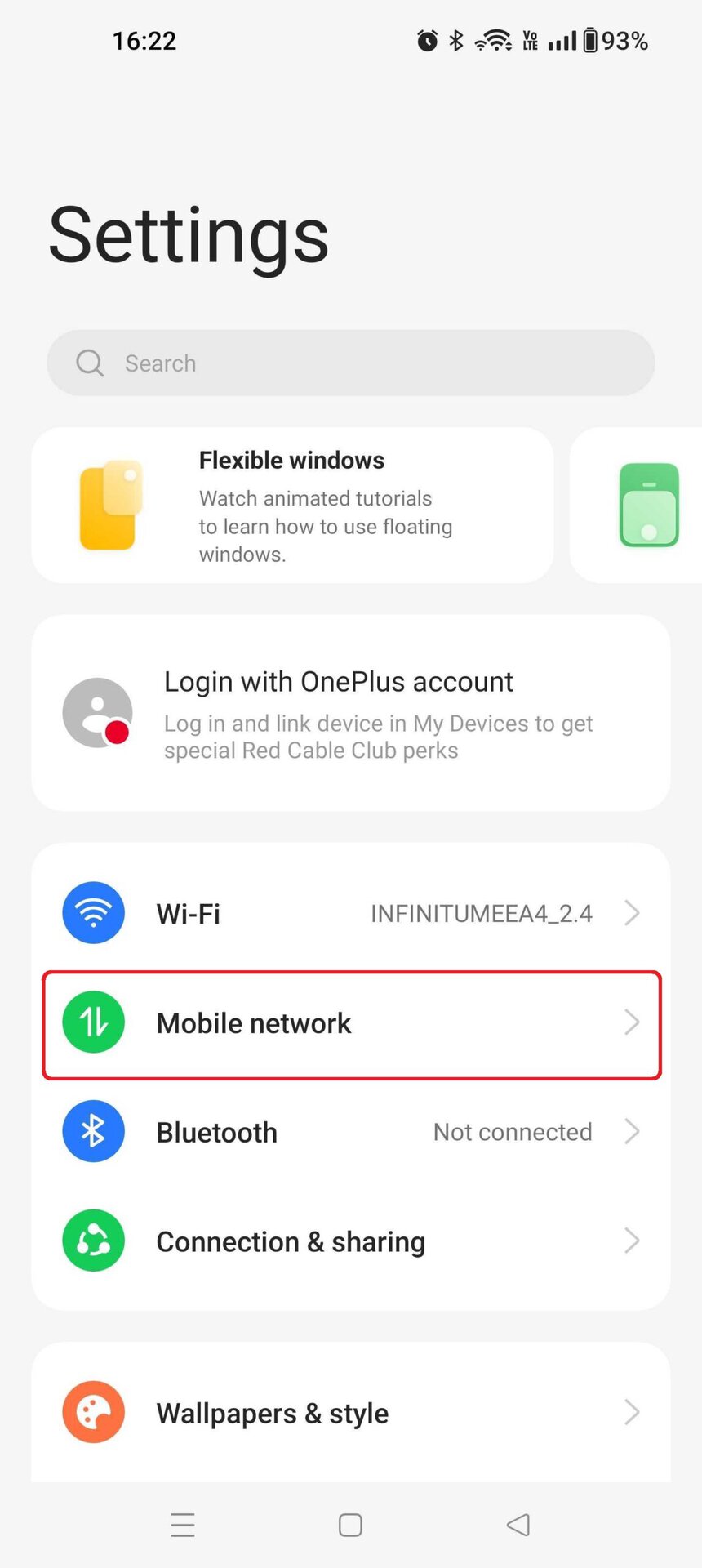
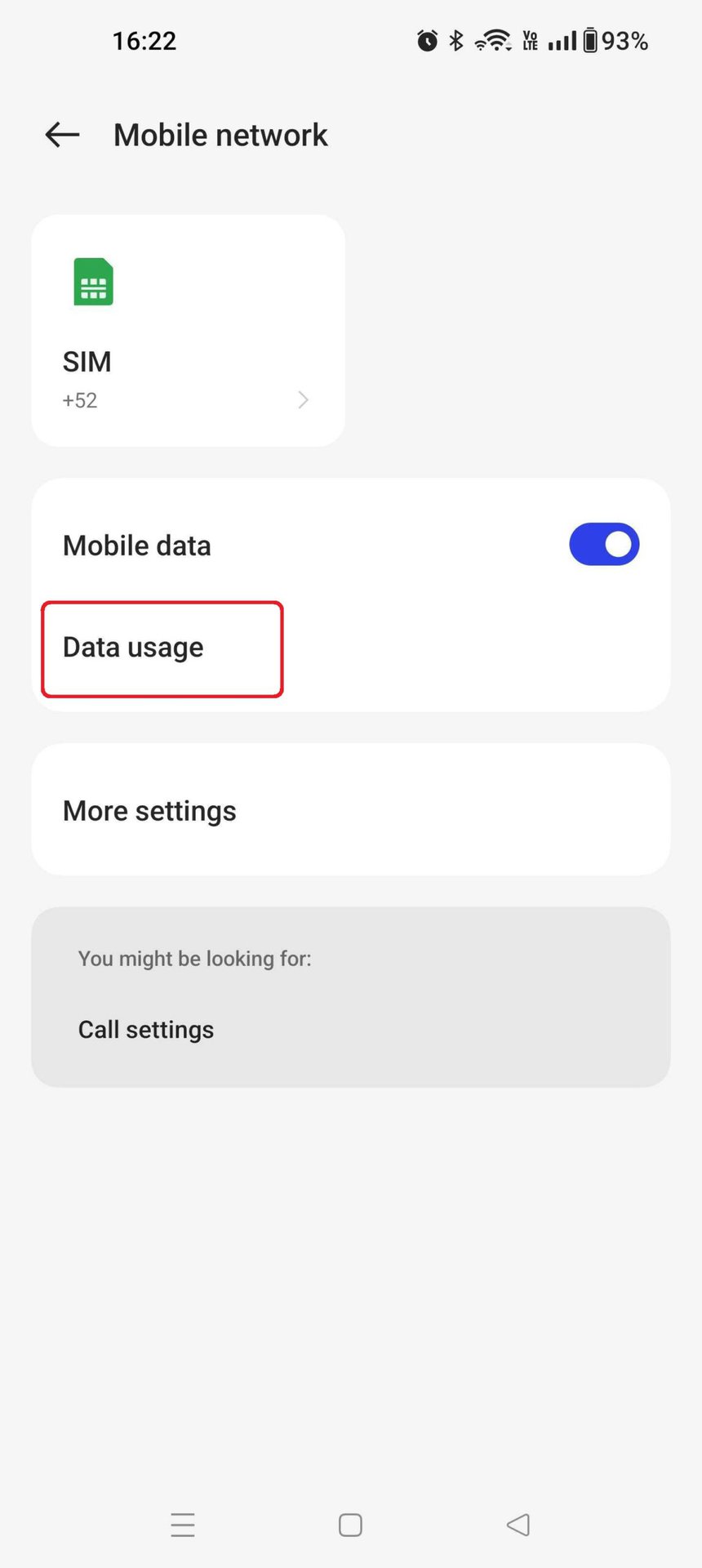
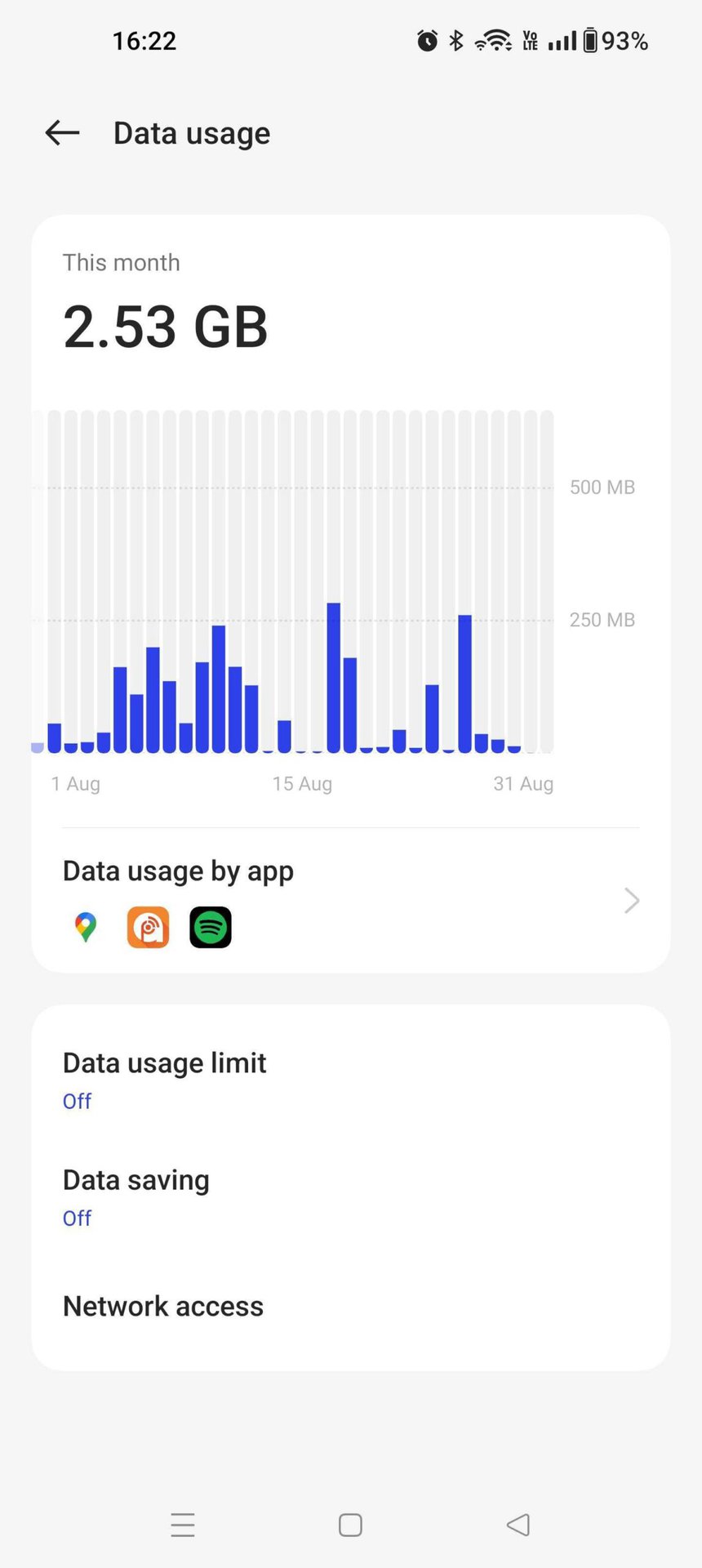
This will display your data usage statistics for the current month. For users with stock Android devices, the navigation path might be Settings -> Network & internet -> SIMs -> App data usage.
How to check data usage on your Samsung phone or tablet
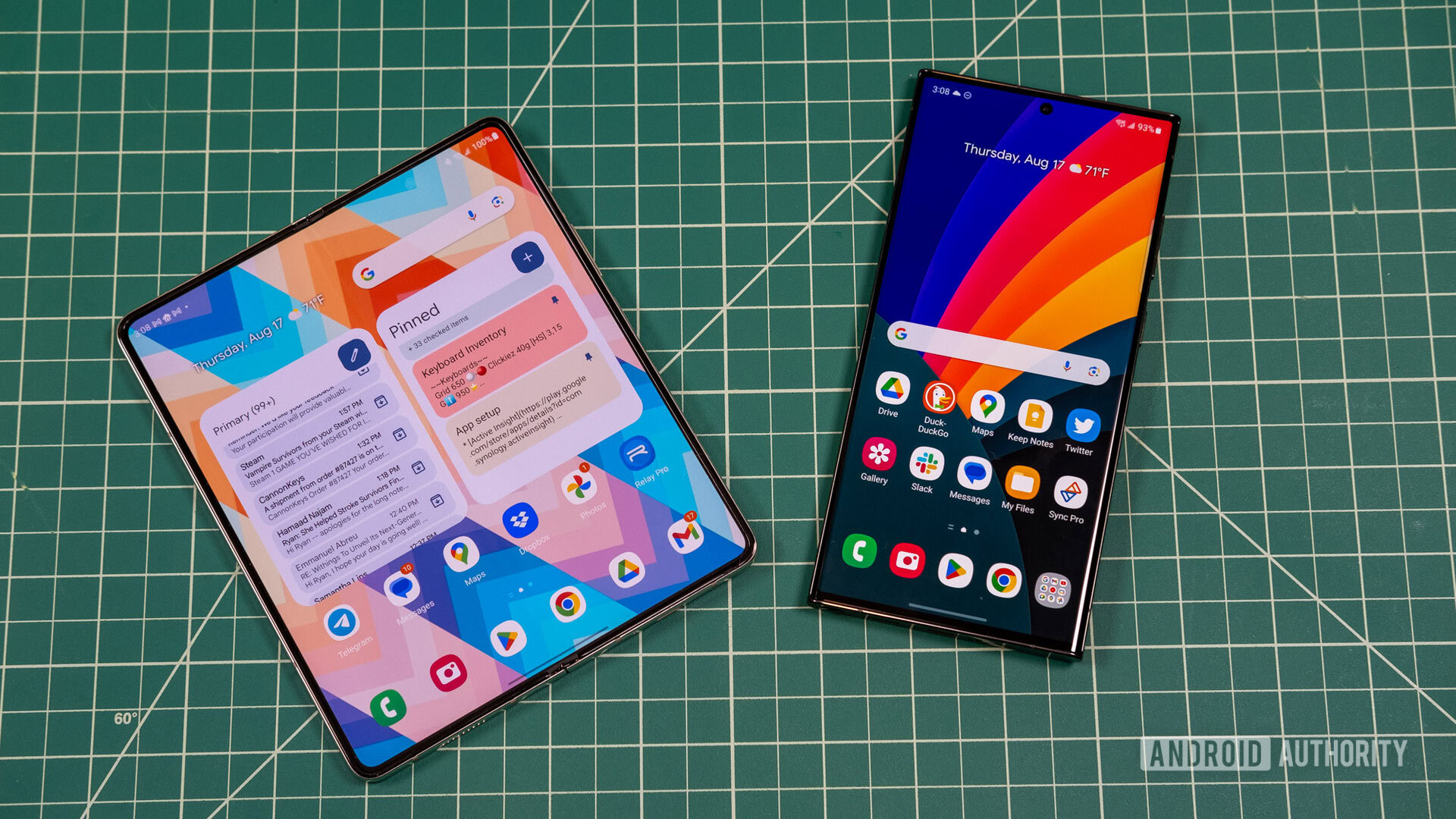
Each manufacturer often implements a slightly different method for accessing data usage statistics, and Samsung devices follow their own specific path. To check data usage on a Samsung phone or tablet, follow these steps:
- Open the Settings app.
- From the settings menu, tap Connections.
- Locate and select Data Usage.
- Finally, tap Mobile data usage.
This will display a graph and data detailing your usage for the current billing cycle.
How to manage your data usage on Android
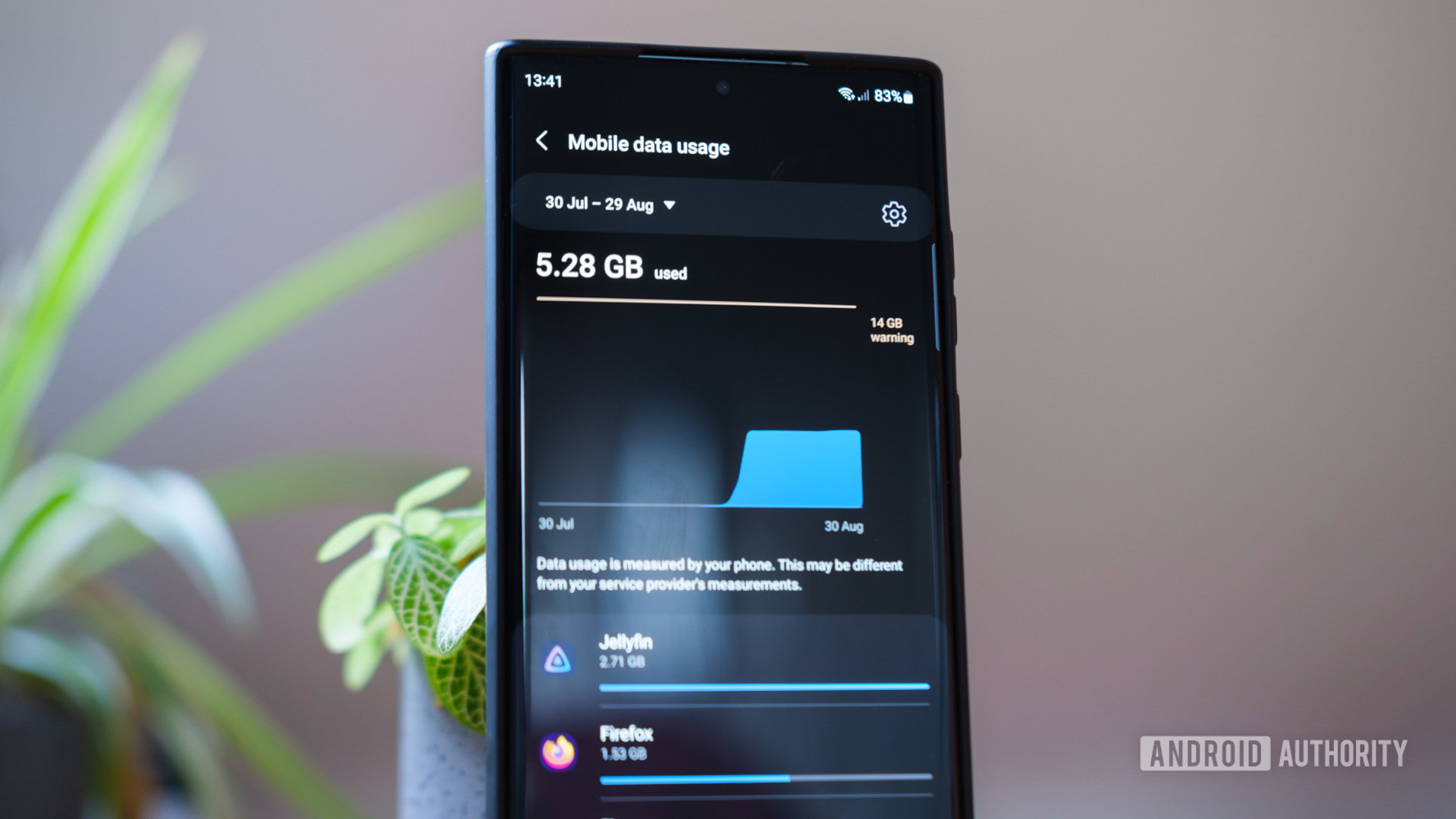
After reviewing data consumption, users may wish to manage it to avoid exceeding specific limits. While simply disabling mobile data is an option, several other effective strategies can be employed. These methods vary slightly across Android devices but offer similar functionalities.
Set a data usage limit
Android devices can prevent users from exceeding a predetermined data limit within a specified period.
Navigate to the data usage screen on your Android device (refer to the initial instructions). Look for an option such as Data usage limit and tap it.
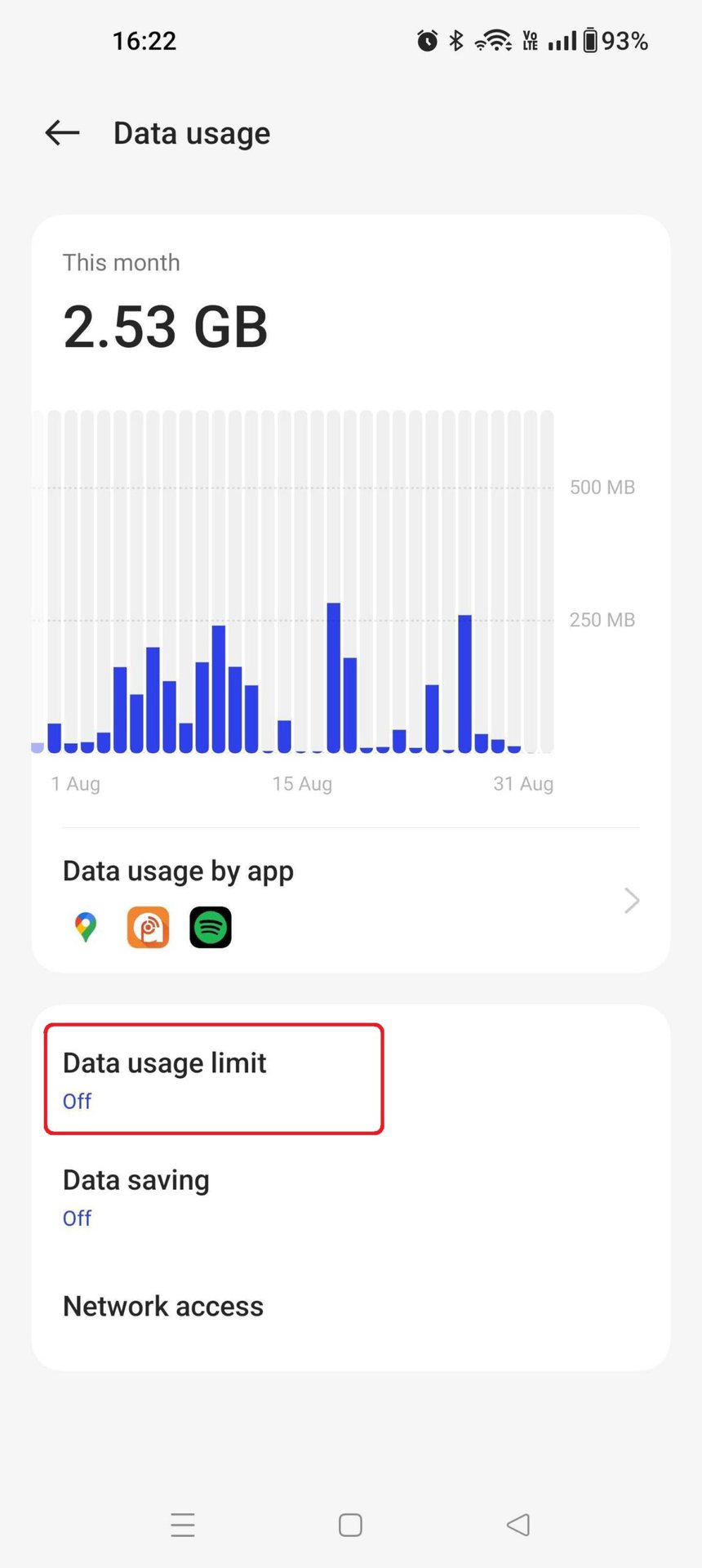
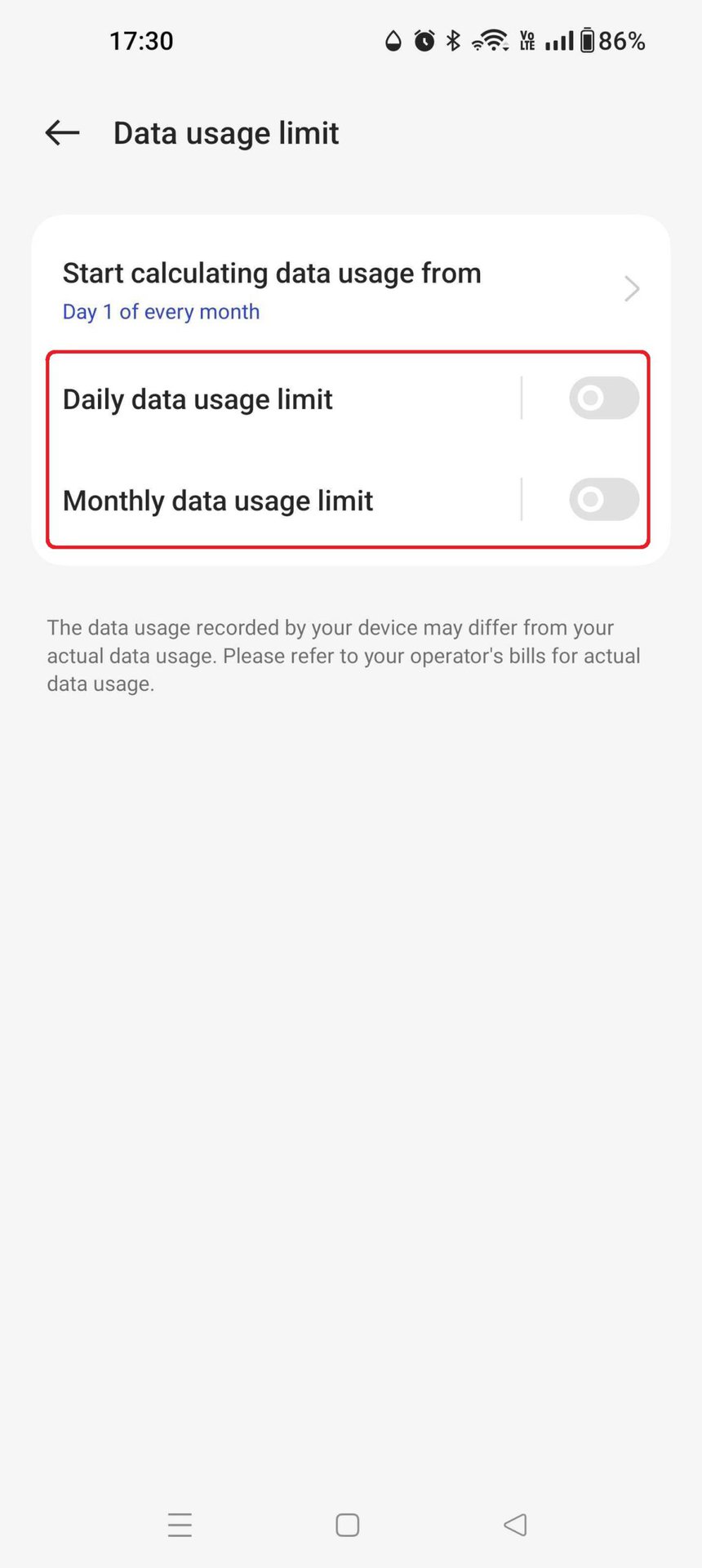

This screen allows you to select the starting day of the month for your data usage measurement, which is useful if your carrier’s billing cycle doesn’t align with the calendar month.
Users can then choose to set either monthly or daily data usage limits. For most, a monthly limit is preferred; tap Monthly data usage limit.
Options will appear to define the monthly data limit and specify actions to take when it’s reached. For instance, a user might set a 3GB limit and configure the device to both issue an alert and disable mobile data upon reaching this threshold. Confirm your selections by tapping the tick icon.
Turn on data saving
While actively browsing or streaming, it’s easy to overlook background data consumption by various apps. Many applications update in the background, such as fetching emails or refreshing social media feeds, which can consume significant data even when not in active use. Data saving features can help restrict this.
From the Data usage page, select the Data saving option.
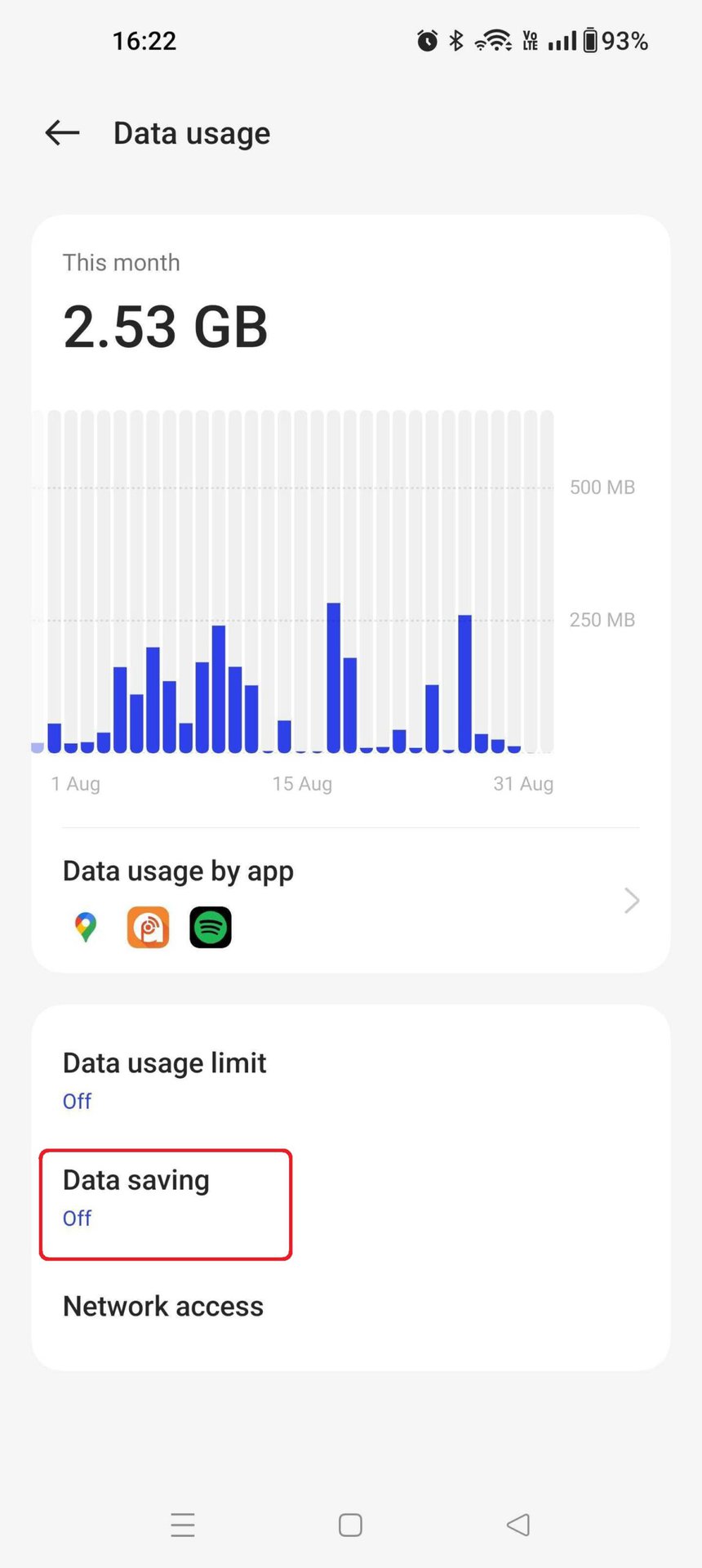
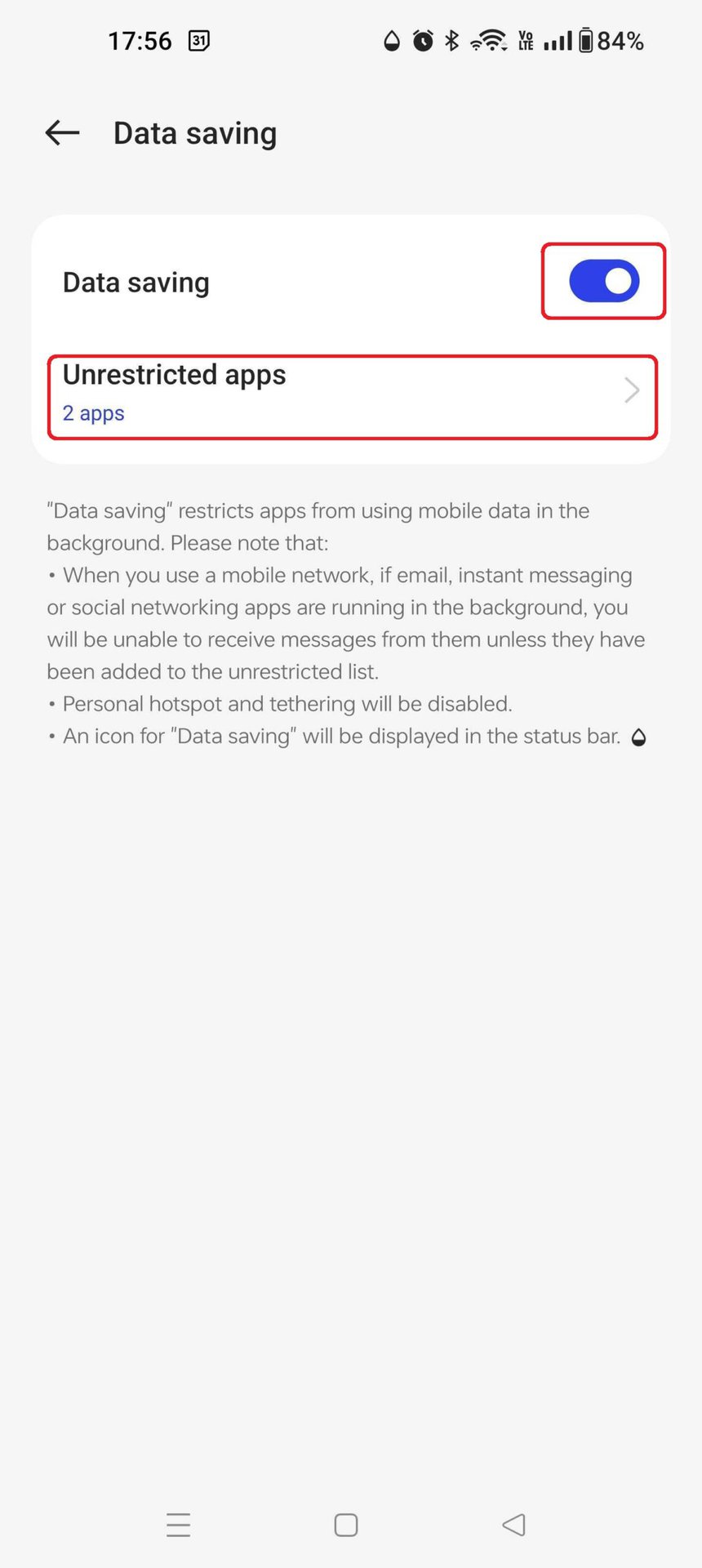
Activate data saving by tapping the toggle switch next to Data saving.
If certain apps require continuous background data access, they can be exempted from data saving. To do this, tap the Unrestricted apps menu.
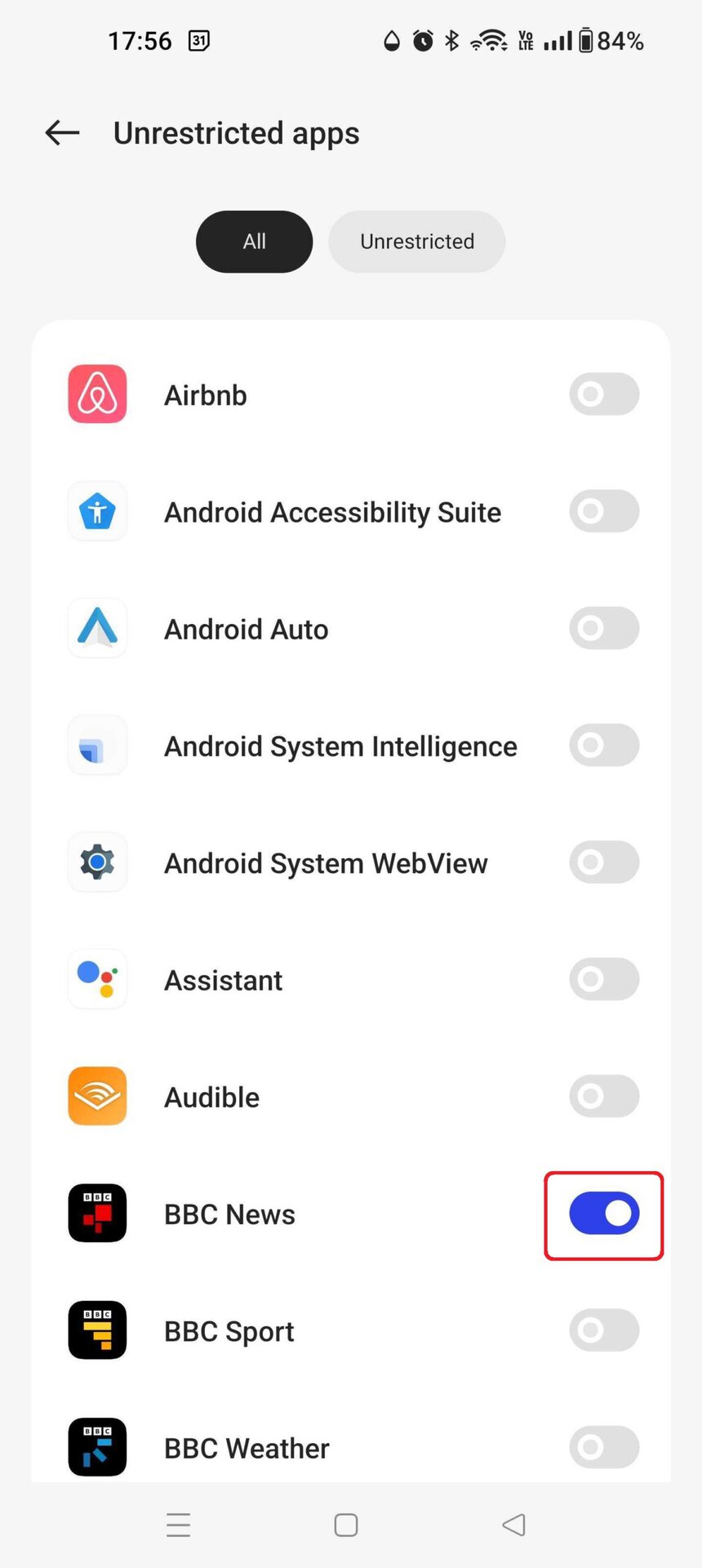
Navigate to the All tab at the top of the subsequent screen.
To keep background data unrestricted for specific applications, tap the toggle switch next to them to the “on” position.
Restrict data by app
In addition to the general data saver, individual app data usage can also be managed.
Return to the Data usage page and select Data usage by app.
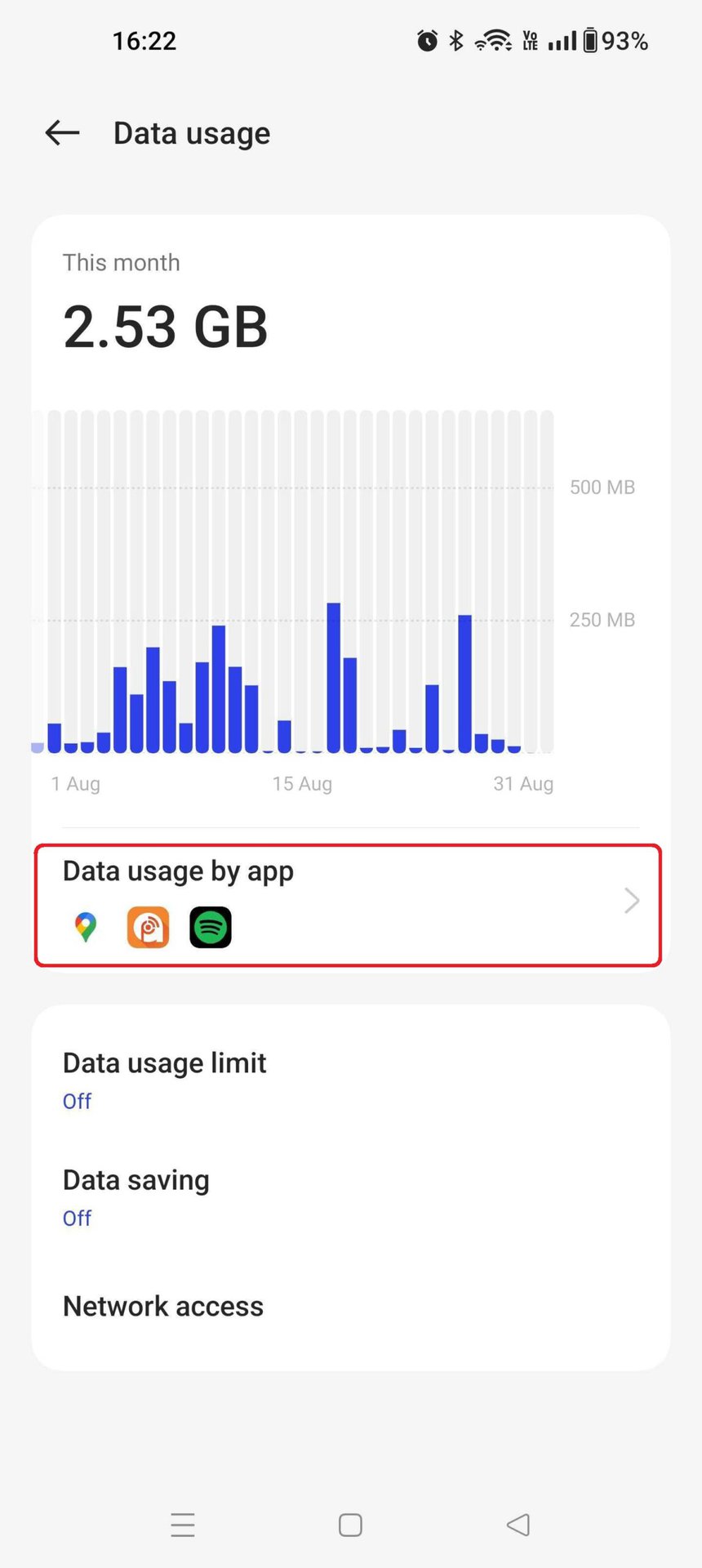

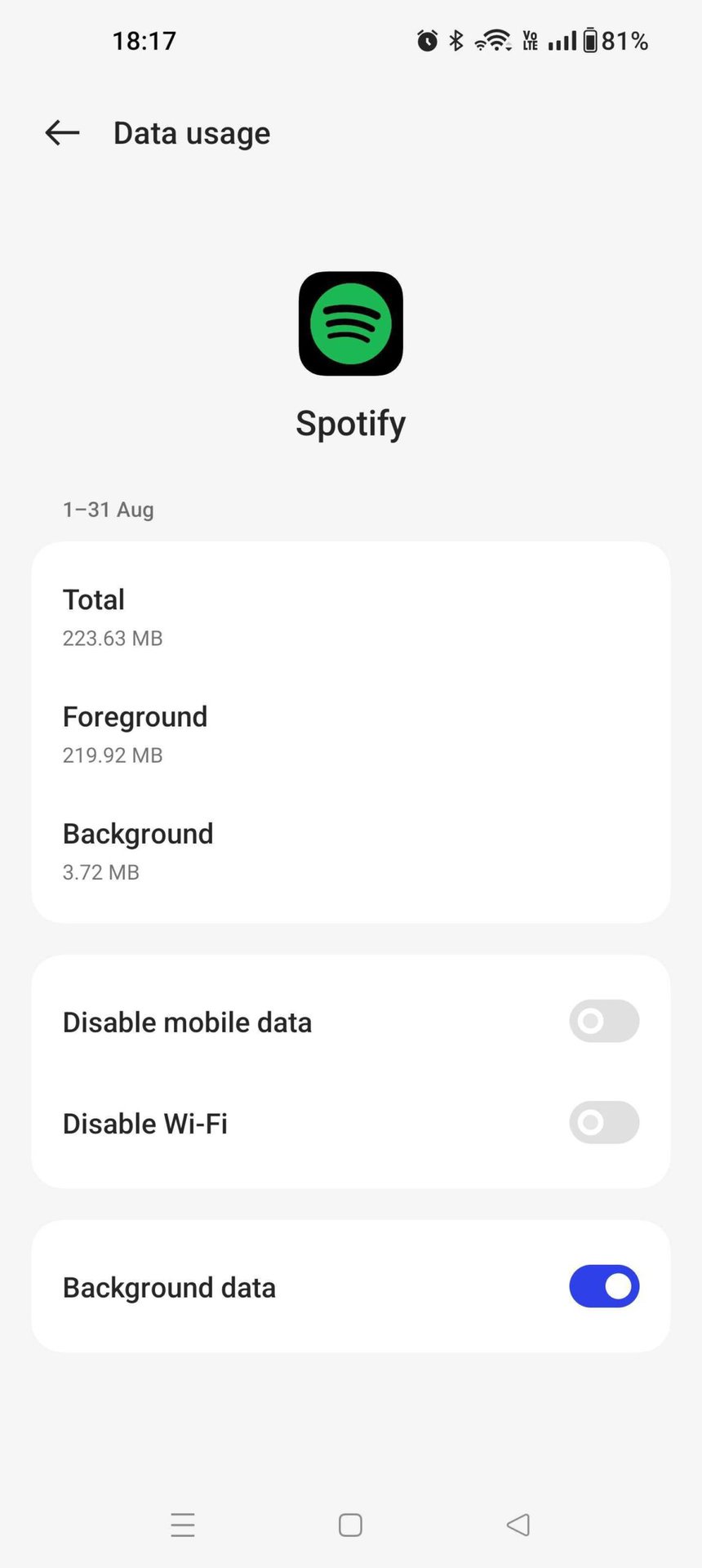
A list will display the monthly data consumption attributed to each application, offering valuable insight for reducing overall usage. Select an app from the list.
The subsequent screen provides a detailed breakdown of data usage for that specific app, distinguishing between foreground (active use) and background consumption. Toggle switches are available to restrict the app’s data usage, including options to prevent it from using mobile data entirely or from utilizing background data. The latter functions similarly to the global data saver but applies only to the selected application.
Use Wi-Fi where possible
Prioritizing Wi-Fi connections is an effective method for reducing mobile data consumption. When connected to Wi-Fi, data usage is typically unlimited by your mobile carrier, allowing for extensive use without incurring extra charges. Mobile data usage becomes a concern primarily when away from Wi-Fi networks.
While mobile data use is sometimes unavoidable, particularly for tasks like checking emails during commutes, many data-intensive activities can be minimized. Users can download content such as podcasts, Spotify songs, or even YouTube videos (with YouTube Premium) before leaving home. For video calls, connecting to a Wi-Fi network beforehand can significantly reduce mobile data drain.
Public Wi-Fi networks are often available in various locations like cafes, bars, and other businesses or public buildings. If security is a concern on a public Wi-Fi network, using a VPN can encrypt data and mask the IP address.
How to manage your data usage on Samsung
The data management strategies discussed for Android devices are also applicable to Samsung phones and tablets, though the specific menu paths may differ slightly.
To configure a data warning and limit on a Galaxy device, for example:
- Access the Mobile data usage menu by navigating through Settings -> Connections -> Data Usage -> Mobile data usage.
- Tap the settings button (cog icon) located at the top right of the screen.
- This screen allows for adjusting the billing cycle, setting a data limit, or configuring a data warning.
FAQs
What task uses the most data on a cell phone?
Data consumption varies by task, but activities generally associated with high data usage include video streaming, video calling, and online gaming.
How much mobile data does the average person use per month?
According to headphonesaddict.com, the average person in the US uses approximately 5.6GB of data monthly. However, this figure can be misleading due to significant variations in individual usage. Some users might consume less than 100MB per month for basic messaging, while heavy streamers on unlimited plans could easily exceed 100GB.
