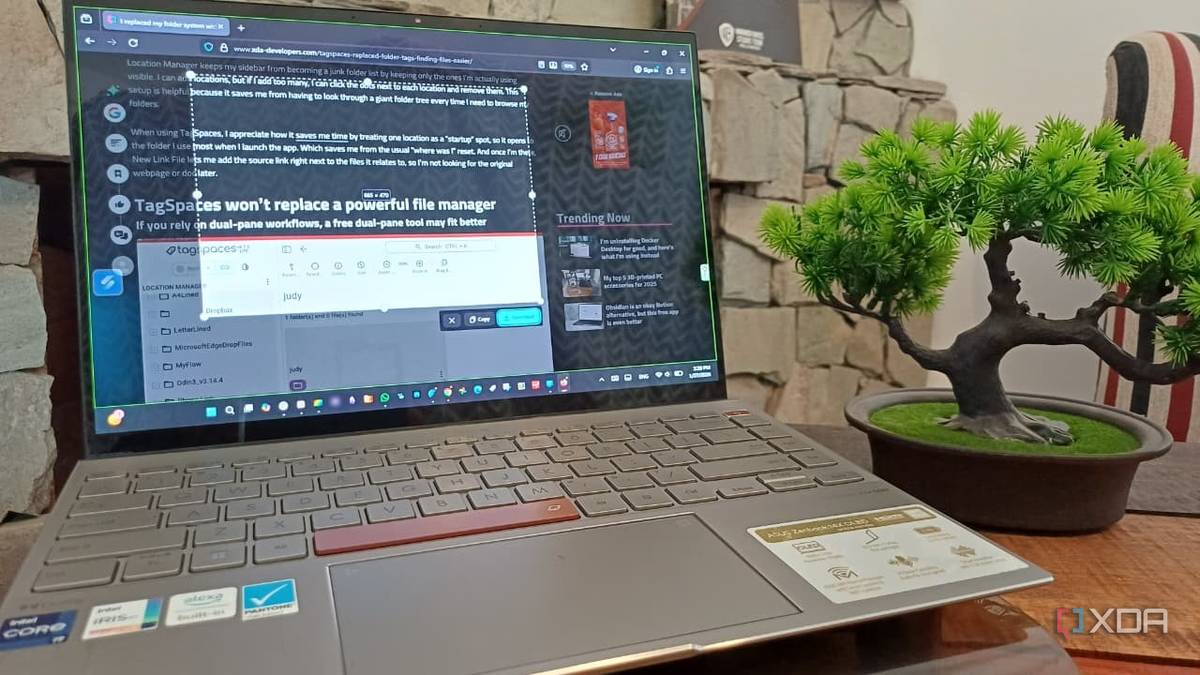
Capturing screenshots is a frequent activity for many, especially during research and writing. A common frustration arises when a screenshot is taken, only to discover a missed line of text, necessitating a redo. This issue can be mitigated by utilizing Firefox’s built-in screenshot tool, which allows for precise sizing of the capture before saving.
Users can select from various pre-set options and make adjustments if last-minute changes are required. In contrast, tools like Snipping Tool often require taking another screenshot, potentially cluttering storage with redundant files.
Firefox Provides a Clear Preview of the Capture Area
The Hover Preview Prevents Screenshot Retakes
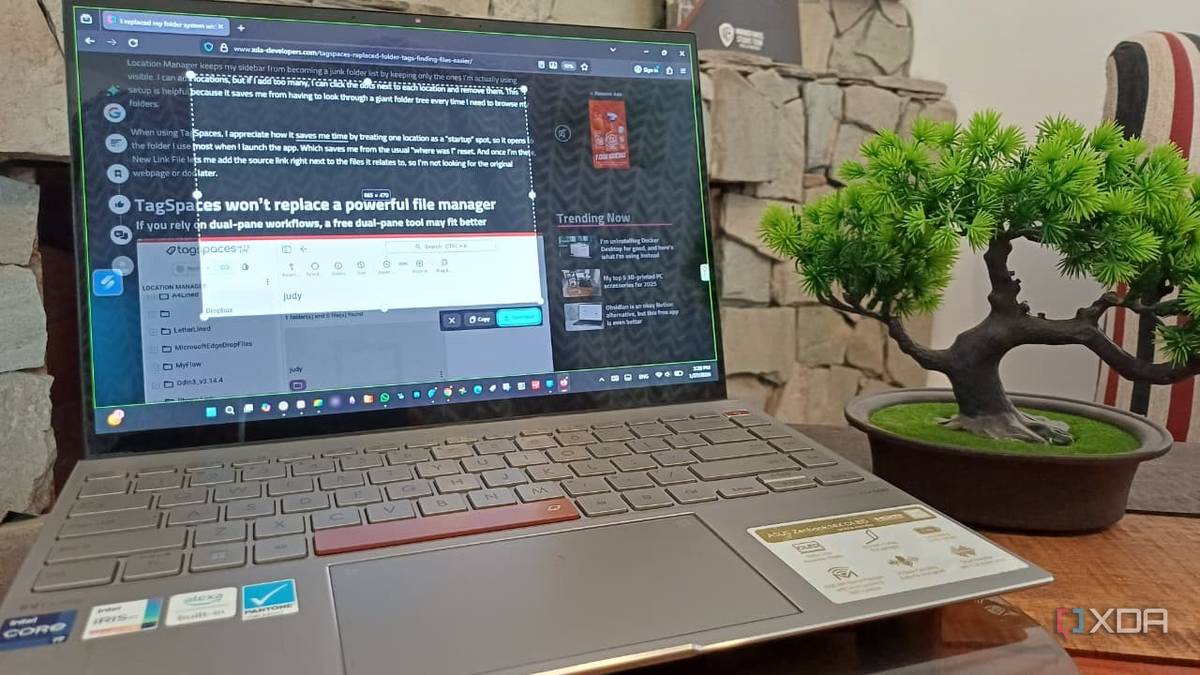
A screenshot tool’s ease of use is crucial for consistent adoption. The Firefox screenshot tool excels in this regard, offering activation via a right-click on the page followed by Take Screenshot, or by pressing Ctrl + Shift + S. Once activated, hovering the cursor over the page reveals Firefox’s highlighting of different sections, such as paragraphs, images, or blocks of text, indicating potential capture areas.
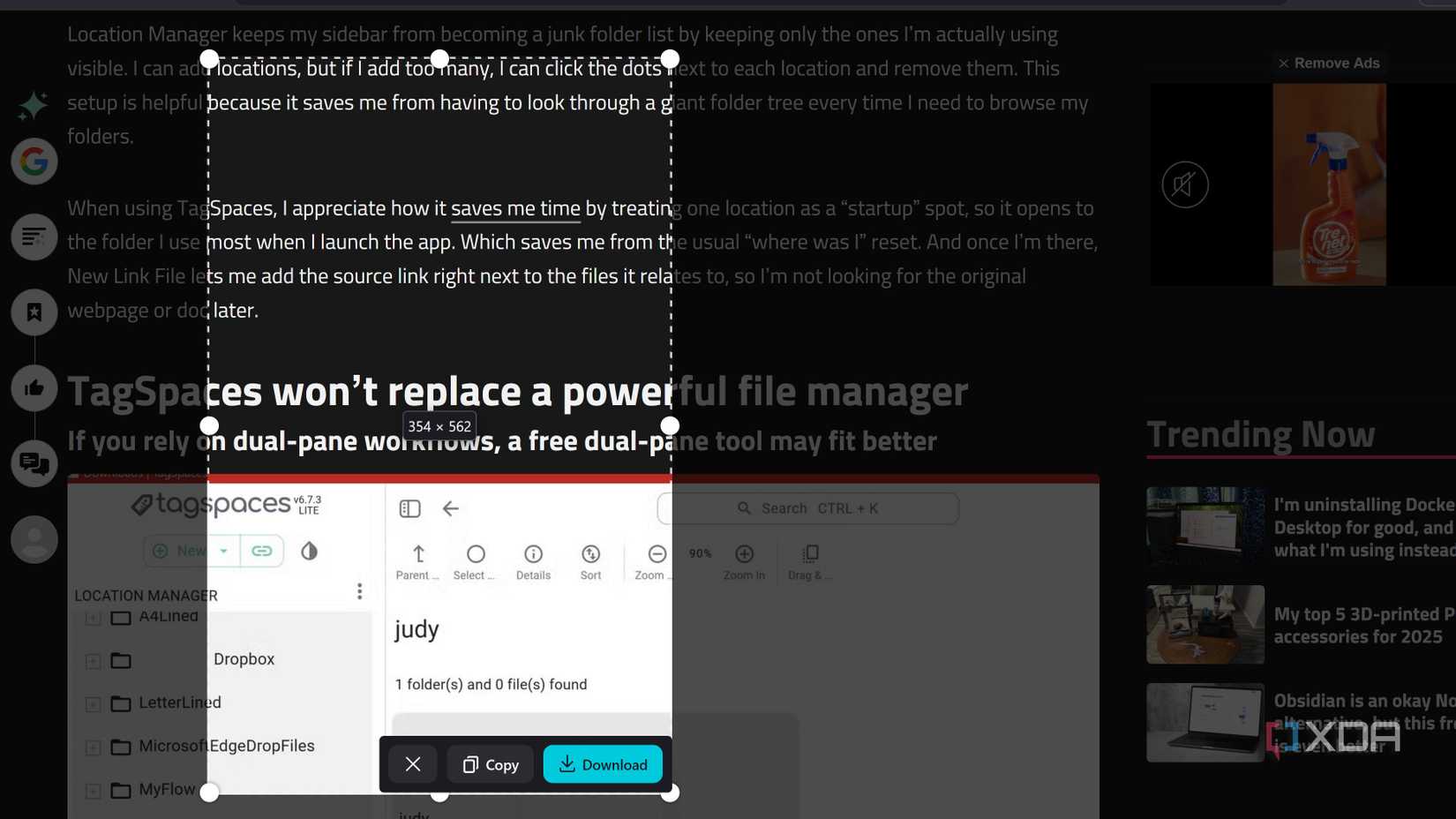
The highlighted areas adapt based on the page content, with a small indicator appearing as the user decides what to capture. Firefox conveniently places ‘Save full page’ and ‘Save visible’ options at the top right. “Save visible” captures the content currently displayed on the screen, while “Save full page” captures the entire webpage, even content requiring scrolling. This preview functionality is highly beneficial for accurately capturing sections, minimizing the need for post-capture cropping and significantly reducing the likelihood of retaking screenshots due to missed content. With Snipping Tool, users often drag a box, hoping to include all necessary information without clipping.
Firefox Offers Essential Screenshot Saving Options
Copy for Quick Pastes, Download for Future Use
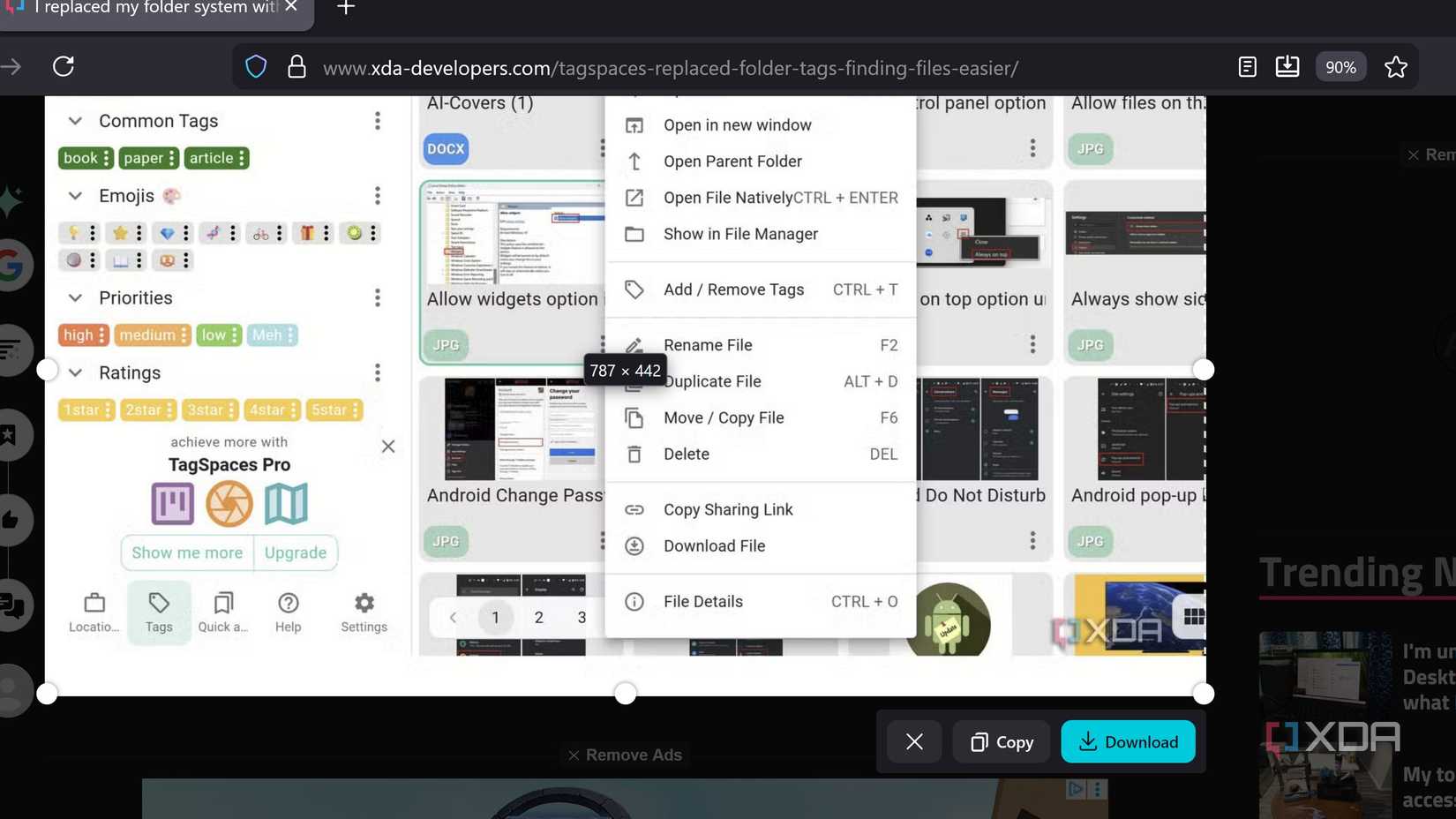
After capturing a screenshot, Firefox presents ‘Download’ and ‘Copy’ options, allowing users to choose the appropriate saving method. The selection depends on the project and immediate needs. For immediate use, the ‘Copy’ button is ideal; for later use, the ‘Download’ option is available. These options are readily accessible post-capture, saving time spent searching for them.
Keyboard shortcuts are also available: Ctrl + S for downloading and Ctrl + C for copying. Should a mistake occur, clicking the X allows users to cancel the operation. Copied screenshots can be pasted into various applications, including emails or note-taking tools like Obsidian. When downloaded, Firefox automatically includes the date and time in the filename, along with a name based on the page title, facilitating easy retrieval.
Firefox Allows Framing Adjustments Without Starting Over
Resize Handles Enable Precise Capture
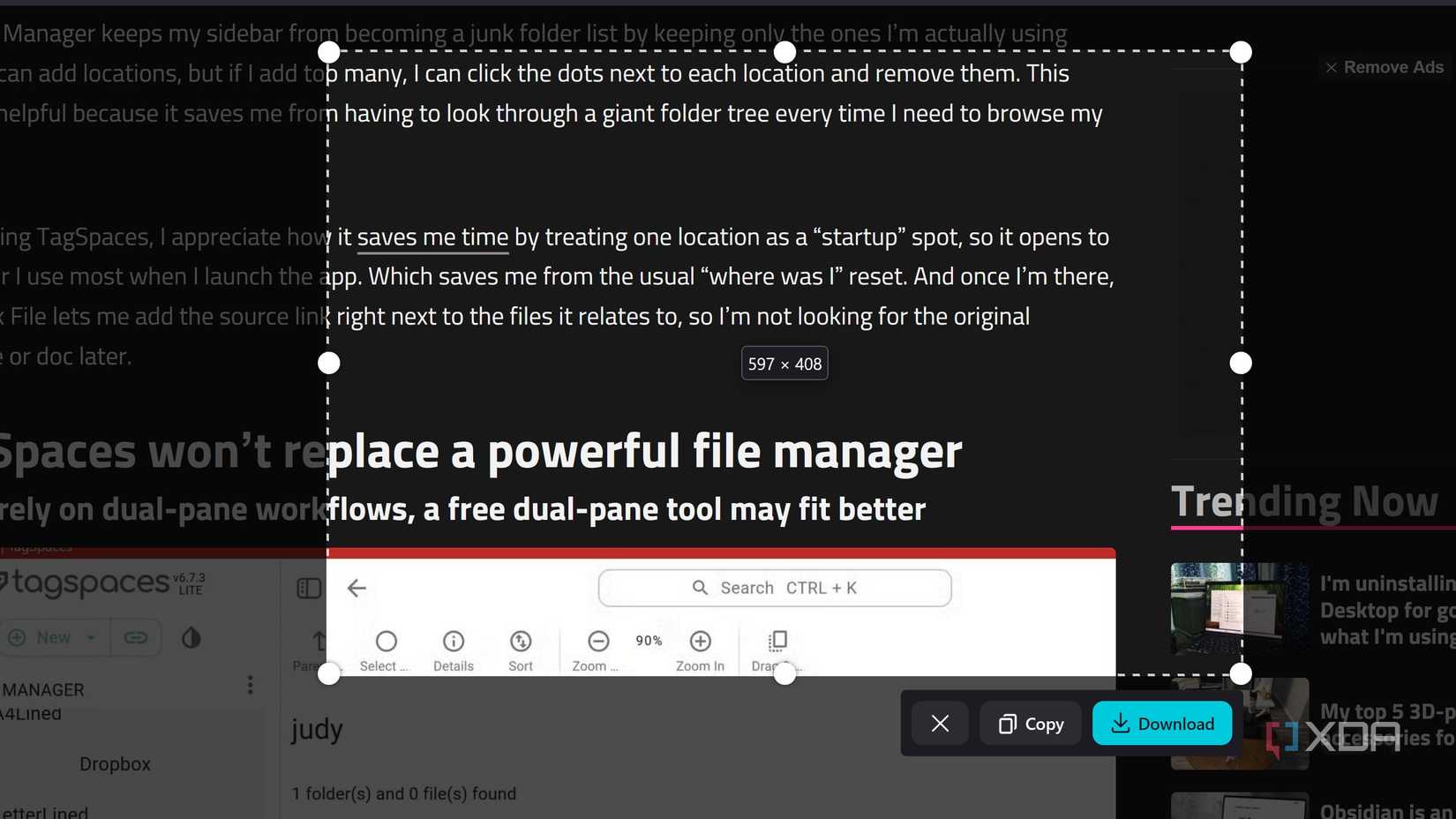
Firefox’s screenshot tool ensures accurate page capture without accumulating unnecessary files. The selection can be resized before saving using the handles surrounding the capture area. This feature allows users to verify the screenshot’s content and make easy adjustments if a last-minute change is needed. For instance, when capturing a phone specification table, accidentally clipping the last row can be corrected without retaking the entire screenshot, a common occurrence with Snipping Tool.
During the screenshot process, Firefox displays the capture’s dimensions, which is useful when a specific size is required. Resize handles are present around the edges, and the cursor transforms into a double-sided arrow when positioned near an edge, indicating the ability to adjust the selection.
Snipping Tool Remains the Best “Anywhere” Screenshot Option
It Functions Across Applications, Menus, and Beyond the Browser
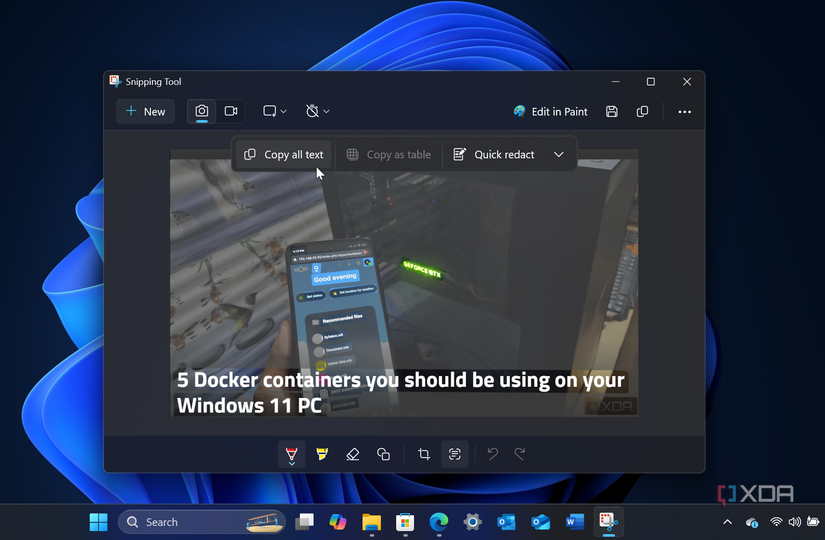
For scenarios outside of Firefox or when video capture is needed, Snipping Tool proves to be a valuable alternative. When using other browsers or needing a quick screenshot of desktop elements, it offers the easiest solution as it operates across the entire Windows environment. It provides options for capturing the entire window, a rectangular area, a free-form area, or the full screen. Screen recording is also possible by dragging to select the desired area.
Snipping Tool also ensures recording privacy, preventing other tabs or desktop notifications from appearing during the capture. For example, when demonstrating how to insert a Google Smart Chip into a Google Docs document, selecting only the relevant section before recording ensures a focused presentation. Snipping Tool is user-friendly, with shortcuts like Win + Shift + S for screenshots and Win + Shift + R for quick recordings.
Snipping Tool Works Universally, But Firefox Excels for Web Screenshots
In-Browser Capture Reduces Retakes
When already browsing in Firefox, its integrated screenshot tool is often the preferred choice. A simple right-click or keyboard shortcut allows for ideal sizing by hovering the cursor. Crucially, it is the only option that permits size adjustments before saving, a significant advantage for many users. Firefox also offers the flexibility of ‘Save visible’ or ‘Save full page’ options, ensuring the capture of precisely what is needed. Until Snipping Tool incorporates similar pre-save adjustment capabilities, Firefox remains a top choice for web-based screenshots.
Efficient In-Browser Capture for Seamless Workflow
While Snipping Tool is suitable for captures outside of Firefox and for quick recordings, the Firefox screenshot tool is immediately utilized when the capture originates from a web page.