


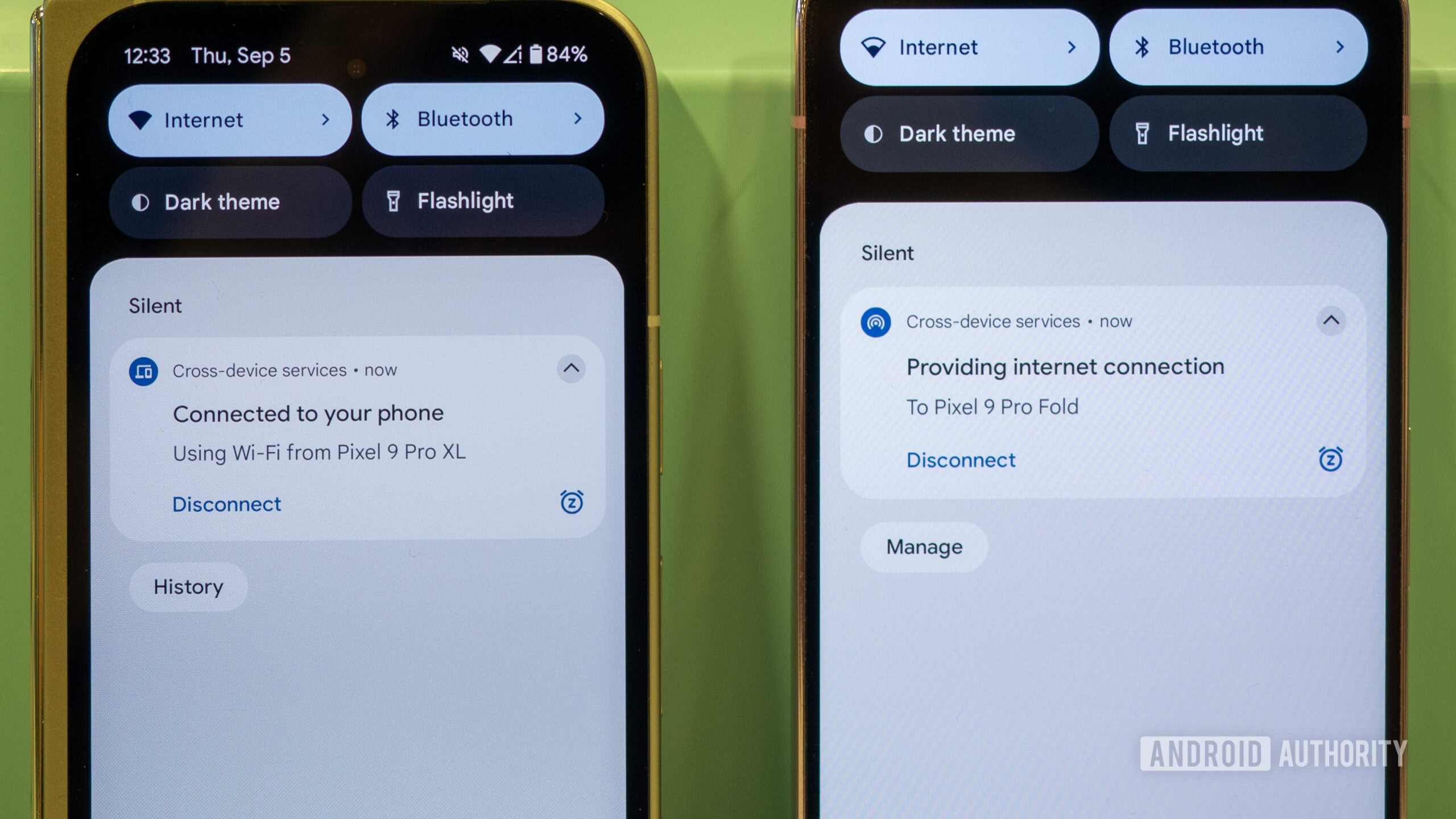
Google has introduced cross-device services, enabling Android phones and tablets to communicate and collaborate, similar to Apple and Samsung ecosystems. This feature, which had been anticipated for some time and officially announced in May, has recently become available to users.
This cross-device integration currently offers two main functionalities: instant hotspot sharing and call casting. When two Android devices are signed into the same Google account and are in proximity, they can form a group to share an instant hotspot or transfer a video call without requiring manual setup or passwords. A key advantage is its brand-agnostic nature, aiming to work across various Android phones, regardless of brand. However, it has been noted that the instant hotspot won’t work with Samsung devices.
The implementation of Google’s Android-wide cross-device services appears to be instant and seamless, offering a much-awaited improvement in device interaction.
Why this cross-device integration matters

When using a Wi-Fi-only Android tablet or a secondary phone while away from a Wi-Fi network, accessing the internet typically involves manually enabling a hotspot on the primary phone. This process includes selecting the network and entering a password on the secondary device for the initial connection. After use, the hotspot must be manually disabled to conserve battery life on both devices. This traditional method, while functional, lacks the seamlessness expected from modern smart devices.
What if you could connect to a hotspot without ever touching or unlocking your main phone to initiate tethering?
Similarly, transferring an active video call from a phone to a larger screen, such as a tablet, often requires disconnecting and rejoining the call, or even restarting it on the new device. This interruption disrupts the user experience.
Cross-device integration addresses these issues by enabling phones and tablets to communicate in the background when in proximity. This allows users to cast a video call to another device or initiate and connect to a hotspot from a secondary device without needing to interact with or unlock the primary phone.
How to turn on cross-device services
To activate cross-device services, the setup process must be completed on all Android devices intended to utilize this new integration.
- Go to Settings > Google > All services > Cross-device services
- Tap Next to set up cross-device services.
- Tap Ok to join a group of your devices under the same Google account.
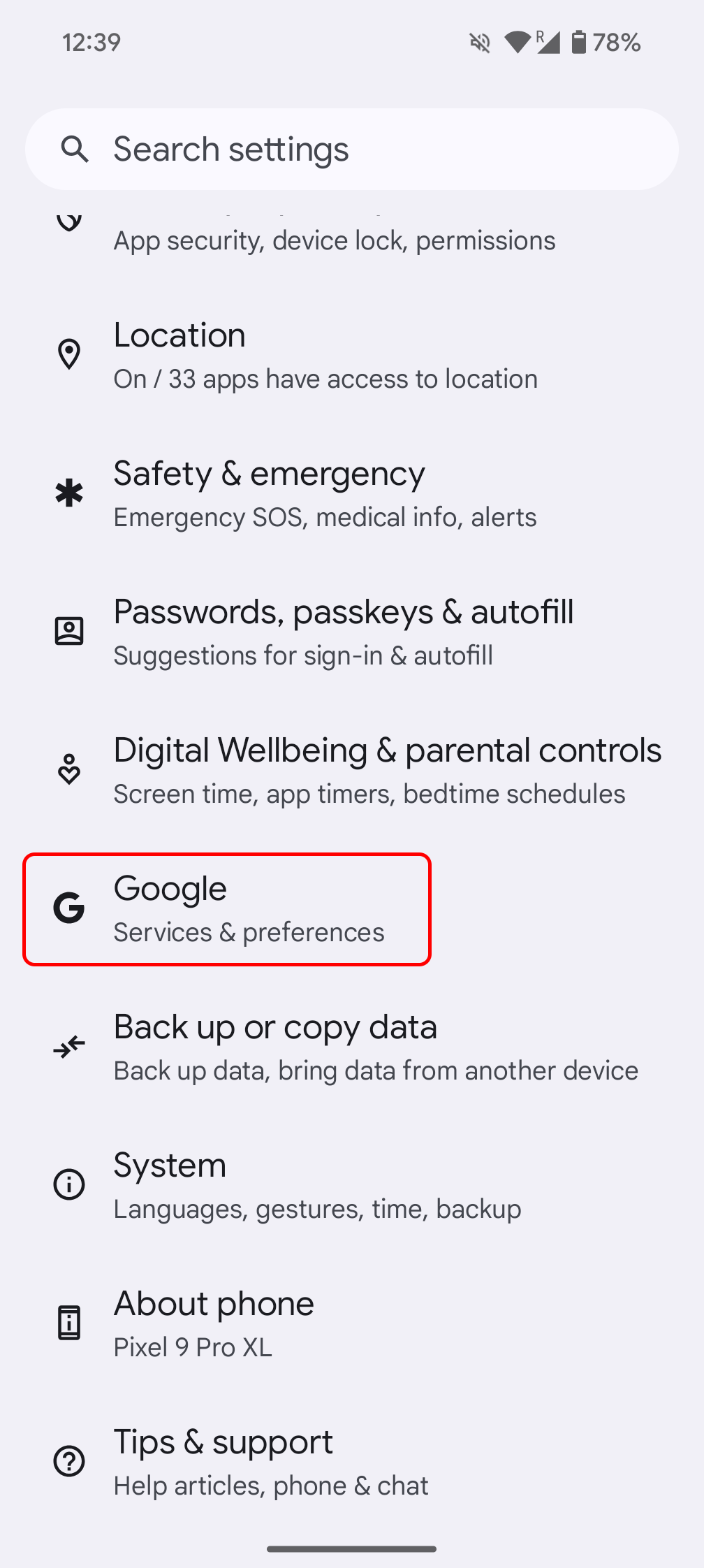
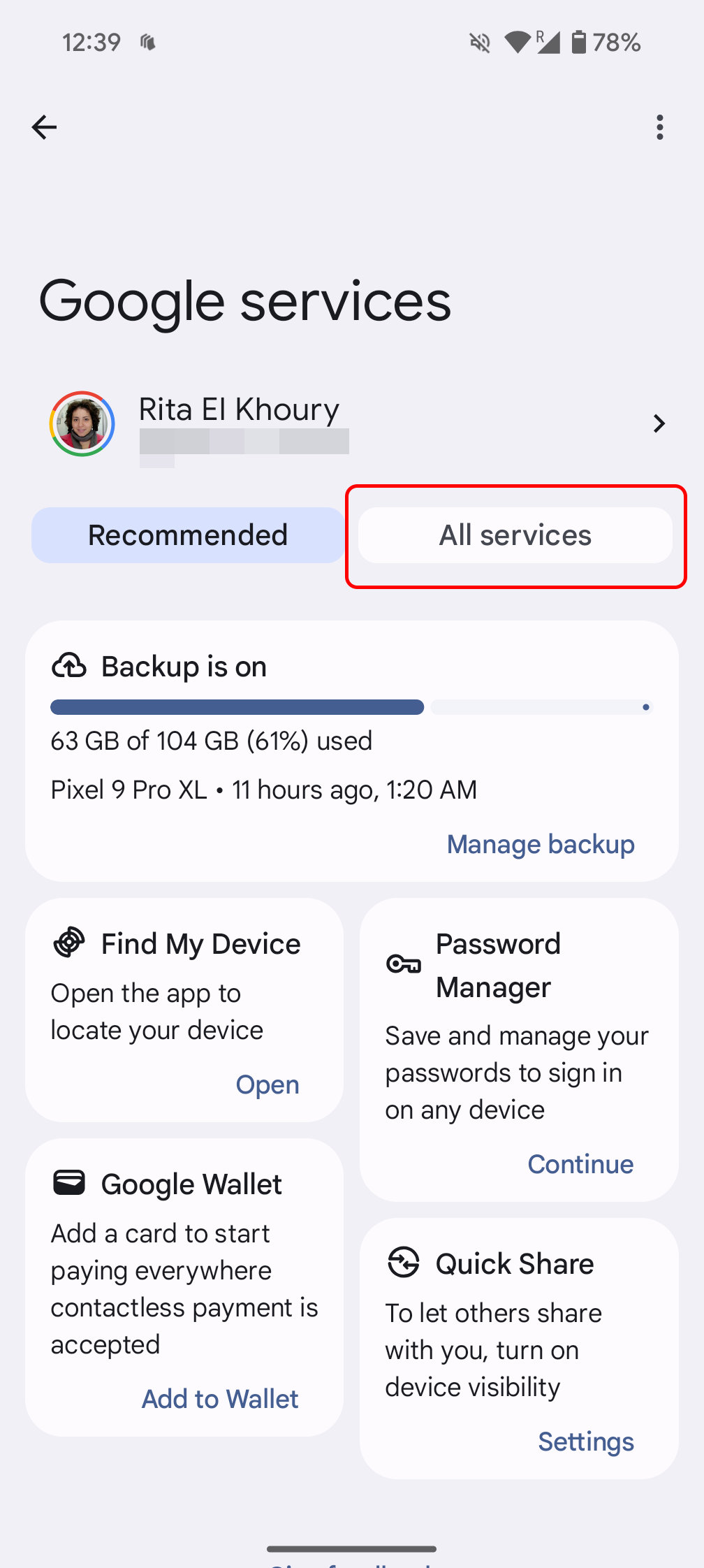
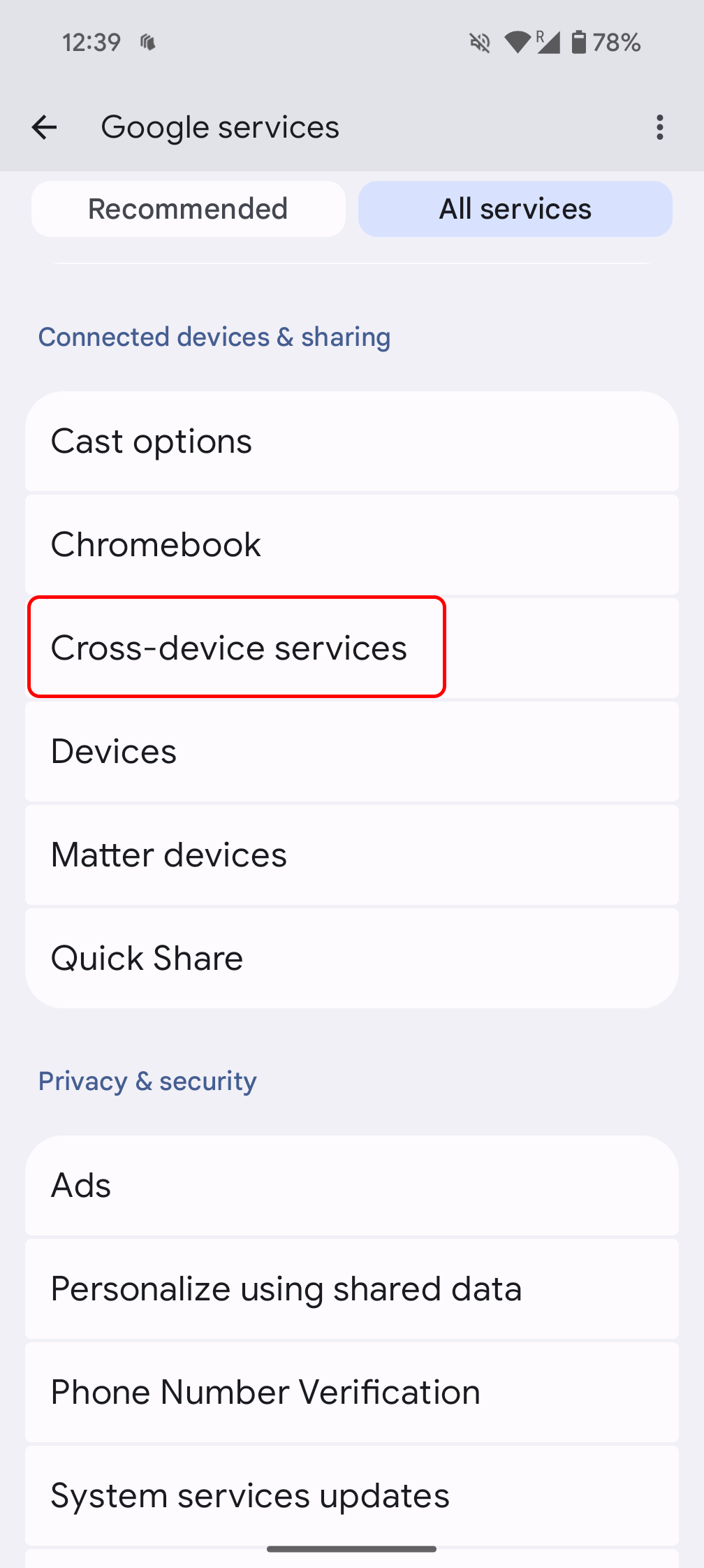
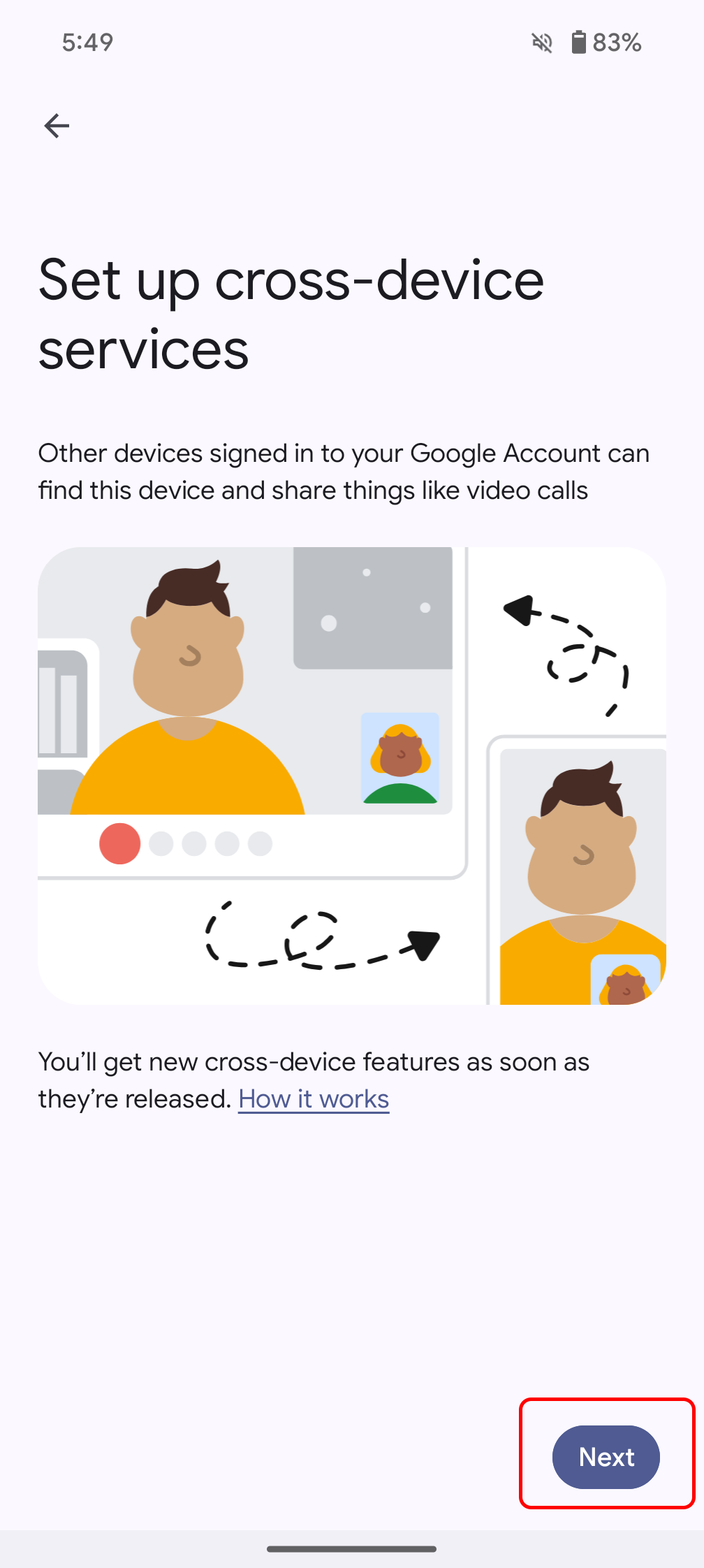

Upon completion, the cross-device services settings become accessible, featuring options for Call casting and Internet sharing. Users should ensure both are enabled to utilize their respective functionalities, or disable one if not desired. The settings also display all associated account groups, the devices within each group, and allow for renaming a device’s appearance within these groups.

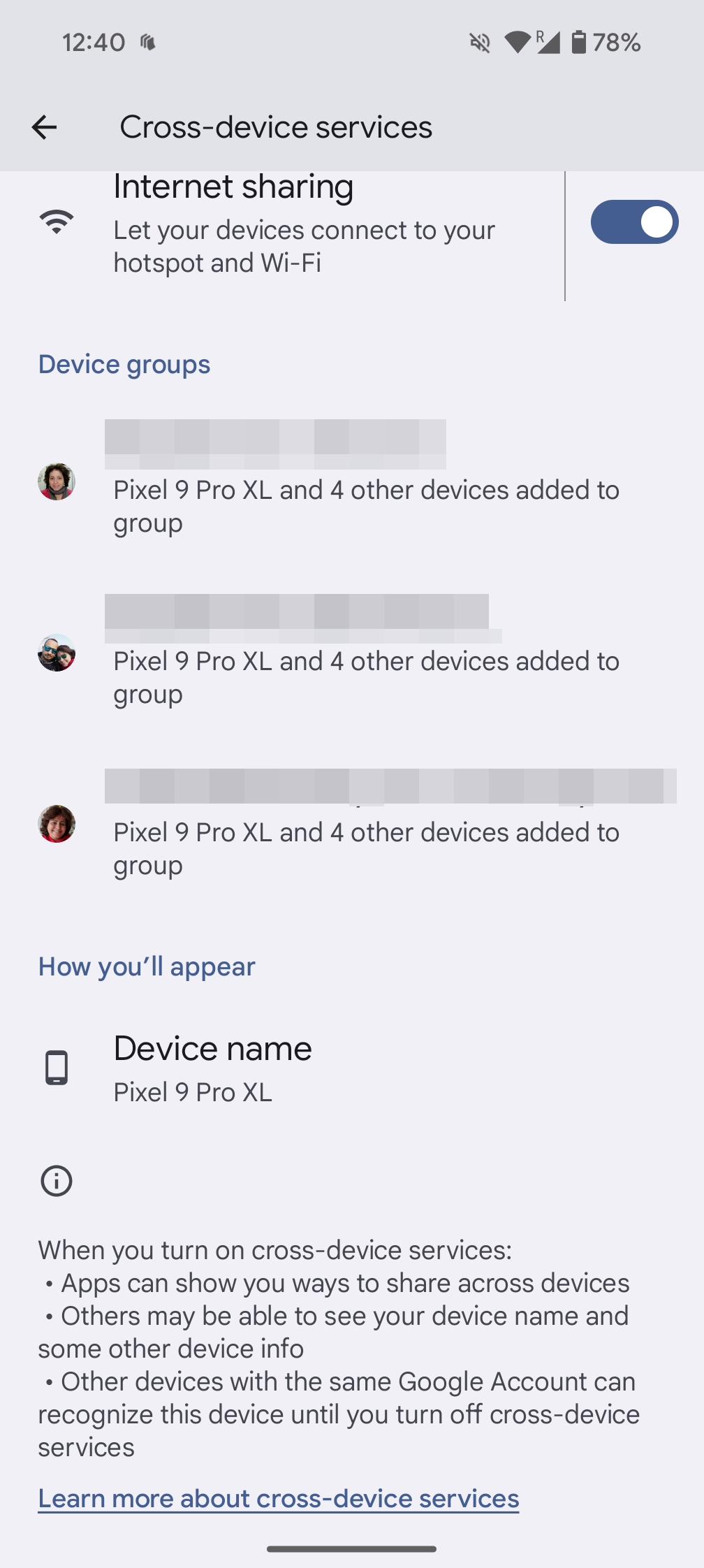
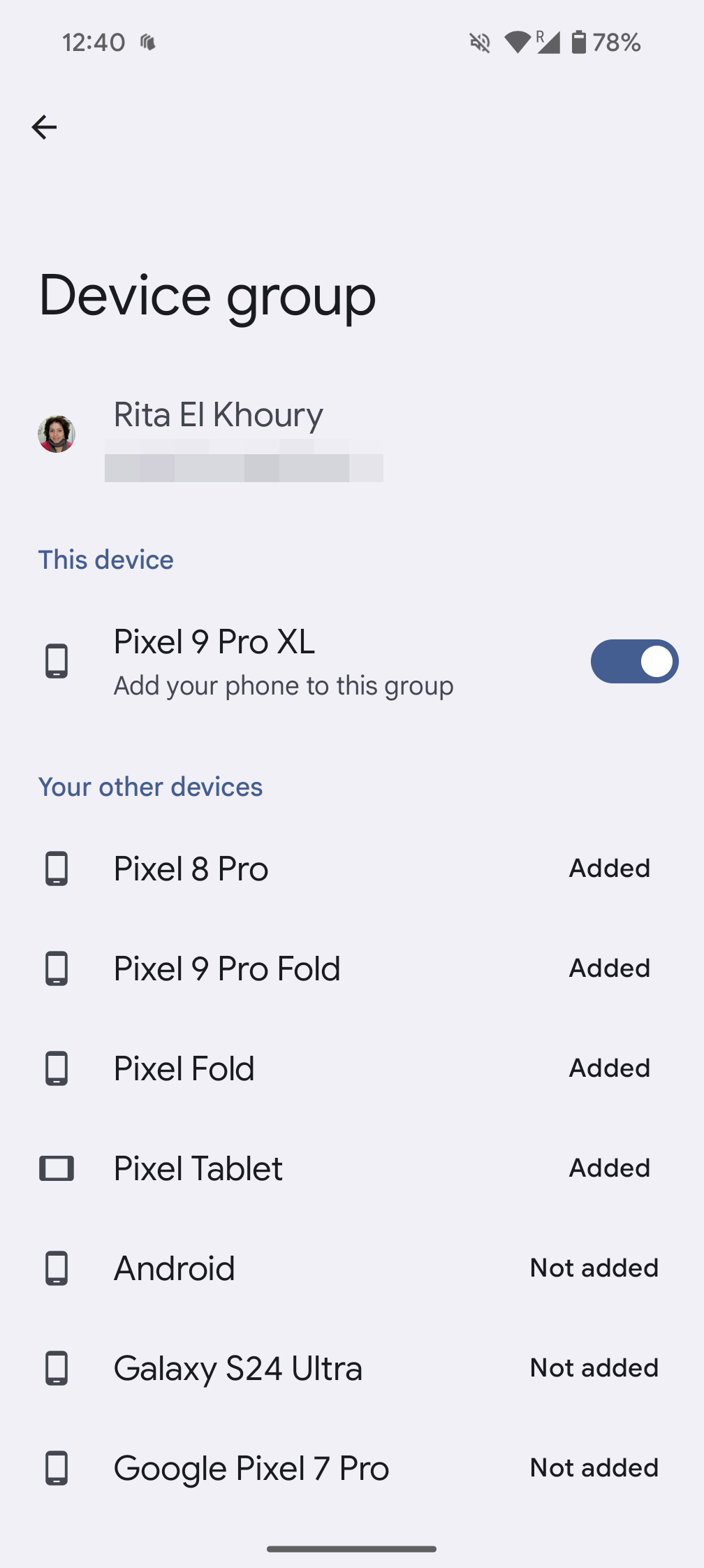
This process should be repeated on all owned phones and tablets to include them in the same device group. Once configured, cross-device functionalities will automatically become available when relevant situations arise.
How to join an instant hotspot with cross-device services
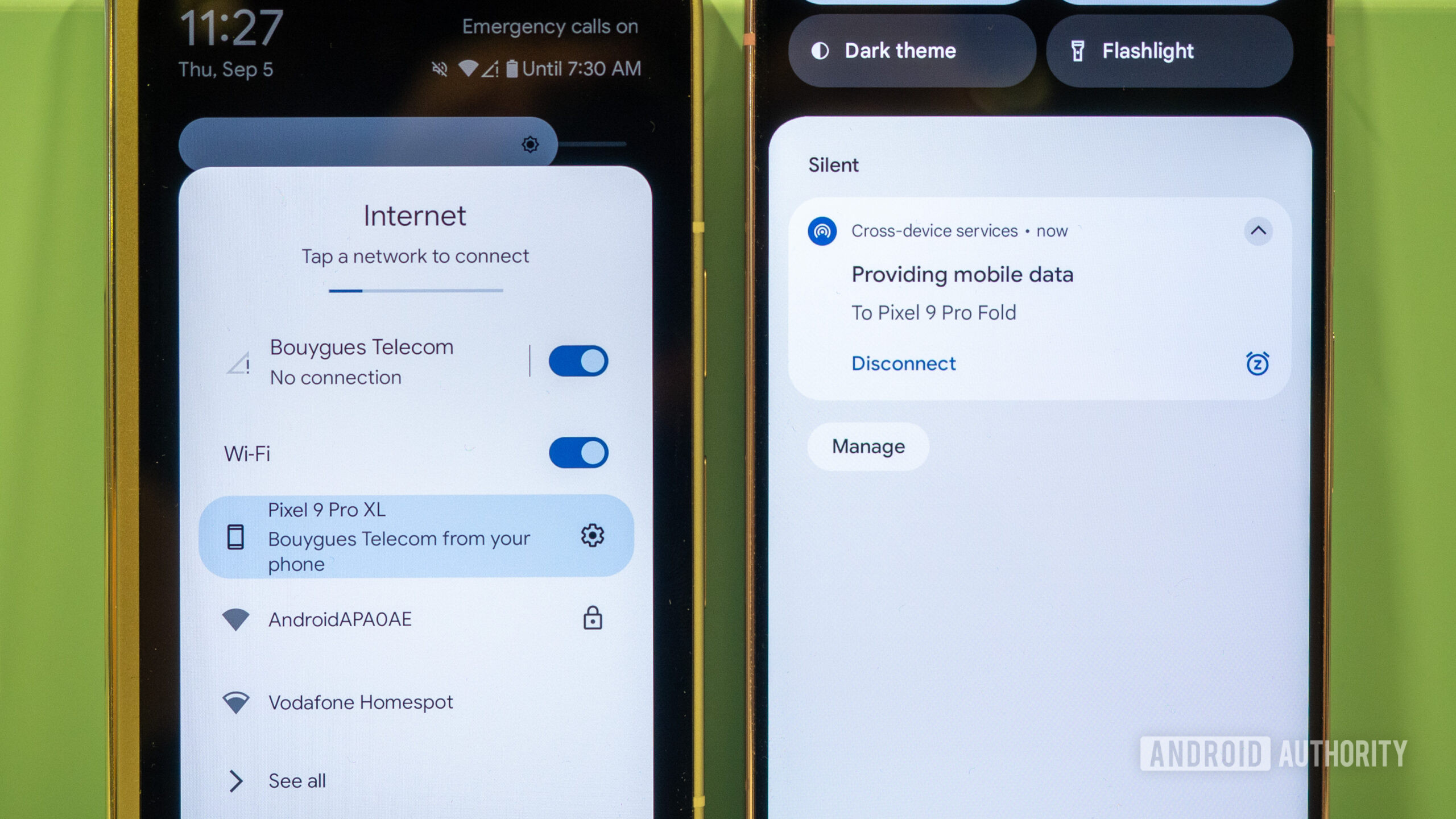
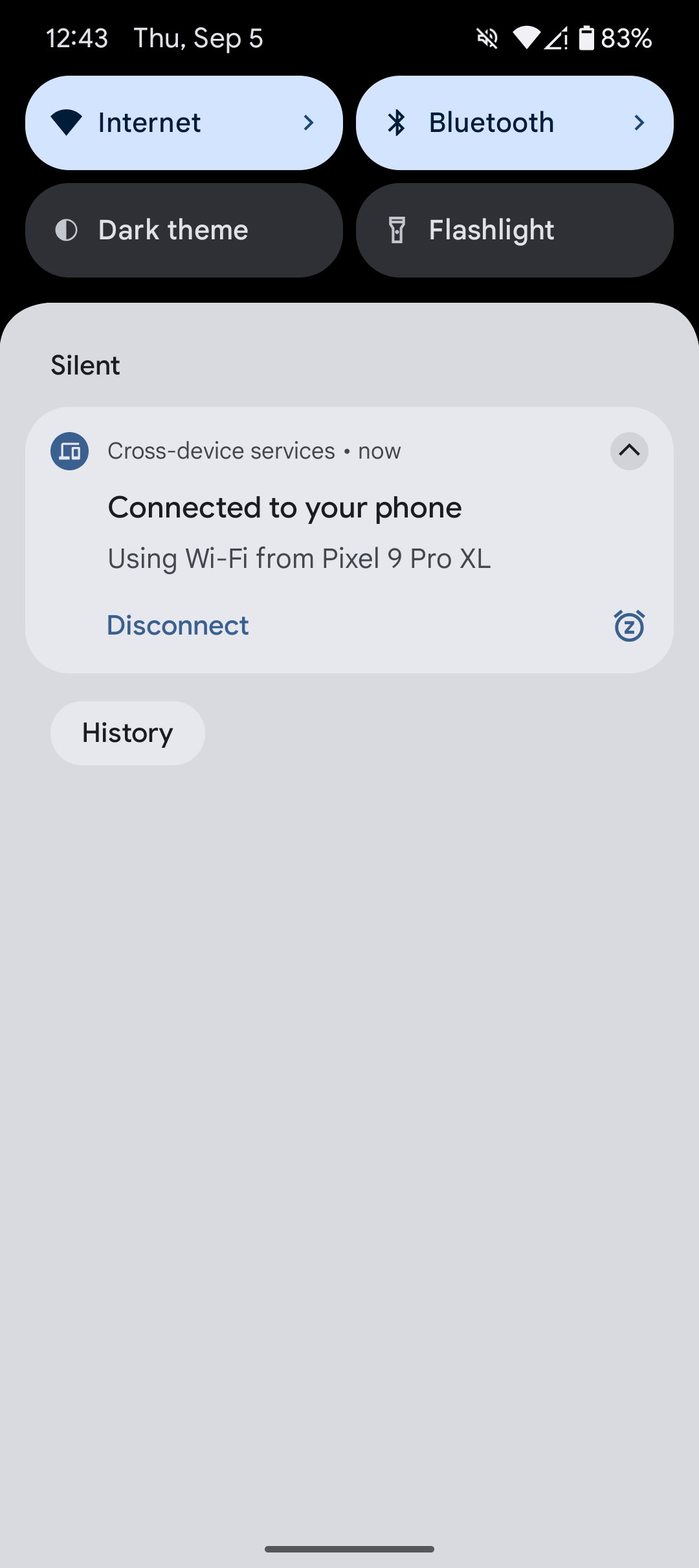
A secondary phone or tablet can connect to an instant hotspot from a primary device in two ways. One method involves an automatic notification that appears on the offline device when it is unlocked near the connected primary phone. This notification prompts the user to utilize the primary phone’s hotspot; selecting Connect initiates the instant hotspot and establishes the connection. This feature supports both cellular data and Wi-Fi networks, though its primary utility is for data sharing. The primary phone will display a notification indicating that it is providing data to another device. To end the connection, simply tap the Disconnect option in the notification on your secondary device, which will stop the hotspot.



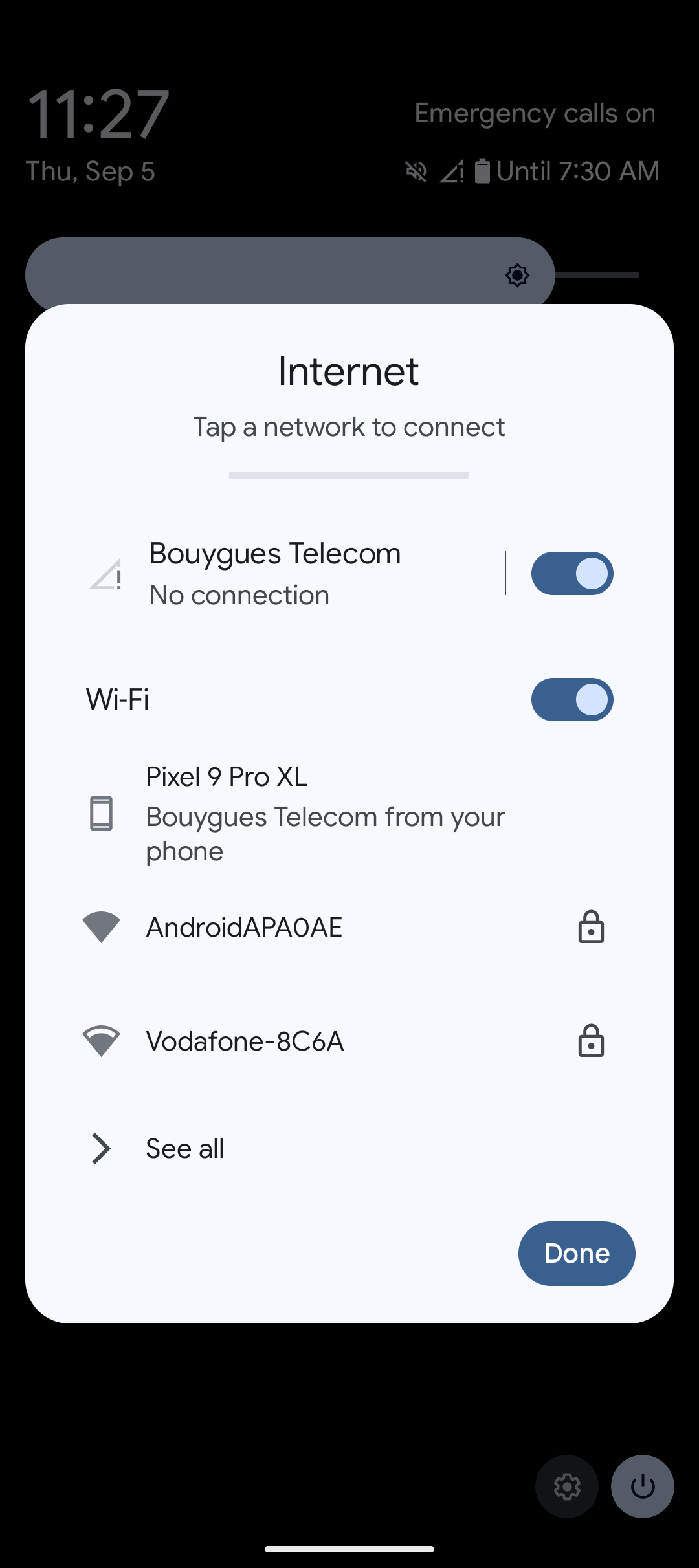
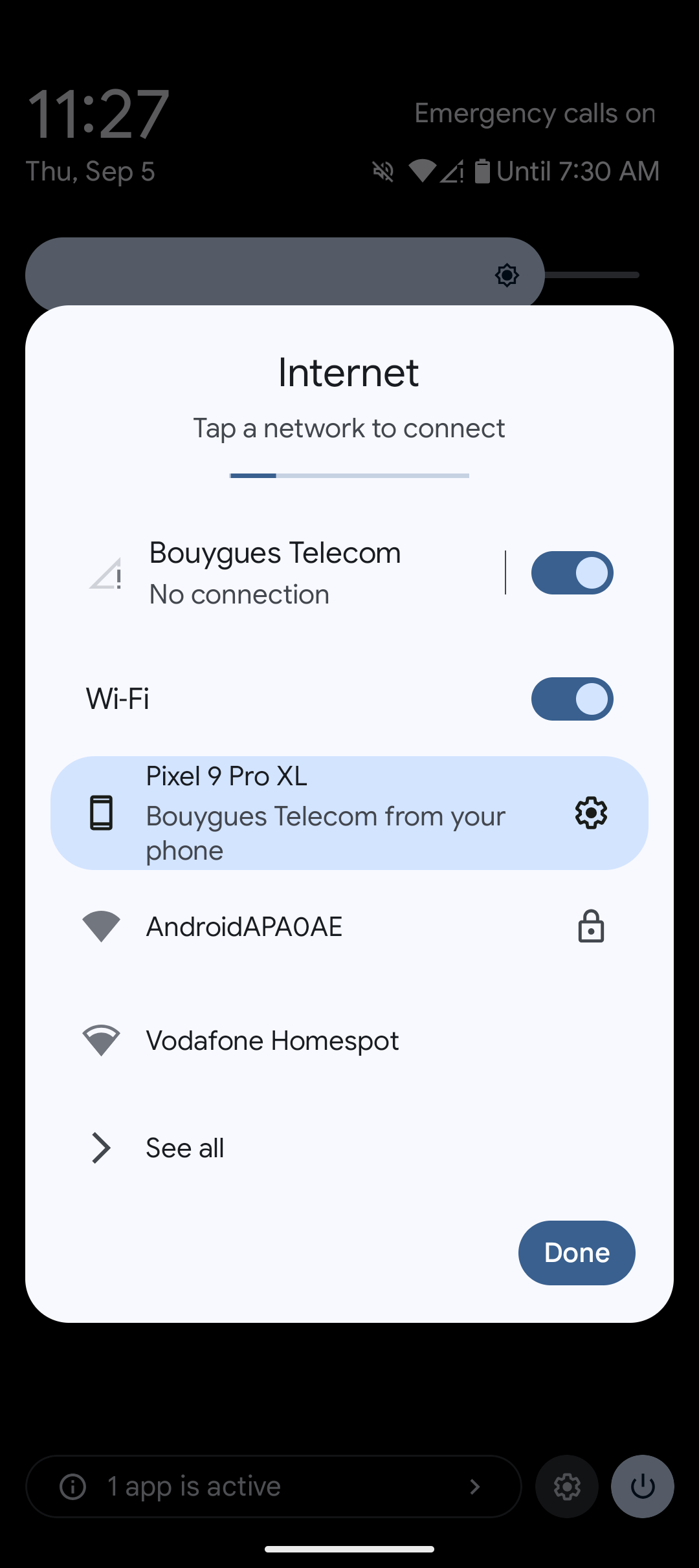
Should the automatic notification not appear, users can manually browse available Wi-Fi networks. The primary phone will be listed as an optional network at the top, identifiable by a phone icon. Tapping this option will initiate the same instant hotspot connection process.
How to cast a video call to your second phone or tablet
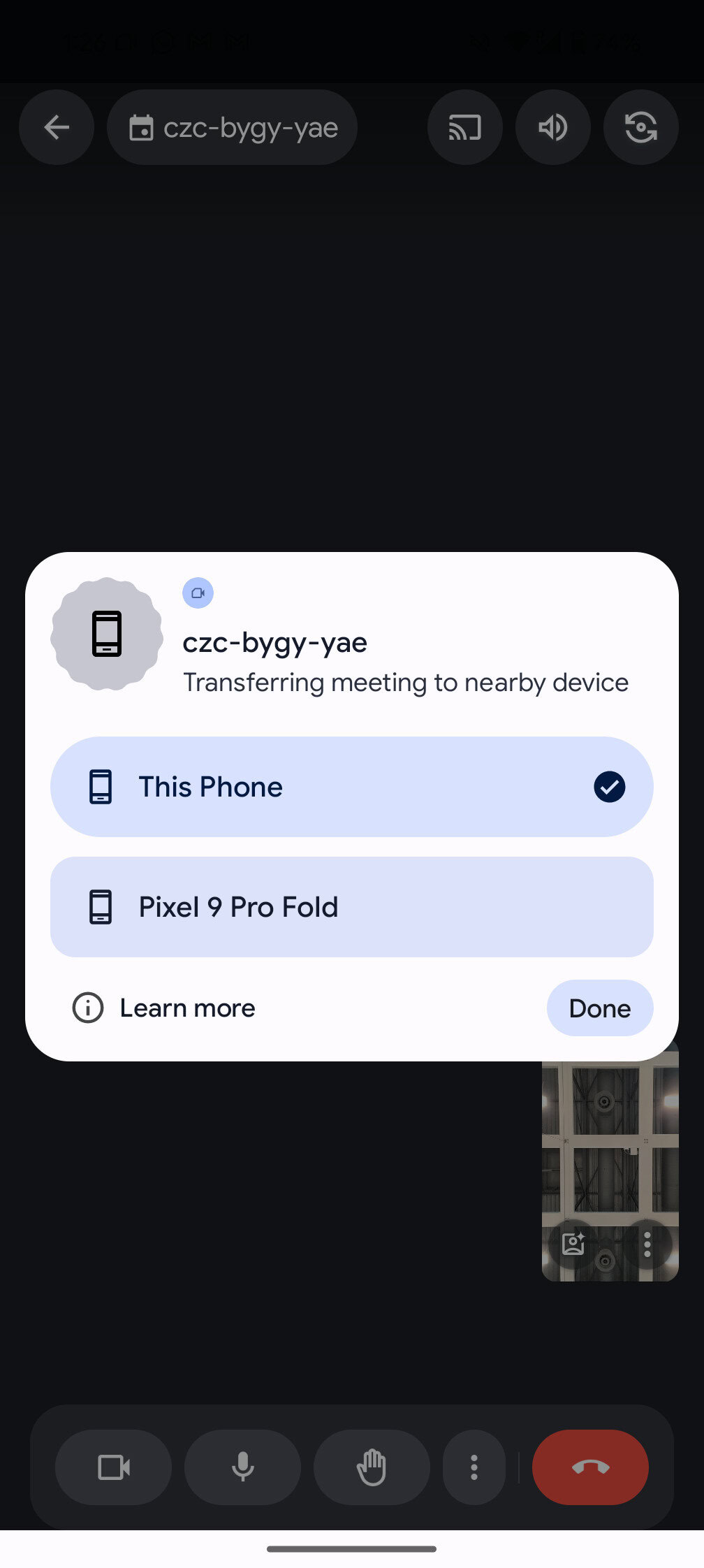
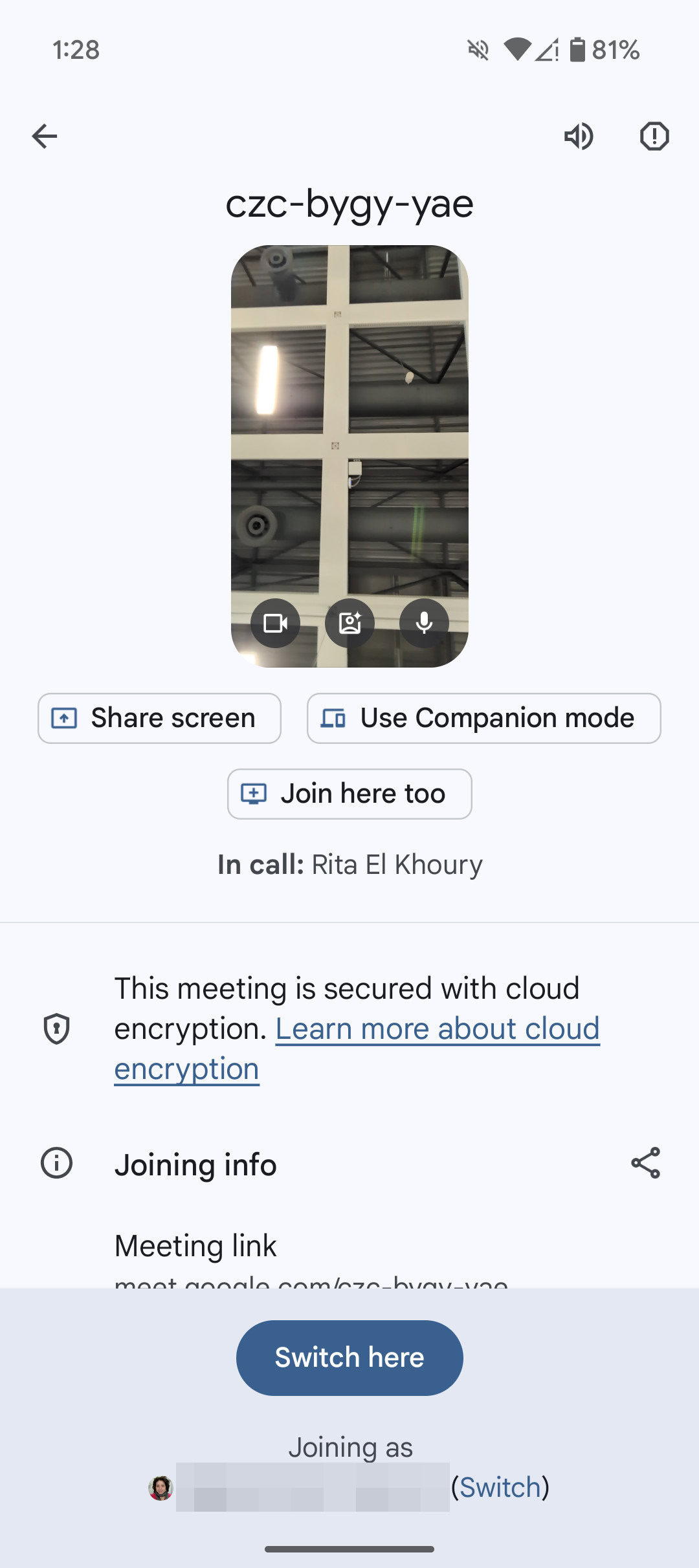
The second feature of cross-device services allows for transferring a video call between devices, such as from a phone to a tablet or vice-versa. During a Google Meet video call, tapping the Cast icon in the top right corner will display a prompt to transfer the call to other devices. A list of nearby compatible devices will appear, from which a selection can be made.
After selecting a device, the receiving device will automatically open Google Meet, load the video call screen, and request confirmation for the transfer. By selecting Switch here, the call will be transferred to the second device, while the original device will display a notification confirming the call has been moved.

A promising start for Apple-like Continuity and cross-platform integration
The cross-device functionalities offer significant convenience, particularly for users with multiple devices. For instance, when one device has a data connection (e.g., a Pixel 9 Pro XL with roaming) and another does not (e.g., a Pixel 9 Pro Fold), the instant hotspot feature allows the secondary device to access the internet without needing to manually activate or deactivate the hotspot on the primary device. This eliminates the need to touch or unlock the primary phone, streamlining the process of using a larger screen like a tablet while away from Wi-Fi and removing the inconvenience of manual hotspot management.
The simplicity of this integration is comparable to Fast Pair, a feature that now allows earbuds to seamlessly pair with new Android phones or switch between devices, a significant improvement over previous manual pairing methods.
Cross-device integration reminds me of Fast Pair. It’s smart, fast, and seamless.
Cross-device services provide a seamless transition experience, a feature long-awaited for stock Android. While some Android skins offered similar brand-specific functionalities, Google’s implementation across all Android devices benefits a wider user base, particularly those who use phones and tablets from various manufacturers.
It is anticipated that future updates will eliminate the need for manual setup, with cross-device services potentially being enabled by default or integrated into the initial phone setup process.
With this foundation established, further cross-device features from Google are expected. Potential future enhancements include copy-pasting across devices, instant media sharing without manual acceptance (with indications of Google developing cross-device Quick Share), and other options to simplify integration between multiple Android devices, irrespective of their brand.
