


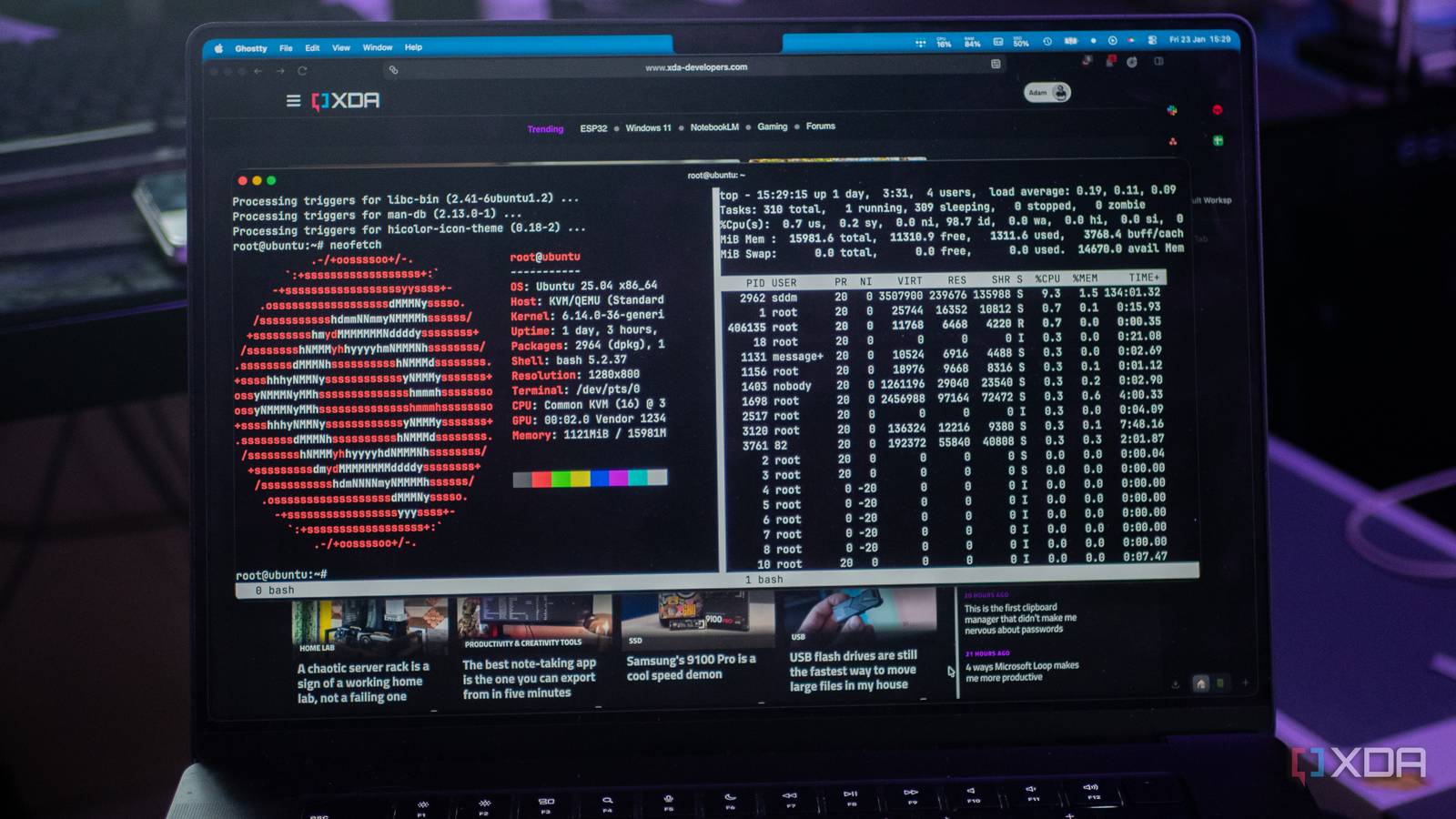
For many years, Linux users managing servers via SSH have relied on terminal multiplexers. While tmux is often considered the modern standard, screen remains a preferred choice for various tasks. Despite tmux’s advanced features and active development, screen offers distinct advantages, particularly for server administration, quick remote operations, or environments with software installation restrictions. Although screen might appear to be an older tool, its utility persists, and several reasons highlight its continued relevance.
Simplicity is Key
It Just Works
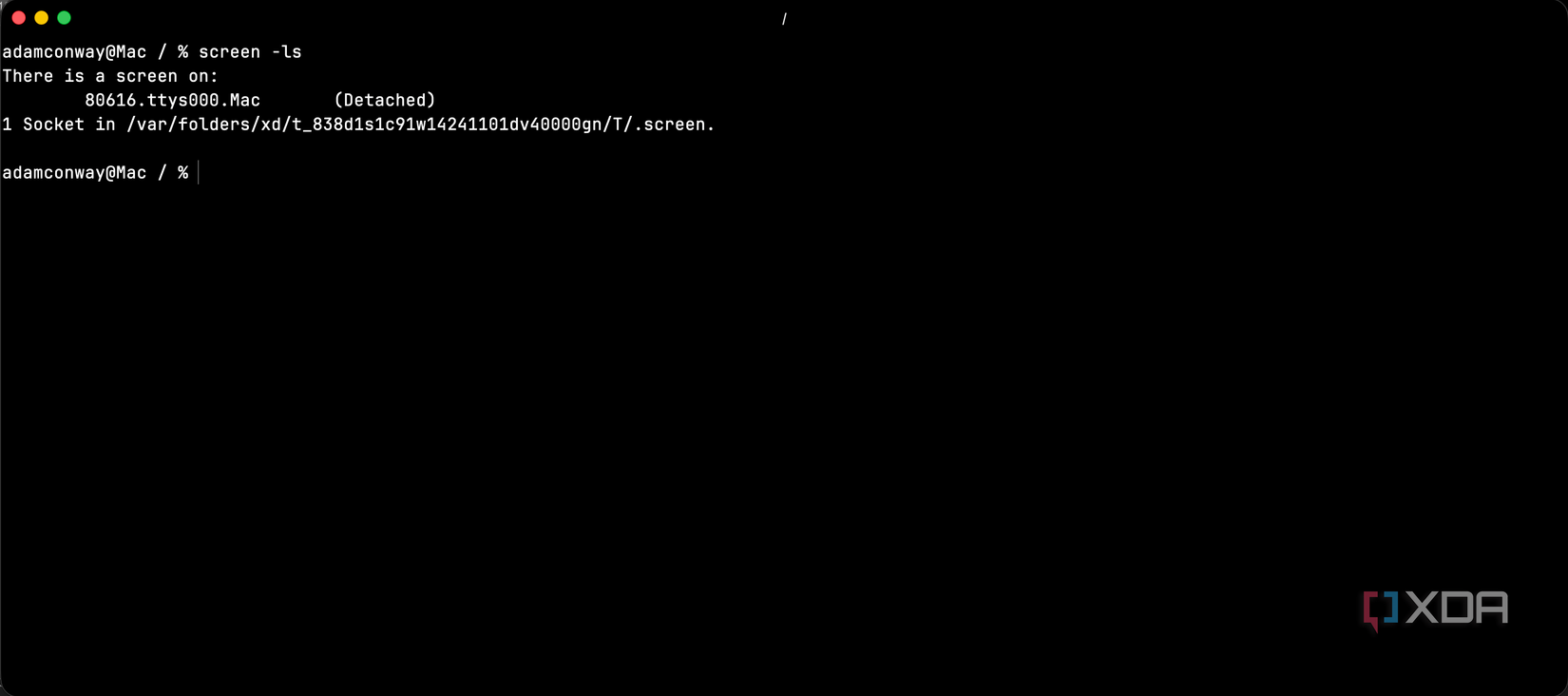
For users who primarily rely on terminal tabs for concurrent applications, the need for a terminal multiplexer over an SSH connection might be infrequent. However, in such scenarios, screen proves highly effective.
Screen’s limited feature set contributes to a lower cognitive load, making its commands easy to recall even after extended periods of disuse. The essential commands include:
- screen: Initiates a new session.
- screen -r: Reattaches to an existing session.
- screen -ls: Displays a list of active sessions.
- Ctrl+A D: Detaches from the current session.
- Ctrl+A C: Creates a new window within the session.
- Ctrl+A N/Ctrl+A P: Navigates to the next or previous window.
For vertical screen splitting, the following commands are typically sufficient:
- Ctrl+A |: Creates a vertical split.
- Ctrl+A Tab: Switches focus between windows.
- Ctrl+A C: Opens a new shell in the current pane.
These commands cover most use cases, allowing users to quickly remember and apply them. In contrast, tmux introduces more complex concepts such as sessions, windows, and panes, along with an attach command that requires understanding multiple flags. Additionally, remembering specific configurations set up long ago can be challenging.
Screen’s simplicity means users can focus on tasks rather than extensive configuration. While tmux excels for those who enjoy customizing their environment, screen offers a straightforward experience without the perceived friction of advanced setup.
Ease of Scripting and Outputting Results
Much Shorter Commands
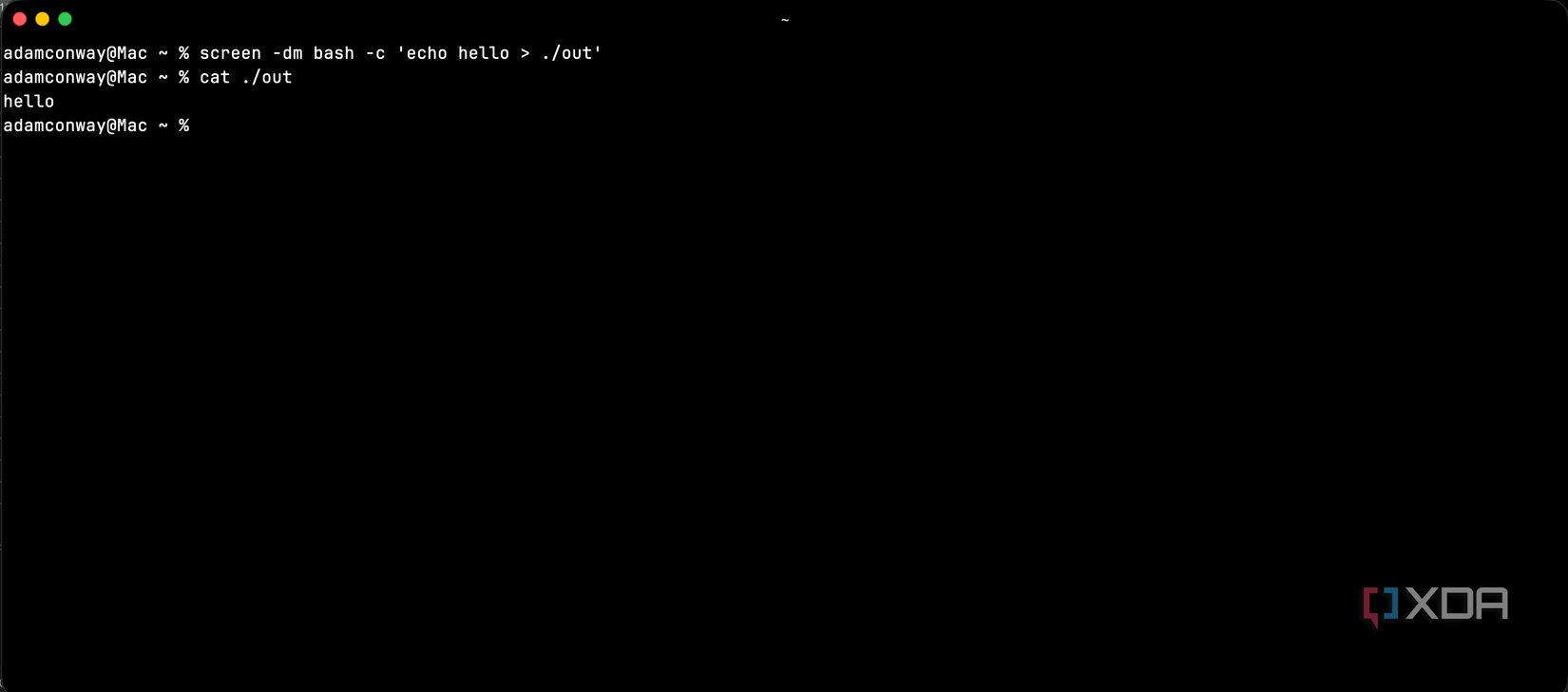
For tasks involving game servers or other background processes, initiating a new screen session via a script is often more straightforward than with tmux. To start a detached session that executes a command in screen, the command is:
screen -dmS sessionName ./script.sh
Conversely, tmux requires a more verbose syntax:
tmux new-session -d -s sessionName './script.sh'
While the difference might appear minor, tmux’s syntax is notably heavier. Sending keystrokes to a specific tmux pane involves navigating window.pane syntax and identifying the pane number. Similarly, capturing output in tmux typically requires using save-buffer with specific flags for precise control. A more direct, though less precise, method might look like this:
tmux capture-pane -t sessionName:1.2 -p -S -1000 > output.txt
In this tmux command, -t specifies the target, -p prints to stdout, and -S indicates the start line (with a negative value for scrollback). Screen offers a simpler approach for capturing output:
screen -S dev -p 2 -X hardcopy output.txt
To obtain the entire scrollback buffer in screen, the command is simply “hardcopy -h fileName”. While tmux provides greater precision by allowing targeting of specific sessions, windows, and panes, and managing named save-buffers, screen adopts a “good enough” philosophy. It allows targeting sessions and windows to dump output, addressing most common needs with significantly less syntax.
Built-in Serial Console Support
Great for Embedded Devices
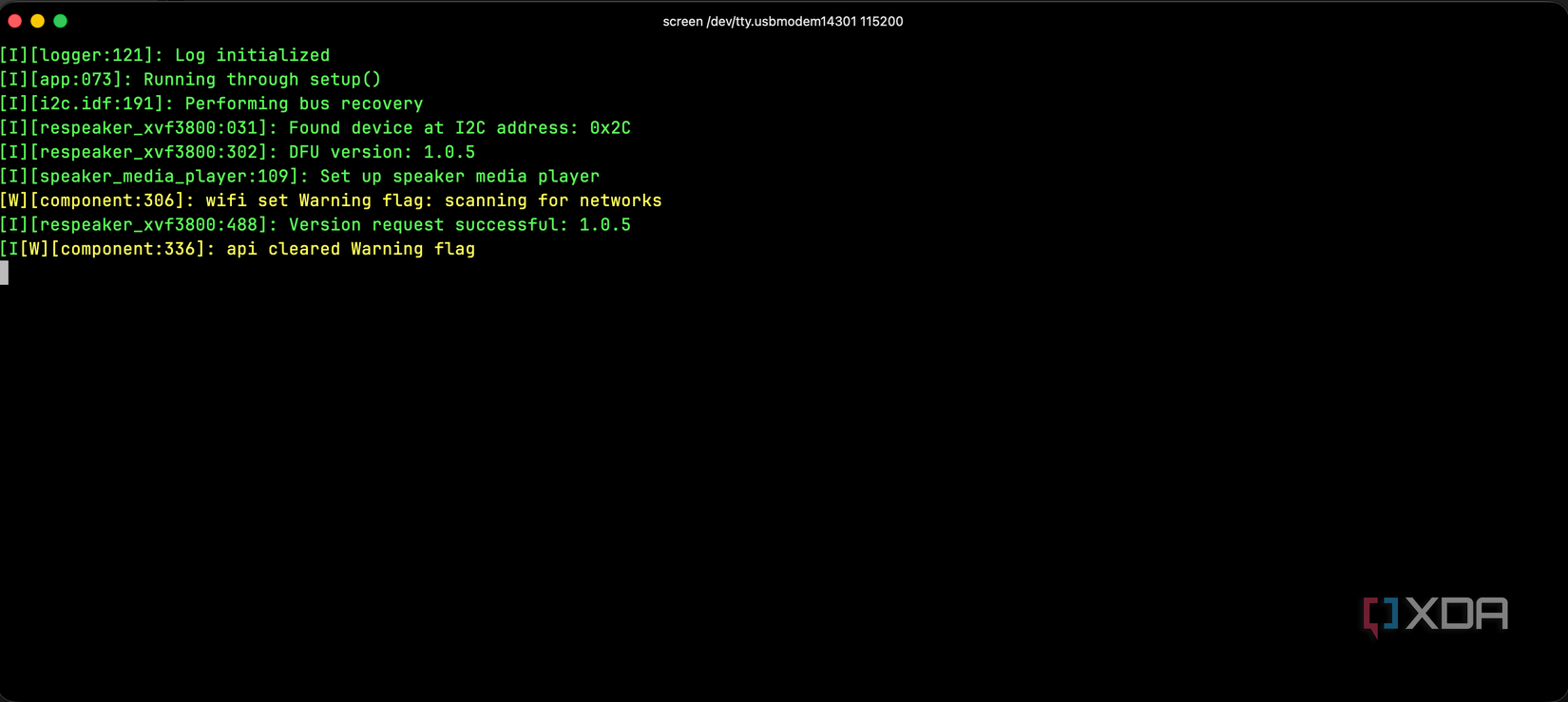
Screen includes built-in support for connecting to a serial output, a feature that has become increasingly valuable. Users only need to specify the serial port location and baud rate, and screen manages the connection:
screen /dev/ttyUSB0 115200
For individuals working with embedded devices, such as the ESP32 or other hardware with serial connections, this capability is highly beneficial. It provides a straightforward method for monitoring device outputs without the need for additional external tools or web interfaces.
Given that screen is often preinstalled on most Linux systems, setting up a serial listener is quick and easy. The session remains active even after detaching, allowing users to conveniently monitor device activity at any time without repeatedly establishing a connection.
Handles Disconnects Gracefully
“screen -dr” is Your Friend
Managing servers over SSH often involves dealing with dropped connections due to various factors like mobile data instability, ISP outages, or VPN issues. In such situations, screen typically manages these disconnects seamlessly. Users can simply reconnect and execute screen -r (or screen -dr if necessary) to resume their work exactly where they left off.
Tmux’s client-server architecture can be more temperamental when connections are interrupted. Users might encounter warnings about nested sessions or need to use tmux attach -d to forcibly detach a lingering client before re-establishing a connection. Screen’s simpler “one process, one session” architecture reduces the complexity and potential for state confusion. In most problematic scenarios, screen -dr reliably resolves reconnection issues.
For environments with unreliable network connections, screen often provides a smoother and less frustrating experience compared to tmux.
Both Are Still Great
It is important to note that these points are not intended to diminish tmux’s capabilities; indeed, it is often considered the more powerful and feature-rich tool overall. However, screen’s advantages lie in its simplicity, ease of use, and robust handling of inconsistent network connections. For individuals who spend extensive time in the terminal performing complex tasks, tmux remains an excellent choice. Yet, for more casual terminal users, screen provides ample functionality when needed. Those who find tmux challenging might discover that screen better aligns with their workflow.
