
Close Menu
    Latest Post

    Verifying 5G Standalone Activation on Your iPhone

    March 1, 2026

    Hands on: the Galaxy S26 and S26 Plus are more of the same for more money

    March 1, 2026

    IronCurtain: A Secure AI Agent Designed to Prevent Rogue Actions

    March 1, 2026
    Facebook X (Twitter) Instagram
    Trending
    • Verifying 5G Standalone Activation on Your iPhone
    • Hands on: the Galaxy S26 and S26 Plus are more of the same for more money
    • IronCurtain: A Secure AI Agent Designed to Prevent Rogue Actions
    • Kwasi Asare’s Entrepreneurial Journey: Risk, Reputation, and Resilience
    • The Rubin Observatory’s alert system sent 800,000 pings on its first night
    • GitHub Actions Now Supports Unzipped Artifact Uploads and Downloads
    • Project Genie: Experimenting with Infinite, Interactive Worlds
    • Text Generation Using Diffusion Models and ROI with LLMs
    Facebook X (Twitter) Instagram Pinterest Vimeo
    NodeTodayNodeToday
    • Home
    • AI
    • Dev
    • Guides
    • Products
    • Security
    • Startups
    • Tech
    • Tools
    NodeTodayNodeToday
    Home»Guides»Optimizing Notifications on Samsung Galaxy S25 with One UI 7
    Guides

    Optimizing Notifications on Samsung Galaxy S25 with One UI 7

    Samuel AlejandroBy Samuel AlejandroJanuary 26, 2026No Comments2 Mins Read
    Share Facebook Twitter Pinterest LinkedIn Tumblr Reddit Telegram Email
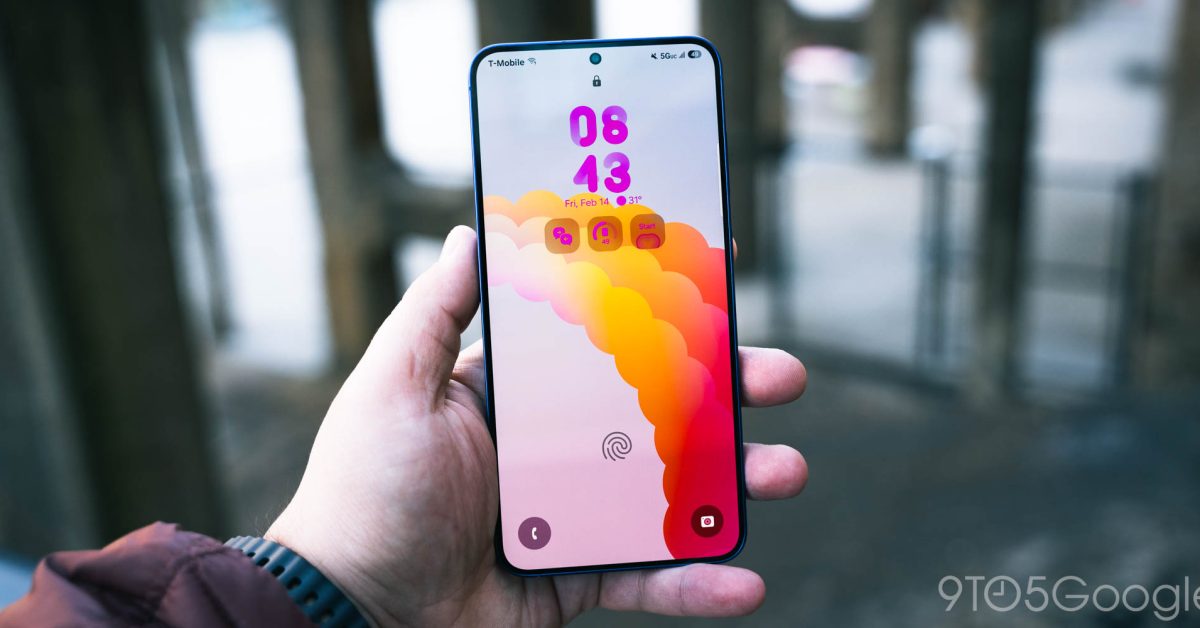
    src urhjvj featured
    Share
    Facebook Twitter LinkedIn Pinterest Email

    Samsung Galaxy smartphones, especially those running One UI 7, offer extensive control over how notifications are delivered. While the default settings are functional, users can significantly enhance their experience by customizing these alerts to better suit their preferences and reduce distractions.

    Understanding Notification Settings in One UI 7

    One UI 7 provides a robust set of tools for managing notifications. Accessing these settings allows for granular control over individual apps, notification styles, and how alerts appear on the lock screen or during active use.

    Adjusting Notification Styles

    Users can choose between “Brief” and “Detailed” notification styles. Brief notifications provide a concise pop-up, often with an icon and a short message, while Detailed notifications expand to show more content directly in the notification panel.

    • Brief Notifications: Ideal for minimal interruption, showing only essential information.
    • Detailed Notifications: Provides full message content and quick actions directly in the notification shade.

    Customizing App-Specific Notifications

    Each application can have its notification settings individually configured. This is crucial for prioritizing important apps and silencing less critical ones.

    1. Navigate to the device’s main “Settings” menu.
    2. Select “Notifications.”
    3. Tap on “App notifications” to see a list of all installed applications.
    4. Choose a specific app to adjust its notification categories.
    5. Within each app, users can enable or disable specific notification types (e.g., “New messages,” “Promotions,” “Reminders”) and customize their sound, vibration pattern, and whether they appear on the lock screen or as pop-ups.

    Managing Lock Screen Notifications

    Notifications on the lock screen can be a privacy concern or simply clutter. One UI 7 allows users to control their visibility.

    • From the “Notifications” settings, select “Lock screen notifications.”
    • Options include showing all content, hiding content, or not showing notifications at all.
    • Individual app settings can also override this global setting, allowing sensitive apps to hide content even if the global setting is to show it.

    Utilizing Do Not Disturb Mode

    For periods requiring focus, “Do Not Disturb” mode is invaluable. It can be scheduled or manually activated to silence all or most notifications, calls, and alarms.

    Users can configure exceptions for important contacts or repeated calls, ensuring critical communications still get through.
    Image 1

    By taking the time to explore and customize these notification settings in One UI 7 on the Galaxy S25, users can create a more personalized and less disruptive smartphone experience, ensuring they only receive alerts that truly matter.

    Share. Facebook Twitter Pinterest LinkedIn Tumblr Email
    Previous ArticleMotorola Moto G06 Power Review: Can an £89 Android Phone Deliver?
    Next Article Developers’ Frustrations: The Unseen Impact of Poor Documentation
    Samuel Alejandro

    Related Posts

    Guides

    Verifying 5G Standalone Activation on Your iPhone

    March 1, 2026
    Products

    Hands on: the Galaxy S26 and S26 Plus are more of the same for more money

    March 1, 2026
    Guides

    Modern PC hardware failure rates aren’t increasing, the expectations are just higher

    March 1, 2026
    Add A Comment
    Leave A Reply Cancel Reply

    Latest Post

    ChatGPT Mobile App Surpasses $3 Billion in Consumer Spending

    December 21, 202517 Views

    Automate Your iPhone’s Always-On Display for Better Battery Life and Privacy

    December 21, 202515 Views

    Creator Tayla Cannon Lands $1.1M Investment for Rebuildr PT Software

    December 21, 202514 Views
    Stay In Touch
    • Facebook
    • YouTube
    • TikTok
    • WhatsApp
    • Twitter
    • Instagram
    About

    Welcome to NodeToday, your trusted source for the latest updates in Technology, Artificial Intelligence, and Innovation. We are dedicated to delivering accurate, timely, and insightful content that helps readers stay ahead in a fast-evolving digital world.

    At NodeToday, we cover everything from AI breakthroughs and emerging technologies to product launches, software tools, developer news, and practical guides. Our goal is to simplify complex topics and present them in a clear, engaging, and easy-to-understand way for tech enthusiasts, professionals, and beginners alike.

    Latest Post

    Verifying 5G Standalone Activation on Your iPhone

    March 1, 20264 Views

    Hands on: the Galaxy S26 and S26 Plus are more of the same for more money

    March 1, 20265 Views

    IronCurtain: A Secure AI Agent Designed to Prevent Rogue Actions

    March 1, 20264 Views
    Recent Posts
    • Verifying 5G Standalone Activation on Your iPhone
    • Hands on: the Galaxy S26 and S26 Plus are more of the same for more money
    • IronCurtain: A Secure AI Agent Designed to Prevent Rogue Actions
    • Kwasi Asare’s Entrepreneurial Journey: Risk, Reputation, and Resilience
    • The Rubin Observatory’s alert system sent 800,000 pings on its first night
    Facebook X (Twitter) Instagram Pinterest
    • About Us
    • Contact Us
    • Privacy Policy
    • Terms & Conditions
    • Disclaimer
    • Cookie Policy
    © 2026 NodeToday.

    Type above and press Enter to search. Press Esc to cancel.