


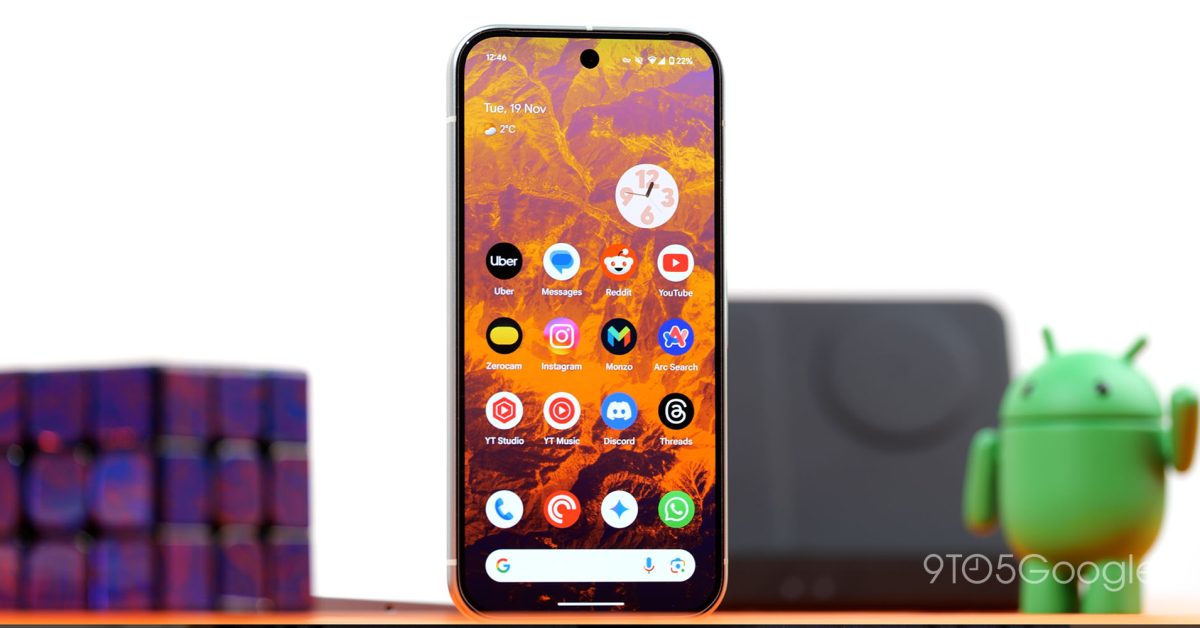
Google Pixel smartphones include a valuable accessibility feature designed to assist individuals with color vision deficiencies. The color correction tool allows users to adjust their device’s display to better differentiate between colors, enhancing the overall viewing experience.
Accessing Color Correction Settings
To enable and configure the color correction feature on a Pixel device, follow these steps:
- Navigate to the Settings application on your Pixel phone.
- Scroll down and tap on Accessibility.
- Under the “Display” section, locate and select Color correction.
Understanding Different Correction Modes
Within the Color correction settings, users will find various options tailored to different types of color blindness. These modes adjust the display’s color palette to compensate for specific color vision deficiencies:
- Deuteranomaly (Red-green color blindness): This is the most common form, where green appears more red. The correction adjusts the display to make green hues more distinct.
- Protanomaly (Red-green color blindness): Similar to deuteranomaly, but red appears more green and less bright. The correction aims to enhance the perception of red.
- Tritanomaly (Blue-yellow color blindness): A rarer form where blue appears greener and yellow appears violet or light grey. The correction helps distinguish blue and yellow tones.
Users can experiment with these modes to find the one that provides the most comfortable and accurate visual experience for their specific needs.
Enabling and Disabling Color Correction
Once a preferred correction mode is selected, the feature can be toggled on or off directly from the Color correction menu. There is typically a switch at the top of the screen to activate or deactivate the correction. It is recommended to test the different modes to determine which one best suits individual visual requirements.
